Pular para o conteúdo
Docs
  • Ticket no Helpdesk

Sales

4
  • How to check which seller is associated with an order?
  • How to Export Invoices in PDF
  • Post-Sale Email Configuration
  • How to Recreate a Child Order ?

Catalog

22
  • Sales region setup
  • How to create a virtual product ?
  • How to Add Related Products to Your Listing
  • How to Add an Attribute Inside an Attribute Group
  • How to Create Custom Options in Products
  • How to Create an Attribute Group
  • How to Create a Default Attribute on the Platform
  • How to Add or Edit Attribute Options in Your Catalog
  • How to Select Attributes for Products
  • How to Activate a Product for Sale in the Multiseller Model
  • How to Change Product Visibility in the Marketplace
  • How to Add Additional Days to Shipping
  • How to Remove a Category from the Filter Listing
  • Seal Configuration on the Website
  • How to Update Attributes in Bulk Through the Admin Panel
  • How to Add or Remove the Minimum Sales Quantity of a Product
  • How to create a grouped product?
  • How to create a simple product ?
  • Categories
    • How to Create a Carousel Product Grid on the Homepage?
    • How to Change the Name of a Category?
    • How to Include a Custom Description in Categories
    • How to Change the Order of Products in Categories

Documentação para o Time Interno da Soul

1
  • Two-Factor Authentication Activation

Promotions

7
  • How to Create and Configure Promotion Rules with Free Gifts
  • Discount Configuration for MultiSeller Marketplace (Original to Sale Price Model)
  • How to Create a Discount Coupon?
  • How to Create a Discount Rule Without a Coupon ?
  • Discount Rule Templates
  • Abandoned Cart Creation and Configuration
  • How to Create a Discount Coupon for an Abandoned Cart

Content

8
  • How to Create a Grouped Product?
  • How to Add Recipients to Forms
  • HOW TO CONFIGURE BLOG PRO
  • How to verify received forms
  • How to Create an Email Template with a Coupon for an Abandoned Cart
  • How to Change Field Requirements in Forms on the Platform
  • How to Change Home Page Banners
  • How to Check Received Forms

Seo/Marketing

1
  • How the Synonyms Feature Works in SEO

Marketplace

3
  • How to Allow or Restrict Purchases from Multiple Sellers in the Same Cart
  • How to Create, Disable, or Delete an Address in the Store Locator of the Soul Marketplace ?
  • Identifying the Seller Associated with an Order

Communications

2
  • How do I enable or disable comments on products?
  • How to enable the WhatsApp button

Reports

5
  • Adding Variables and Parent Order Fields to the Report
  • How to view the approved orders report
  • How to View the Abandoned Cart Report ?
  • How to View the Most Viewed Products Report
  • How to View the Best-Selling Products Report

System

6
  • How to check the records of new updates or improvements to the Marketplace?
  • How to Register Error Logs for Order Creation Attempts
  • How to Enable the Vertical Layout in Checkout
  • Display quote-only products only after priced products
  • How to Create an Administrative API User
  • New Tax Amount Display Feature

Seller Dashboard

5
  • How to Log in as a Reseller?
  • How to approve or disapprove a seller profile
  • Activating or Deactivating a Seller’s Store
  • New free shipping configuration in the reseller pane
  • How to change the free shipping field of the product via spreadsheet?

First Steps

1
  • How to Set Up Google Two-Factor Authentication
Ver categorias

How to verify received forms

2 minutos de leitura

Notification Methods for Completed Forms #

There are two ways to track completed forms:

  • Email Notification: Receive an alert whenever a form is submitted.
  • Platform Verification: Check the forms directly in the administration panel.

Email Notification Setup #

To set up email notifications:

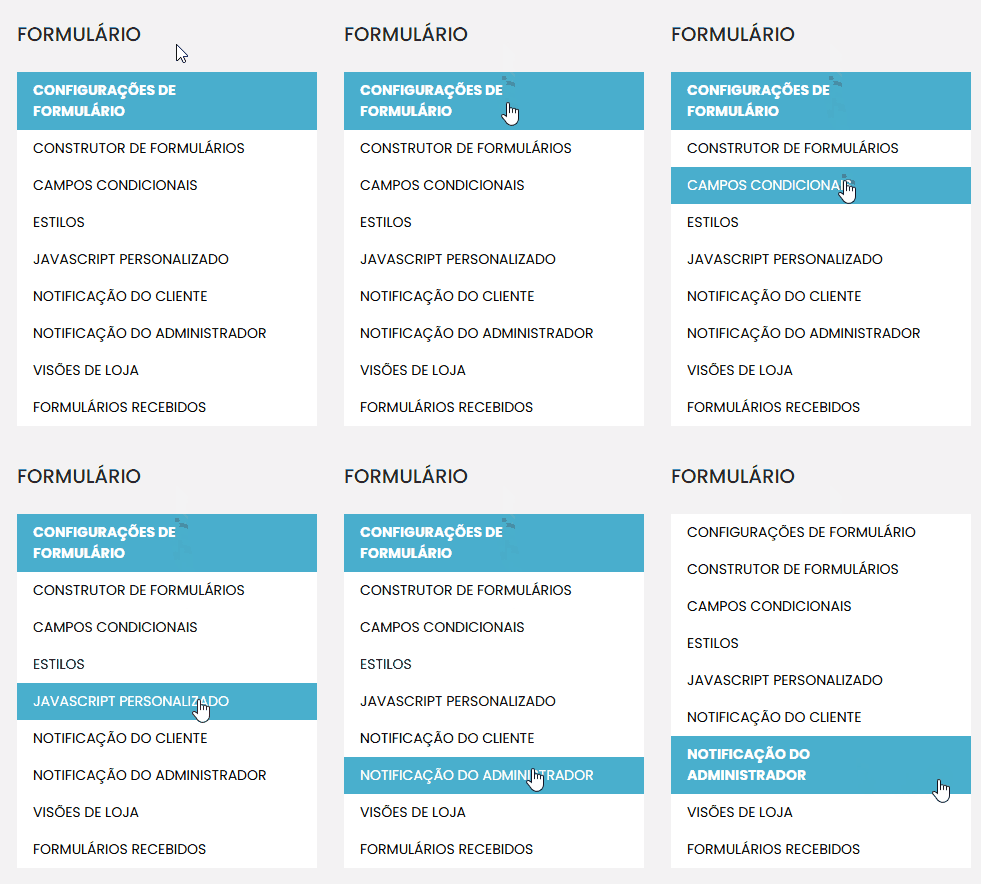
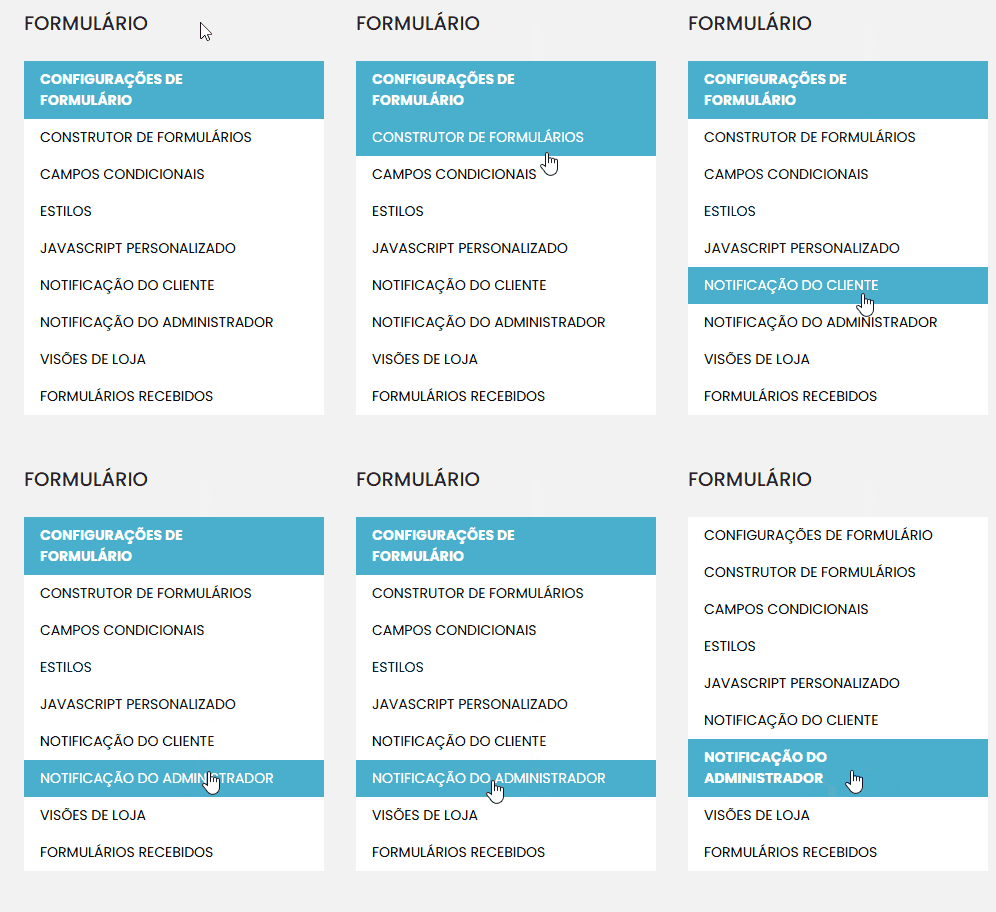
  1. In the sidebar menu, go to Content > Form Management > Forms.
  2. Locate the desired form and click to edit it.
  3. Navigate to the Admin Notifications tab.
  4. Fill in the “Recipient Email” field with the email address that will receive the notifications.

Tip: To identify the correct form, right-click on any field of the form, select Inspect, and look for the form identifier (e.g., Form ID).

Conditional Notification: #

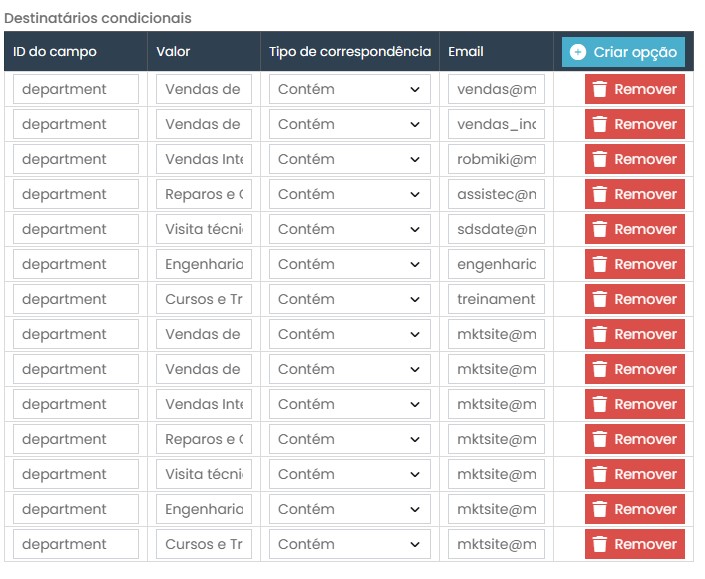
You can set up specific notifications based on conditional fields, such as “Department of Interest.”

To do this, in the notifications tab, add a condition:

  1. Enter the ID of the corresponding field (e.g., DEPARTMENT).
  2. Define the exact value to be used as a criterion (e.g., “I am a Buyer”).
  3. In the “Email” field, enter the address for the conditional notification.
2. Form Verification in the Administration #

If you prefer to track forms directly on the platform:

  1. In the sidebar menu, go to Content > Form Management > Received Forms.

Use the available filters to locate the desired forms:

  • Date Range: Filter by a specific date range.
  • Store: Select forms from a specific store (if you have more than one).
  • Customer Name or Email: Find forms submitted by specific customers.

In the list of received forms, you can view details such as:

  • Name
  • Phone
  • Email
  • Department
  • Message content

Additionally, you can check the emails that received the configured notifications.

Final Considerations #

With these instructions, you will be able to:

  • Set up email notifications to track completed forms.
  • Access and analyze forms directly in the platform’s dashboard.

I hope this guide has been helpful. If you have any questions, please contact our support team.

Quais são seus sentimentos
Atualizado em 7 de janeiro de 2025
How to Change Field Requirements in Forms on the PlatformHOW TO CONFIGURE BLOG PRO
Tabela de conteúdos (TOC)
  • Notification Methods for Completed Forms
  • Email Notification Setup
  • Conditional Notification:
  • 2. Form Verification in the Administration
  • Final Considerations
© 2026 Docs • Built with GeneratePress