
Overview
By default, all categories are displayed as filtering options in catalog navigation.
However, some categories are intended exclusively for internal use or landing pages. In such cases, displaying them as filters may be unnecessary or inconsistent with the store’s strategy.
This documentation will guide you through the process of removing a category from appearing as a filter in other categories or landing pages. <br>
Access Restrictions
Please note that filter settings are not available for sub-admin accounts.
If you need to remove a category from the filter listing and do not have the necessary permissions, please open a ticket through the Support Panel requesting either access to the function or that our support team handle the configuration for you.
Accessing Filter Settings
To locate the category filter settings:
- Wait for the page to load.
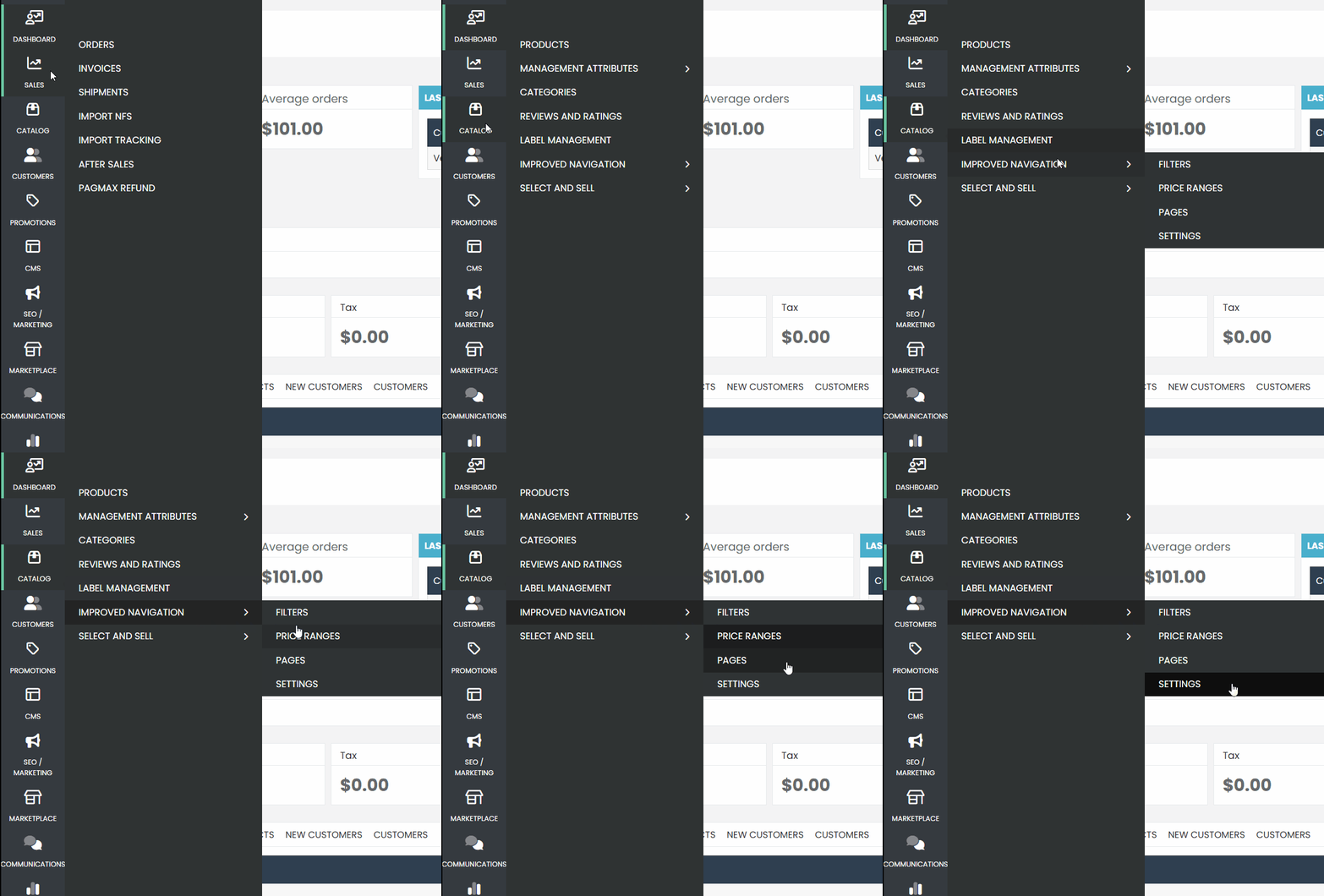
- In the sidebar menu, go to Catalog.
- In the submenu, select Improved Navigation, and then click on Settings.
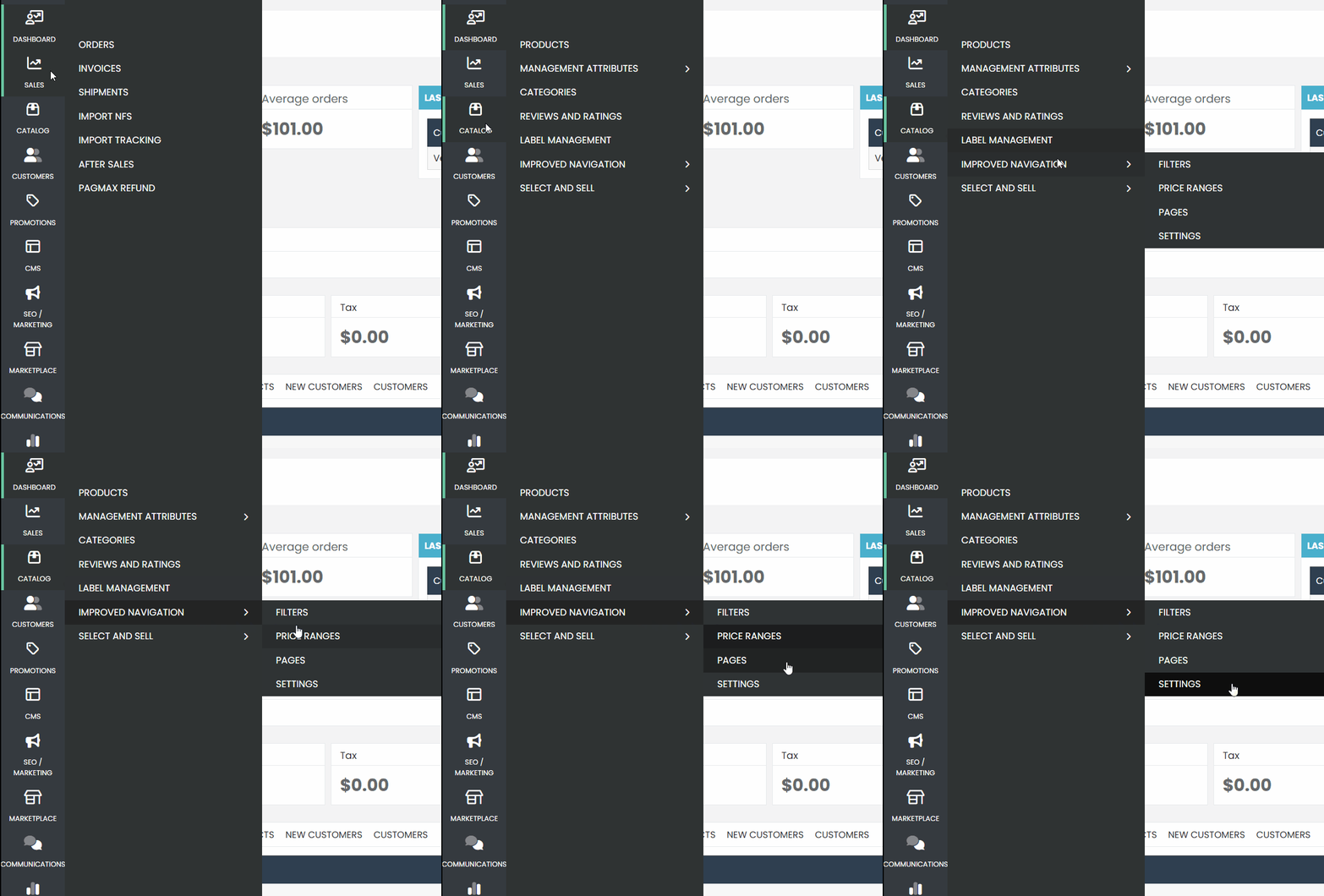
Accessing the Category Filter Page
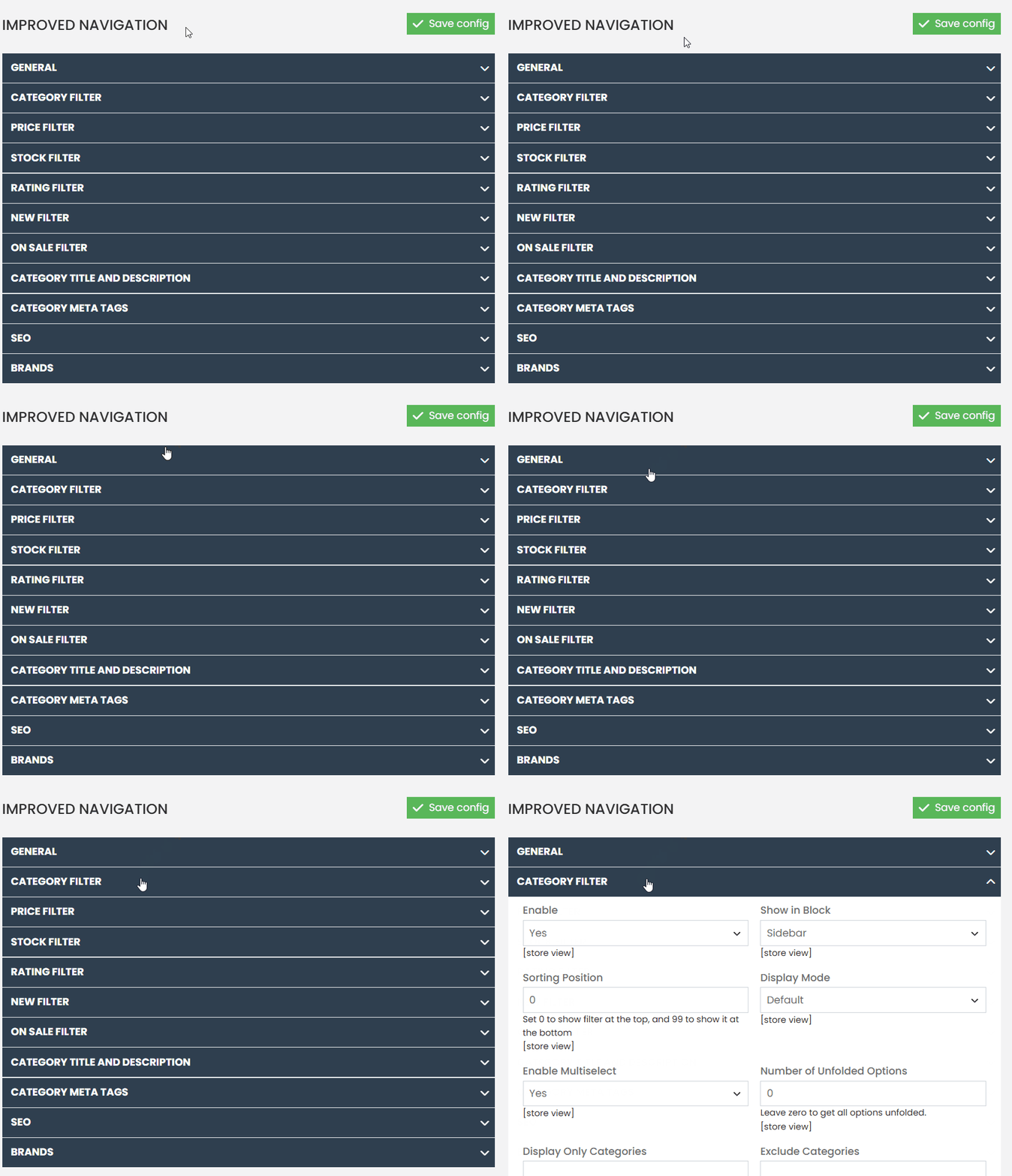
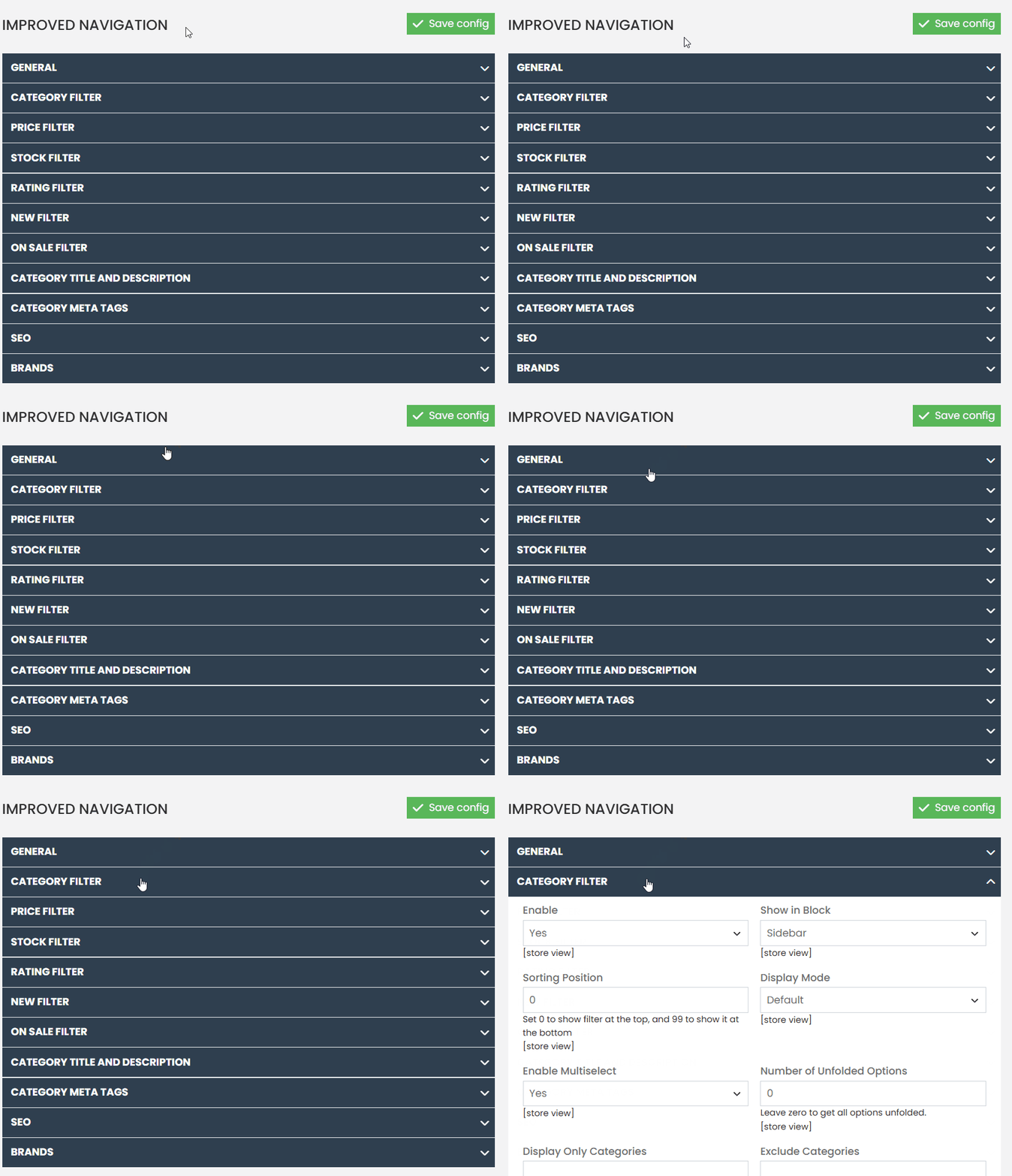
- Once in Settings, locate and click on the Category Filter option.
- This will open a new page with specific filter configuration options related to categories.
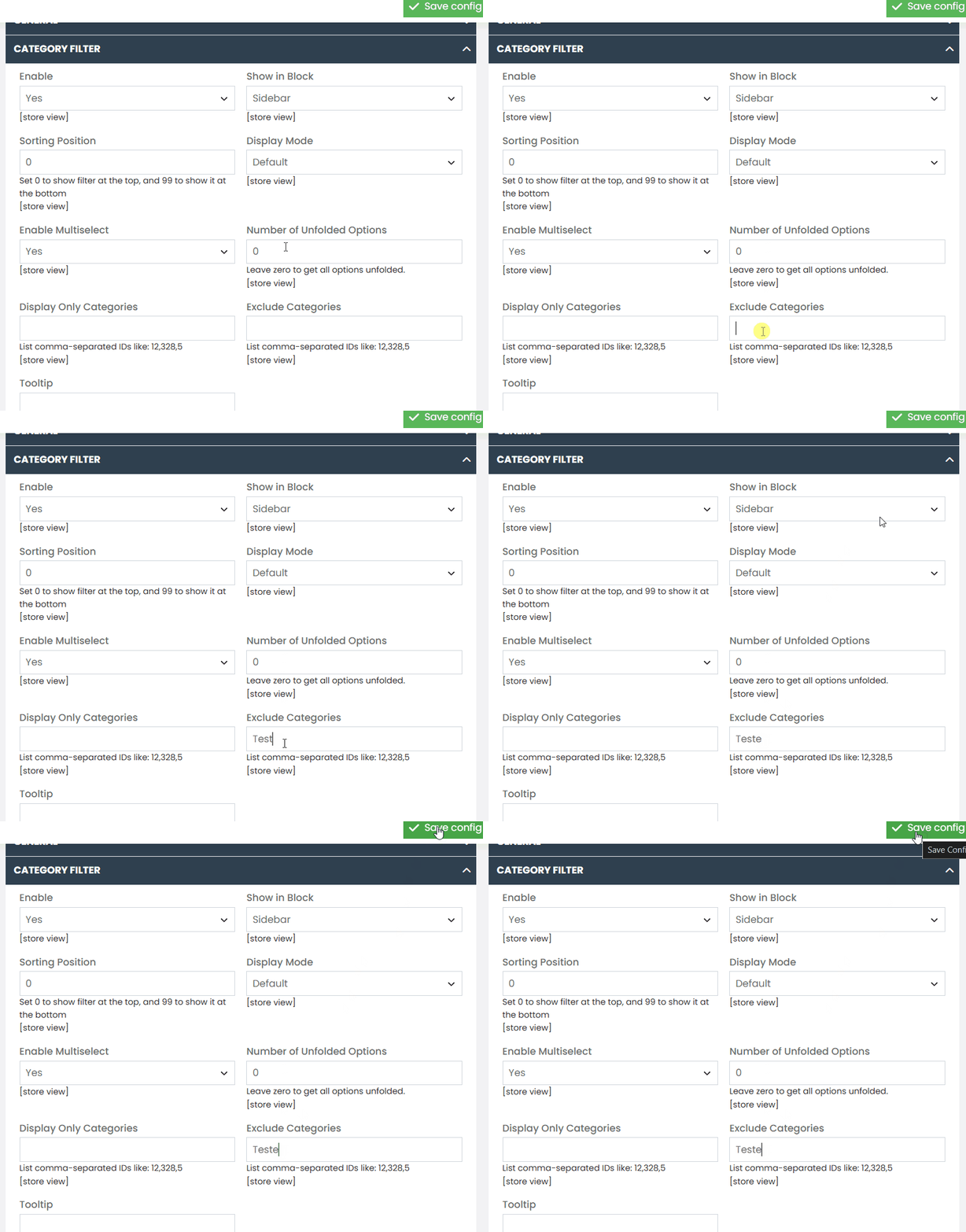
Excluding Categories
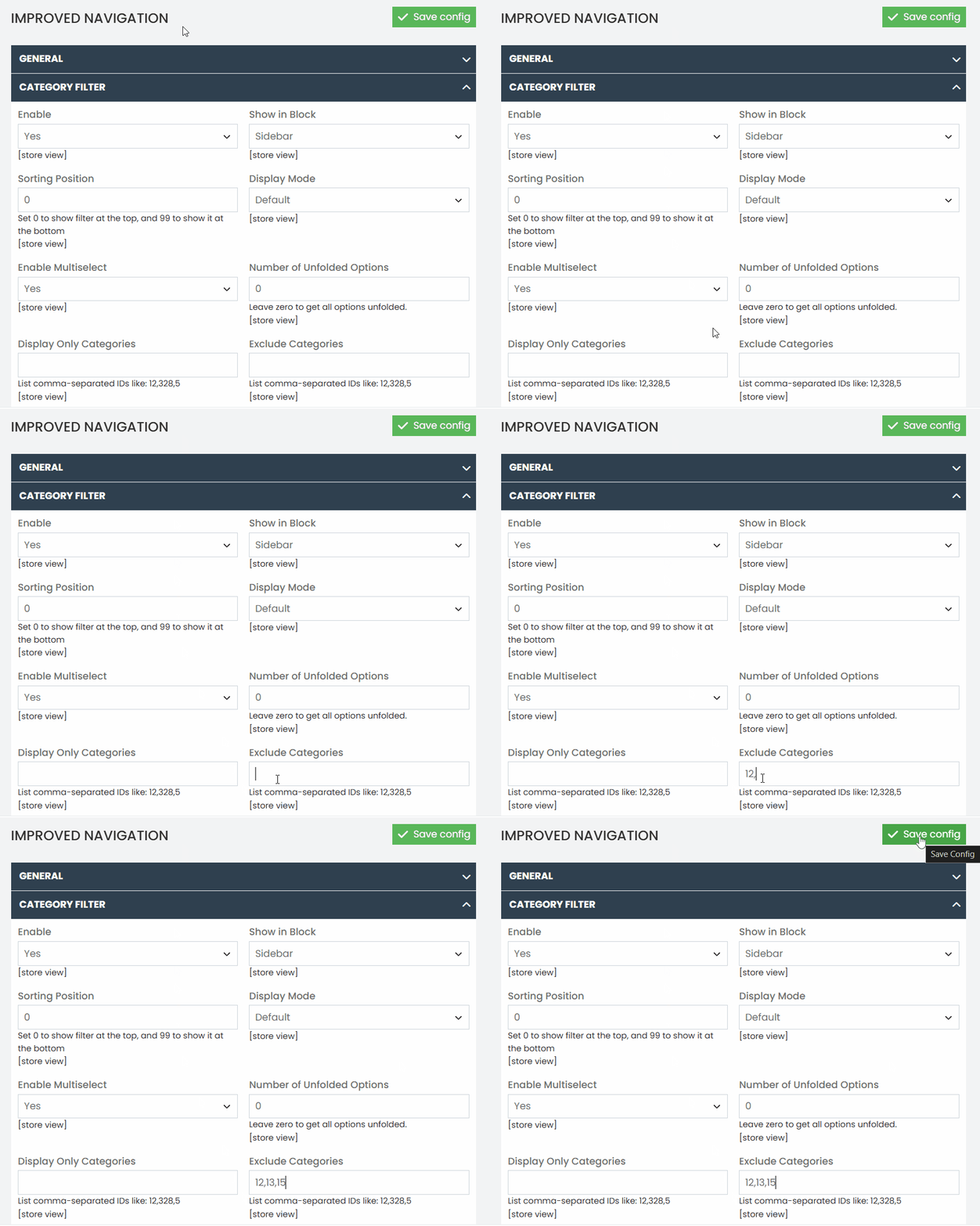
In the text field provided, enter the Category ID you wish to exclude from appearing in filters.
On the Category Filter page, locate the setting named Exclude Categories.
How to Find the Category ID
- If you don’t know the Category ID, follow these steps:
- Copy only the numerical value of the ID.
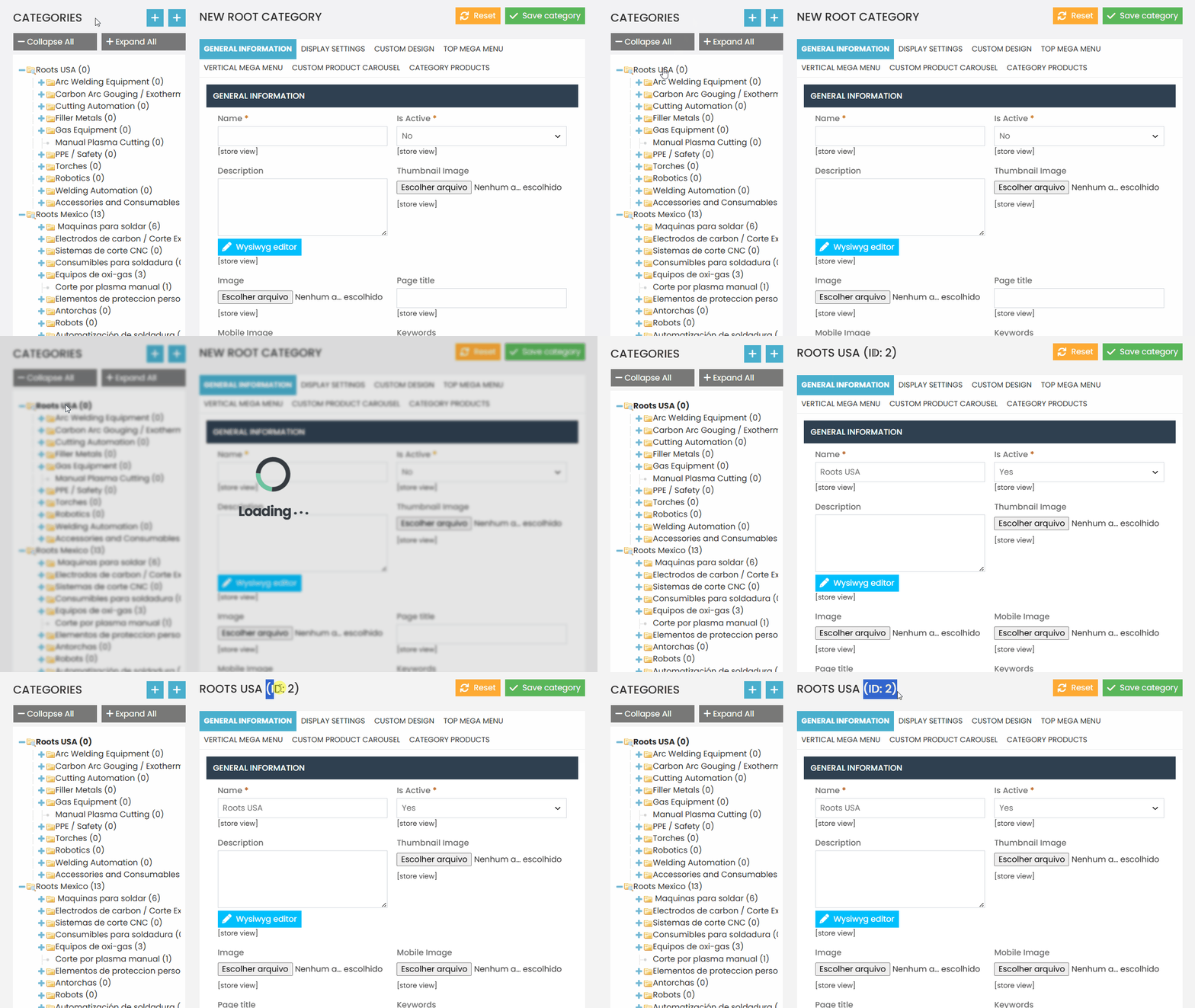
- In the sidebar menu, go to Catalog > Categories.
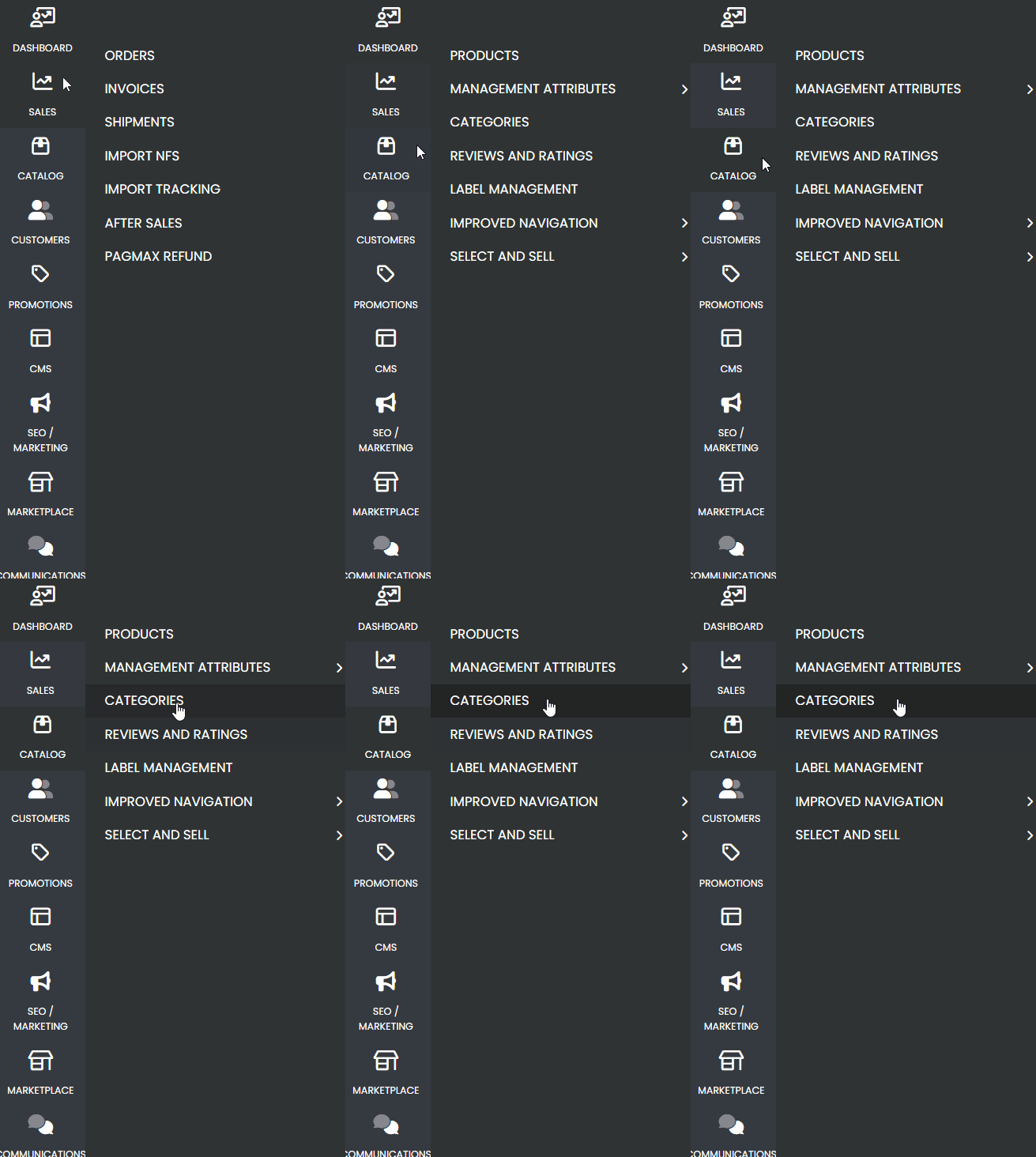
- Wait for the page to load, and among the listed categories and subcategories, select the one for which you want to check the ID.
- After selecting the category, the category ID will be displayed right next to its name at the top of the page. Copy only the numbers corresponding to the category ID.
- With the category ID numbers copied, simply return to “CATALOG,” then go to “IMPROVED NAVIGATION,” “SETTINGS,”
- On the new page, click on the submenu Category Filter, and locate the option Exclude Categories.
- In the text field provided, enter the copied Category ID number.
- If you want to remove more than one category, enter all the category IDs you wish to exclude, separated by commas (,).
If you have any difficulties or questions, don’t hesitate to contact our support team. We are always available to help!