
Adding free shipping through a spreadsheet is an efficient way to update the ‘Free Shipping’ field for multiple products at once.
To begin this process, first access the seller dashboard. If you’re not familiar with this procedure, we recommend reading the article “HOW TO ACCESS MY SELLER ACCOUNT“ for a step-by-step guide.
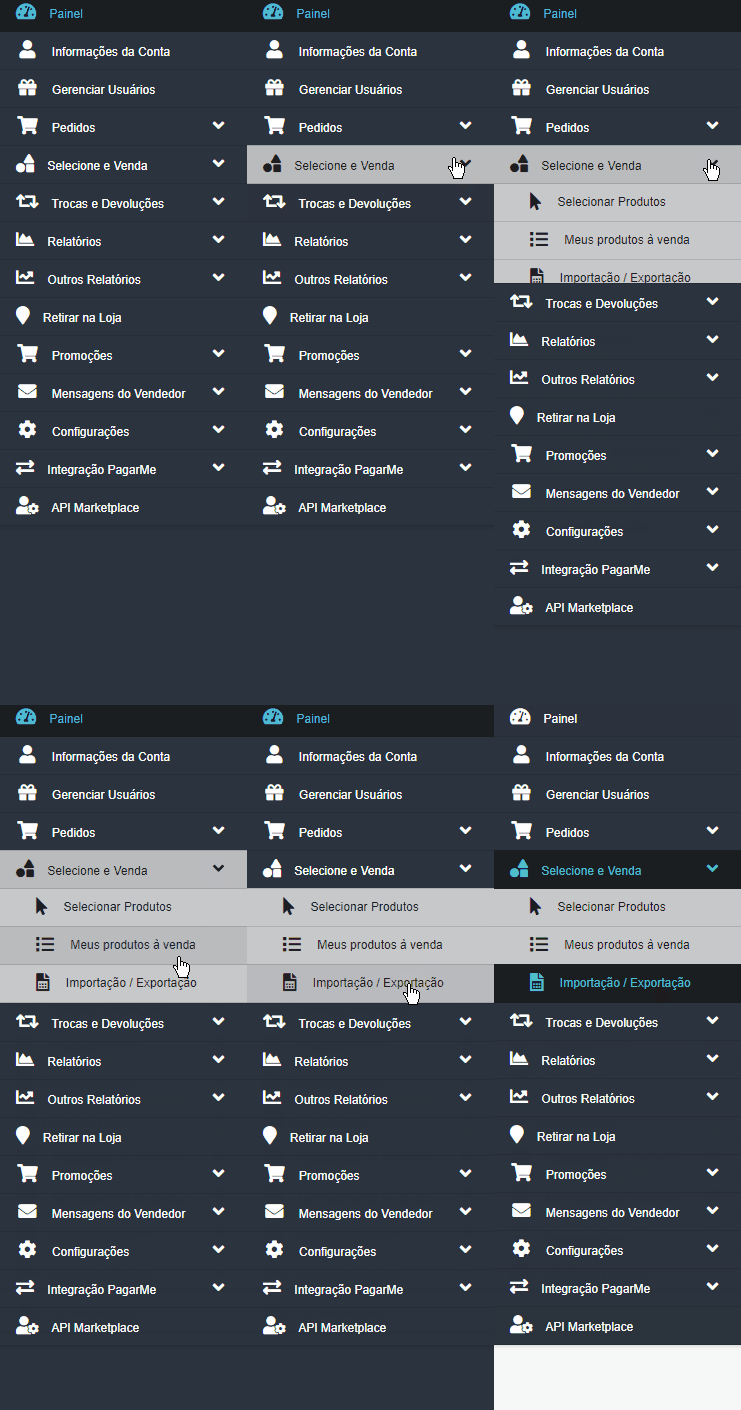
Once you’re in the seller dashboard, go to the side menu, click on “Select and Sell”, and then choose “Import/Export”.
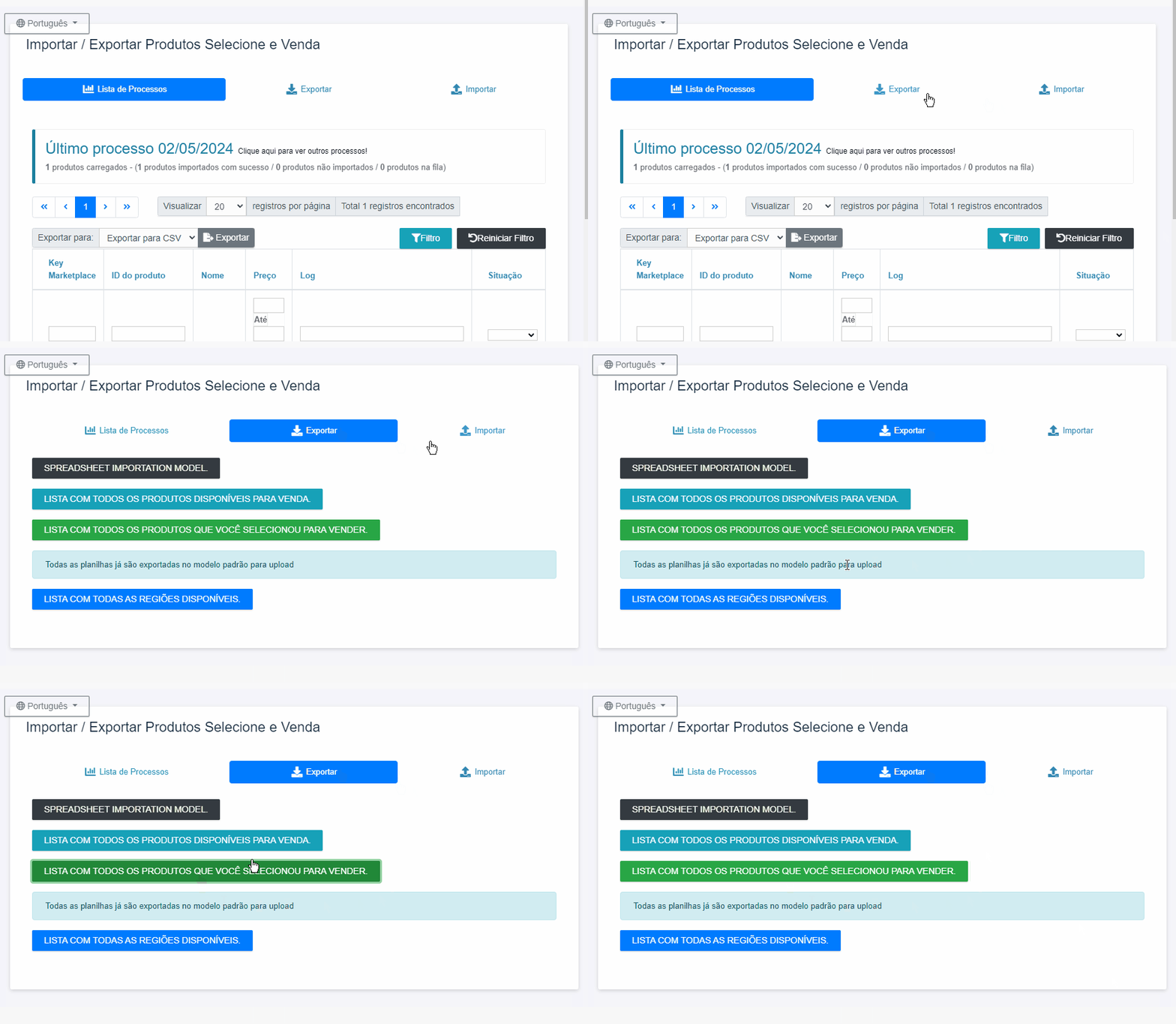
After accessing the seller dashboard and selecting “Select and Sell” → “Import/Export”, click the “Export” button.
Then, choose the option “LIST WITH ALL PRODUCTS YOU SELECTED TO SELL”.
This will allow you to download a CSV spreadsheet containing all the products you have chosen to sell in your store.
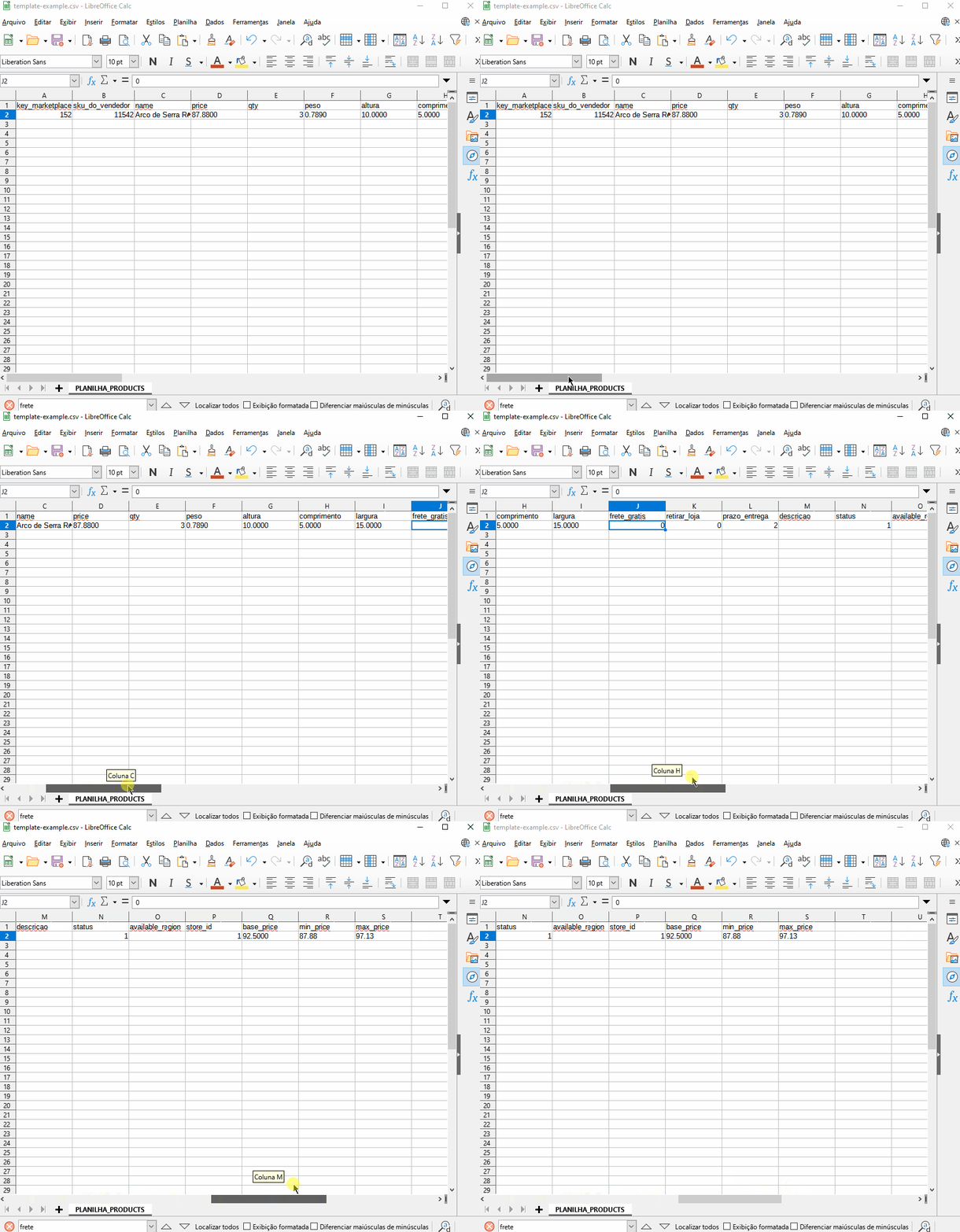
Before opening your spreadsheet, it’s important to know how to open it correctly in CSV format with UTF-8 encoding.
Please refer to our article “How to properly open spreadsheets using Excel“ so you can view all data accurately.
In the spreadsheet, you will find all the products selected for sale in your store, along with all the registered information about them.
To filter only the products for which you want to update this information, use the first column — SKU (key_marketplace) — to identify them.
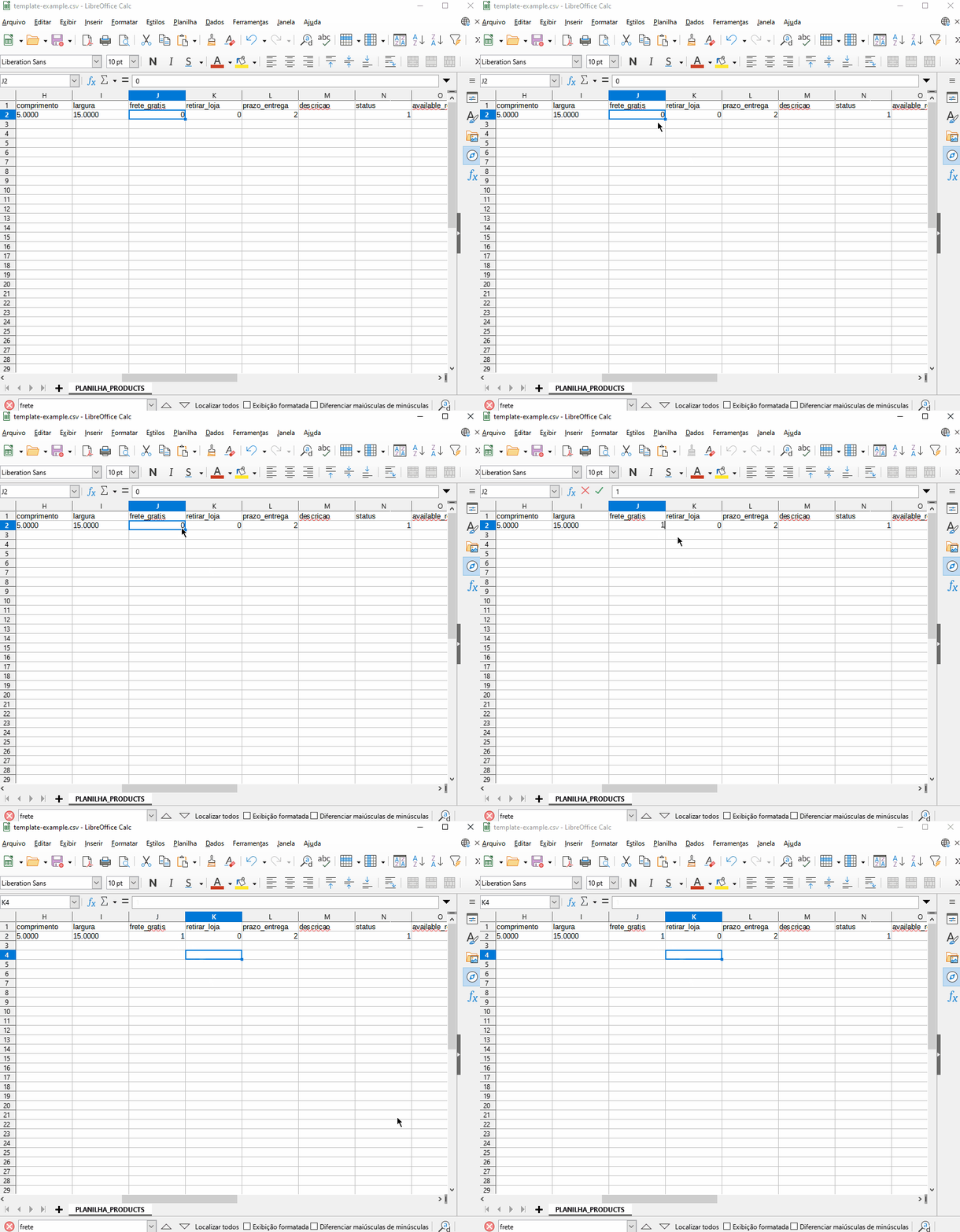
To update the free shipping field, modify the column named “frete_gratis”, assigning the value 1 to indicate “yes” and 0 to indicate “no”
After making the changes in the spreadsheet and saving it on your computer, go back to the seller dashboard and once again select the menu option “Select and Sell” → “Import/Export”.
Then, click on “Import” to upload the updated spreadsheet with the modifications you made.
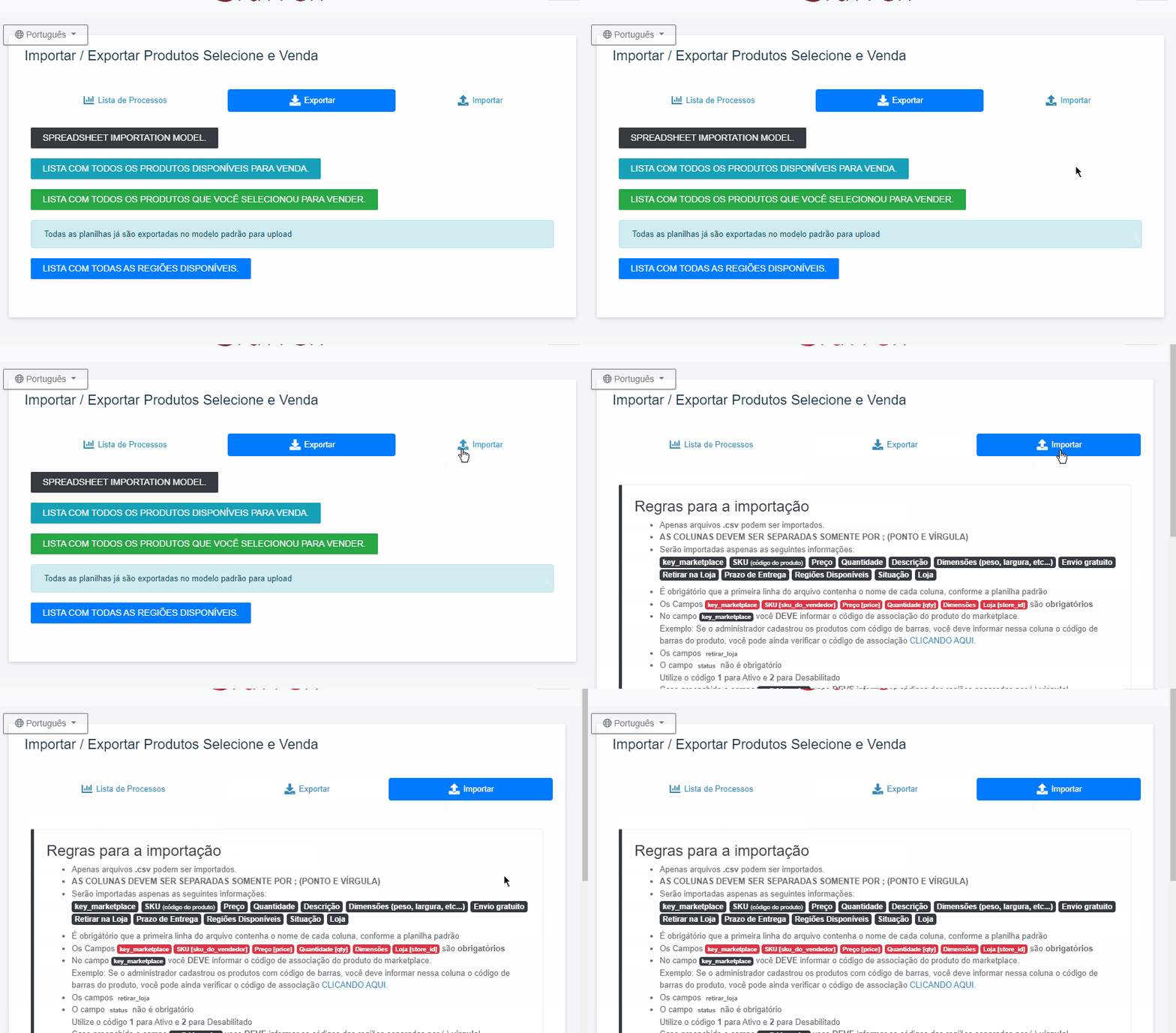
Click on “Browse” and locate the spreadsheet you saved on your computer. After selecting it, click the “Import” button located just below to start the import process.
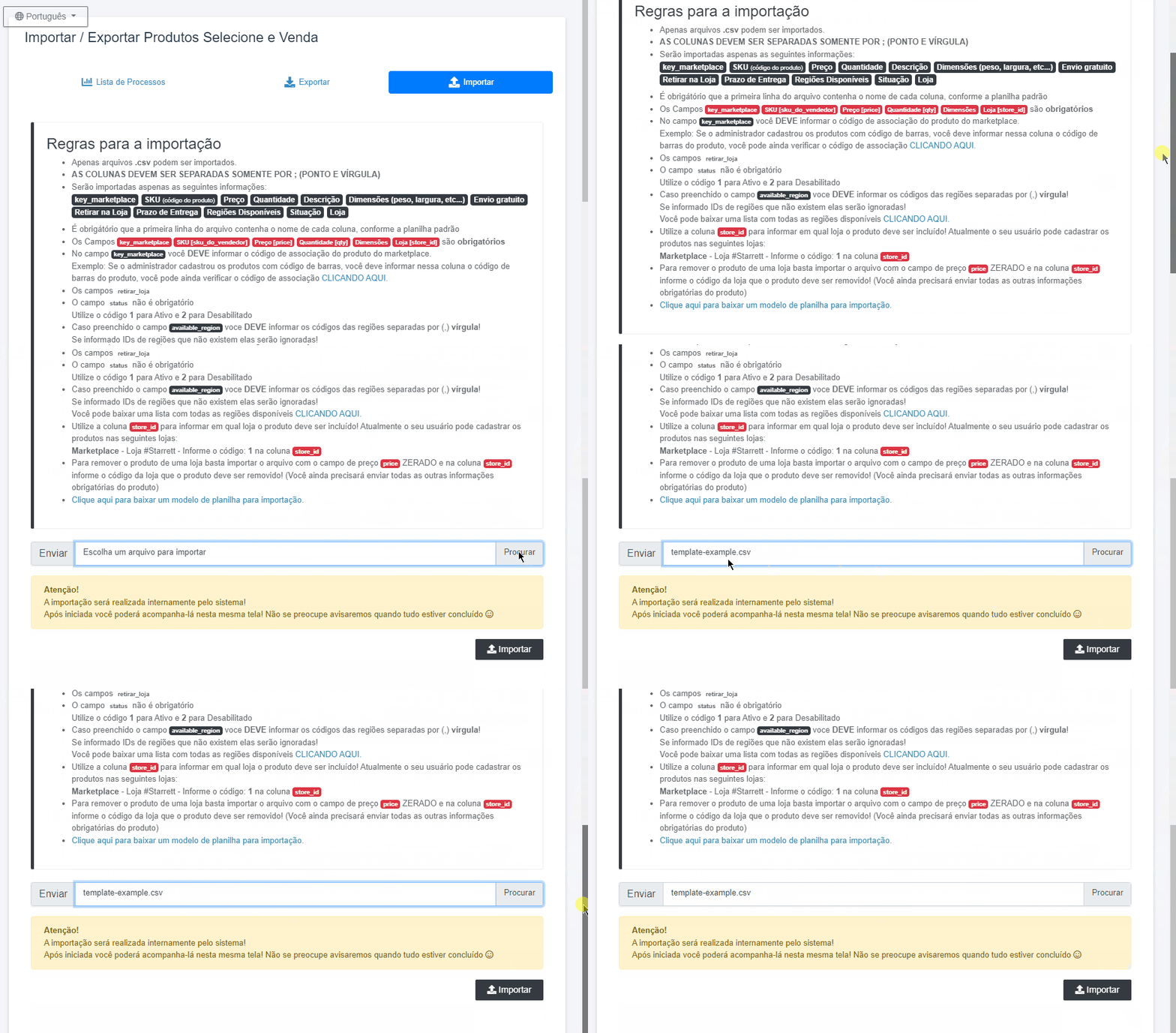
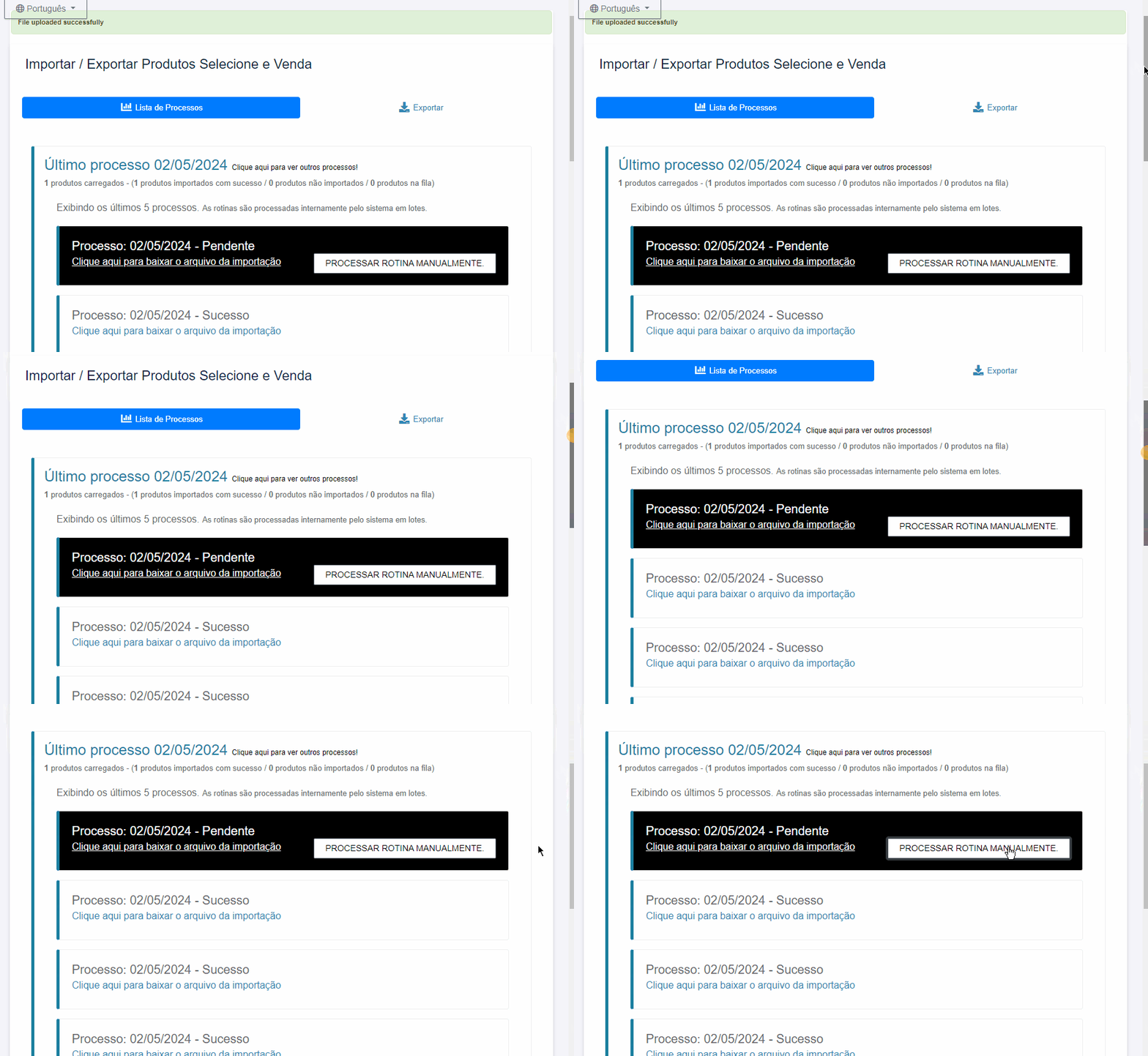
The file you selected has now been added to the Process List. Now, you need to click on “PROCESS MANUALLY” to run the routine.
Once this process is completed, you will be redirected to a page confirming that the update was successful.
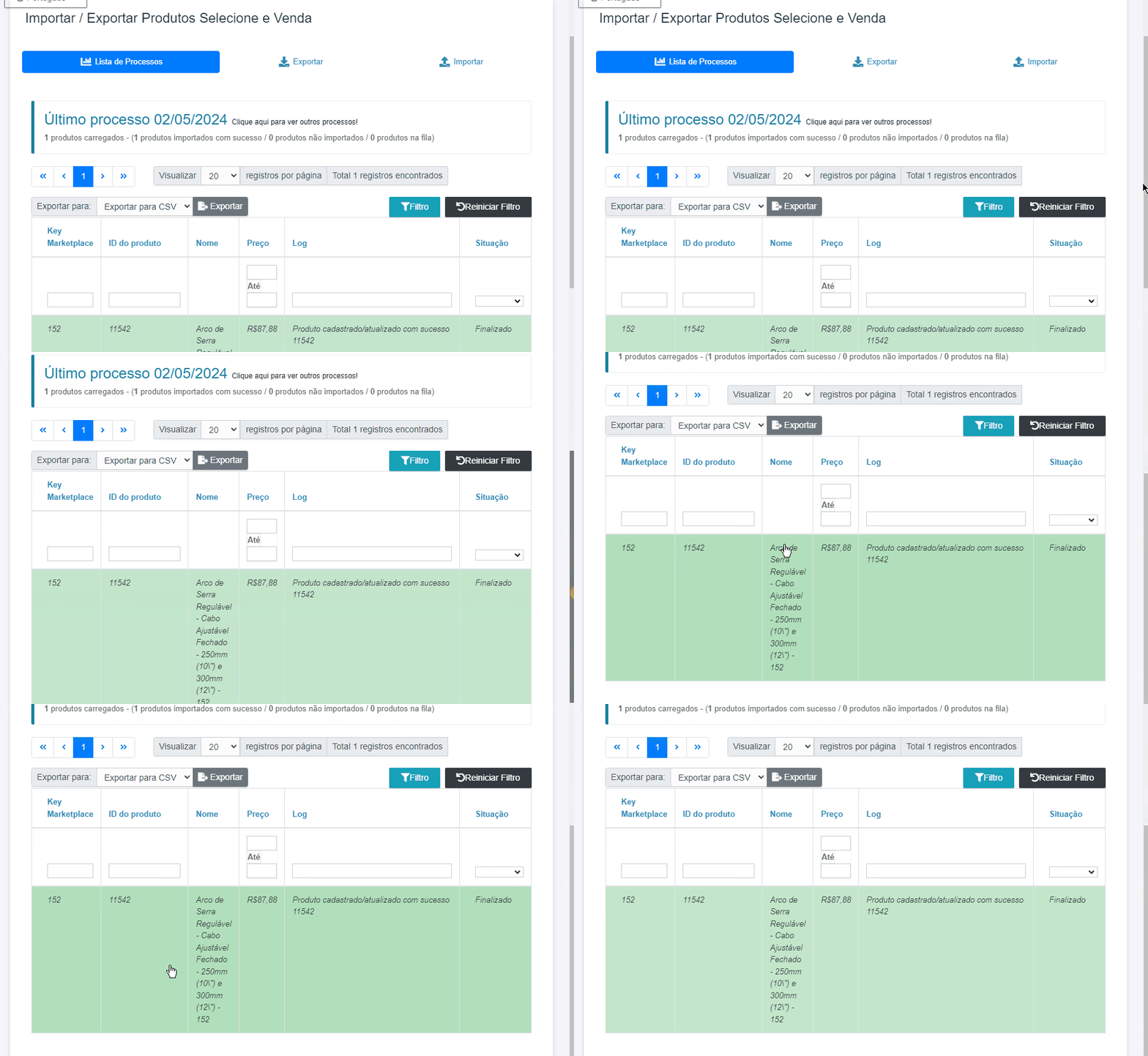
Now, just access the products and confirm that the Free Shipping field has been updated according to the value set in the spreadsheet.
If you have any questions or run into any issues, don’t hesitate to contact our support team. We’re always here to help!