
Export Profile Configuration
This guide explains how to create and configure an export profile for order reports in the platform’s admin panel.
Accessing the Export Configuration #
Before creating an export profile, make sure you have permission to configure it.
To verify:
- Access the Admin Panel.
- In the sidebar, go to Reports.
- Then, click on Order Export > Export.
If the Order Export option is not available, please open a support ticket so our team can activate the feature for your account.

Creating a New Export Profile
If the feature is available, after clicking Export, a new page will open.
To proceed:
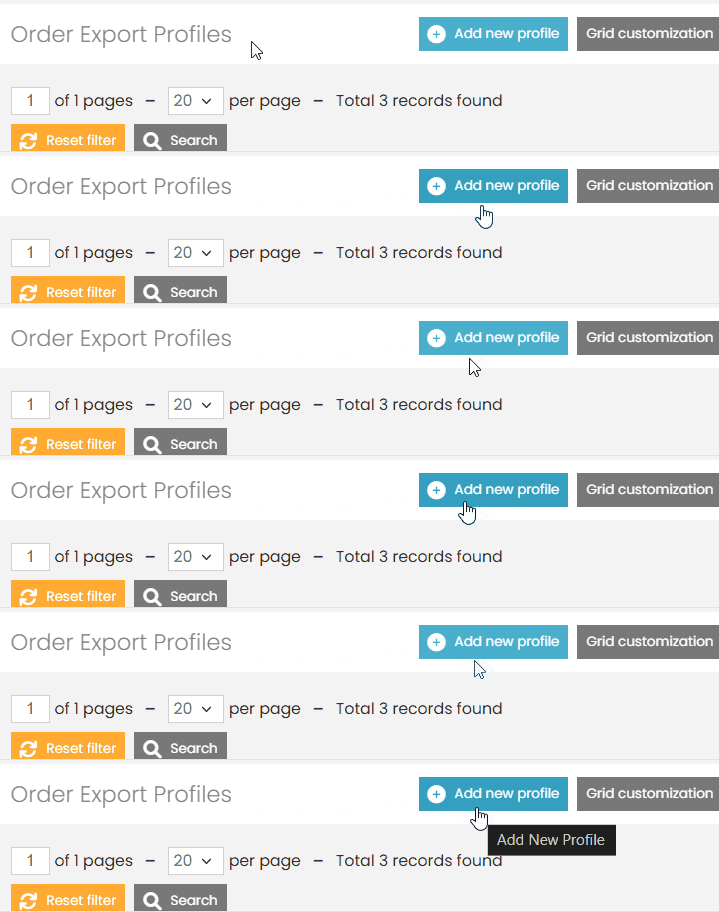
- Click the blue button in the top right corner: Add new Profile.
General Profile Settings
Fill in the fields as follows:
- Name: Assign any descriptive name, e.g.,
Approved Orders Export. - File Name: Use the same name, but in lowercase, without spaces (e.g.,
approved_orders_export). - File Path (local): Leave as default:
var/export/. - Automatic Execution: No
- FTP Settings: No
- Email Settings: No
Data Format and CSV Settings #
- File Format: CSV (Comma Separated Values)
- Include Field Names in First Row: Yes
In the CSV Settings section:
- Delimiter: Comma (
,) - Enclose Value In: Double quotes (
")
Order Number Filters #
- Skip Starting With: No
- Auto-fill the Start With # Field: No
You do not need to configure:
- Filter by Shipment Number
- Filter by Invoice Number
- Creditmemo Number Filters
Other Export Filters #
- Product SKU(s): Add SKUs to filter specific products. Leave empty to export all.
- Include Only Rows with Found SKU(s): Yes
- Status: Select only statuses that confirm order approval, such as:
- Approved Order
- Approved
- Awaiting Shipment
- Awaiting Confirmation
- Delivered to Customer
- Order Type: Select Child Orders Only
- Customer Group: Select all available options
- Skip Items with Zero Price: Yes
- Skip Child Products: Yes
- Start Date / End Date: Define the desired export period. Leave both blank to export all records.
Field Mapping #
In the Field Mapping section, set the following:
- Export each custom product option in a separate column: Yes
- Export each product attribute in a separate column: Yes
- Export each additional payment information in a separate column: No
- Fields to Export: Leave default
Then click the blue button + Add Field Mapping and add the following fields:
| Field in DB | Field in Export |
|---|---|
order.increment_id | Order Number |
order.created_at | Order Date |
order.status | Order Status |
order.grand_total | Order Total |
product.name | Product Name |
product.qty.ordered | Quantity |
payment.shipping_amount | Shipping Cost |
billing_address.firstname | First Name |
billing_address.lastname | Last Name |
order.customer_email | |
billing_address.telephone | Phone Number |
order.customer_taxvat | Tax ID (CPF) |
billing_address.street | Street Address |
billing_address.postcode | Postal Code |
billing_address.city | City |
billing_address.region | State |
After completing the setup, click the green Save or Save and continue editing button.ons made.
Running the Export #
After saving your profile:
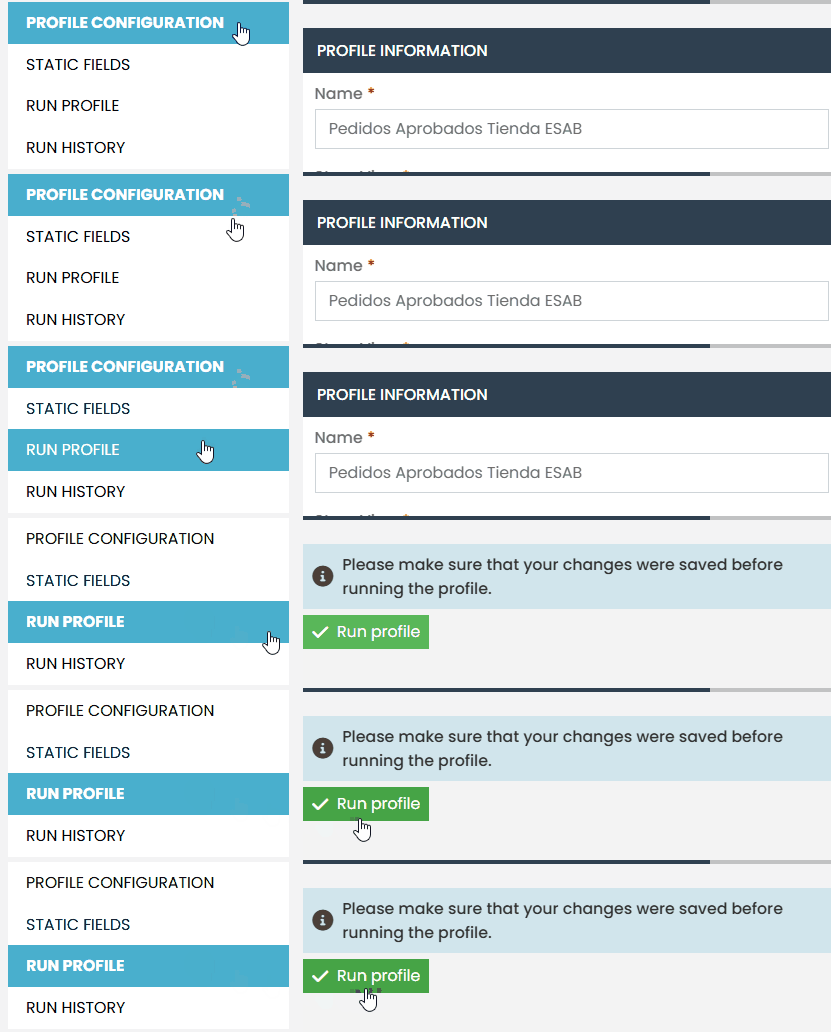
- A new option will appear: Run Profile
- Click Run Profile to generate the spreadsheet.
- Important: You must click Run Profile again every time you make changes to the configuration.
Exporting from the Orders Screen
To export directly from the orders list:
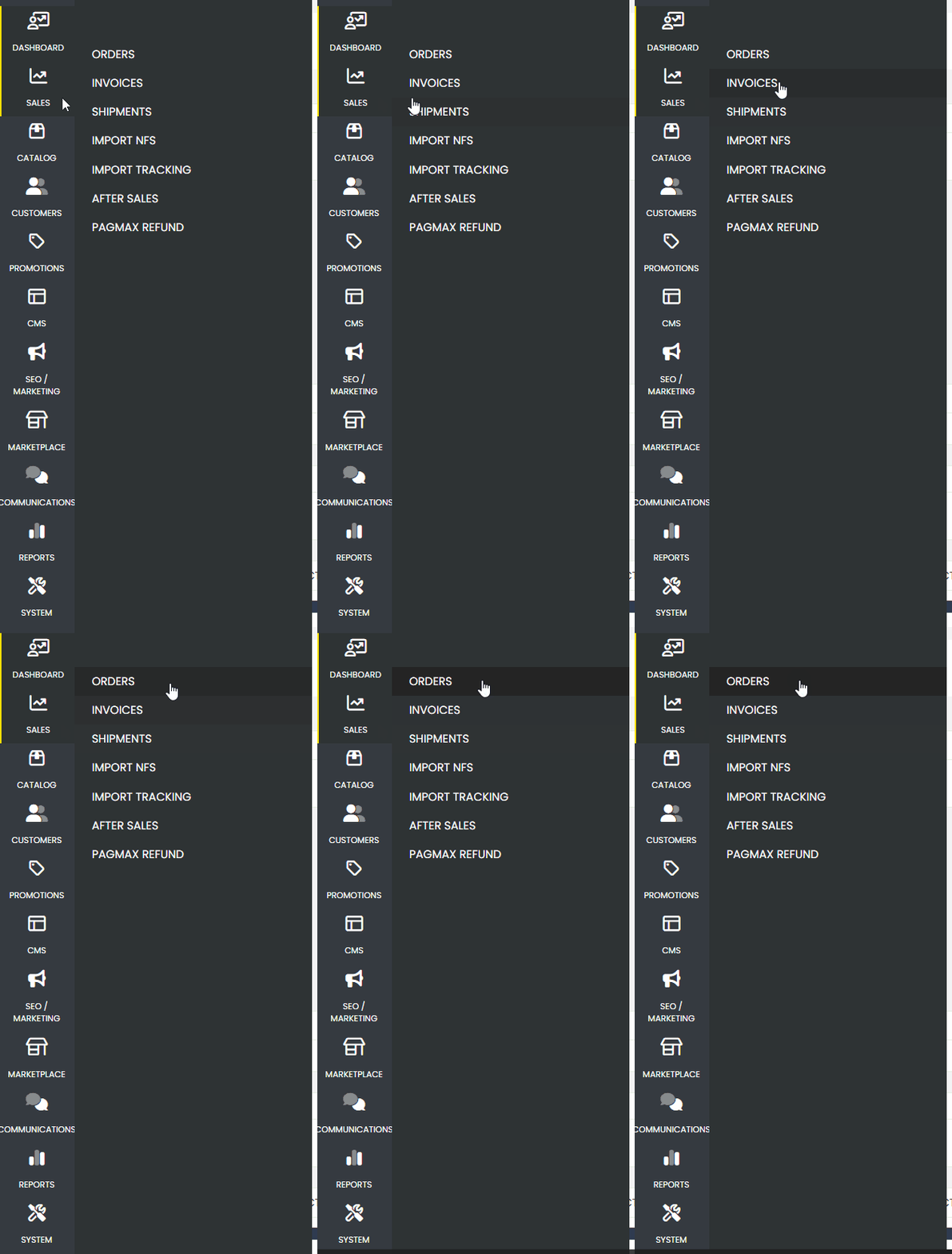
- Go to the Sales section in the sidebar.
- Click on Orders.
- At the top, find the Export to dropdown.
- Select the export profile you created.
- Click the Export button next to the dropdown.

Final Notes
That’s it! The report will generate a spreadsheet with all approved orders based on your profile settings. Remember to keep your export profile updated, especially regarding analysis dates, product filters, and status settings. If you encounter any difficulties, contact our Support team. We are always available to help!