
Before you begin, make sure that:
- You have read the documentation on how to create an attribute.
- You have followed the instructions on how to add an attribute to an attribute group.
- The attribute has been added to the corresponding group and is configured in the product.
If any of these steps have not been completed, please refer to the specific documentation before proceeding.
Options to Select Attributes: #
- Manual Method: Ideal for updating individual products.
- Bulk Method: Recommended when multiple products share the same attribute.
1. Selecting Attributes Manually #
- Access the administration side menu and click on Catalog > Products.
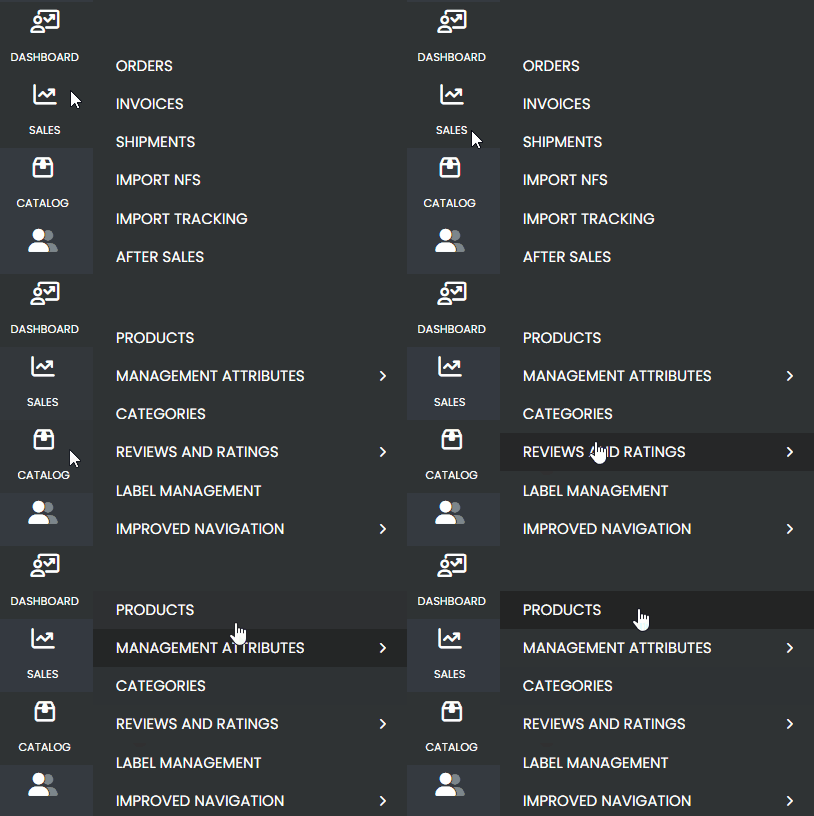
Choose the desired product.
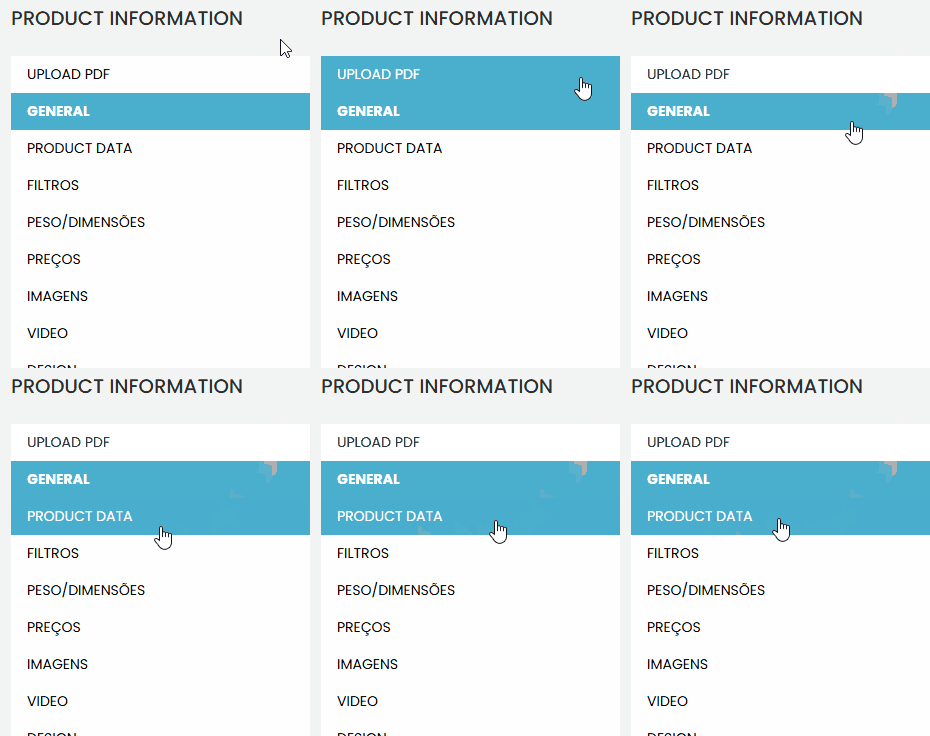
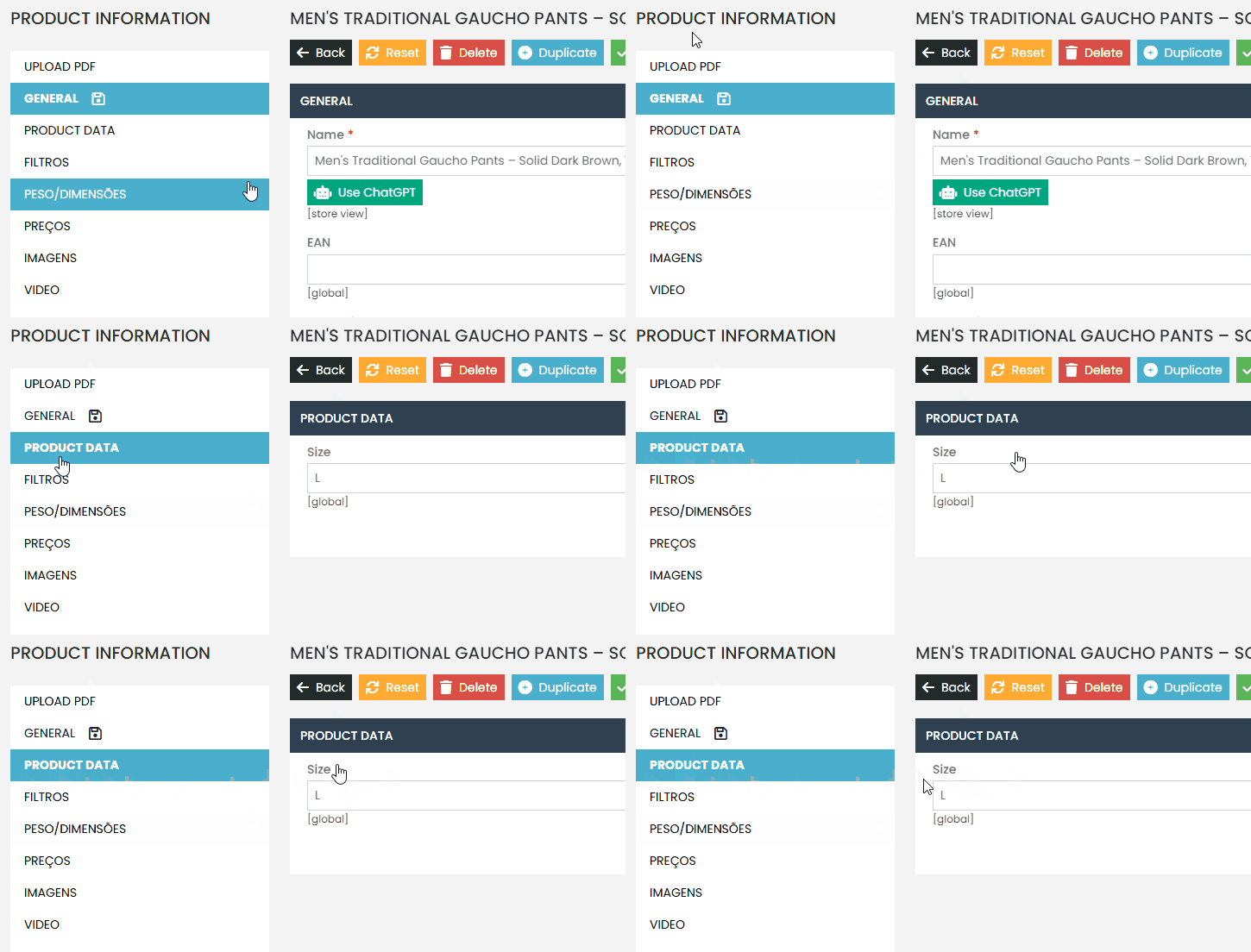
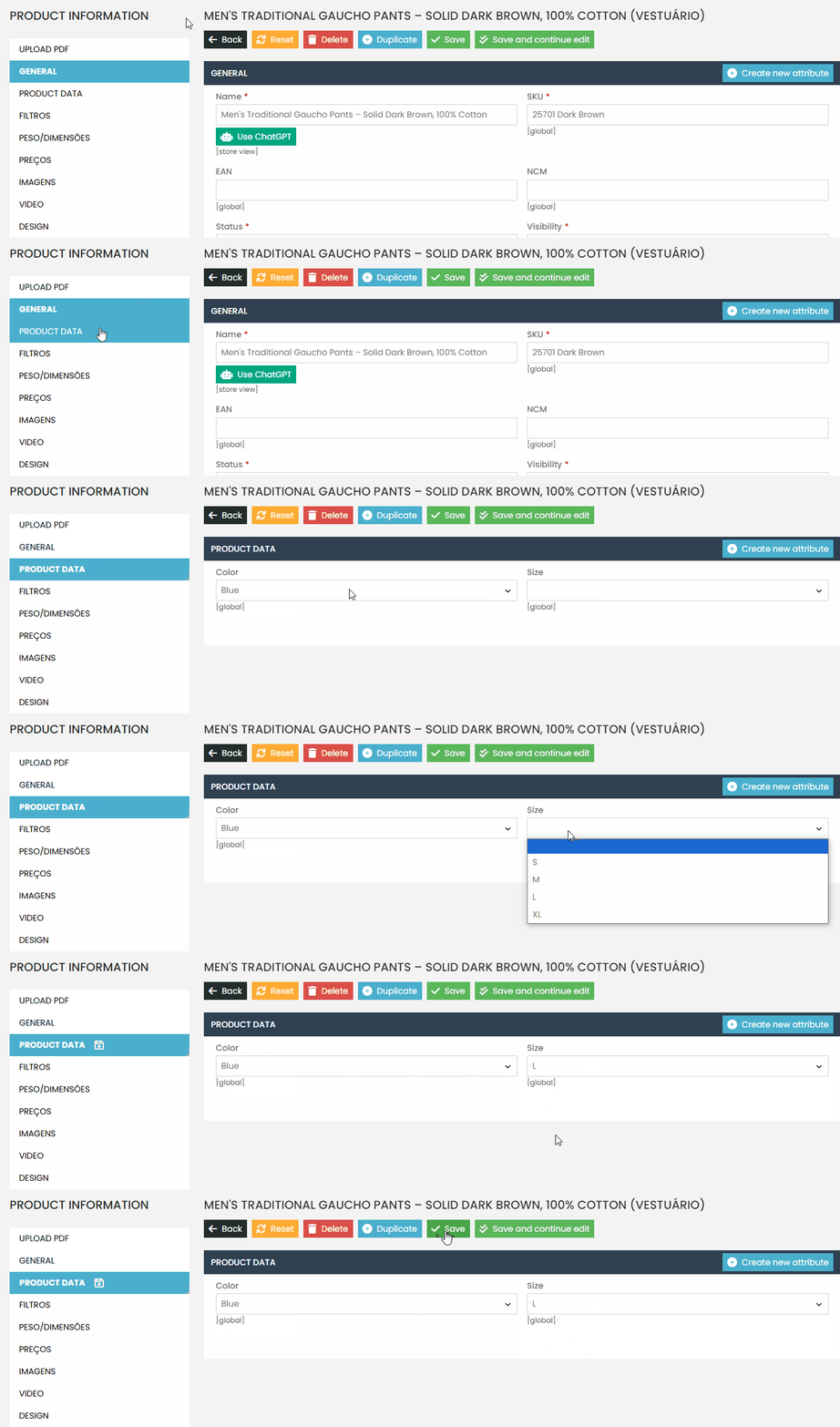
- Navigate to the section where the attribute was added.
Example: Product additional information.
- If the attribute is not visible, check if it was correctly added to the attribute group.
- Select the desired value for the attribute (e.g., ‘Orange’).
- Click ‘Save and Continue.’
- Validate the update by viewing the product on the website and checking the additional information tab.
2.Selecting Attributes in Bulk #
- In the menu, go to Catalog > Products and select the desired products by checking the checkboxes.
- Click on the Actions option > Update Attributes and then click Send.
- In the attribute selection screen, locate the desired attribute
- Check the corresponding checkbox and choose the value for the attribute
- Click ‘Save.
- Validate the update in the selected products by checking if the attribute was applied correctly.
Note: The bulk process works only when the products share the same attribute.
Access the product view on the website and:
- Navigate to the additional information tab.
- Confirm that the attribute and its value are being displayed correctly.
If you encounter any difficulties, open a ticket in the support panel. Our team will be available to assist you.