
This documentation guides Soul platform administrators through the process of registering a virtual product, presenting fundamental concepts, best practices for completing the form, and warnings about required fields.
Fundamental Concepts #
Before registering a virtual product, it is essential to understand two key concepts:
Attribute Groups
Attribute groups are used to categorize products based on their characteristics. Each group determines which fields will be available during the registration process. For more details, refer to the specific documentation on Attribute Groups.
Product Types
The Soul platform supports different product types: simple, virtual, configurable, grouped, among others.
A virtual product is one that does not involve physical delivery — it is typically used for services, licenses, digital products, or scheduling.
About Virtual Products: They do not require shipping control since they are not physically delivered. However, they can still have attributes such as price, stock, visibility, and categories.
Steps to Register a Virtual Product #
The registration process may vary depending on the store and the selected attribute group. This documentation presents a basic workflow applicable in most cases.
To start registering a new product, follow the steps below:
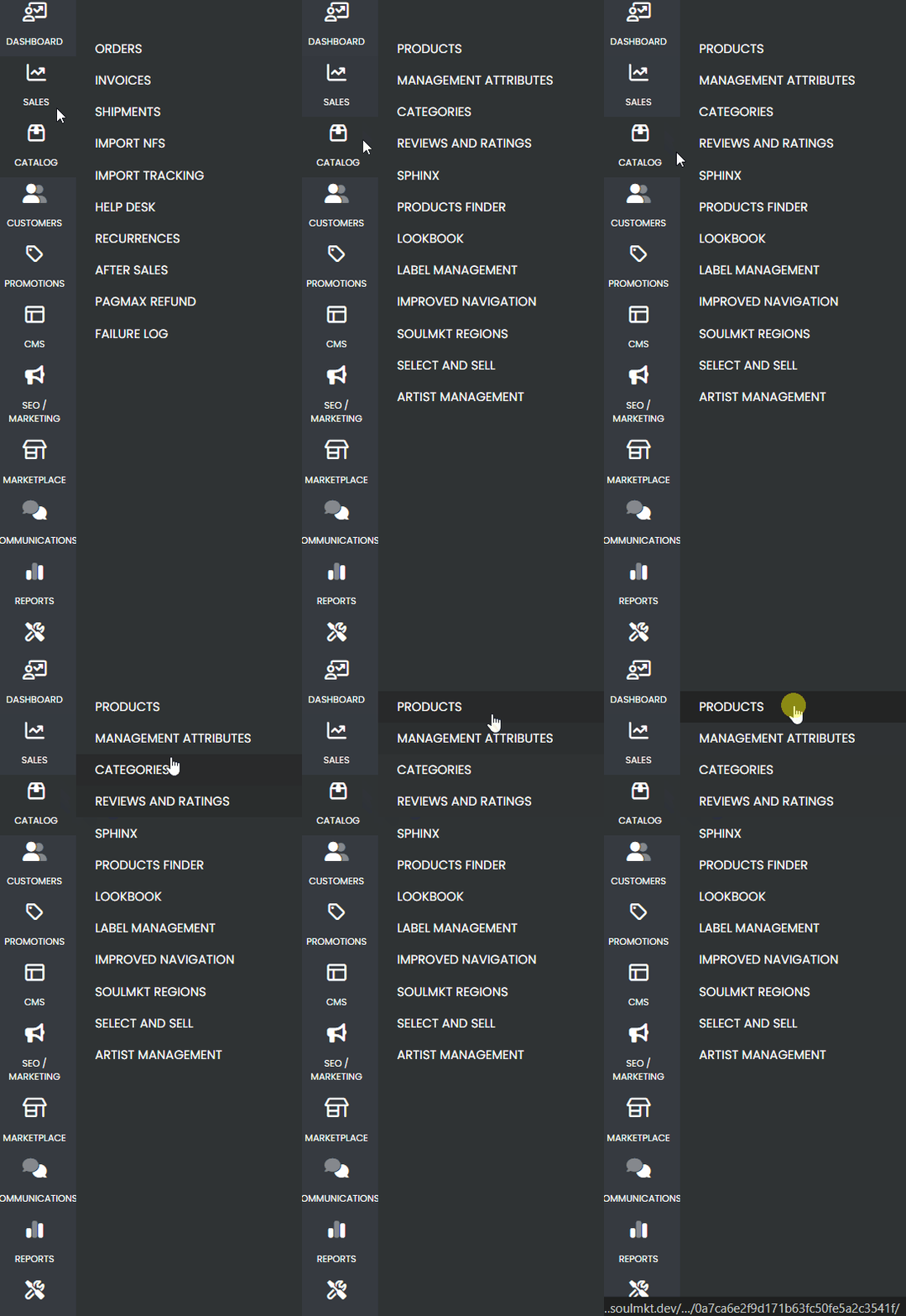
- Access the administration panel
- In the side menu, hover over the Catalog tab.
- In the displayed submenu, click on Products.
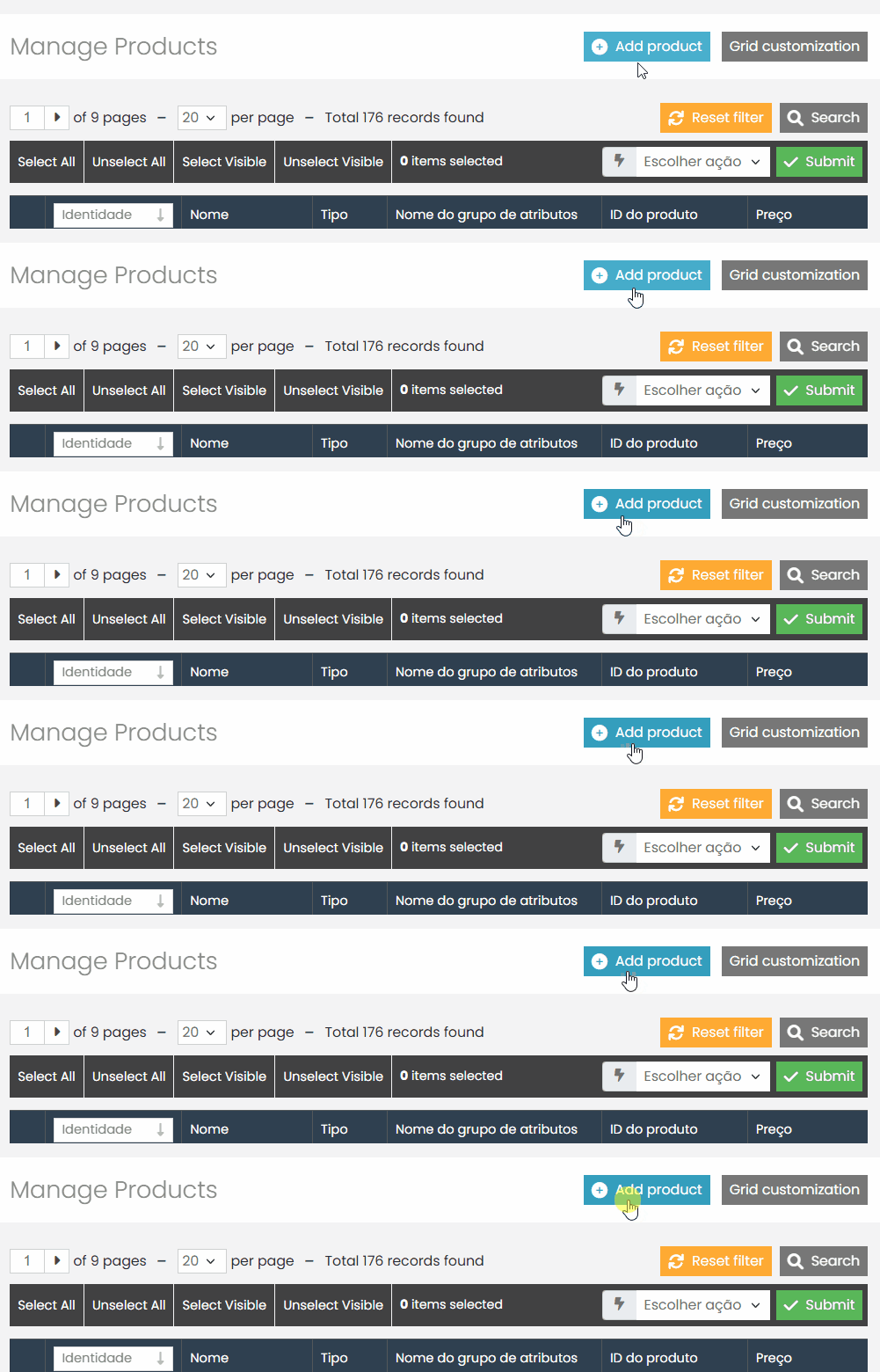
On the new page, click the Add Product button located in the upper right corner.
Escolha o Conjunto de Atributos : Default e selecione o Tipo de Produto: Virtual.
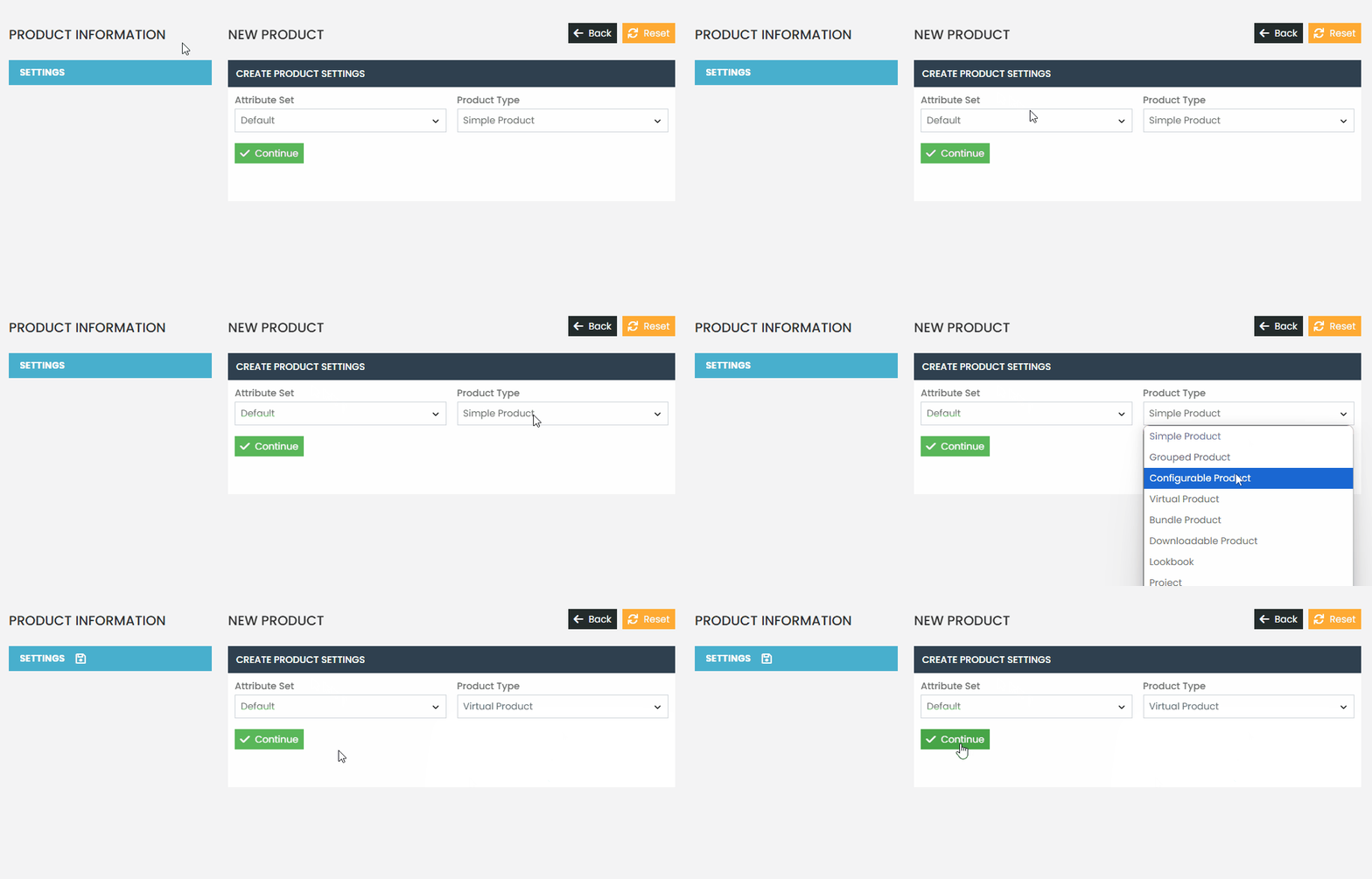
CamRequired Fields #
The required fields may vary depending on the store settings and the attribute group used. In general, the following fields are mandatory
- Stock
- Name
- SKU
- Status
- Visibility
- Description and Short Description
- Price
Product Information #
Short and Additional Description
The short description will be displayed in product listings. The additional description should include more technical details and relevant information about the product.
Specific Attributes
These may appear depending on the selected attribute group. Review all fields before completing the registration.
Price
Use a period as the decimal separator. Example: 16.99 (not 16,99).
Image
Although not mandatory, it is highly recommended. Add at least one high-quality image and set the main image.
Recurring Profile
Leave this option disabled.
Stock #
- Qty (Stock Quantity): Enter the available quantity, even if the product is virtual (in case there is a usage or sales limit).
- Minimum Quantity in Cart: 0
- Maximum Quantity in Cart: 1
- Stock Status: Set to In Stock to enable purchases.
Categories #
Select the correct category to ensure the product appears on the appropriate store pages. Examples:
- Fashion > Personalization Services
- Electronics > Licenses
Final Recommendations #
If you have any questions or run into any issues, don’t hesitate to contact our support . We’re always here to help!
Review all fields before saving the product.
This guide provides a standard registration model. Your store may have custom configurations and additional requirements.