
This documentation aims to explain the available methods on the platform to identify the seller associated with an order. Currently, the platform does not allow adding a column to directly display the seller’s name in the order list, and a customization is required for this functionality. However, there are three viable alternatives to access this information.
Alternatives for Identifying the Seller #
- Accessing Order Details
One way to identify the seller of an order is by accessing its details:
First, navigate through the side menu to the “Sales” tab and select “Orders”.
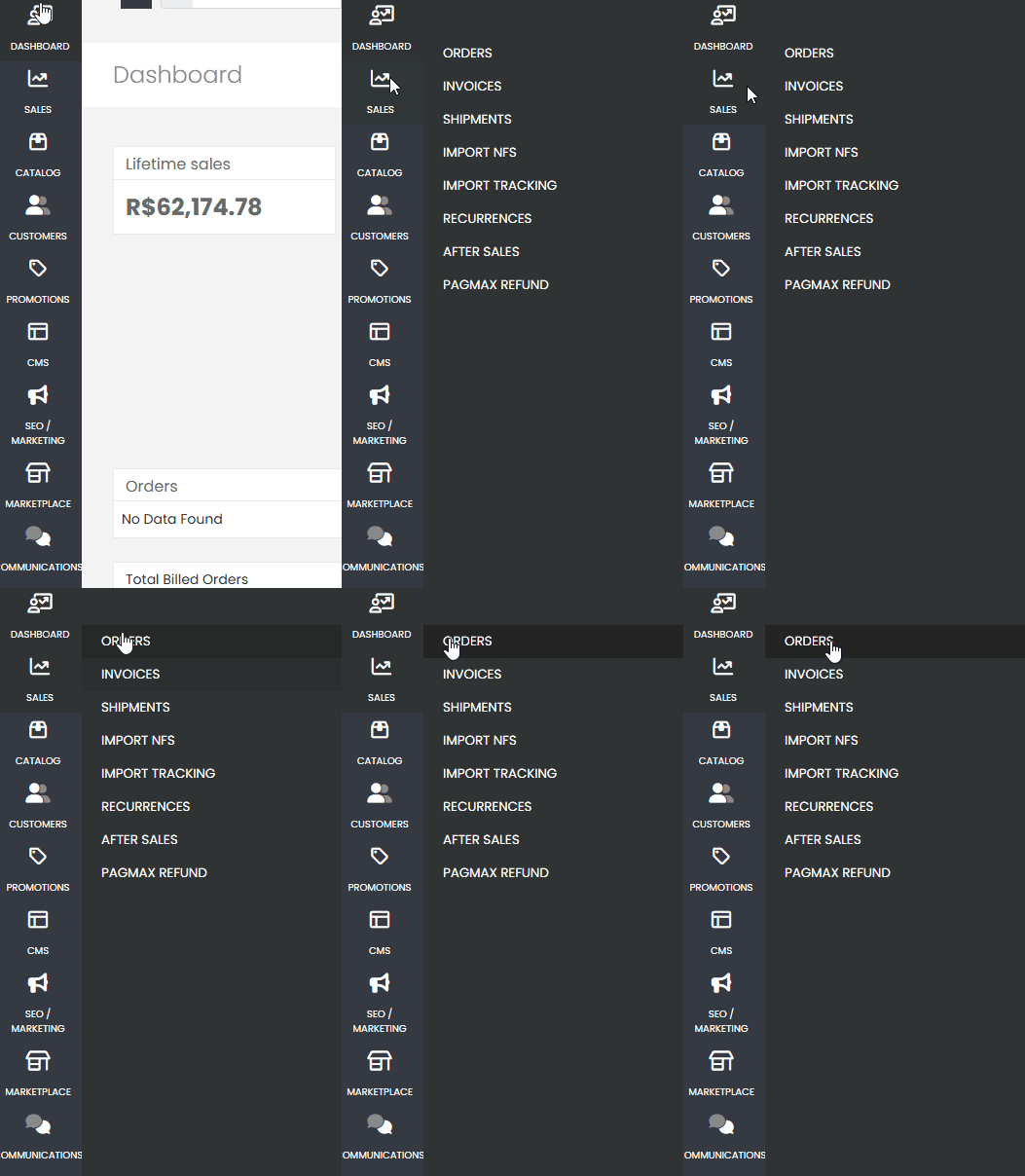
- Navigate to the order list.
- Click on the desired order to open its details.
- Within the details page, locate the seller information.
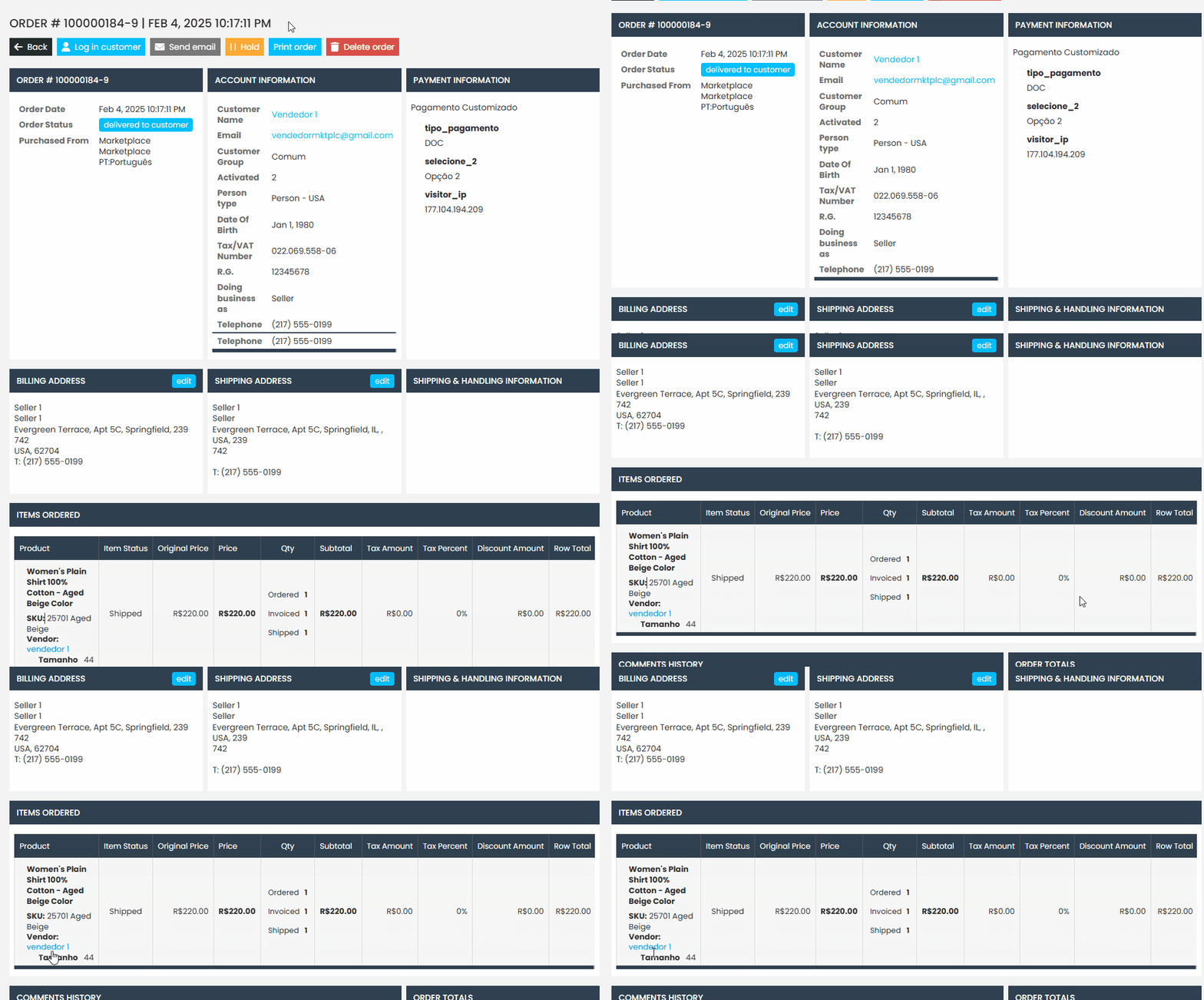
2. Identification via Child Order #
Another way to identify the seller is through the Child Order code:
Each Child Order has an identifier followed by a number (e.g., RD-9).
This number corresponds to the Seller ID.
To confirm the seller, access the seller’s panel and check the URL, where the VENDOR ID will be displayed.

- It is possible to filter all orders from the same seller using this ID.
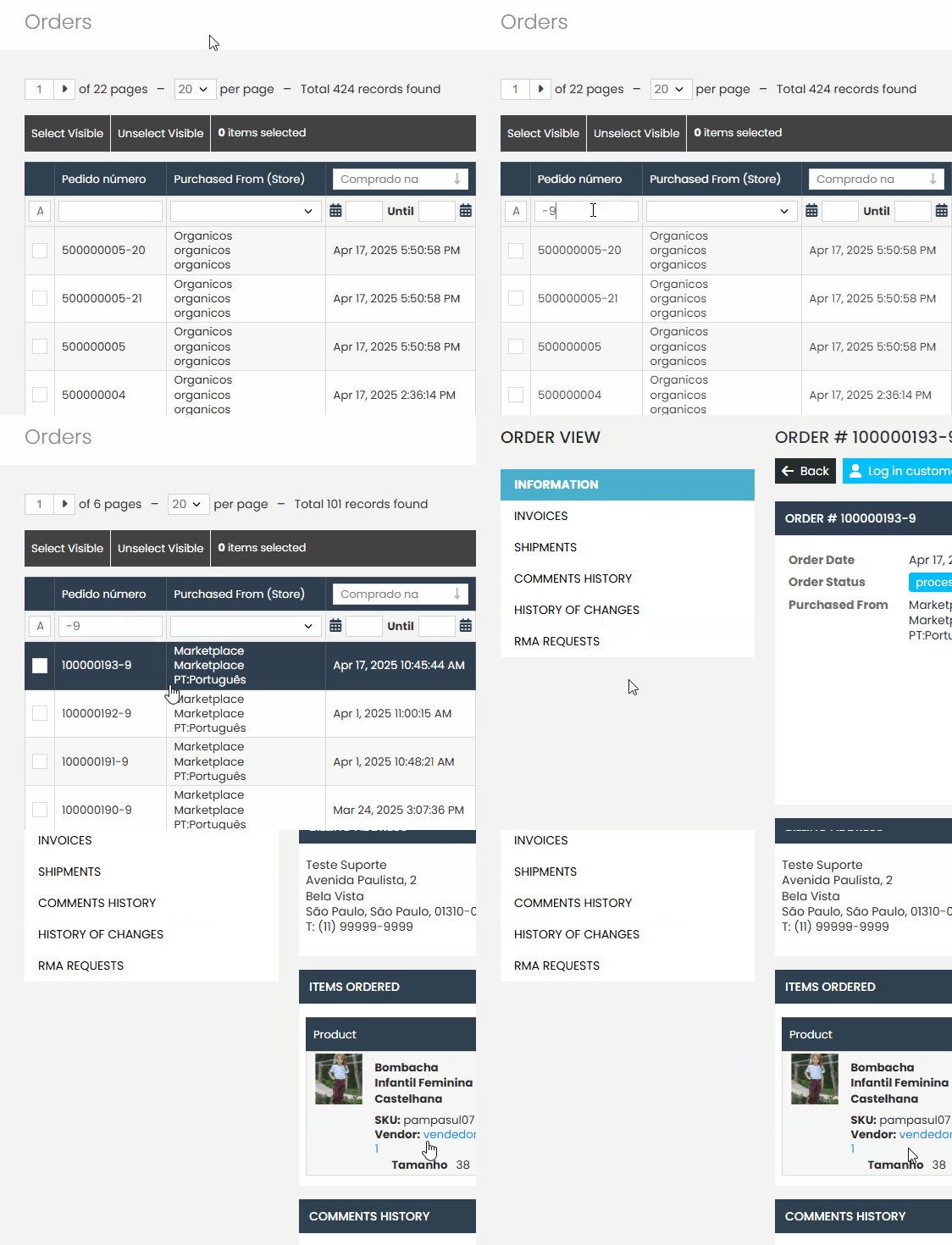
3. Accessing the Orders Tab in the Marketplace #
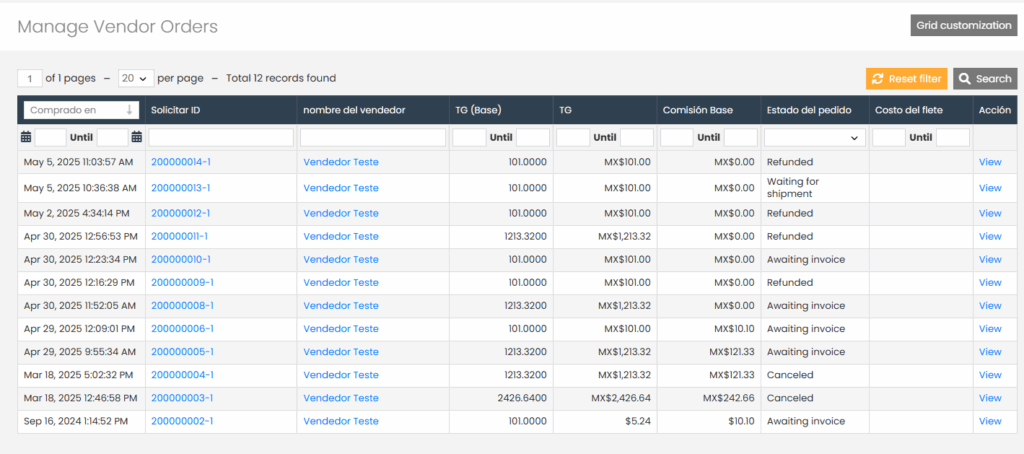
The most direct alternative is to use the orders tab within the marketplace:
In the admin panel, go to Marketplace.
Click on the Orders option.
The list will display both the Order ID and the name of the associated seller.
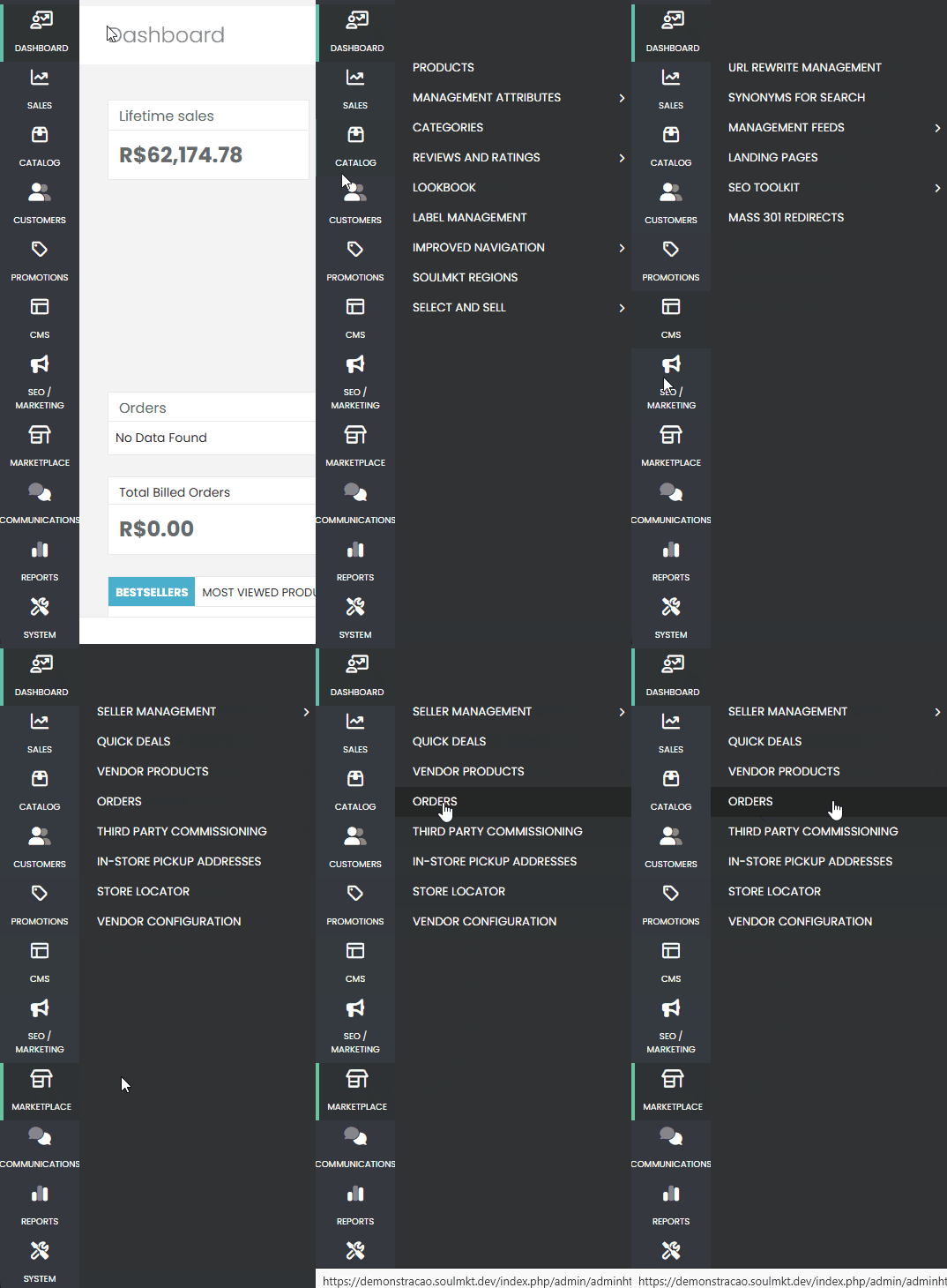
If you have any difficulty performing the filters or identifying the seller of an order, please contact our support team. We are always available to help!