
In this guide, you will learn how to quickly and efficiently export a PDF containing all invoices generated on the site.
First, in the side menu, navigate to the Sales option and select Invoices.
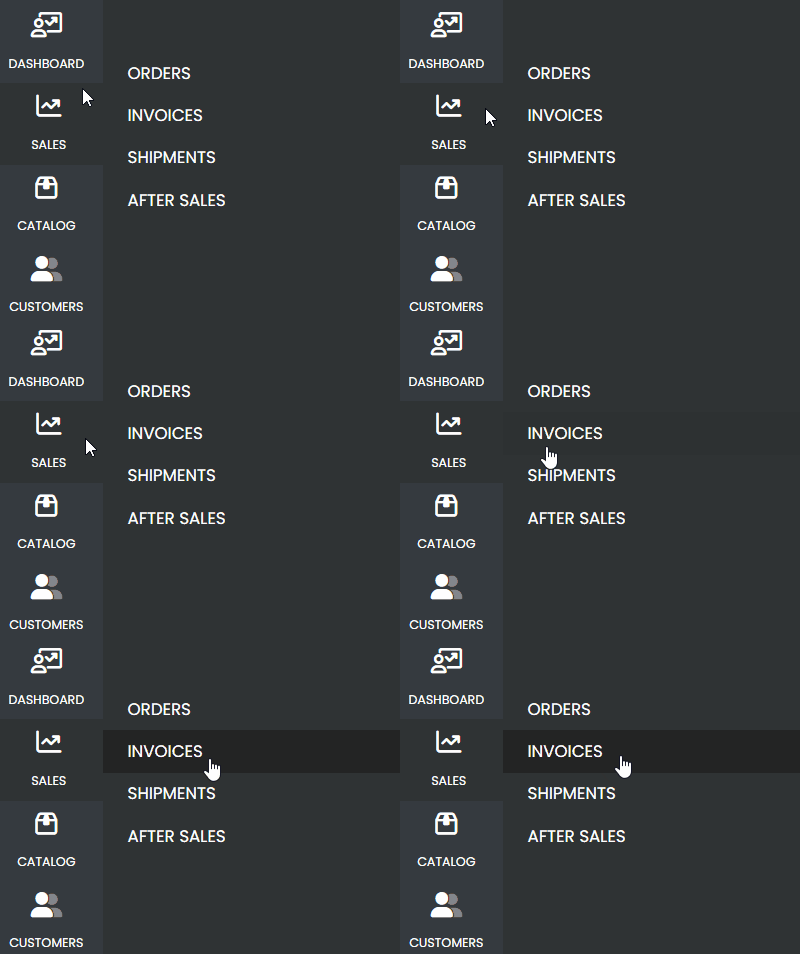
Select the Orders #
- On the invoices page, right-click to open the selection option.
- Ensure that all visible orders are selected.
- Use the filtering option to adjust the number of items displayed per page. You can choose between 20, 30, 50, or 100 items per page.

Export Invoices in PDF #
- With the desired orders selected, go to the Actions menu.
- Click on PDF Invoices to export the selected invoices.
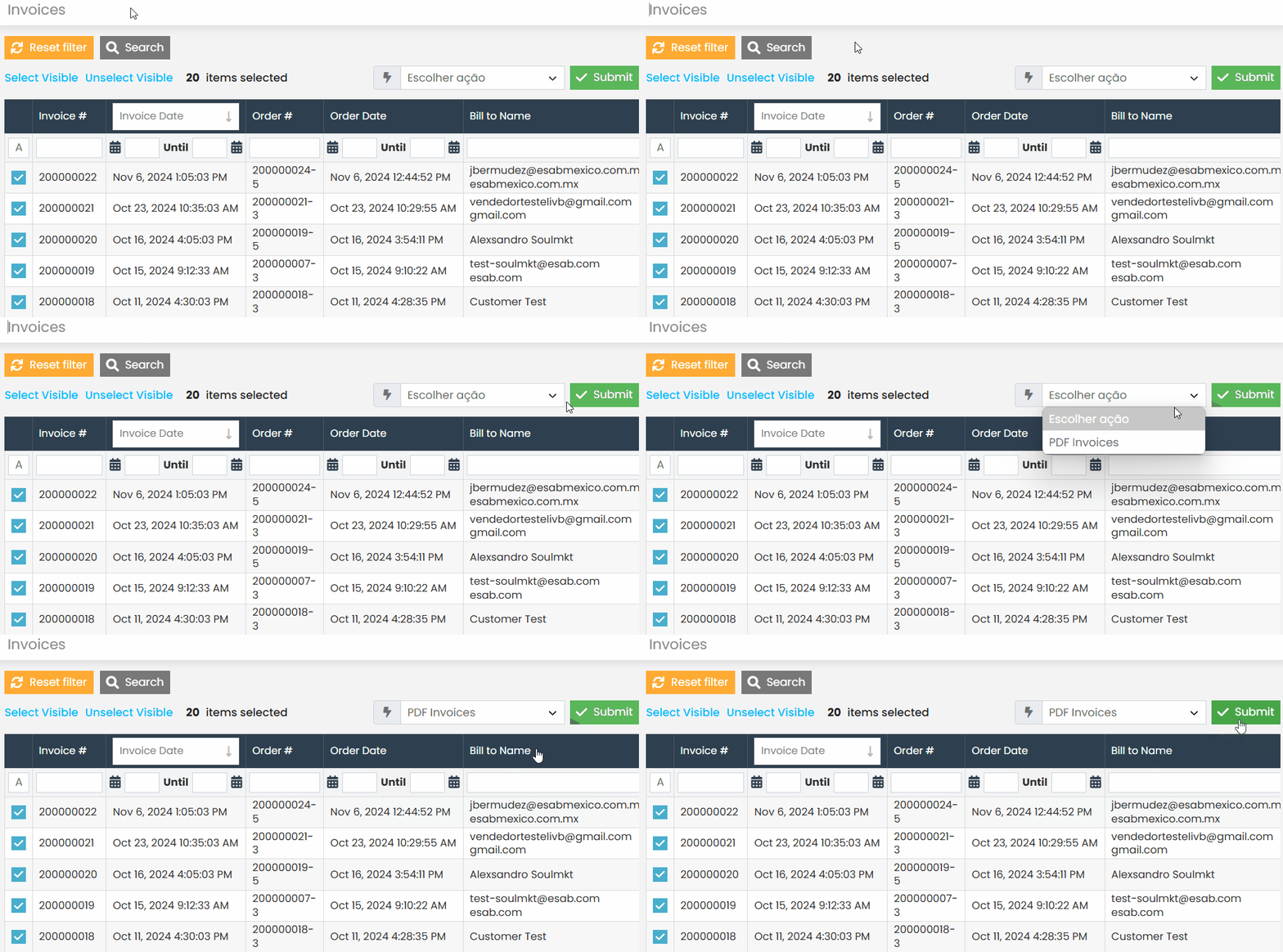
The system will process the request and generate a PDF file containing all the selected invoices.
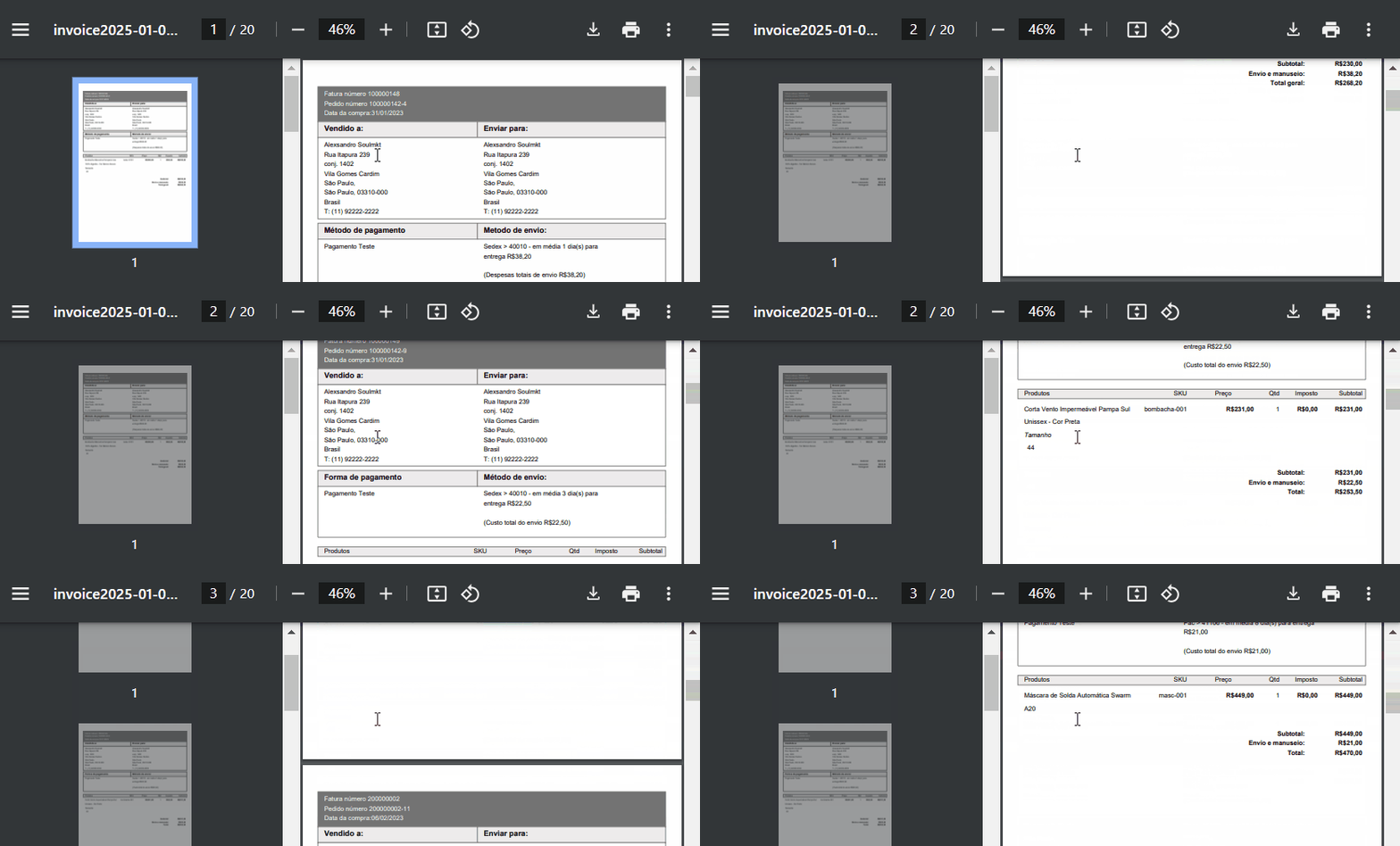
By following the steps described above, you will have a PDF containing all the invoices issued within a specific period. This process is useful for archiving, reporting, and financial control.
If you encounter any difficulties or have any questions, do not hesitate to contact our support team. We are always available to help!