
As a Marketplace administrator, you can deactivate a seller’s store whenever necessary. When a store is deactivated, the seller will no longer appear as one of the available options in the seller selection grid within product pages.
Typically, a store is deactivated when:
- The seller needs to take a temporary leave;
- The seller will no longer be part of the marketplace due to contract non-renewal;
- You want to keep the store deactivated for testing purposes.
If a seller needs to configure their profile or shipping methods, test an integration with an ERP system, or run tests in the seller dashboard, you can keep their profile in staging mode while the store is deactivated.
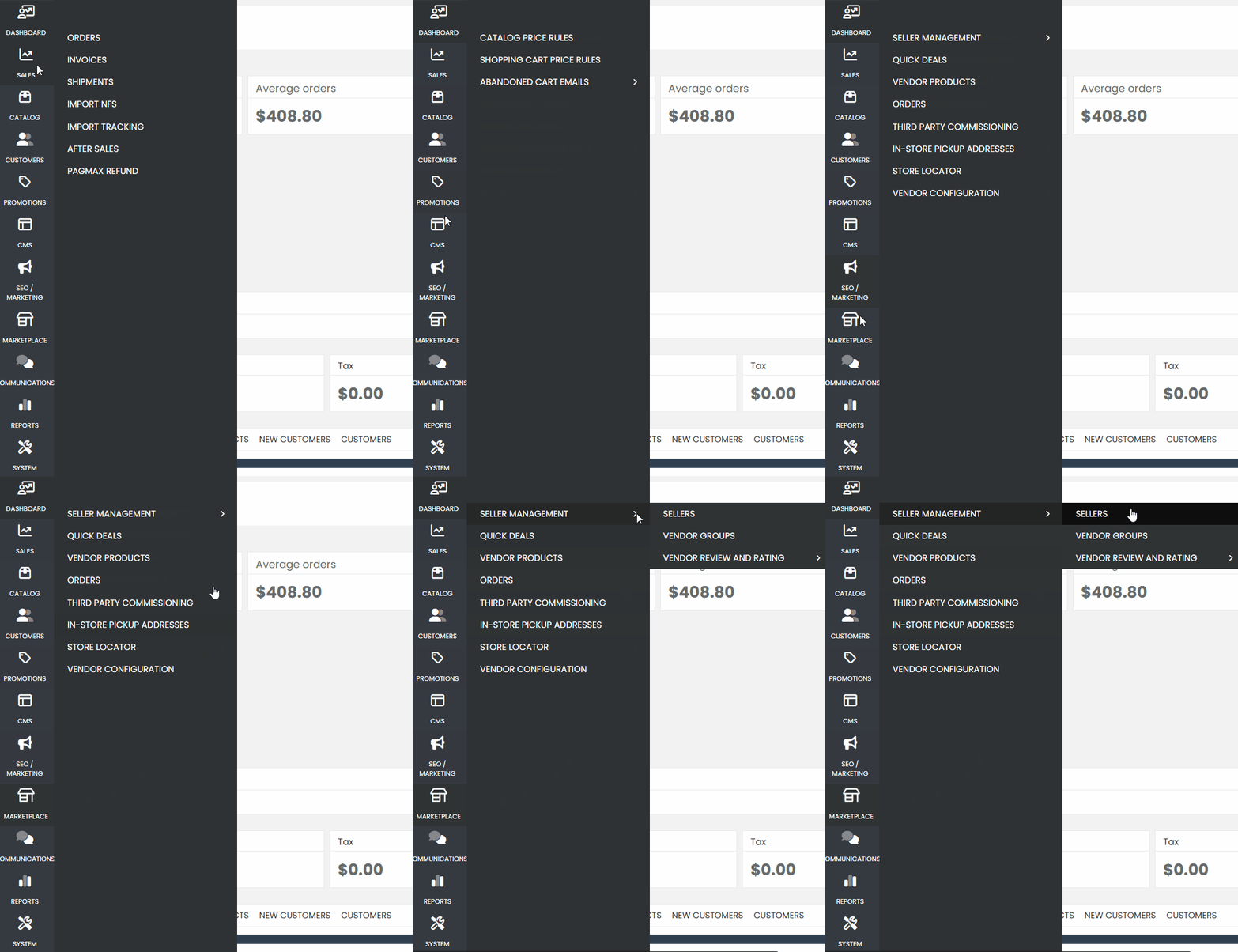
To deactivate a seller’s store, first access your admin panel and navigate through the sidebar menu to the “Marketplace” section. Then, in the submenu that appears, select “Seller Management”, and click on “Sellers” to open the list of all sellers registered on the platform.
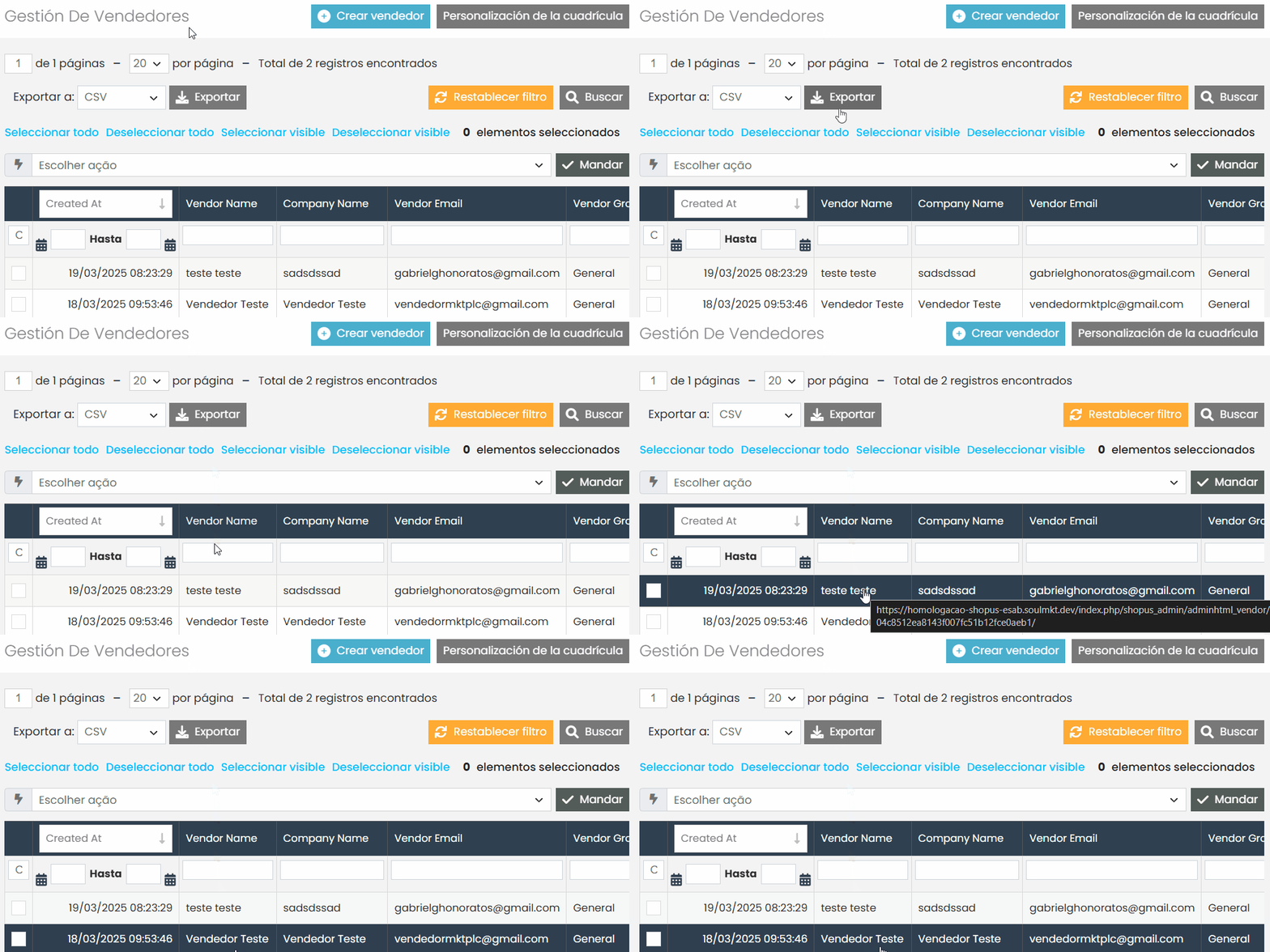
From the list of sellers, choose the one whose store you want to deactivate and click on it to open the seller’s settings.
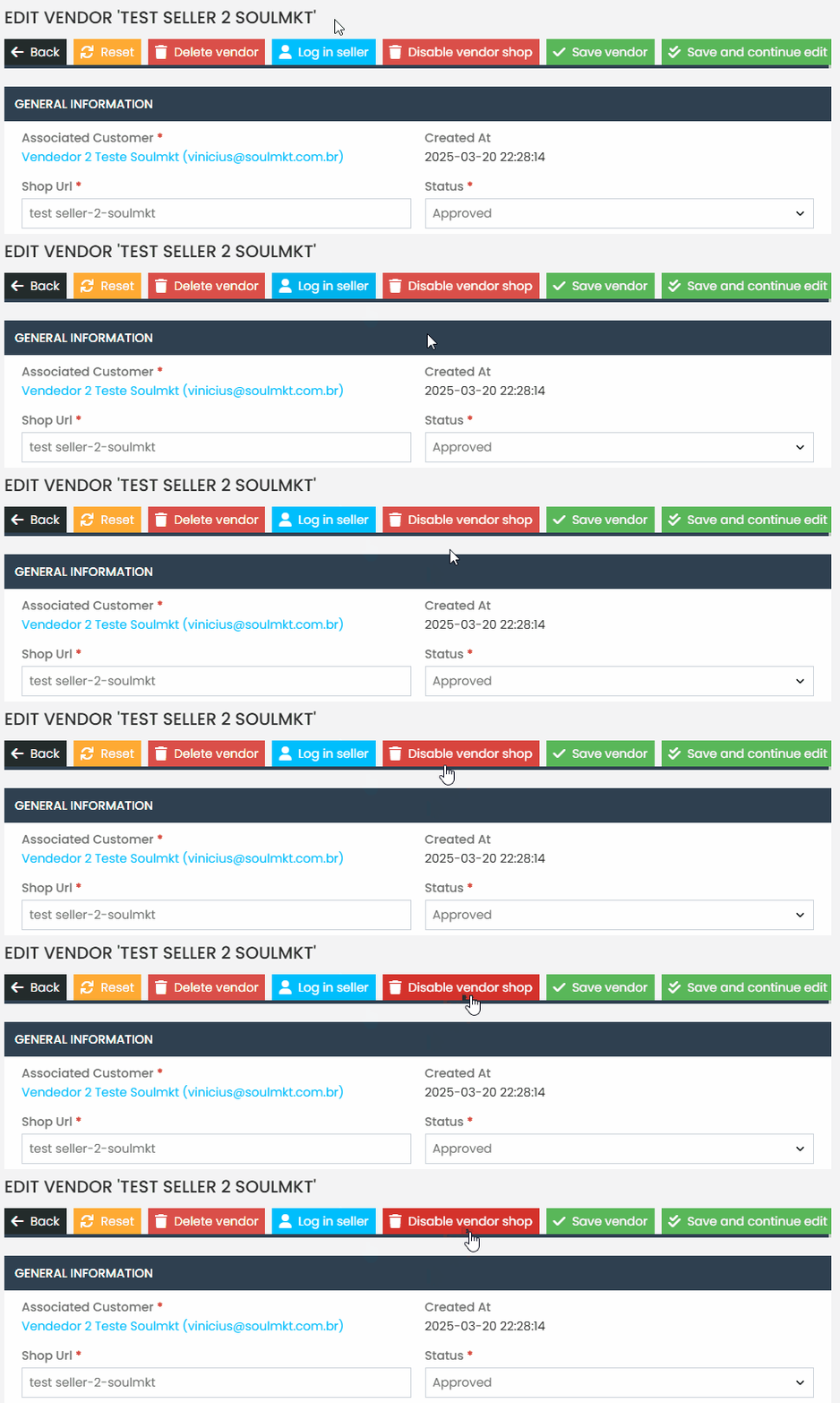
Next, click the “Deactivate Seller’s Store” button located in the upper corner, represented by a trash can icon.
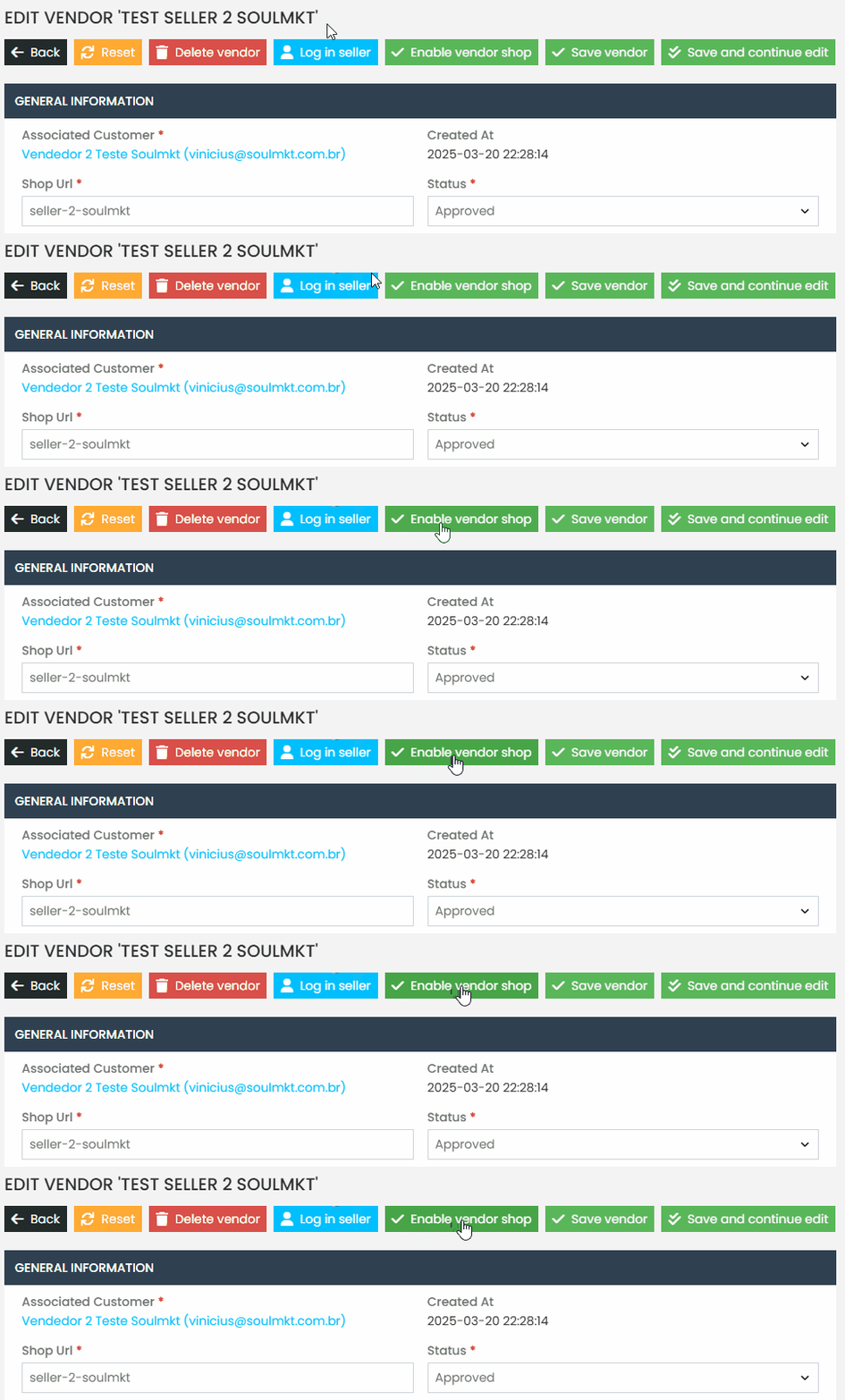
After completing this process, the seller will still be able to access their dashboard and perform the necessary configurations and tests. However, they will no longer appear as one of the available seller options for customers.Keep in mind that while the store is deactivated, the seller is not eligible to sell on the platform.If you need to make this seller available again as an option within the product pages, remember to reactivate the seller’s store by following the same steps. Note that the button’s color and label will now be updated to indicate that clicking it will enable the seller’s store again.
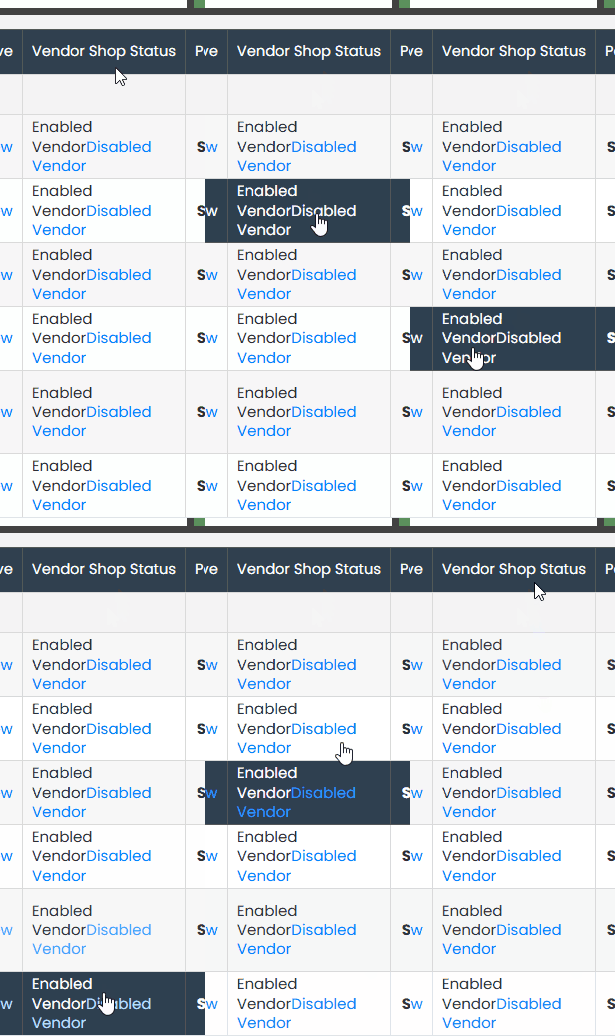
If you have trouble remembering which seller is deactivated, you can check this information in the “Seller Store Status” column in the sellers grid. This column indicates whether the store is deactivated or activated. Additionally, you can deactivate or activate the seller’s store directly from this column by clicking “Disable” if the store is currently enabled, or “Enable” if the store is currently disabled..
By following this documentation, you’ll be able to deactivate your seller’s store without any issues. If you encounter any difficulties during the process, feel free to contact our support team. We’re here to help!