
Configure the Extension #
Blog Pro has many options and settings that will be useful when creating blog posts.
To configure the extension, go to Content → Blog Pro → Configuration.
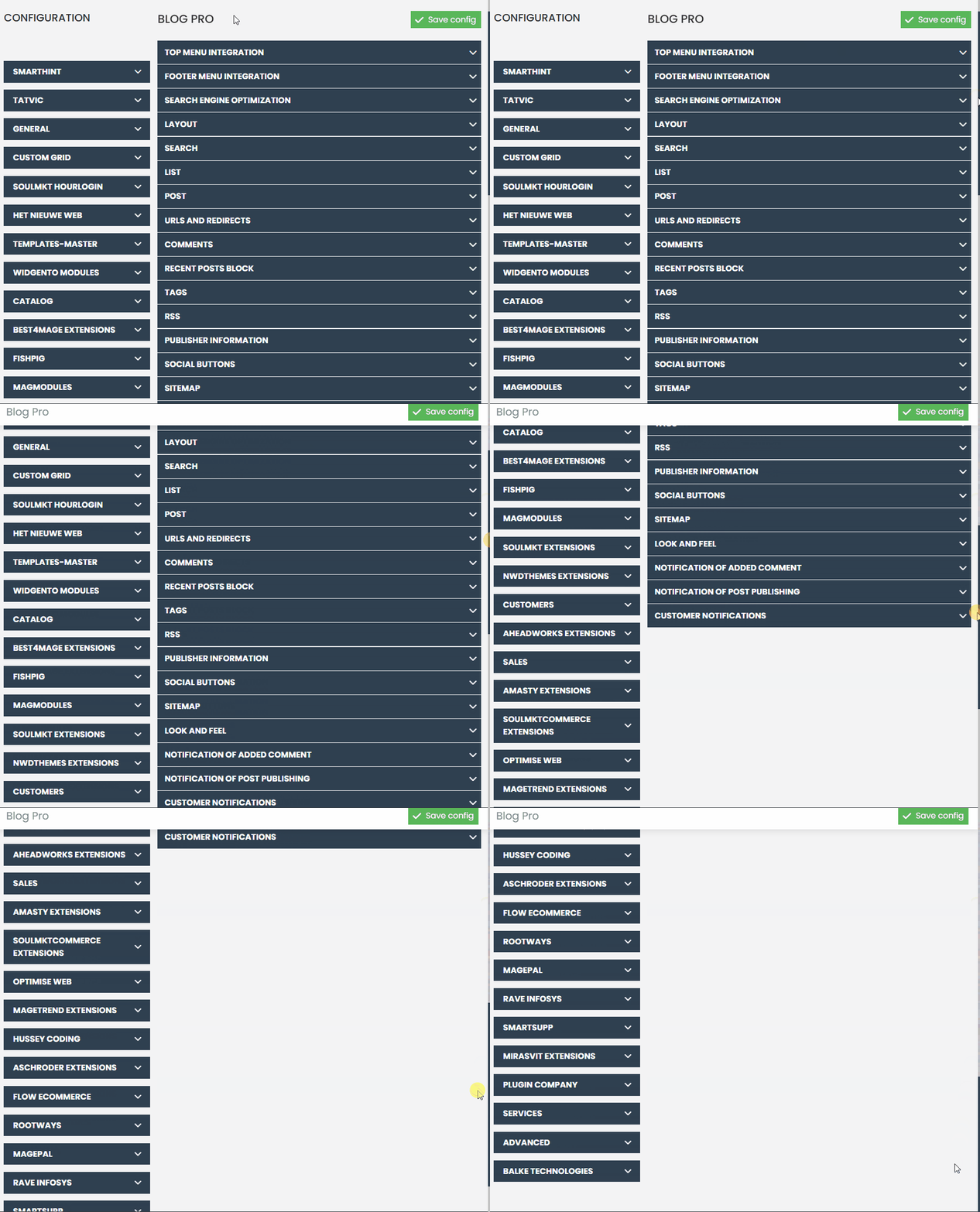
The page contains 18 sections, which are described below; the interface is very intuitive to facilitate the configuration process for you.
Integration of the top menu/footer #
It is possible to add the blog link to the top menu of your store.
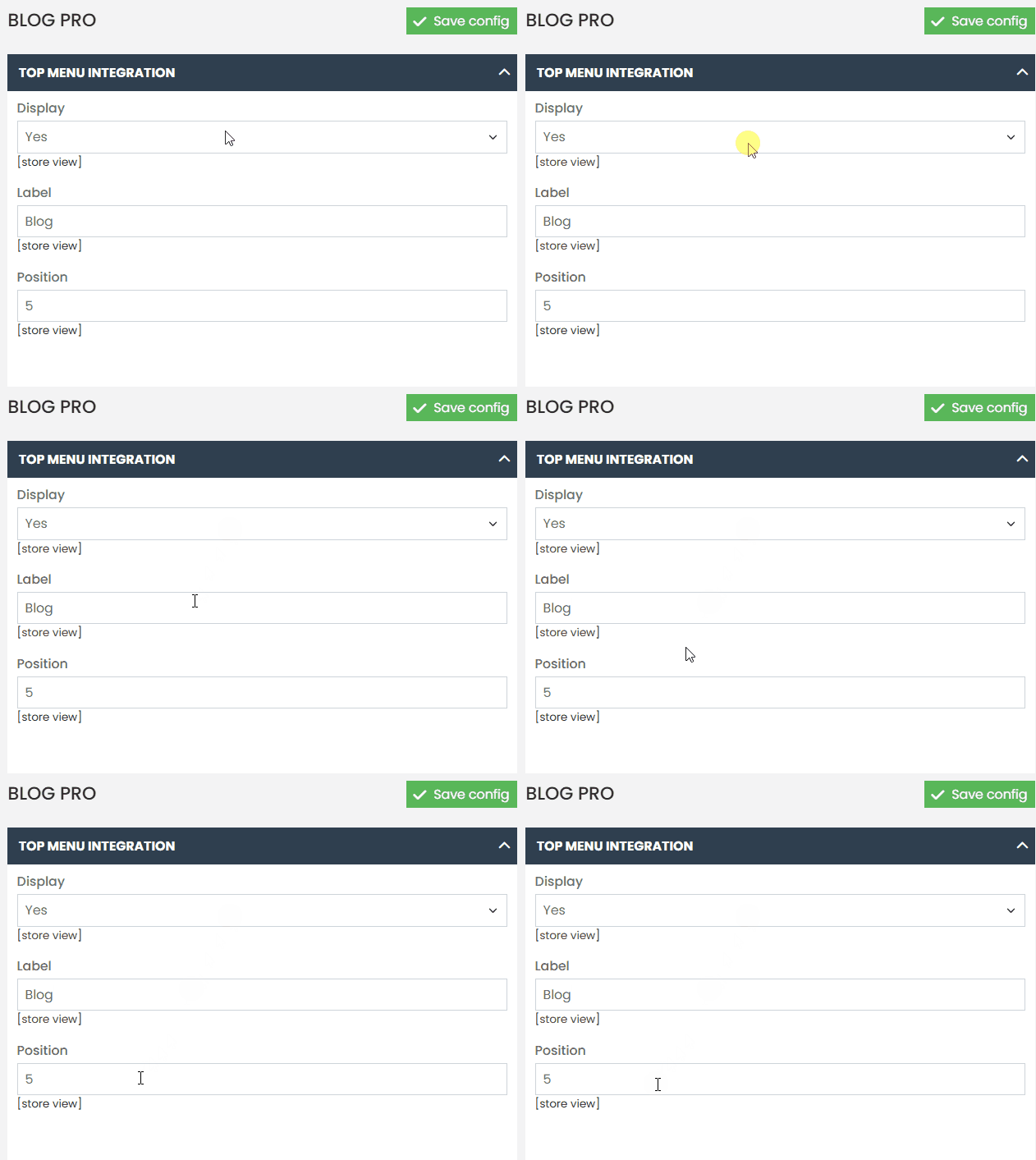
Show – Displays or hides the blog link in the top menu.
Label – Specify the label for the link.
Position – Defines the sequence of the link among other links
Search engine optimization #
Blog Pro allows you to optimize the blog for Google and other search engines. A carefully chosen meta title, keywords, and description will boost your blog in search results and attract more potential customers to your store.
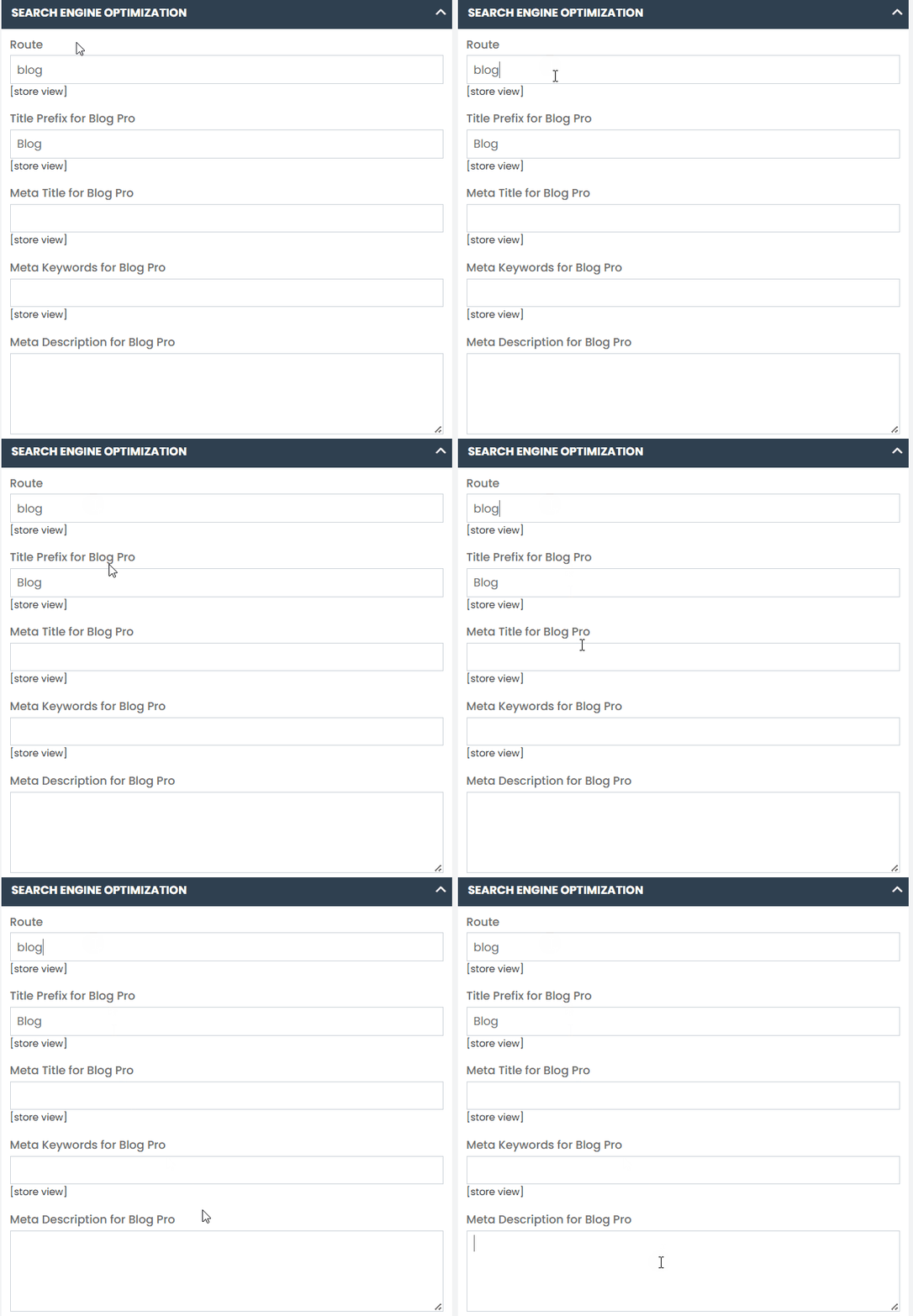
Route – Set the URL title that will redirect visitors to your blog page.
Title Prefix for Blog Pro – Specify the default prefix that will be displayed in a browser tab when opening a blog category or searching for a tag.
Meta Title for Blog Pro – This is the title of the blog’s main page in a browser tab.
Meta Keywords for Blog Pro – Add the keywords customers can use to find your blog. Try to find words and phrases relevant to the topics covered in your blog.
Meta Description for Blog Pro – This description is displayed in search engine results.
Layout #
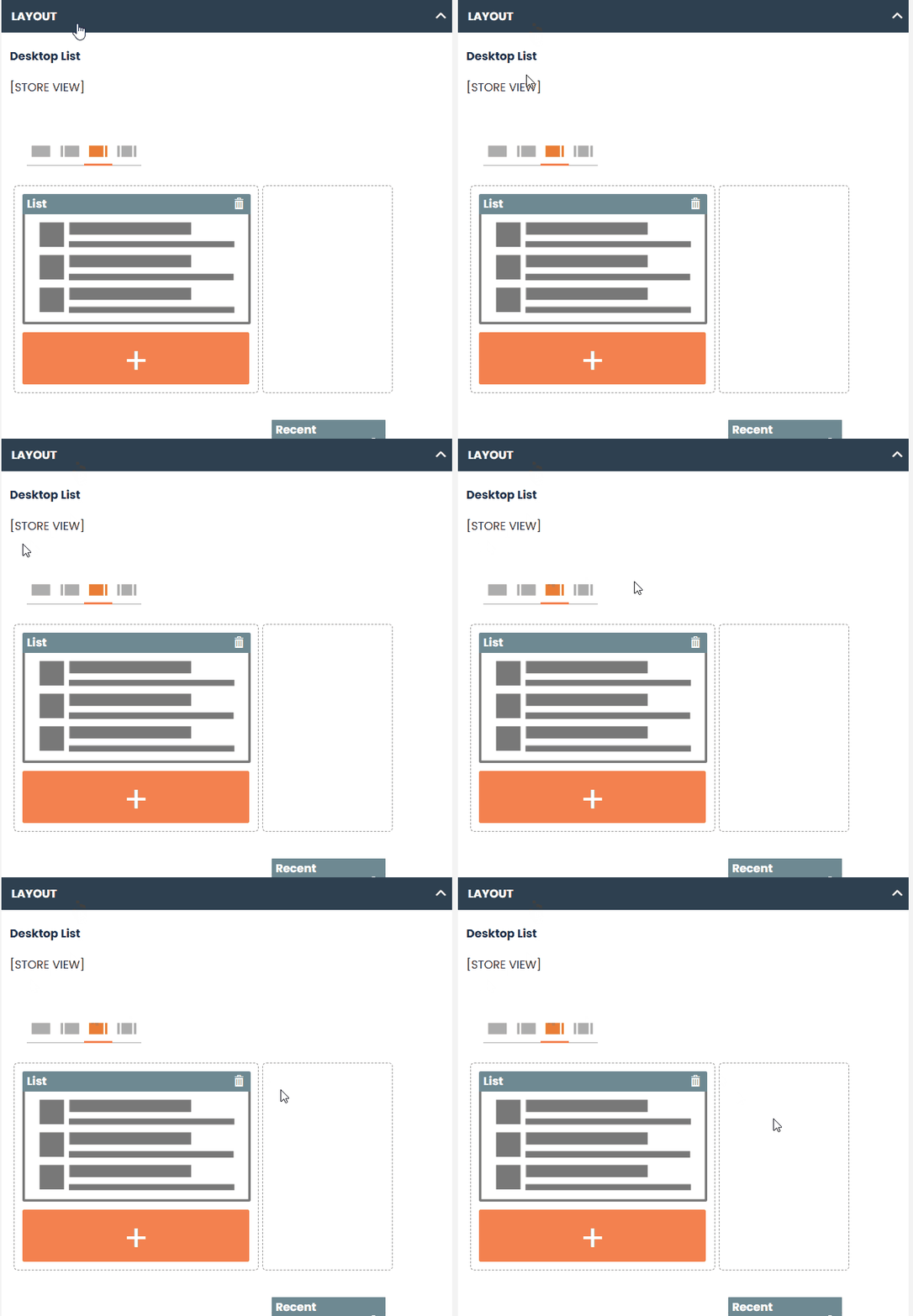
With the help of this layout builder, you can define how blocks with different blog information will be displayed on the frontend. There are four types of layouts: desktop layouts for the blog’s main page and a post page, and the same layouts for mobile devices.
The setup is easy and convenient, as all layout blocks are visualized. You can drag, add, delete, and rearrange the position of blocks as needed.
To add a block, click the ‘More’ button and select one of the available options. If you want to delete a block, click the trash icon in the upper right corner.
Post List and Search Options #
Set the number of posts displayed on a blog page and specify the type of search to be used for the blog.
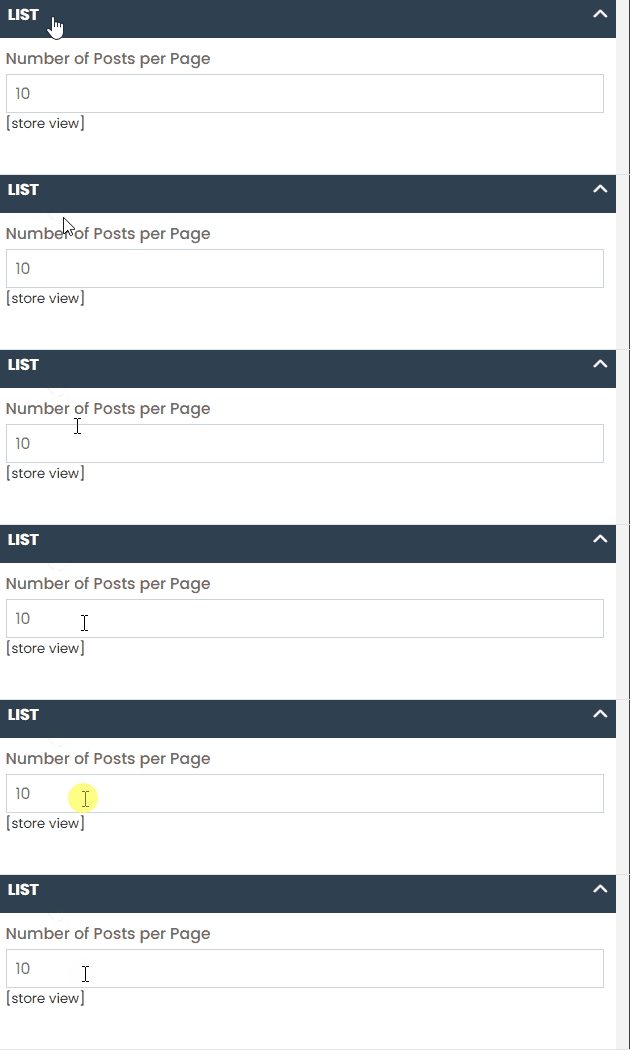
Number of posts per page – Set how many posts should be displayed on the blog’s main page.
Search Type – Set the type of search to be used in your store. Three different options are available:
- Built-in search engine – Pre-selected by default. It is a smart yet powerful solution that offers synonyms for the customer’s search query.
- MySQL LIKE Search – The fastest search type that works with exact matches. If visitors primarily search your store for specific models, this search type would be the most suitable.
- Full-text search – Uses MySQL algorithms and automatically corrects typos (available only with MySQL 5.6.2 and later).
Post Options #
Specify the general settings that will be applied to all blog posts.
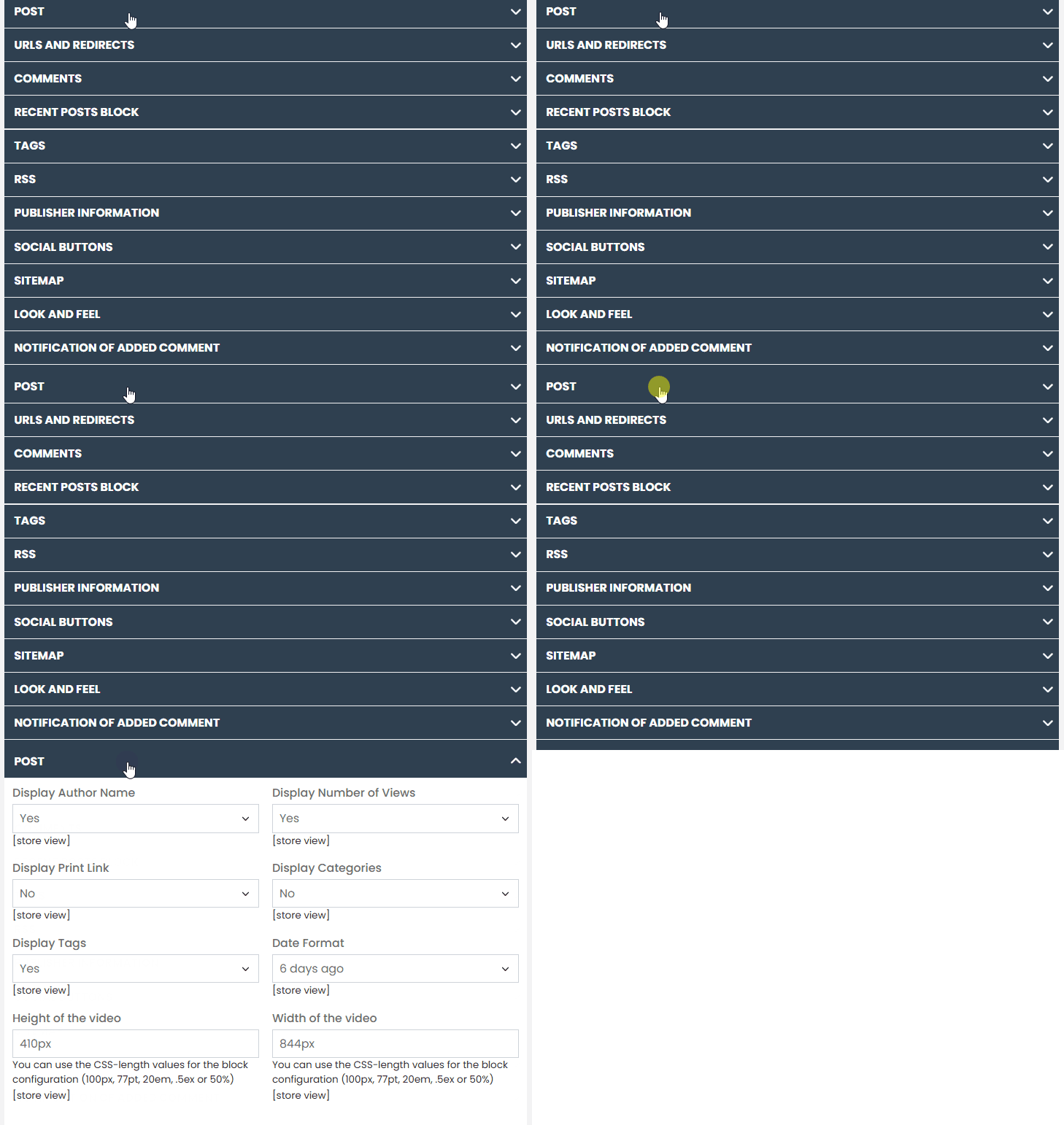
Display Author Name – Select ‘Yes’ if you want to show the author’s name on the frontend.
Display View Count – Enable this option to show the number of visitors who have viewed a post.
Display Print Link – Set to ‘Yes’ to allow customers to print a post.
Display Categories – Enable the option to show the categories a post belongs to.
Display Tags – Enable this option to show tags related to a post topic. Tags help customers find all articles on the same topic.
Date Format – Choose how to display the publication date: in the standard format or as the number of days since publication.
Video Height/Width – Adjust the height and width of a YouTube video block.
URLs and Redirects #
Define how blog URLs and redirect links should be structured.
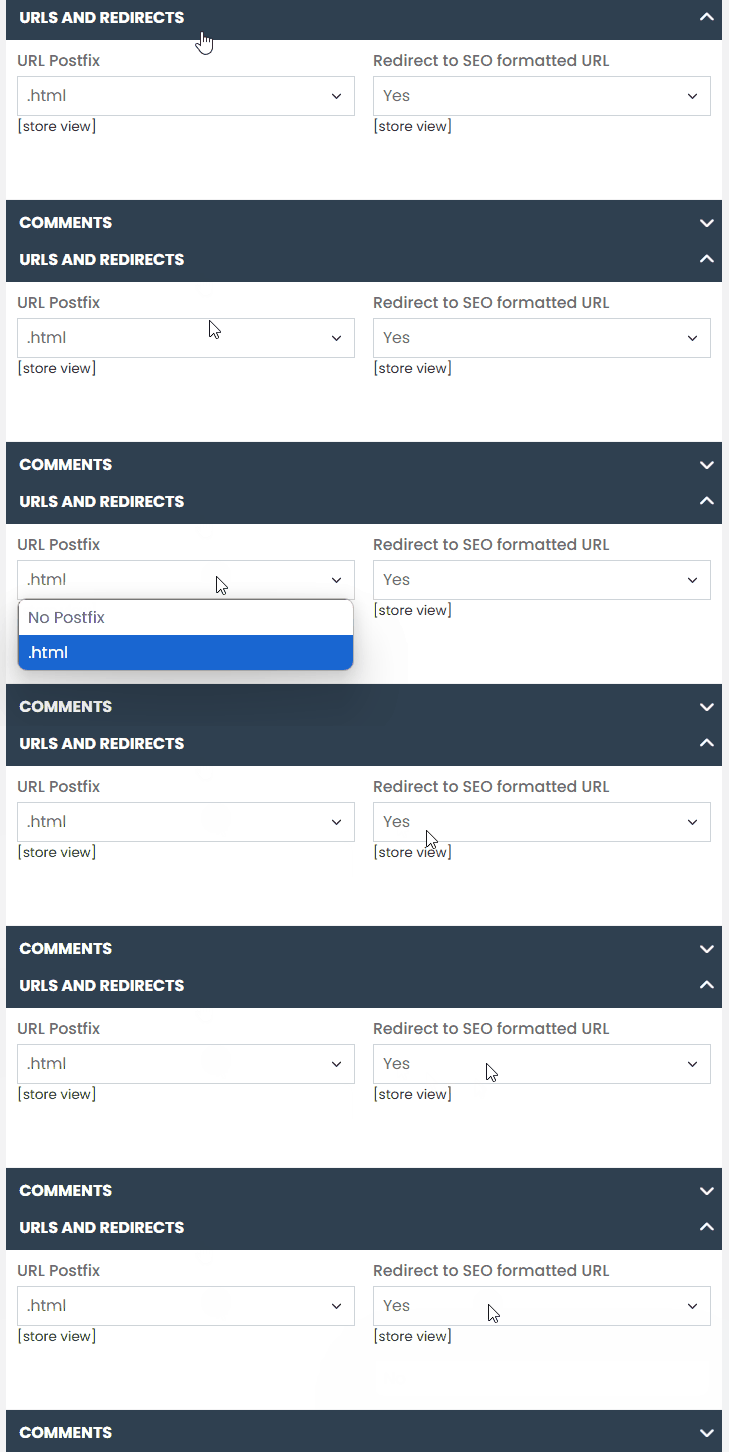
URL Postfix – The .HTML postfix indicates to search engines that the page is static and, therefore, reliable.
Redirect to SEO-Friendly URL – If you enable this option, customers and search engine bots will be redirected to an SEO-optimized post page via a 301 redirect.
Comments #
Visitor comments and discussions are a crucial part of a successful blog. In this section, you can define how they should be managed by default.
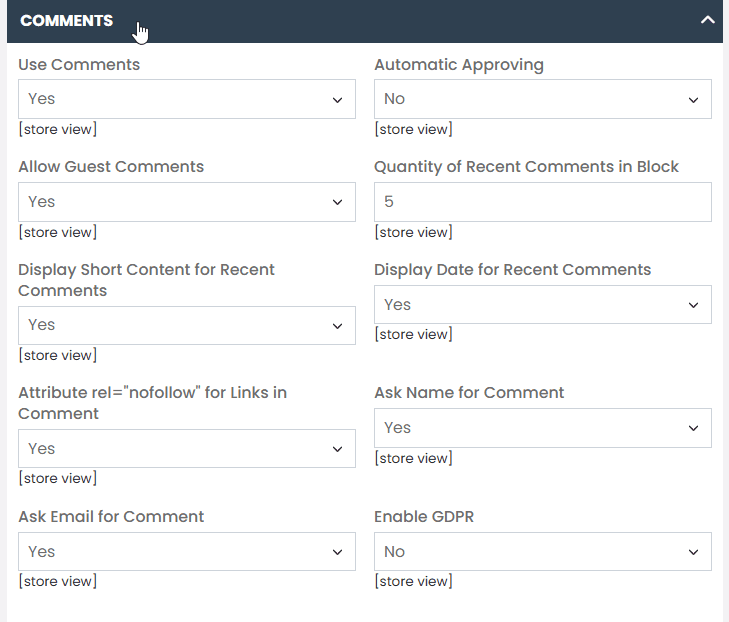
Enable Comments – Enable or disable reader comments on the frontend.
Automatic Approval – Select “Yes” if you want to publish comments without administrator approval; they will appear on the post page immediately.
Allow Guest Comments – Enable this option to allow unregistered customers to comment on your posts.
Number of Recent Comments in Block – Set the number of comments that will be displayed in the “Recent Comments” block.
Display Date for Recent Comments – Select “Yes” to show the date when a comment was posted in the “Recent Comments” block.
Display Short Content for Recent Comments – With this option enabled, visitors will see the beginning of recent comments in the block.
rel=”nofollow” Attribute for Links in Comments – If you select “Yes”, search engines will not follow links in comments. This is useful to prevent spam comments with links to other websites.
Require Name for Comment – Enable this option to add a name field for new comments.
Require Email for Comment – Enable this option to add an email field for new comments.
Enable GDPR – Choose “Yes” to enable GDPR consent for the comments section.
Consent Text – Specify the consent text and a link to the privacy policy page.
Recent Posts #
Choose how the latest posts should appear in the block.
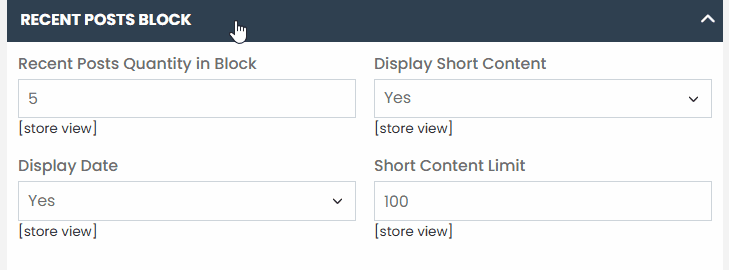
Number of Recent Posts in Block – Set the number of posts to be displayed in the block.
Display Short Content – Select “Yes” to allow your customers to read the beginning of the posts.
Display Date – Select “Yes” to show the date when a post was published.
Short Content Limit – Set the number of characters to be displayed in the block for each post.
Tags #
Tags are more specific than categories and help merchants describe their posts in more detail. Tags allow customers to find posts on topics they are interested in more quickly.
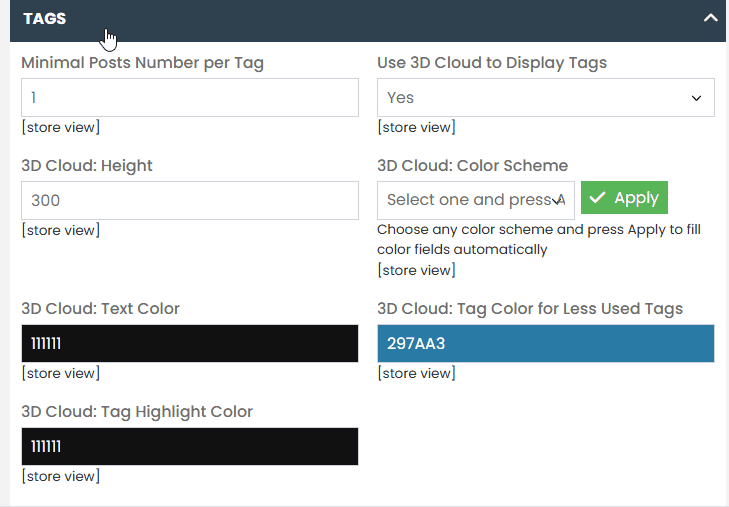
Minimum Number of Posts per Tag – Set the minimum number of posts a tag must have.
Use 3D Cloud to Display Tags – To make tags more visible to customers, you can add a block with a 3D tag cloud to the blog’s main page and all post pages.
3D Cloud: Height – Set the height of the 3D tag cloud block.
3D Cloud: Color Scheme – Choose the color scheme for the cloud that best matches your store’s design.
3D Cloud: Text Color – Enter the HEX code for the color that will be applied to the most popular tags (they appear larger than other tags).
3D Cloud: Tag Color for Less Used Tags – Enter the HEX code for the color that will be applied to smaller tags (they appear smaller than the popular ones).
3D Cloud: Tag Highlight Color – Enter the HEX code for the tag highlight color.
RSS #
With this option, you and your customers can access an RSS feed of your blog and embed it into a Magento RSS feed page. This allows customers to receive the latest posts, comments, and other blog content without visiting the store.
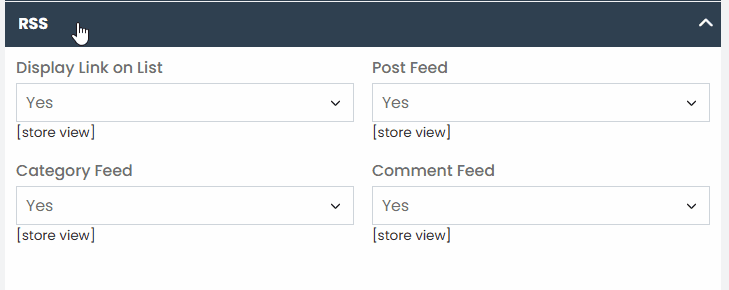
Display Link in List – Select ‘Yes’ to show the link to the RSS feed on the blog’s main page.
Post Feed – Select ‘Yes’ to allow customers to embed posts in an RSS feed page.
Category Feed – Choose ‘Yes’ to allow customers to embed categories in an RSS feed page.
Comments Feed – Select ‘Yes’ to allow customers to embed comments in an RSS feed page.
Editor Information #
A publisher is the website that publishes posts. You can have multiple authors, but there is only one publisher. Information about the company that publishes a post is important when sharing content on social media. If someone finds your post on Facebook, they will see that it belongs to your website.
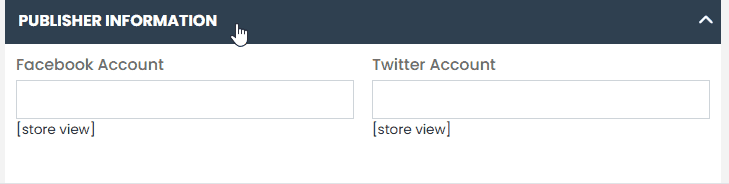
Facebook Account – Specify the store’s official Facebook page.
Twitter Account – Specify the store’s official Twitter account.
Social Buttons #
Allow customers to share your articles on social networks. Remember that social sharing increases popularity and drives more traffic.
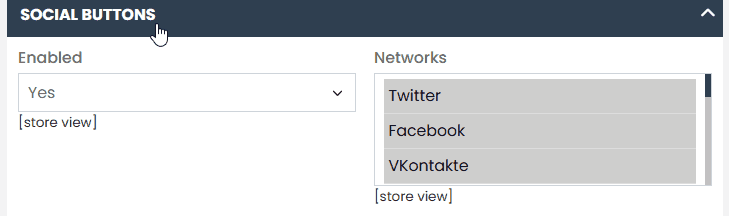
Enabled – Select “Yes” to display social sharing buttons on a post page.
Networks – Choose the networks where your customers can share posts.
Sitemap #
The sitemap helps Google and other search engines better understand the structure of your store.
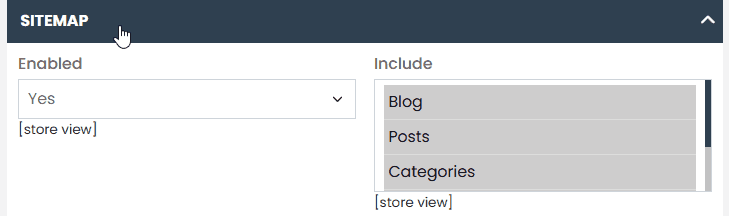
Enabled – Select “Yes” to enable the sitemap in your store.
Include – Select the parts of the blog that will be included in the sitemap.
Look and Feel #
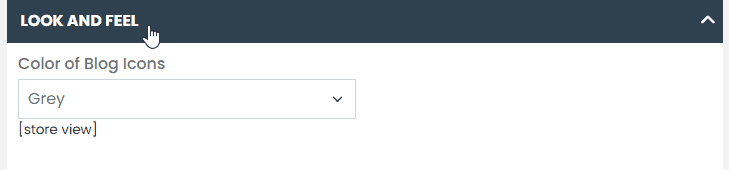
Select a color for the icons displayed at the top of a blog post (author, view count, print button, etc.).
Comment Added/Post Published Notification #
You can receive notifications of new comments even if they are automatically approved. This helps you monitor what visitors post in the comments and remove spam messages in a timely manner. The post publication notification will be sent when a scheduled post is published.
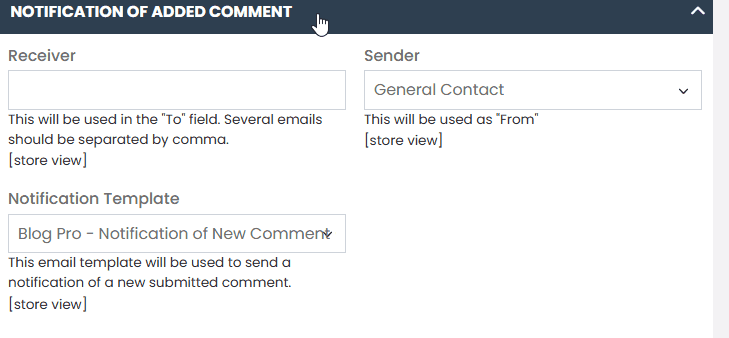
Recipient – Specify one or multiple email addresses where publication notifications will be sent.
Sender – Choose the email address from which notifications will be sent.
Notification Template – Select a notification template. You can use your own template or the Blog Pro default template.
Customer Notification #
Notify customers when someone replies to their comments or adds a new comment to the post.
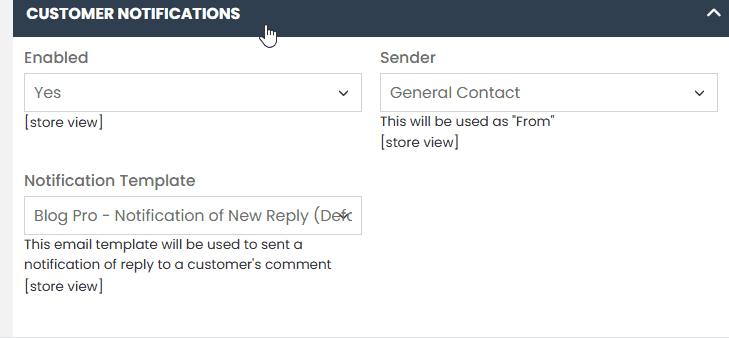
Enabled – Enable or disable this option.
Sender – Choose an email address from which notifications will be sent.
Notification Template – Select a notification template. You can use your own template or the Blog Pro default template.
If you have any difficulties or questions, don’t hesitate to contact our support team. We are always available to help!