
“In this tutorial, you will learn how to set a minimum sales quantity for a product or remove this restriction if needed.
Step by step:
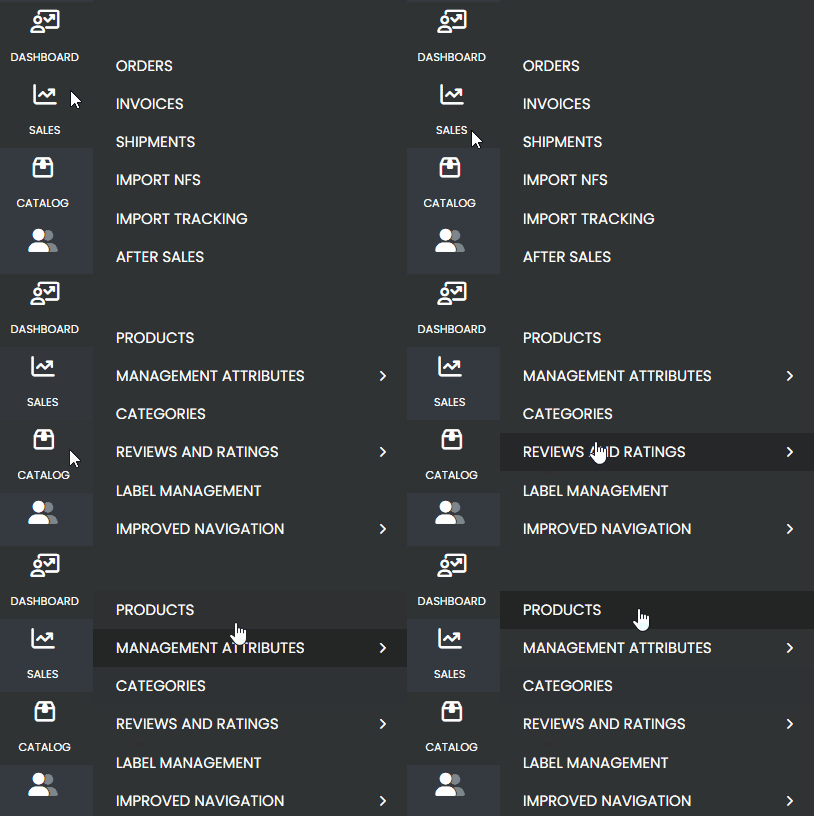
Access the side menu and navigate to: Catalog > Products.
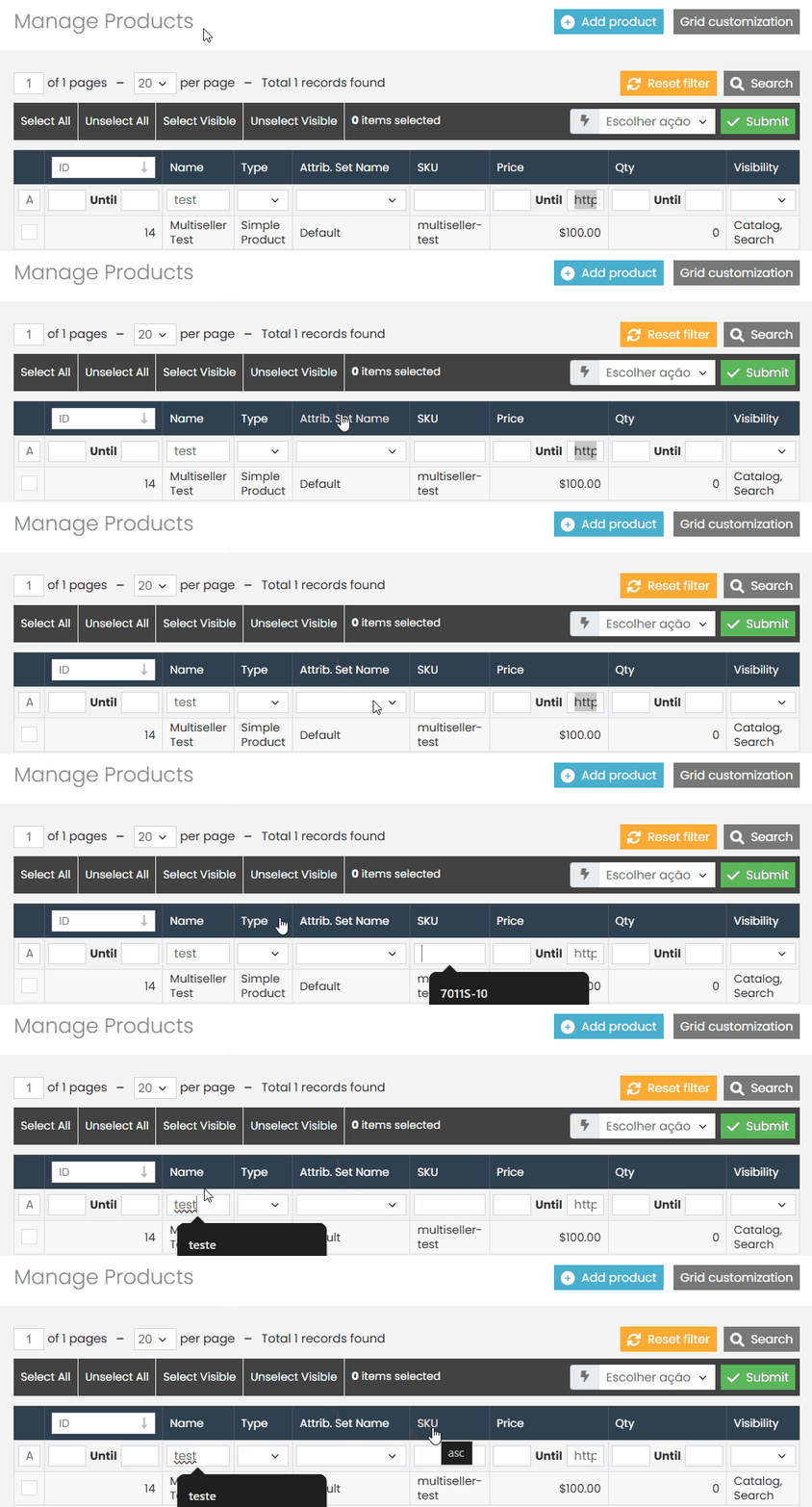
Use the available filters to locate the desired product.
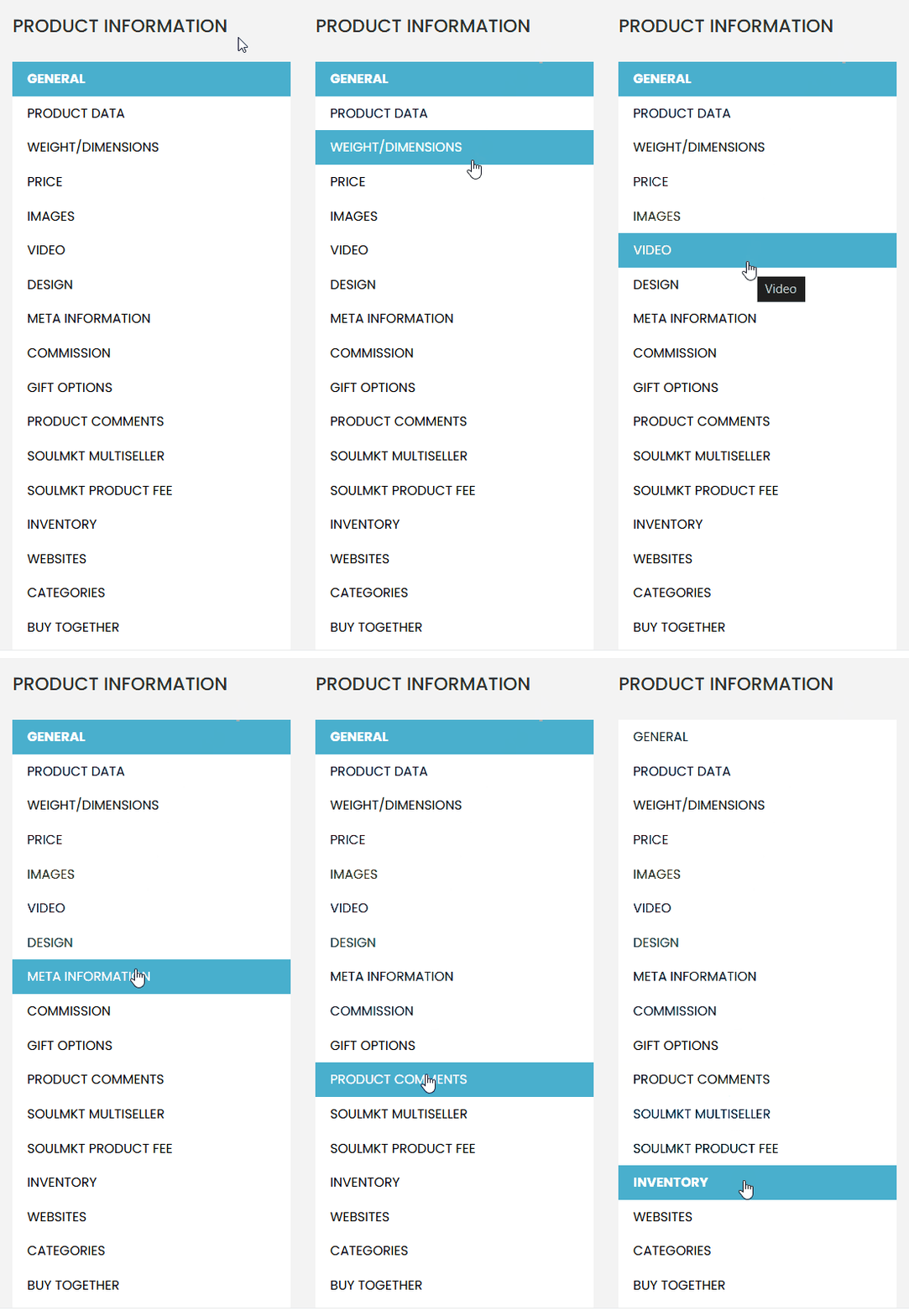
- After locating the product, click to edit it and go to the ‘Inventory‘ tab.
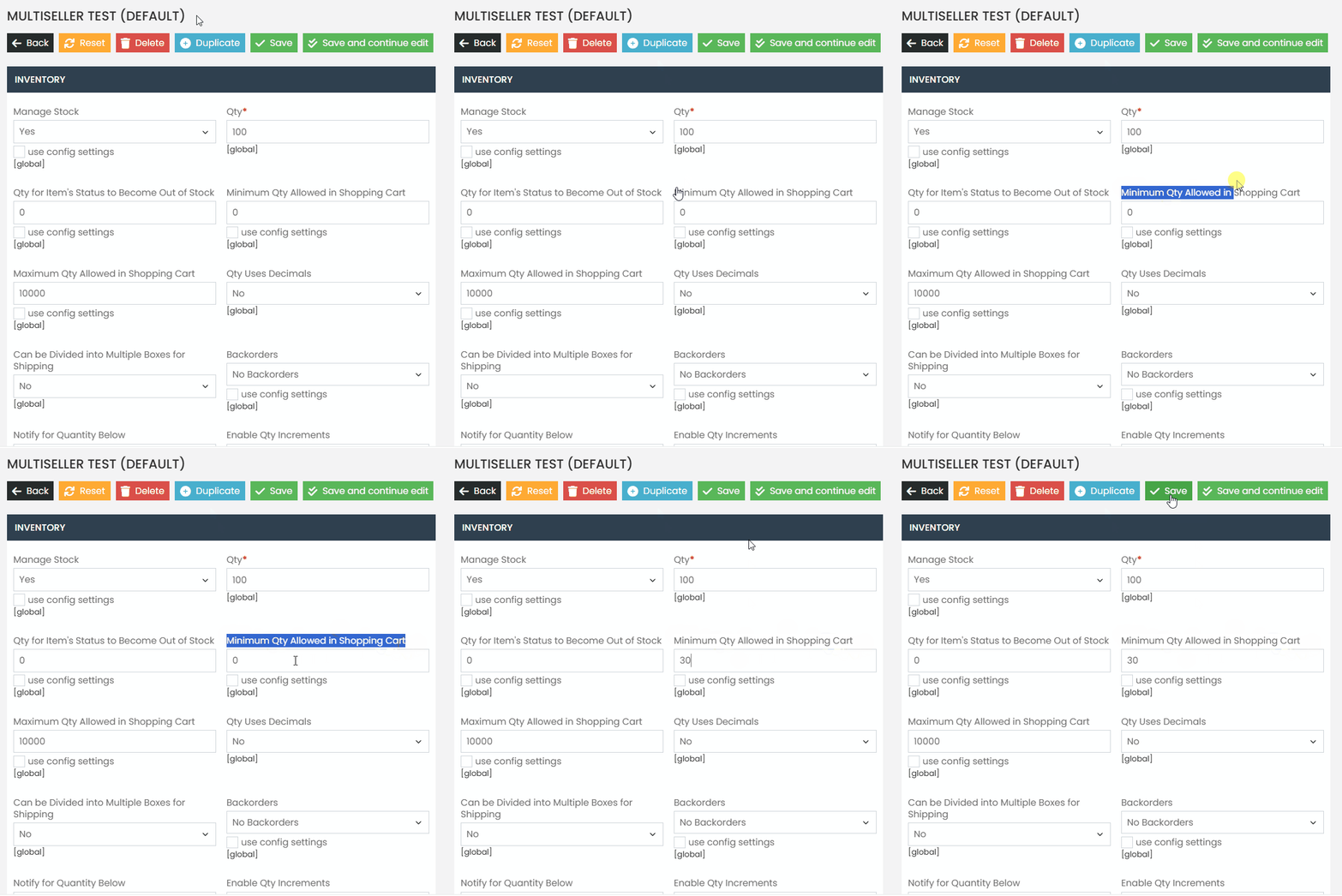
In the Inventory tab, locate the field ‘Minimum Quantity Allowed in Cart.’
- To set a minimum quantity, enter the desired value. (E.g., if you want the product to be sold starting from 30 units, enter the value 30.)
- To remove the minimum quantity, leave the field blank.
If you have any difficulties or questions, do not hesitate to contact our support team. We are always available to help!