
This documentation guides administrators of the Soul platform through the process of registering a configurable product, highlighting the essential concepts, practical steps, and recommendations to ensure the proper functioning of the feature.
Before starting the registration of a configurable product, it is essential to understand the following concepts:
Configurable Product
This is a type of product that allows the creation of variations based on customizable attributes, such as color, size, voltage, etc. The configurable product functions as a “parent product,” grouping several associated simple products that represent each possible combination.
Attributes Used for Variation
To create a configurable product, the attributes used for variation (e.g., Color, Size) must be:
- Set as “Used to create configurable product.”
- Included in the Attribute Group selected during the parent product’s registration.
For more details, refer to the documentation on How to create an attribute group.
Steps to Register a Configurable Product
The standard flow for registering a configurable product involves two main phases: Registering the Parent Product (Config.) and Creating/Associating the Simple Products (Children).
- Access the administration panel
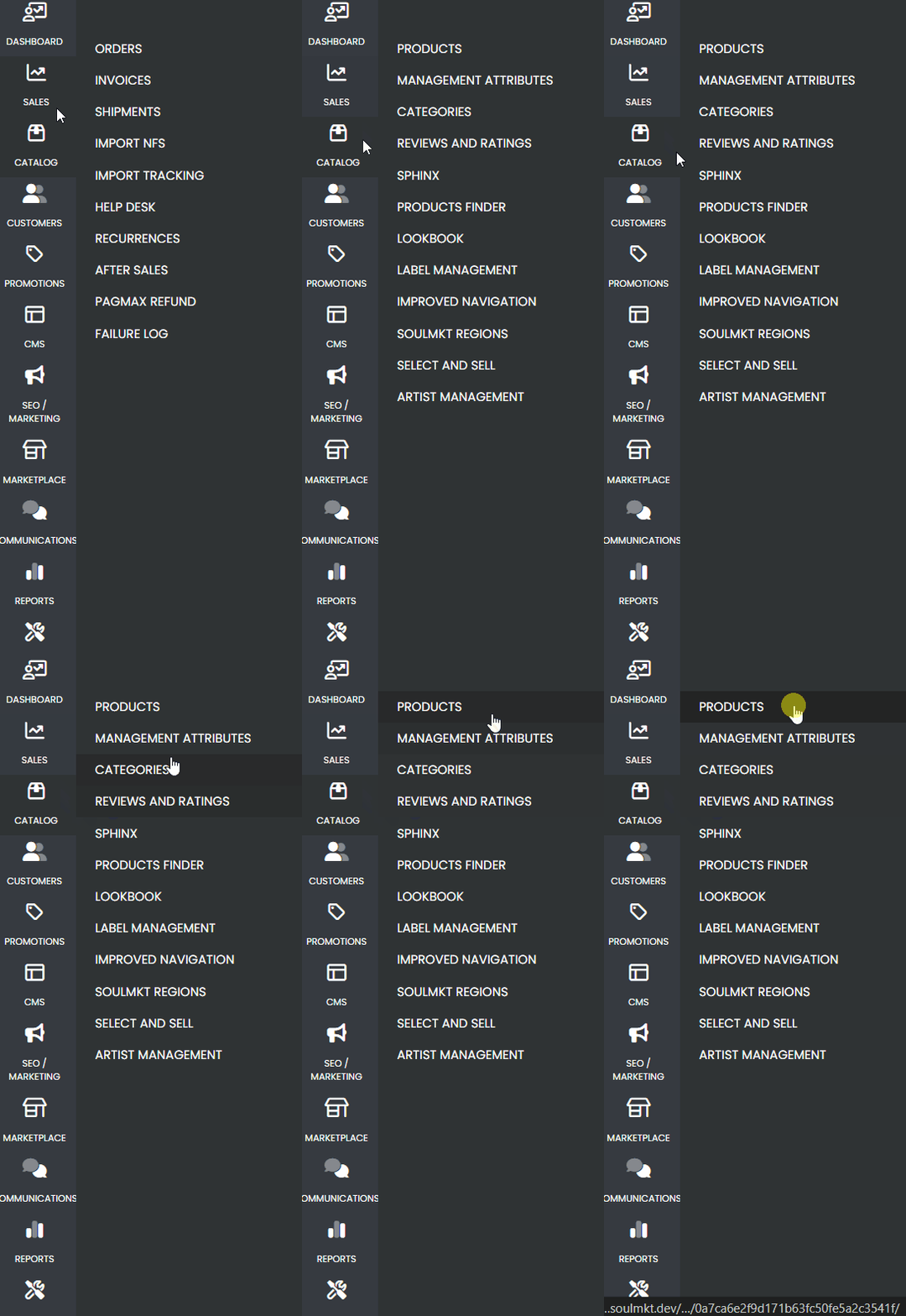
- In the side menu, hover over the Catalog tab.
- In the submenu that appears, click on Products.
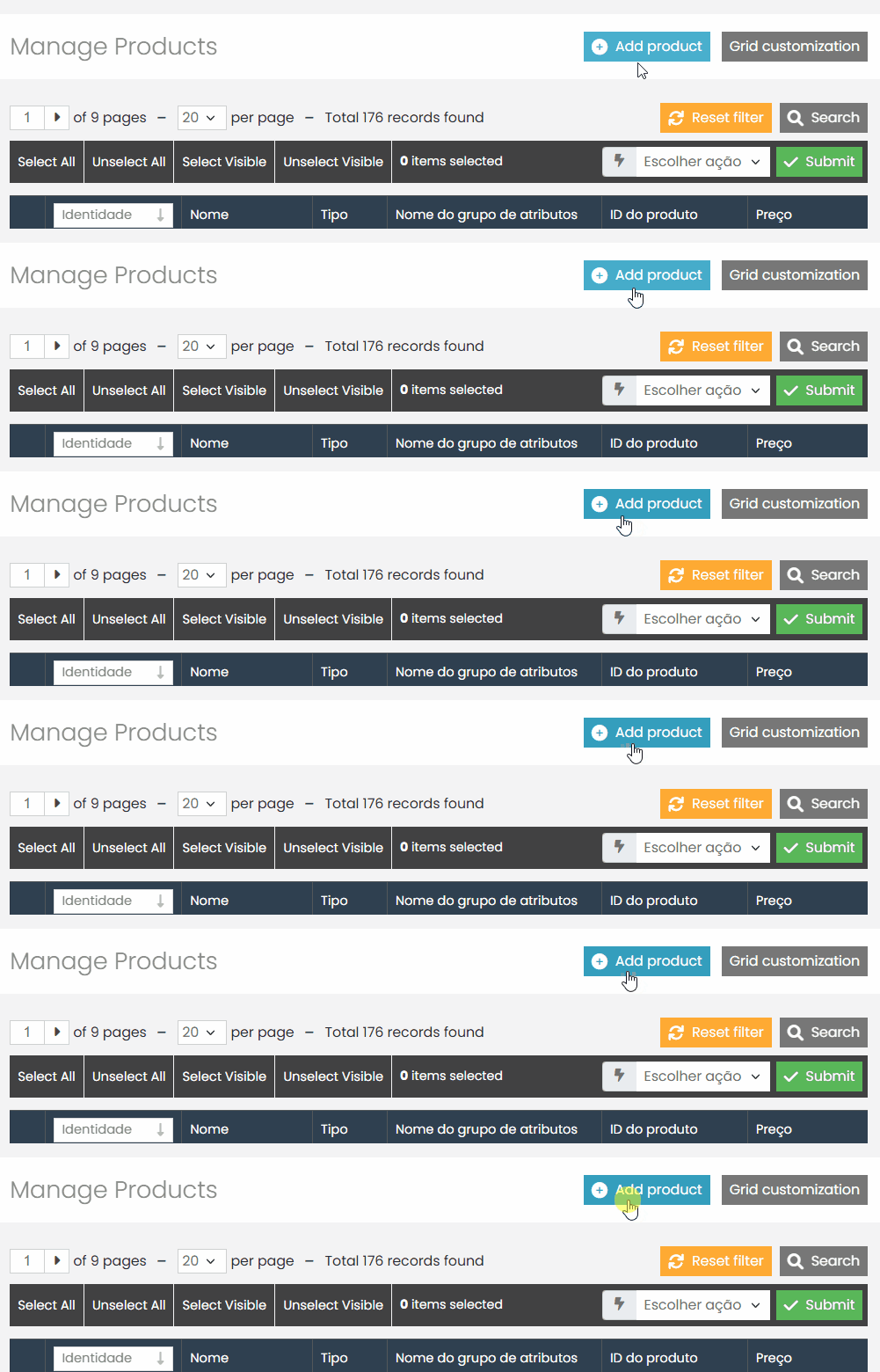
- Click the Add Product button located in the upper right corner.
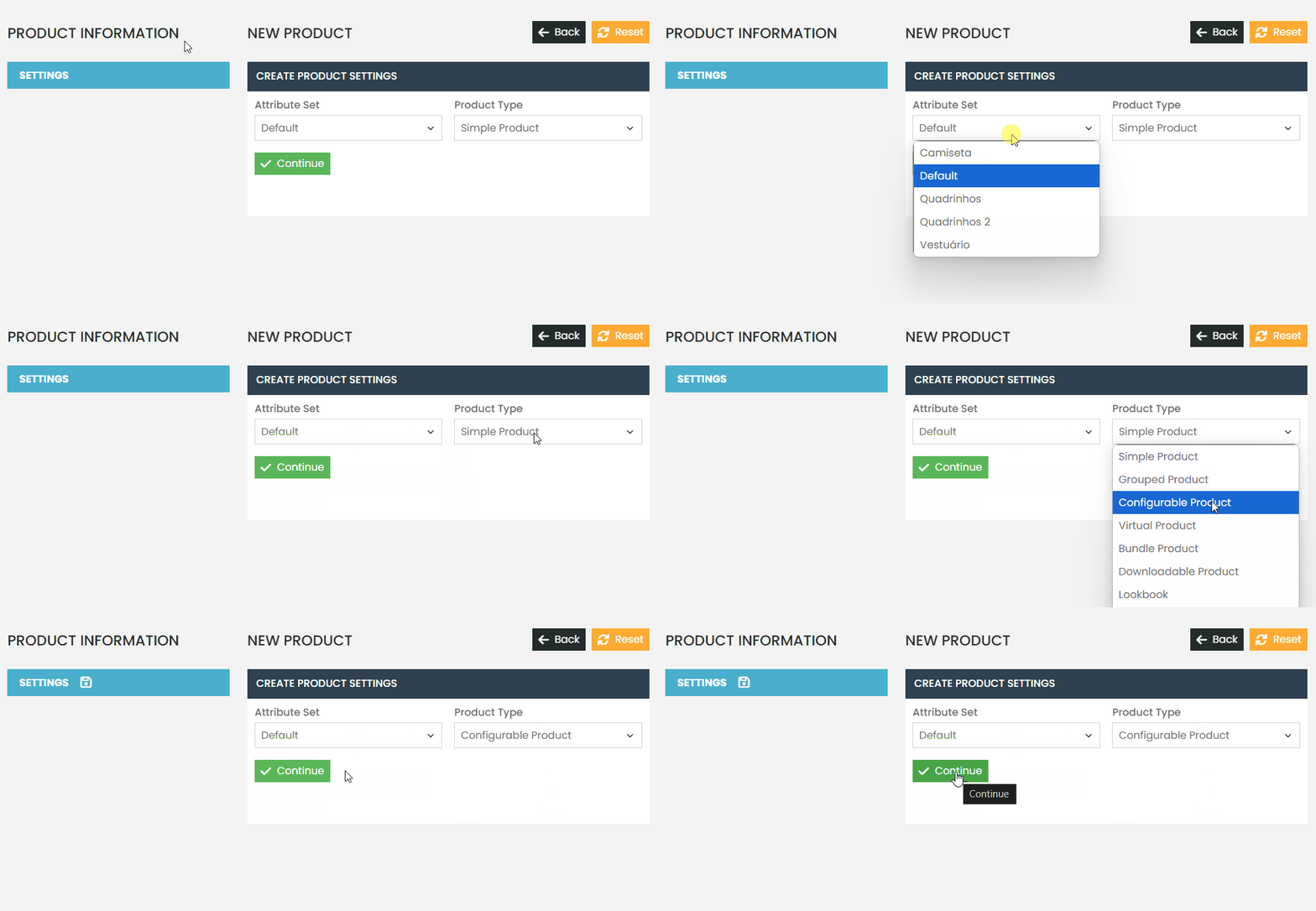
- Choose the Product Type: Configurable
- Select the Attribute Set (e.g., Default).
- Choose the “Configurable” product type.
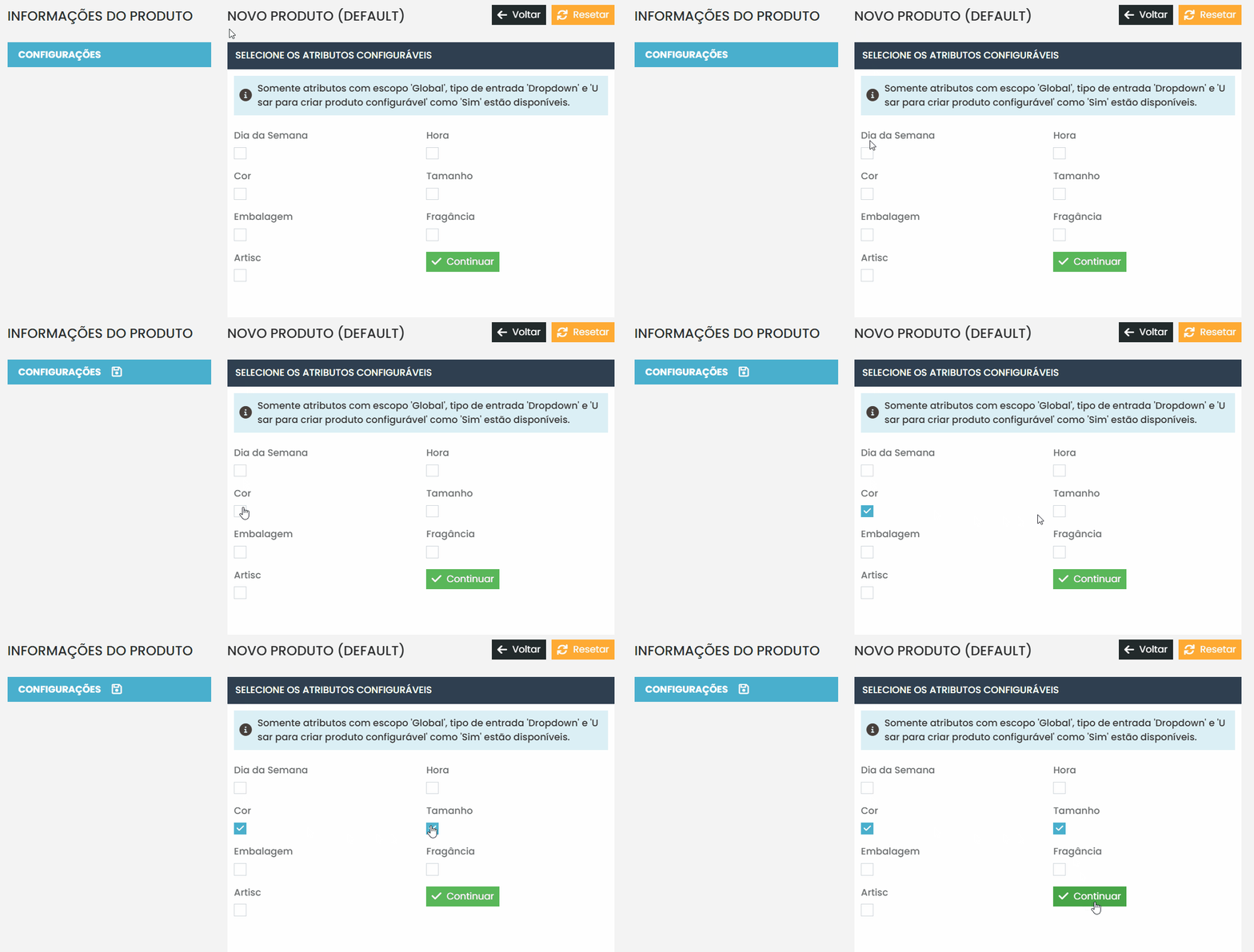
Select the configurable attributes (e.g., Color and Size).
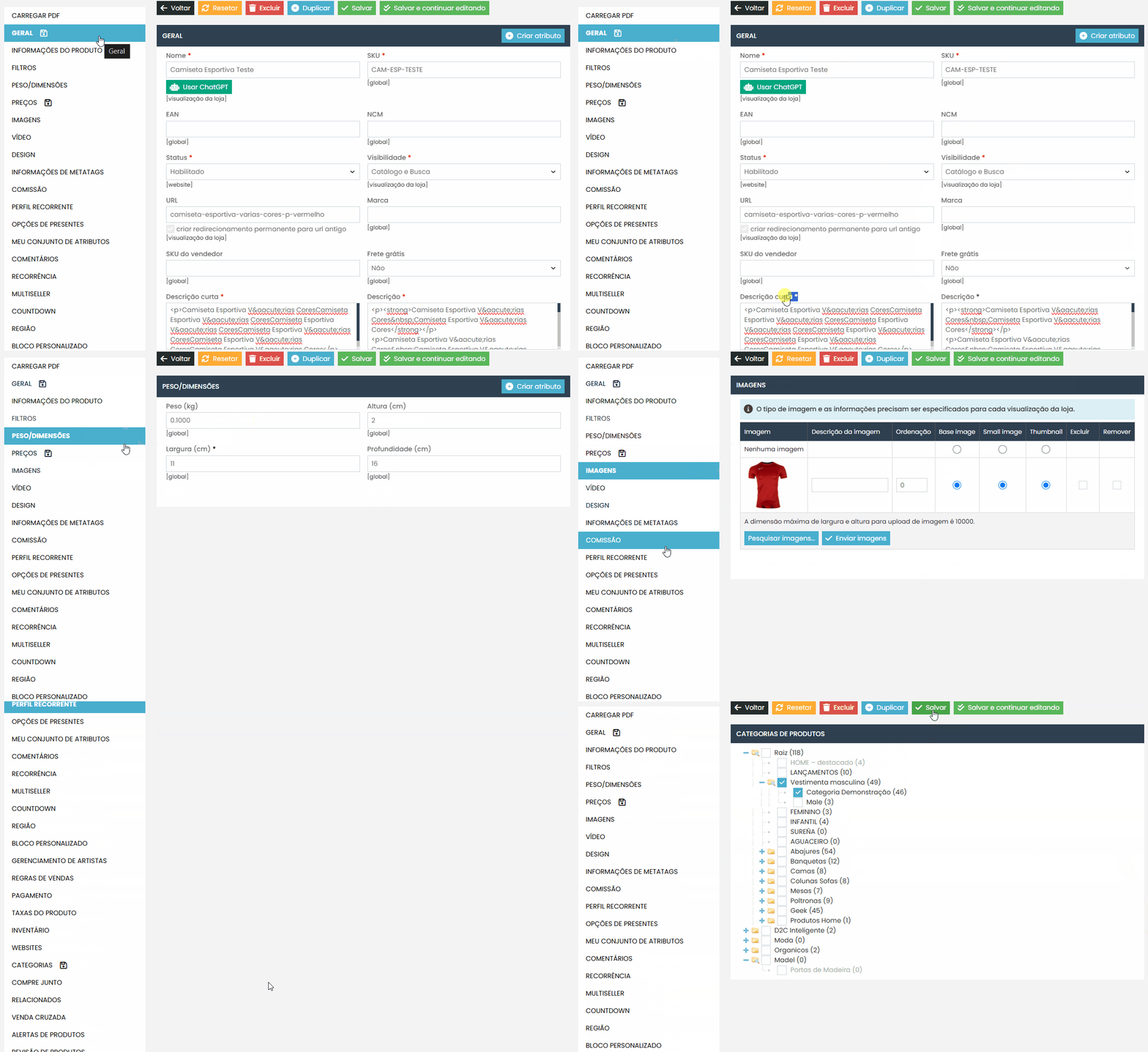
- Fill in the Required Fields
Complete the basic fields such as:
- Name: The product name displayed in the store.
- SKU: Unique identifier for the product in the system.
- Status: Select Enabled (Indicates if the product is active in the catalog.)
- Visibility: Should be set to “Catalog, Search” for the product to appear in the store.
- Description: Detailed text shown on the product page. (Explain the product, its benefits, usage, or specifications.)
- Short Description: Text shown in listings and summary areas. (Be clear and concise, highlighting key product points.)
- Category: Classification of the product within the store. (Select one or more categories that accurately represent the product.)
- Image: Add at least one image that generically represents the product.
- Price: Product price (can be left blank if the price will be set on the child products).
Associate the Simple Products #
After saving the basic information, a section will appear to link simple products to the configurable one.
Options:
- Create new simple products automatically based on the selected attributes.
- Associate existing simple products that are already registered.
Associate Products #
To associate products, follow the steps below:
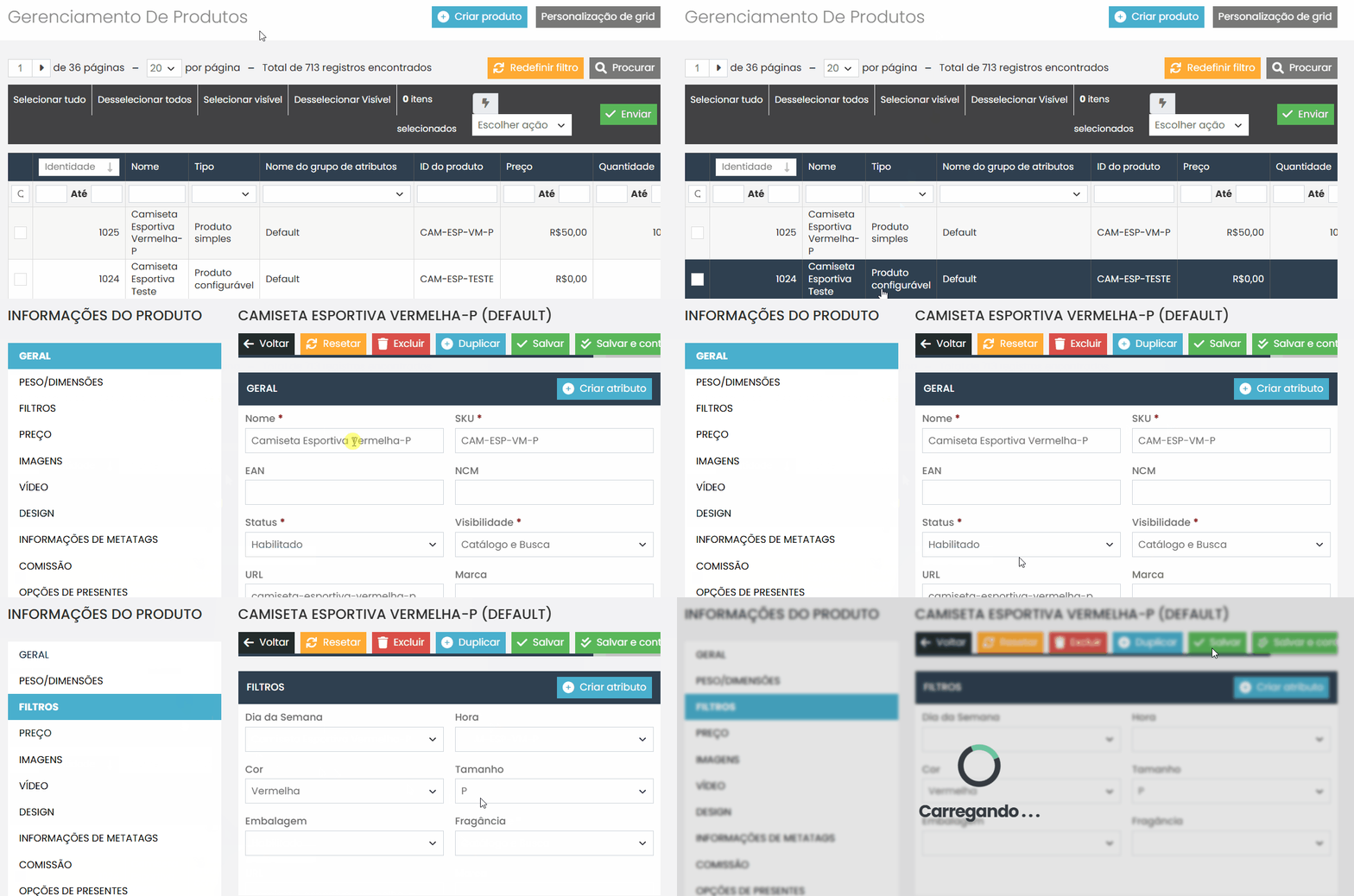
- In the product information of the desired item, go to Associated Products.
- Click the “Reset Filters” button to clear all previous selections.
- Check the checkboxes of the products you want to associate.
- After selecting the products, click “Save” to complete the association.
Requirements for Simple Products:
- Must have the same attributes used for variation (e.g., Color = Red).
- Each simple product must represent a unique combination.
- Must have available stock and be marked as “In Stock.”
- Visibility: “Not visible individually.”
Application Example
Product: Sports T-Shirt
Attributes used: Color (Red), Size (S)
Parent product: “Sports T-Shirt” (configurable)
Simple products:
- Sports T-Shirt Red S
- etc.
Final Recommendations #
- Always review the variation attributes before starting the registration.
- Use standardized names and SKUs for the simple products.
- Ensure that all child products have images, prices, and stock defined.
- Test the functionality on the front-end after completing the registration.
If you encounter any issues, contact our technical support team.