Pular para o conteúdo
Docs
  • Ticket no Helpdesk

Sales

4
  • How to check which seller is associated with an order?
  • How to Export Invoices in PDF
  • Post-Sale Email Configuration
  • How to Recreate a Child Order ?

Catalog

22
  • Sales region setup
  • How to create a virtual product ?
  • How to Add Related Products to Your Listing
  • How to Add an Attribute Inside an Attribute Group
  • How to Create Custom Options in Products
  • How to Create an Attribute Group
  • How to Create a Default Attribute on the Platform
  • How to Add or Edit Attribute Options in Your Catalog
  • How to Select Attributes for Products
  • How to Activate a Product for Sale in the Multiseller Model
  • How to Change Product Visibility in the Marketplace
  • How to Add Additional Days to Shipping
  • How to Remove a Category from the Filter Listing
  • Seal Configuration on the Website
  • How to Update Attributes in Bulk Through the Admin Panel
  • How to Add or Remove the Minimum Sales Quantity of a Product
  • How to create a grouped product?
  • How to create a simple product ?
  • Categories
    • How to Create a Carousel Product Grid on the Homepage?
    • How to Change the Name of a Category?
    • How to Include a Custom Description in Categories
    • How to Change the Order of Products in Categories

Promotions

7
  • How to Create and Configure Promotion Rules with Free Gifts
  • Discount Configuration for MultiSeller Marketplace (Original to Sale Price Model)
  • How to Create a Discount Coupon?
  • How to Create a Discount Rule Without a Coupon ?
  • Discount Rule Templates
  • Abandoned Cart Creation and Configuration
  • How to Create a Discount Coupon for an Abandoned Cart

Content

8
  • How to Create a Grouped Product?
  • How to Add Recipients to Forms
  • HOW TO CONFIGURE BLOG PRO
  • How to verify received forms
  • How to Create an Email Template with a Coupon for an Abandoned Cart
  • How to Change Field Requirements in Forms on the Platform
  • How to Change Home Page Banners
  • How to Check Received Forms

Seo/Marketing

1
  • How the Synonyms Feature Works in SEO

Marketplace

3
  • How to Allow or Restrict Purchases from Multiple Sellers in the Same Cart
  • How to Create, Disable, or Delete an Address in the Store Locator of the Soul Marketplace ?
  • Identifying the Seller Associated with an Order

Communications

2
  • How do I enable or disable comments on products?
  • How to enable the WhatsApp button

Reports

5
  • Adding Variables and Parent Order Fields to the Report
  • How to view the approved orders report
  • How to View the Abandoned Cart Report ?
  • How to View the Most Viewed Products Report
  • How to View the Best-Selling Products Report

System

6
  • How to check the records of new updates or improvements to the Marketplace?
  • How to Register Error Logs for Order Creation Attempts
  • How to Enable the Vertical Layout in Checkout
  • Display quote-only products only after priced products
  • How to Create an Administrative API User
  • New Tax Amount Display Feature

Seller Dashboard

5
  • How to Log in as a Reseller?
  • How to approve or disapprove a seller profile
  • Activating or Deactivating a Seller’s Store
  • New free shipping configuration in the reseller pane
  • How to change the free shipping field of the product via spreadsheet?

First Steps

1
  • How to Set Up Google Two-Factor Authentication
Ver categorias

How to Create a Grouped Product?

1 minutos de leitura

This document aims to guide the user on how the Grouped Product works and how to register one on the platform.
Grouped Products allow the creation of custom combinations of items, giving the end customer the freedom to build their own order from a predefined selection of simple or virtual products.

What is a Grouped Product #

A Grouped Product is a type of composite product in which the customer can select multiple items from those available, defining the desired quantity of each one.
Unlike the Configurable Product, where variations are fixed and mutually exclusive, the grouped product offers broader customization.

A practical example would be a “market basket”: the customer chooses which fruits to include and how many units of each, creating their own custom mix.

Steps to Register a Grouped Product #

1. Access the Product Catalog #

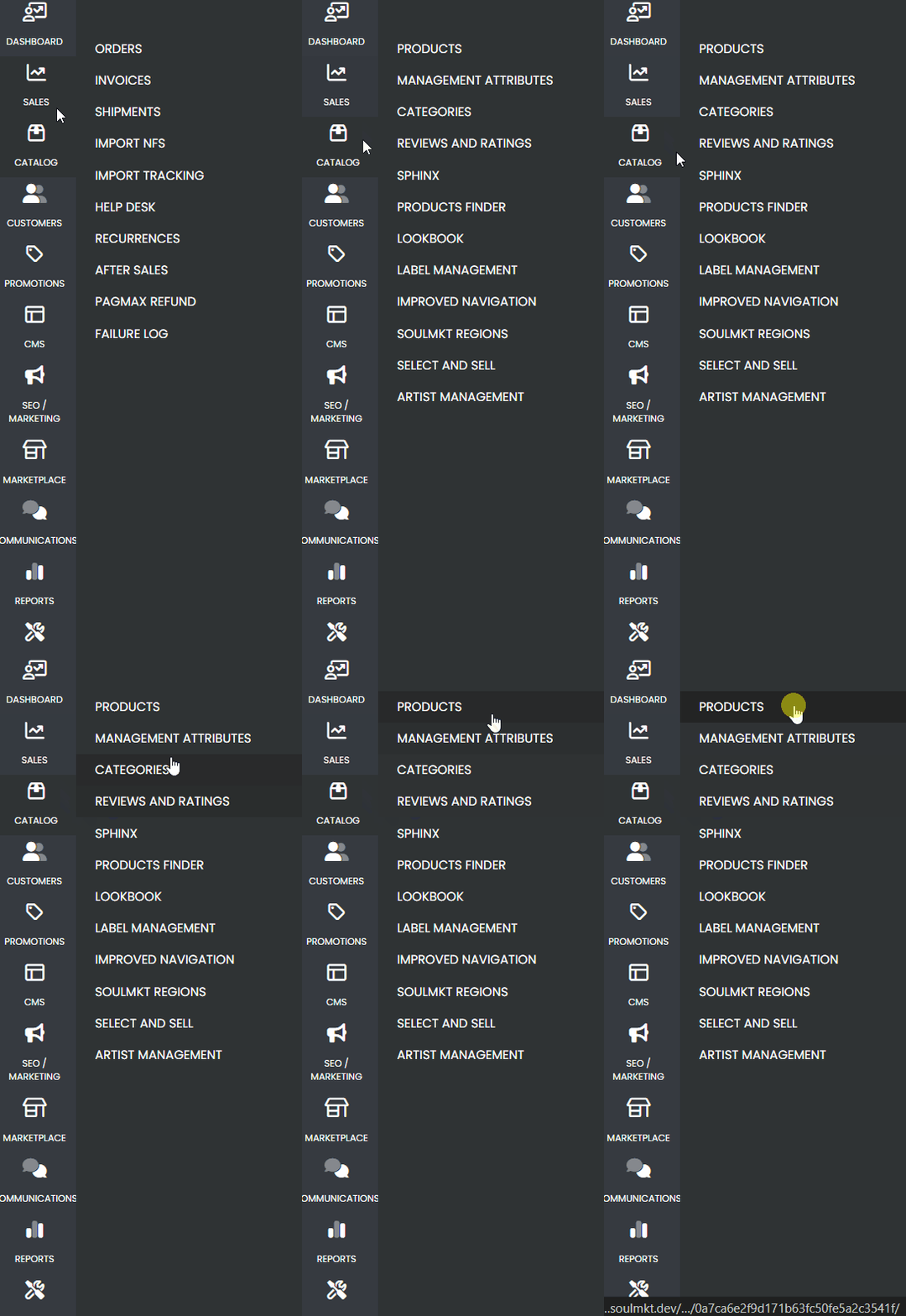
    In the admin panel, go to the menu Catalog > Products.
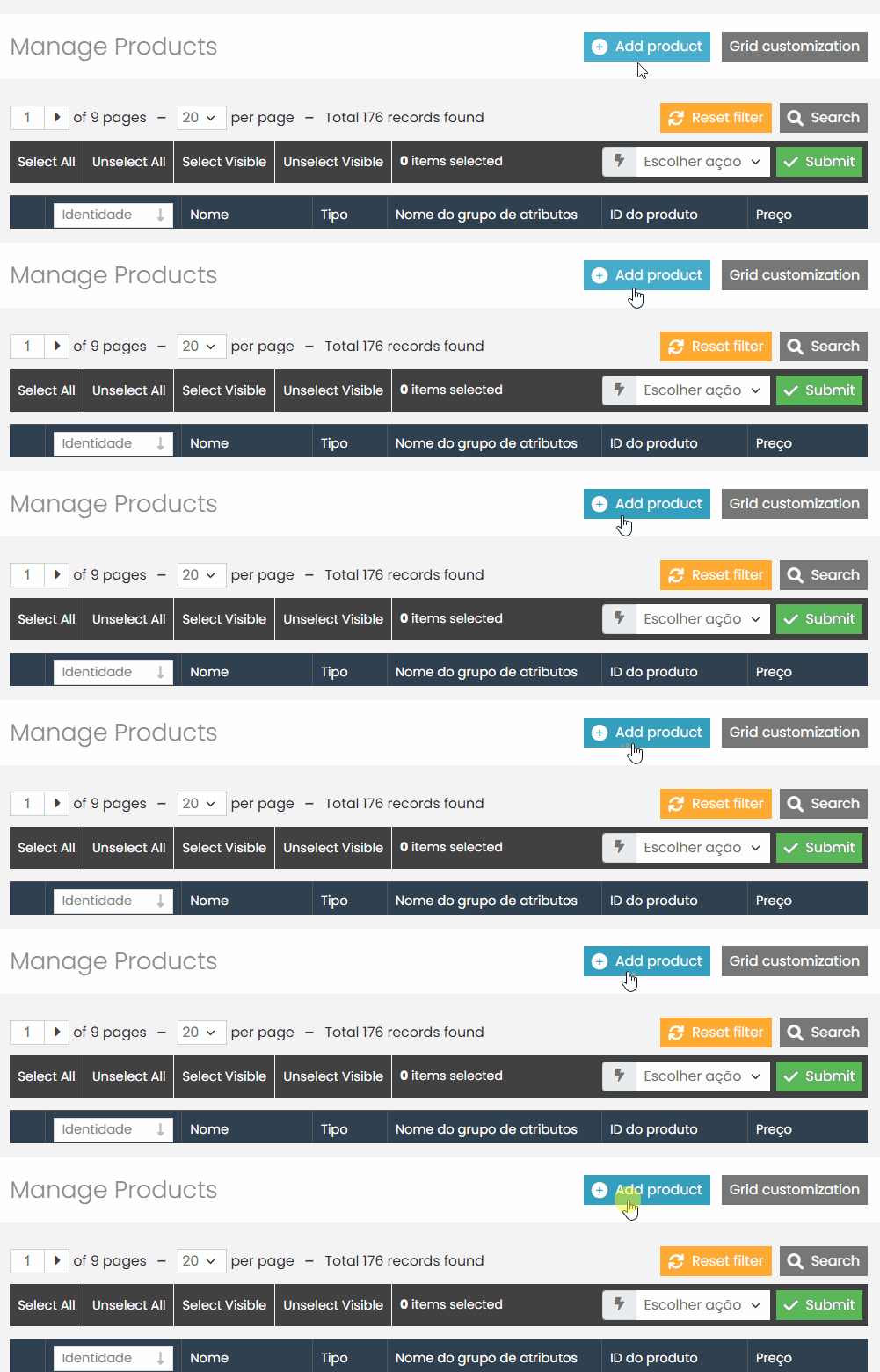
    • Click on Add Product.

    2. Select Product Type and Attribute Set #

    Choose the desired Attribute Set.
    (Refer to the specific documentation on How to Create an Attribute Set.)

    • In the Product Type field, select Grouped.
    • Click Continue.

    3. Fill in the Required Fields #

    Complete the required product fields, such as:

    • Name: The product name displayed in the store.
    • SKU: A unique identifier for the product in the system.
    • Visibility: Should be set to Catalog and Search to appear in the store.
    • Status: Select Enabled (indicates whether the product is active in the catalog).
    • Short Description: Text shown in listings and summary areas. (Be direct and highlight the key features of the product.)
    • Full Description: Detailed text displayed on the product page. (Explain the product, its benefits, usage, or specifications.)
    • Inventory: In Stock

    Note: Required fields may vary depending on your store’s configuration. Some clients may require specific fields such as “Brand” to be filled, while others may not. Make sure to complete all required fields defined for your store.

    4. Associate Products to the Grouped Product #

    In the Associated Products tab, click Reset Filters to list all available Simple Products or Virtual Products.

    Select the products that will be part of the composition.

    For each associated product, define:

    • Default Quantity (e.g., 10 units)
    • Position in the options list

    These products will be displayed as selectable options for the customer to customize their order.

    Important: Only products that are currently in stock will be available for association. Check the inventory status of the products you want to include.

    Final Considerations #

    The Grouped Product offers customers a more flexible purchasing experience, allowing them to freely choose which items they want and in what quantities. The registration process is similar to that of other product types, with the main difference being in the step where you associate simple or virtual products.

    If you have any questions or need additional support, please contact the support.

    Quais são seus sentimentos
    Atualizado em 25 de junho de 2025
    How to Add Recipients to Forms
    Tabela de conteúdos (TOC)
    • What is a Grouped Product
    • Steps to Register a Grouped Product
      • 1. Access the Product Catalog
      • 2. Select Product Type and Attribute Set
      • 3. Fill in the Required Fields
      • 4. Associate Products to the Grouped Product
        • Final Considerations
    © 2026 Docs • Built with GeneratePress