Pular para o conteúdo
Docs
  • Ticket no Helpdesk

Sales

4
  • How to check which seller is associated with an order?
  • How to Export Invoices in PDF
  • Post-Sale Email Configuration
  • How to Recreate a Child Order ?

Catalog

22
  • Sales region setup
  • How to create a virtual product ?
  • How to Add Related Products to Your Listing
  • How to Add an Attribute Inside an Attribute Group
  • How to Create Custom Options in Products
  • How to Create an Attribute Group
  • How to Create a Default Attribute on the Platform
  • How to Add or Edit Attribute Options in Your Catalog
  • How to Select Attributes for Products
  • How to Activate a Product for Sale in the Multiseller Model
  • How to Change Product Visibility in the Marketplace
  • How to Add Additional Days to Shipping
  • How to Remove a Category from the Filter Listing
  • Seal Configuration on the Website
  • How to Update Attributes in Bulk Through the Admin Panel
  • How to Add or Remove the Minimum Sales Quantity of a Product
  • How to create a grouped product?
  • How to create a simple product ?
  • Categories
    • How to Create a Carousel Product Grid on the Homepage?
    • How to Change the Name of a Category?
    • How to Include a Custom Description in Categories
    • How to Change the Order of Products in Categories

Promotions

7
  • How to Create and Configure Promotion Rules with Free Gifts
  • Discount Configuration for MultiSeller Marketplace (Original to Sale Price Model)
  • How to Create a Discount Coupon?
  • How to Create a Discount Rule Without a Coupon ?
  • Discount Rule Templates
  • Abandoned Cart Creation and Configuration
  • How to Create a Discount Coupon for an Abandoned Cart

Content

8
  • How to Create a Grouped Product?
  • How to Add Recipients to Forms
  • HOW TO CONFIGURE BLOG PRO
  • How to verify received forms
  • How to Create an Email Template with a Coupon for an Abandoned Cart
  • How to Change Field Requirements in Forms on the Platform
  • How to Change Home Page Banners
  • How to Check Received Forms

Seo/Marketing

1
  • How the Synonyms Feature Works in SEO

Marketplace

3
  • How to Allow or Restrict Purchases from Multiple Sellers in the Same Cart
  • How to Create, Disable, or Delete an Address in the Store Locator of the Soul Marketplace ?
  • Identifying the Seller Associated with an Order

Communications

2
  • How do I enable or disable comments on products?
  • How to enable the WhatsApp button

Reports

5
  • Adding Variables and Parent Order Fields to the Report
  • How to view the approved orders report
  • How to View the Abandoned Cart Report ?
  • How to View the Most Viewed Products Report
  • How to View the Best-Selling Products Report

System

6
  • How to check the records of new updates or improvements to the Marketplace?
  • How to Register Error Logs for Order Creation Attempts
  • How to Enable the Vertical Layout in Checkout
  • Display quote-only products only after priced products
  • How to Create an Administrative API User
  • New Tax Amount Display Feature

Seller Dashboard

5
  • How to Log in as a Reseller?
  • How to approve or disapprove a seller profile
  • Activating or Deactivating a Seller’s Store
  • New free shipping configuration in the reseller pane
  • How to change the free shipping field of the product via spreadsheet?

First Steps

1
  • How to Set Up Google Two-Factor Authentication
Ver categorias

How to Add or Edit Attribute Options in Your Catalog

1 minutos de leitura

To add a new option to an existing attribute, follow the steps below: #

  • Access your Admin Panel.
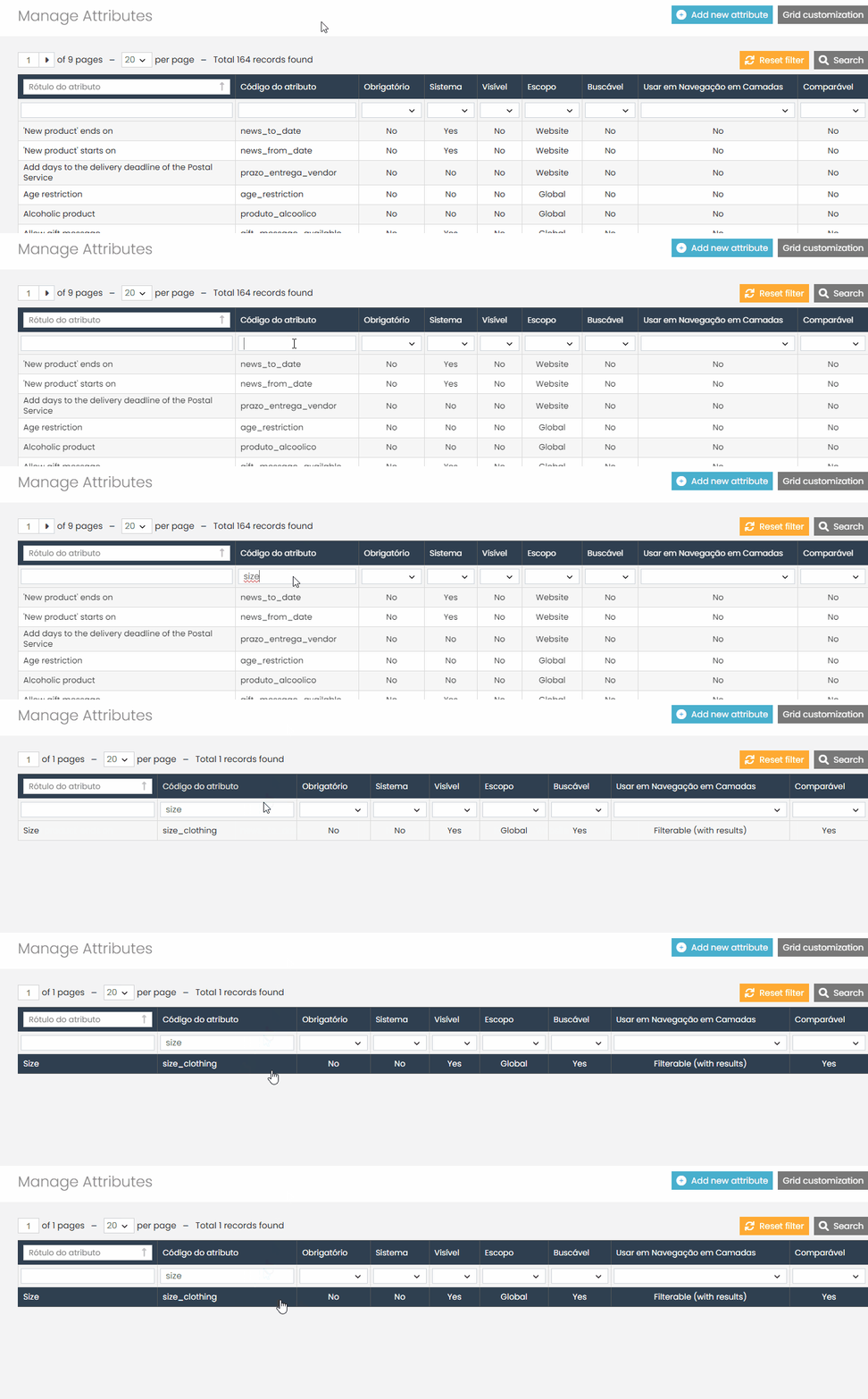
  • In the sidebar menu, go to the Catalog tab.
  • In the submenu, click on Management Attribute, then select Attributes.

  • On the attributes page, locate the attribute you want to edit. You can use the filter fields, such as the Attribute Code, to search.
  • Click on the attribute name to open its configuration.
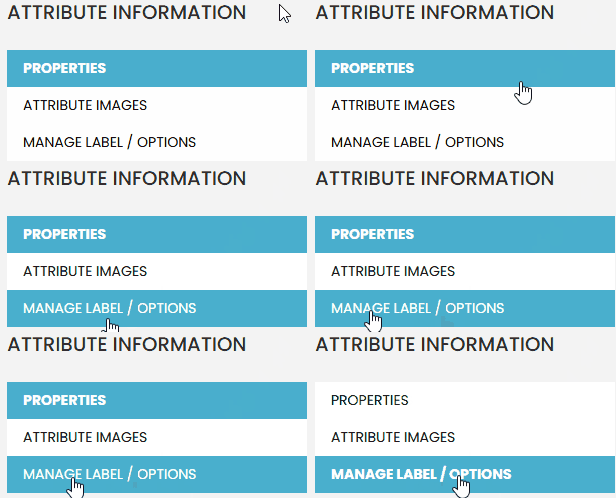
  • In the sidebar, click on Manage Options.
  • In the options grid, click the blue button labeled Create Option.
  • A new field will appear. Enter the new option’s value XL.
  • Optionally, define the position where this option should appear in filters or selection menus.
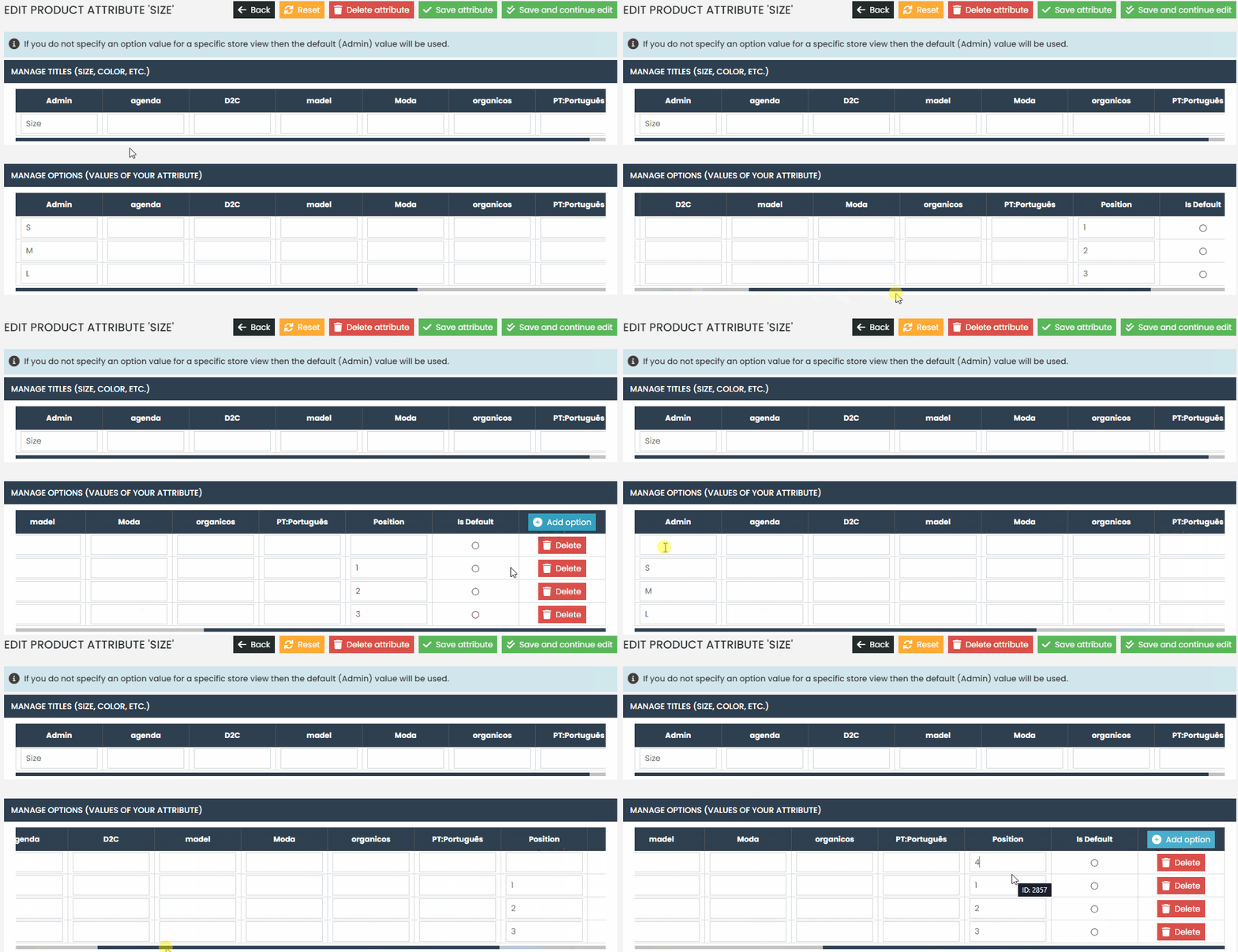
  • Click Save to apply the changes.

Edit an Existing Option #

You can also modify an existing option by following these steps:

  • In the same Manage Options section, locate the option you want to change.
  • Click directly on its value M and edit the text to the new value Medium.
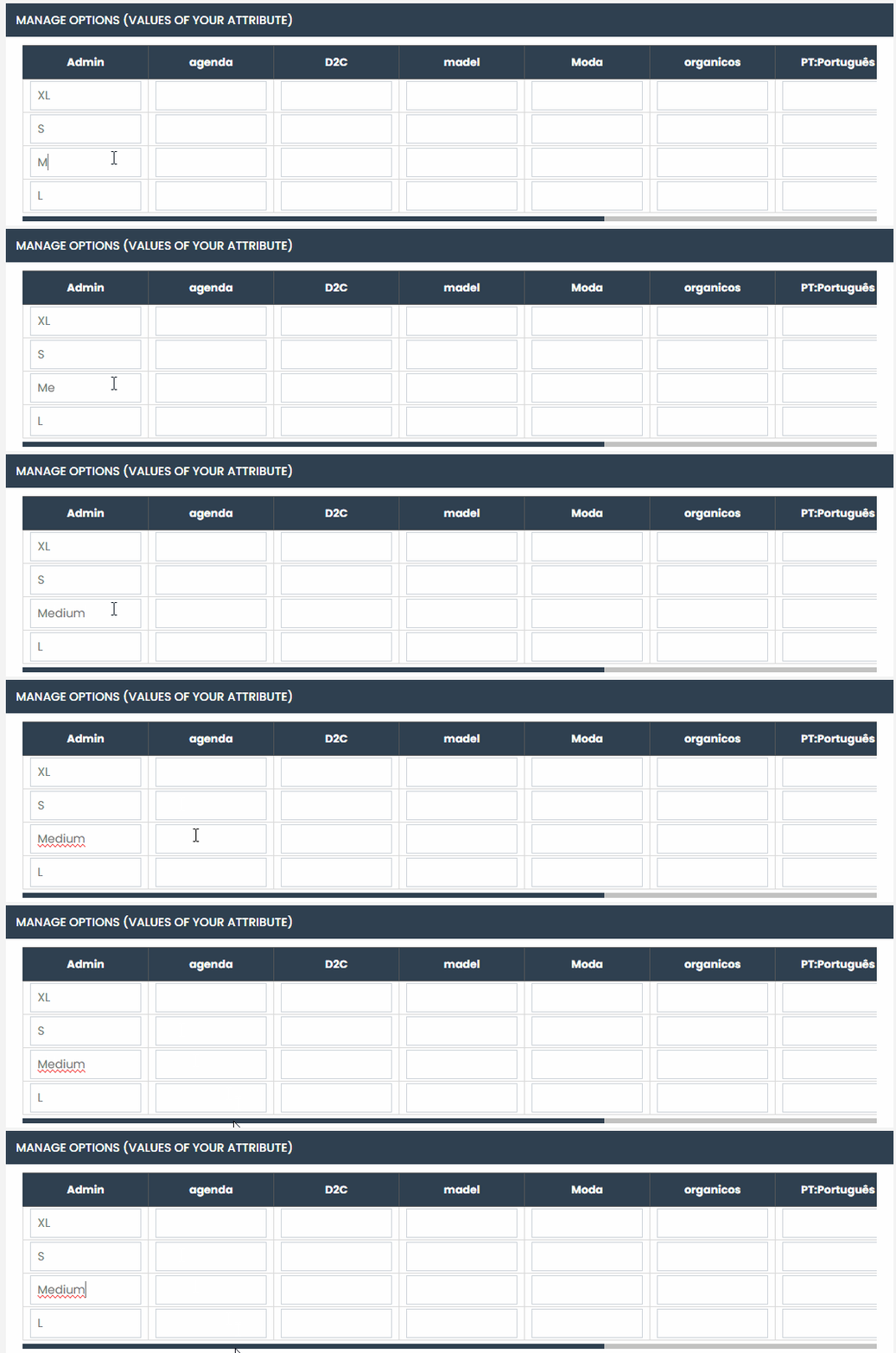
  • Click Save to confirm the update.

Apply the New Option to a Product #

Once the option is created, you can assign it to a product:

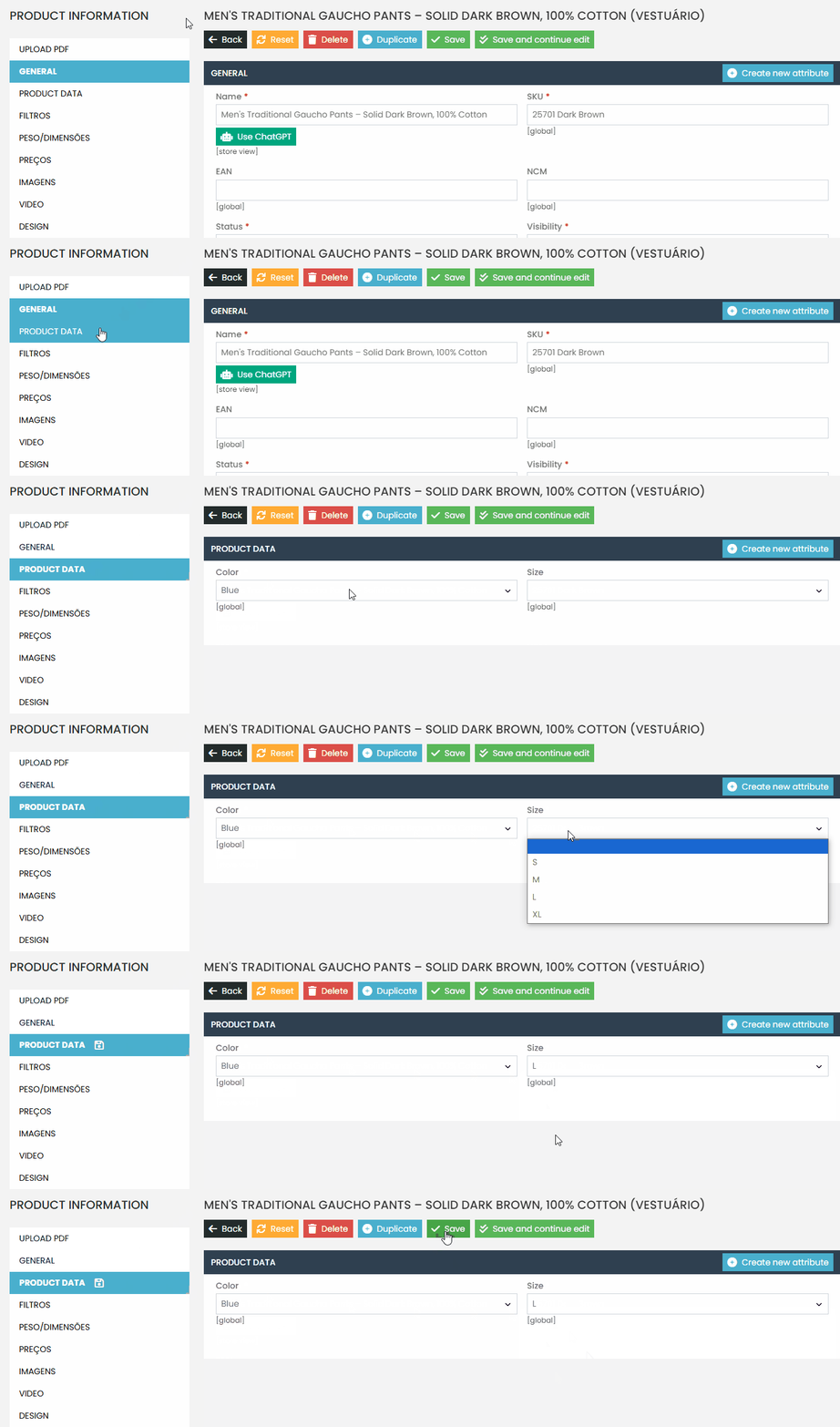
  • Access the product through the Admin Panel.
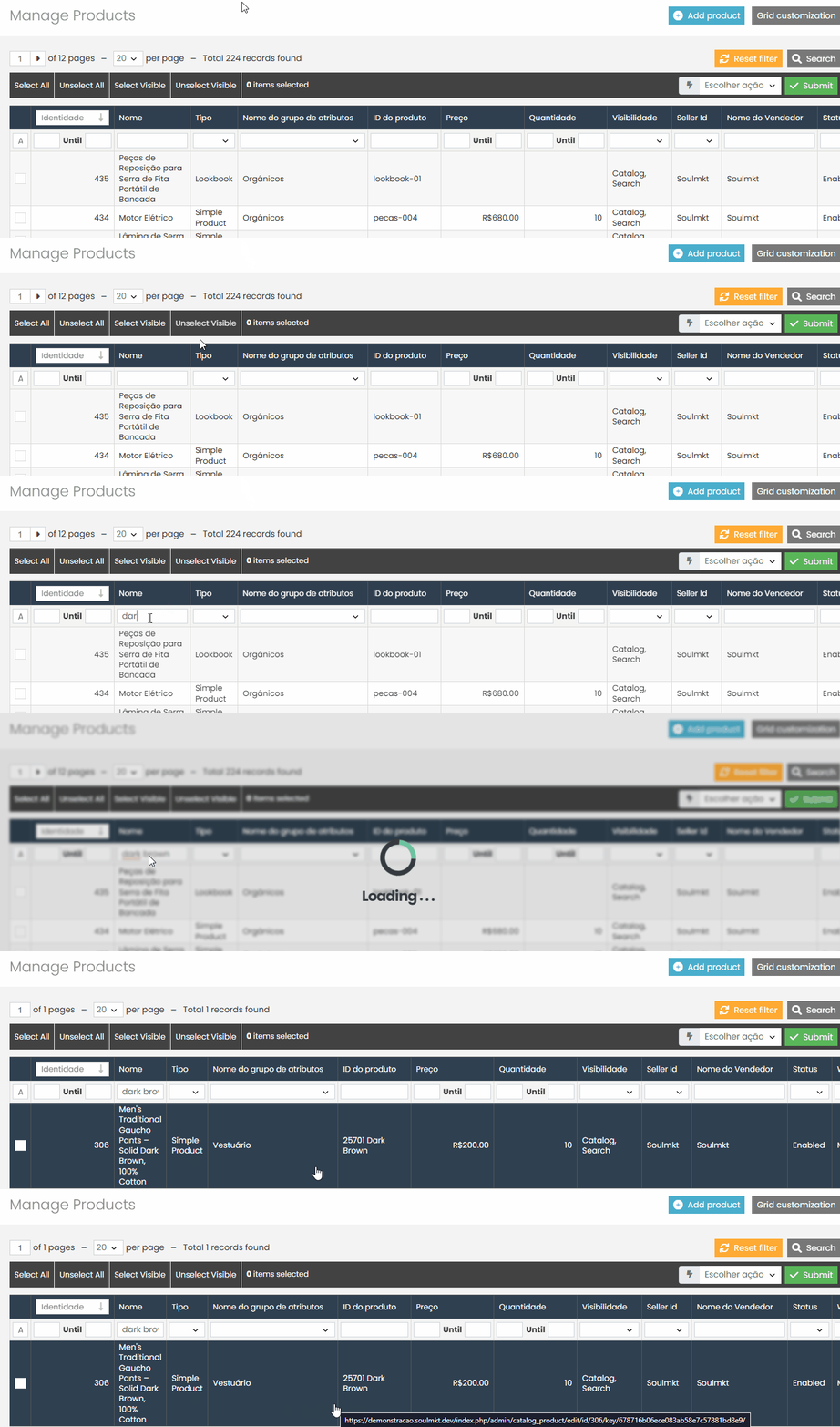
  • In the product settings under Product Data, find the related attribute Size.
  • Click the corresponding field to open the list of available options.
  • Select the option L.
  • Save the product.


After saving:

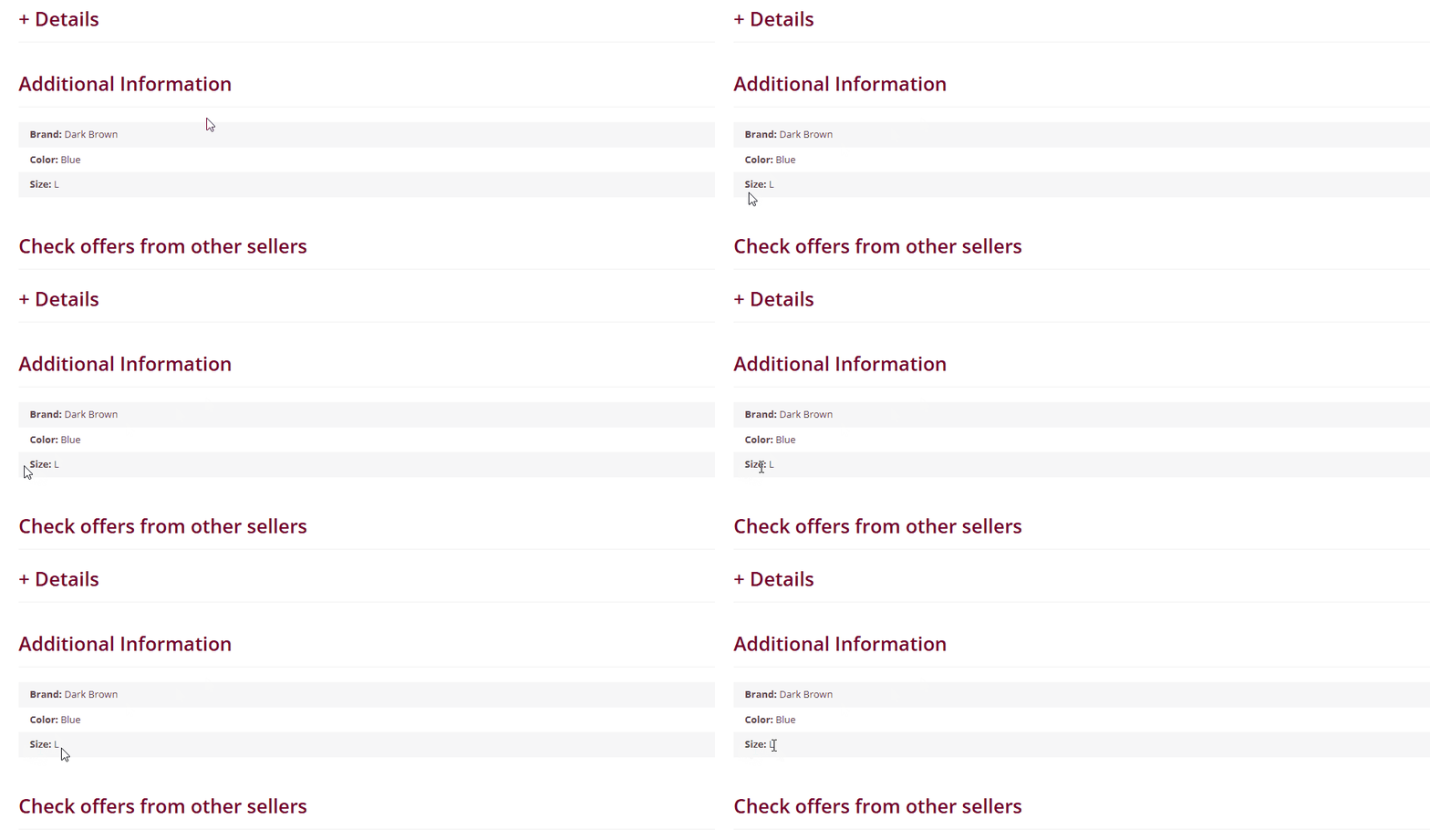
  • Reopen the product page to confirm that the new option appears in the product details.
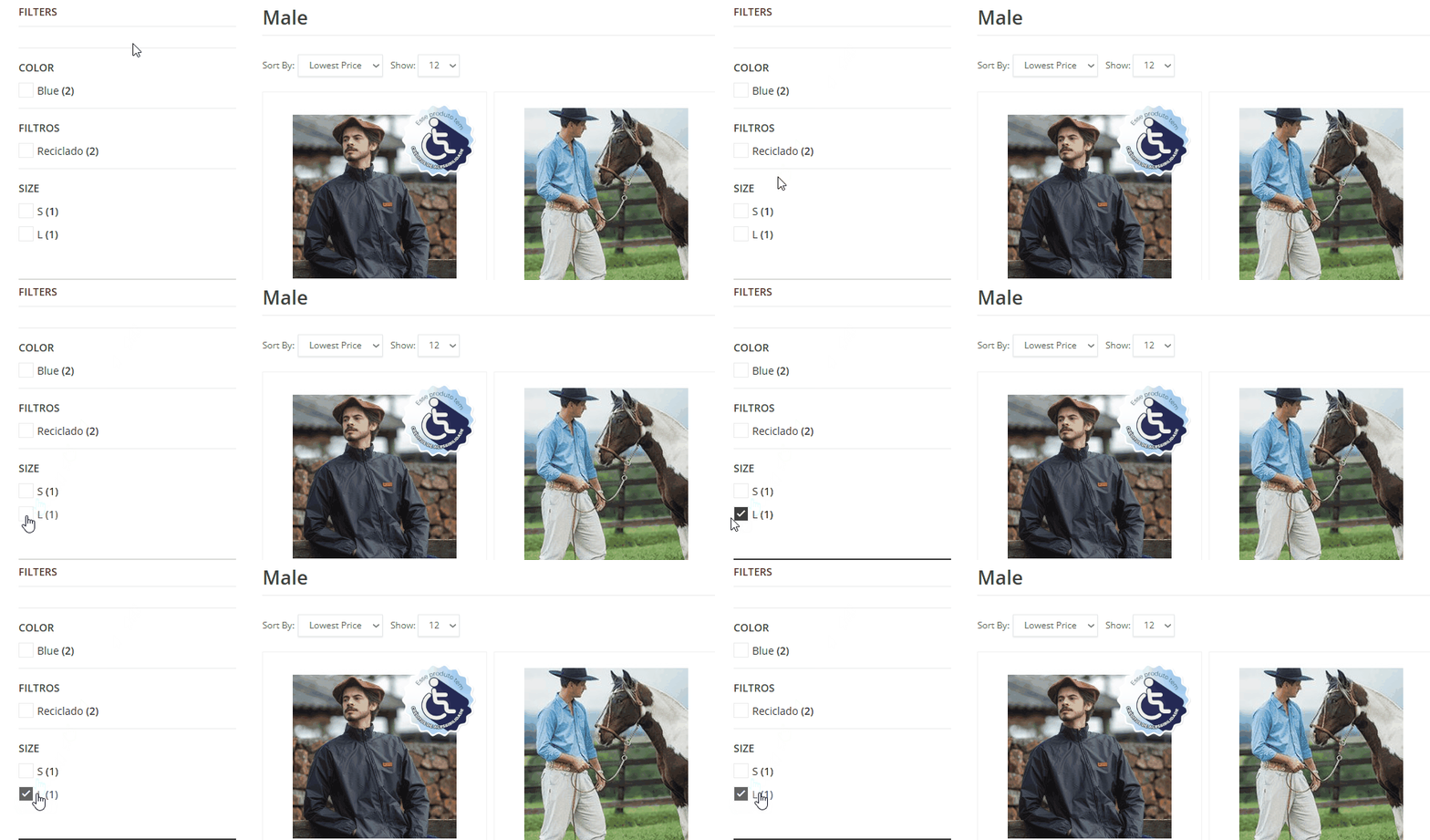
  • Go to the product’s assigned category and verify that the new option is now available in the storefront filters.


If you encounter any difficulties during this process, feel free to open a support ticket through the Support Panel.
Our team will be happy to assist you.

Quais são seus sentimentos
Atualizado em 6 de maio de 2025
How to Create a Default Attribute on the PlatformHow to Create an Attribute Group
Tabela de conteúdos (TOC)
  • To add a new option to an existing attribute, follow the steps below:
  • Edit an Existing Option
  • Apply the New Option to a Product
© 2026 Docs • Built with GeneratePress