
If you have not yet created the email template, before proceeding with the creation of the discount coupon rule for abandoned carts, please read our documentation How to create an email template with a coupon for an abandoned cart?
Set Up a Discount Coupon Rule for Abandoned Carts #
First, navigate to the side menu and select “Promotions.” In the new submenu that appears, click on the first option, “Shopping Cart Price Rules,” and wait for the page to load.
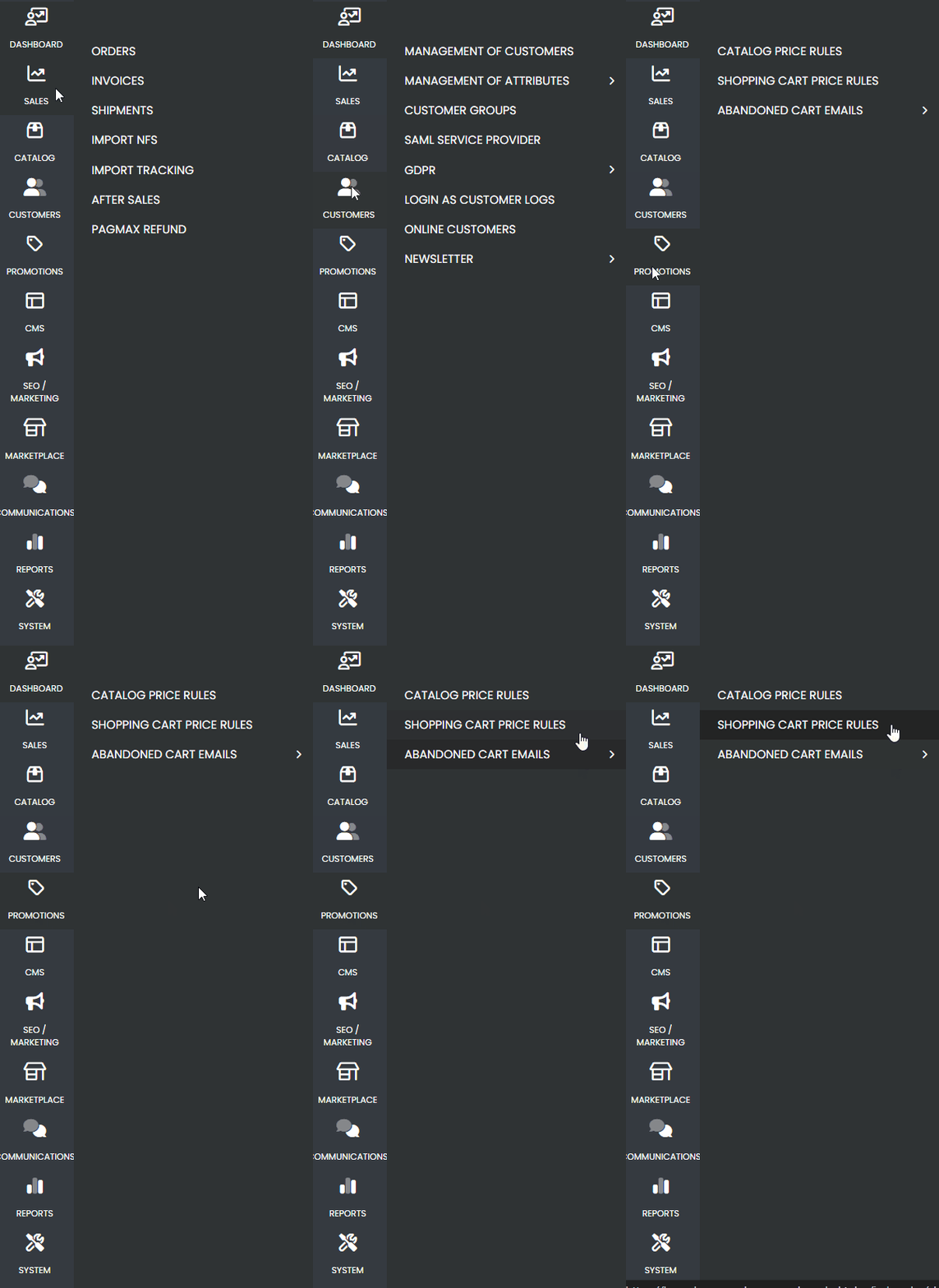
After the page loads, click on the “Create Rule” button located in the upper corner.

Now, you will need to configure the rule.
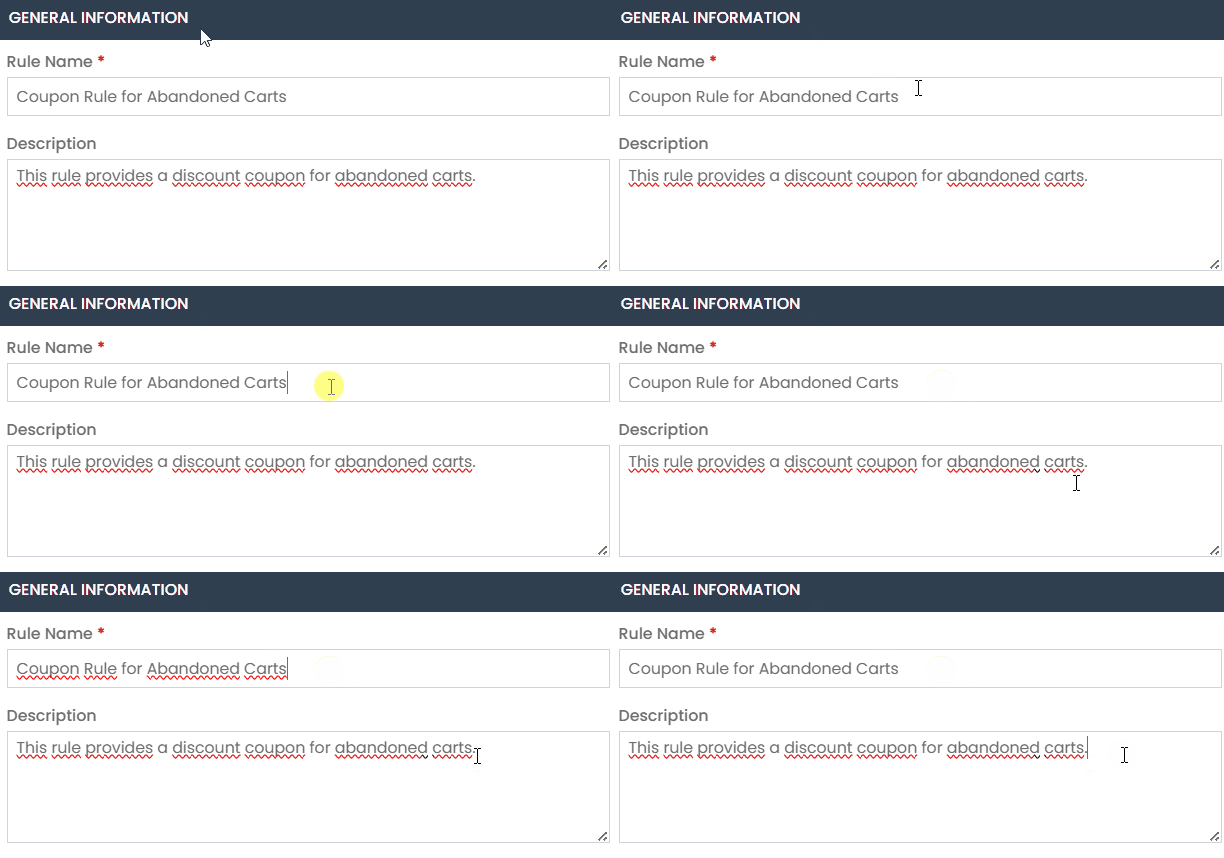
In the “Rule Name” and “Description” fields, enter values that will be easy to understand in the future regarding the purpose of the created rule.
- We recommend filling in the “Rule Name” field as:
- “Coupon Rule for Abandoned Carts”
- And in the “Description” field:
- “This rule provides a discount coupon for abandoned carts.“
Feel free to choose a name and description that best suit your needs.
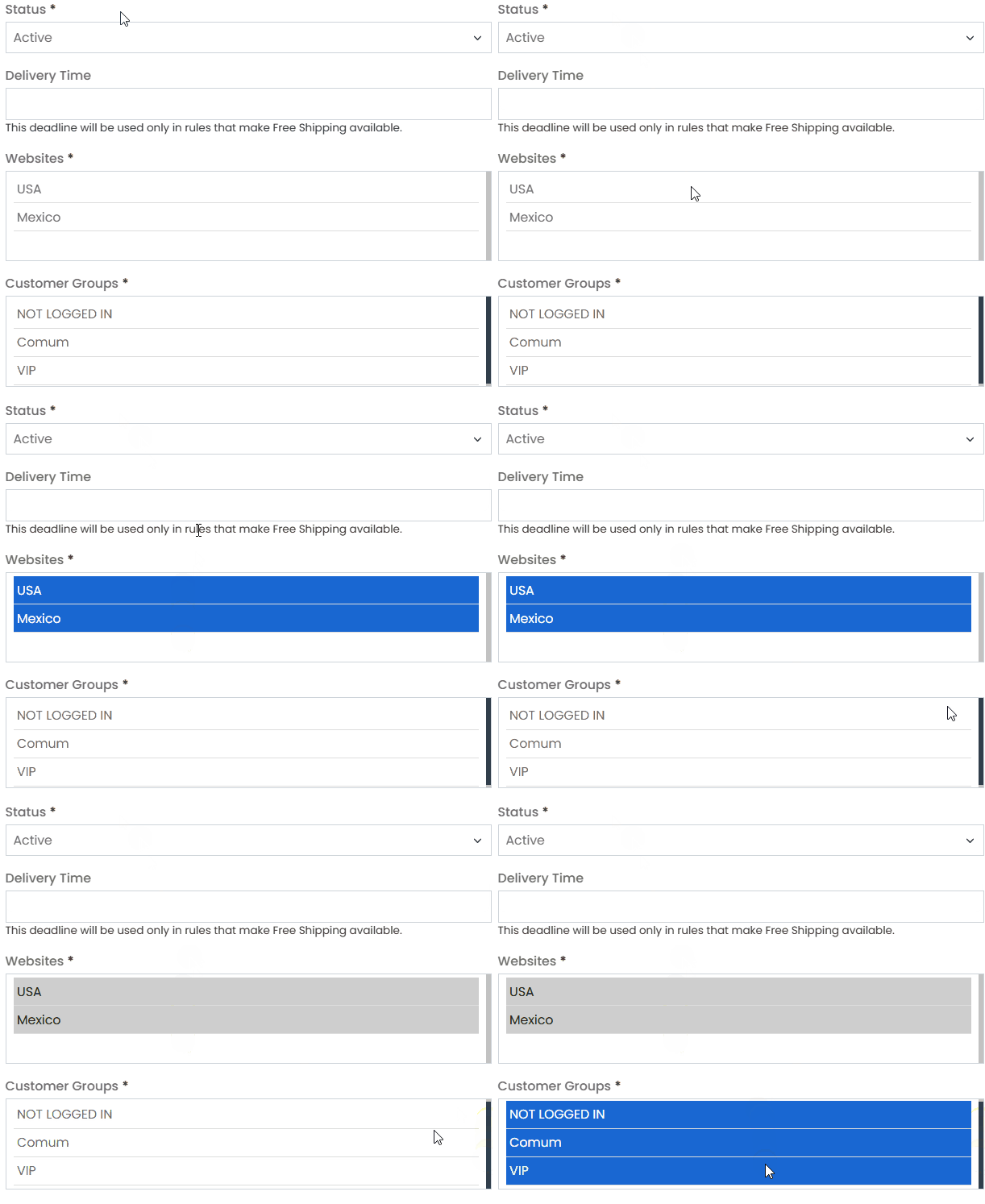
Keep the rule “Active”, do not fill in the “Delivery Deadline” field, and select which store views and “Customer Groups” you want this rule to apply to.
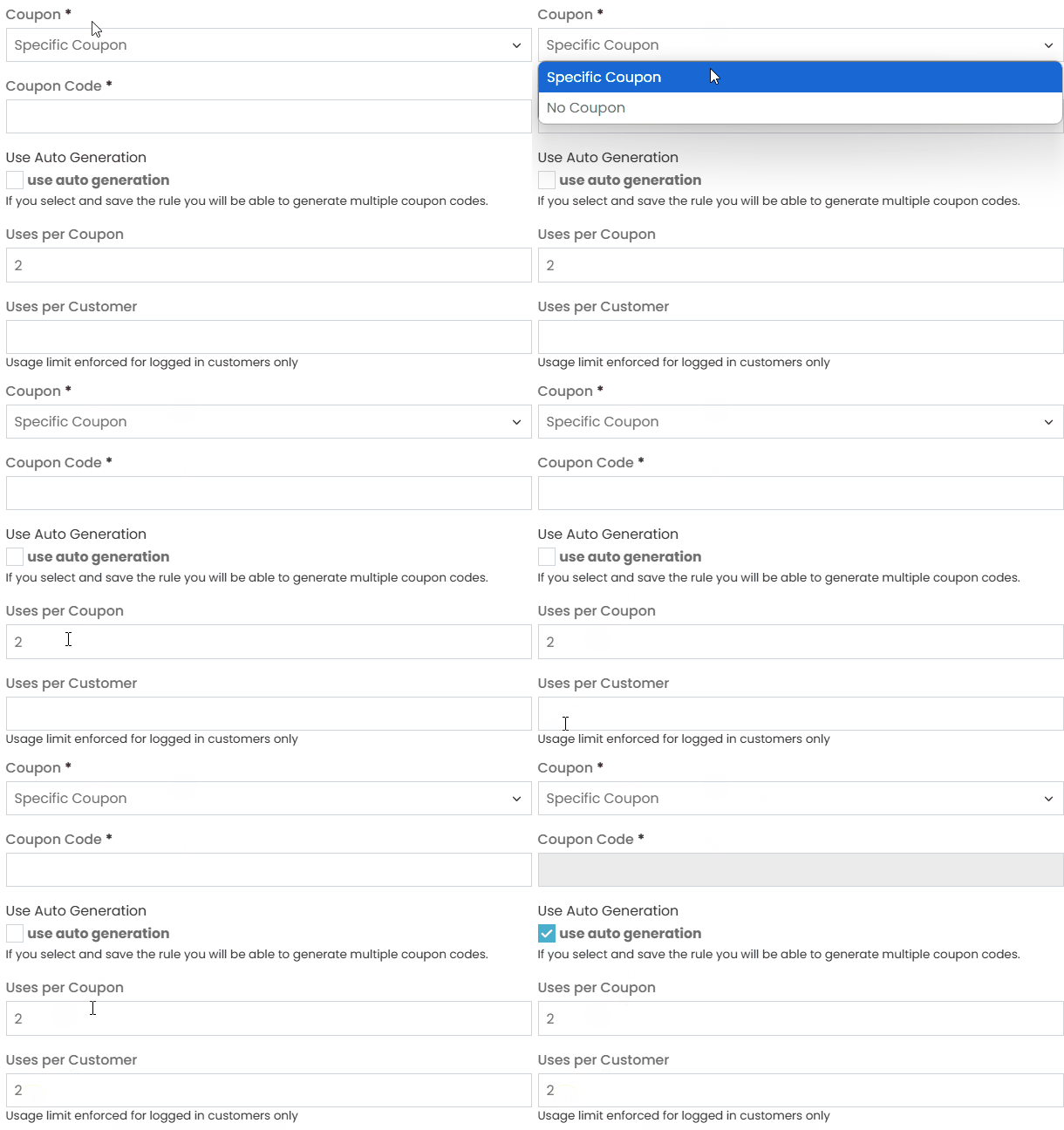
It is important to set the “Coupon” field to “Specific Coupon” and check the “Use Auto Generation” box. It is a mandatory requirement that the “Use Auto Generation” box is checked in order to create a discount rule that offers a coupon for abandoned carts.
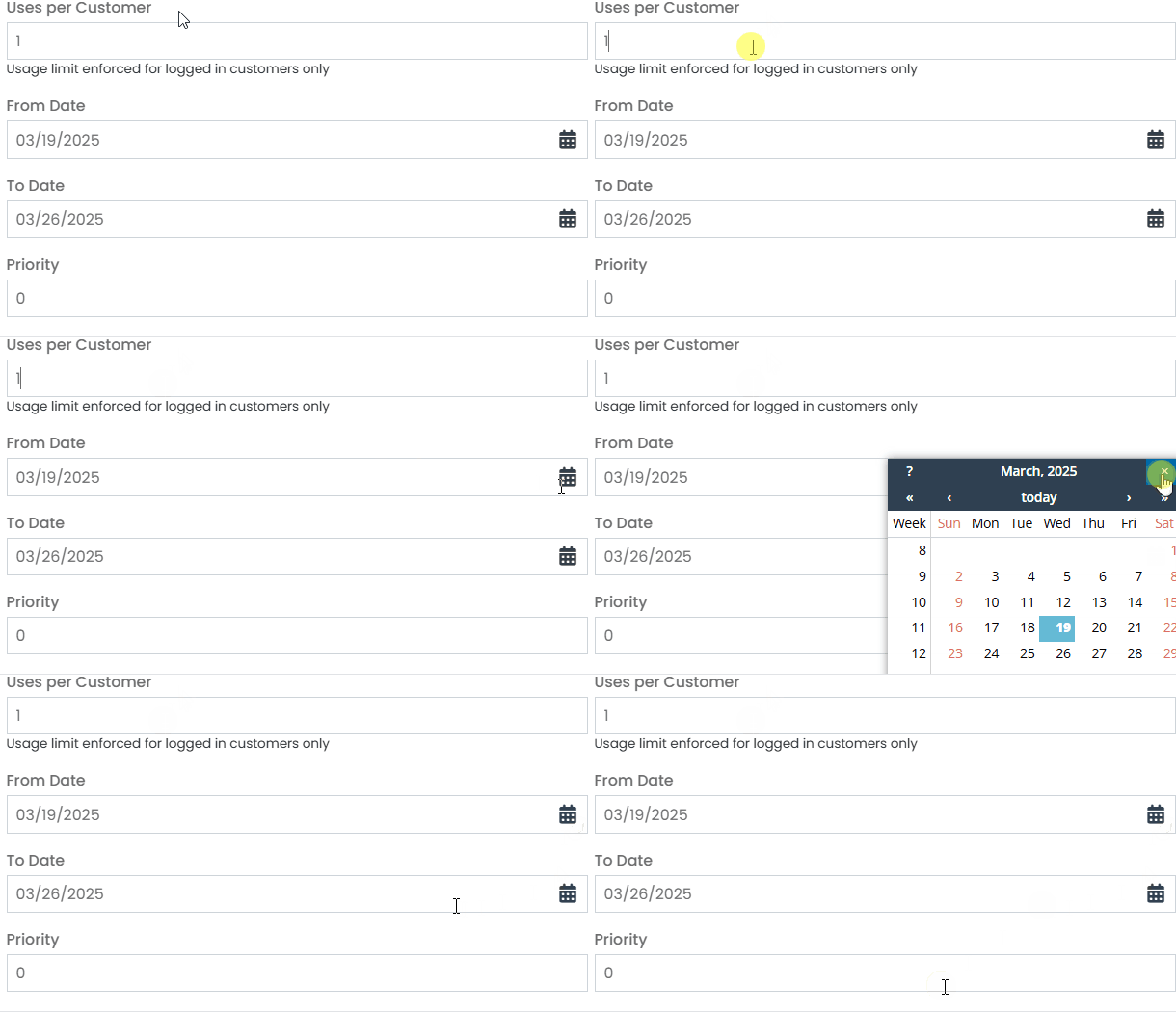
In the “Uses per Coupon” and “Uses per Customer” fields, enter the value 2 for both.
In the “From Date” and “To Date” fields, enter the period during which you want this coupon to be valid.
Keep in mind that this setting only stops the generation of new coupons; the customer will continue receiving the abandoned cart email. If you want to stop the email delivery, I will explain how to do that further below.
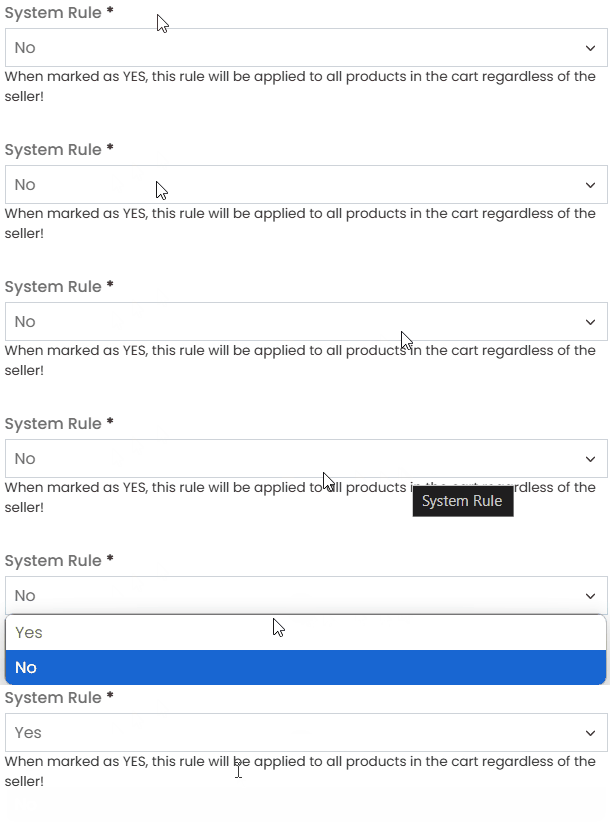
The System Rule configuration depends on your business model.
If your marketplace consists of independent sellers who sell their own products, set it to NO.
If you manage a marketplace where sellers offer products that you also sell, keep the “System Rule” option set to YES.
The “Priority” and “Public in RSS Feed” fields can be left with their default settings.
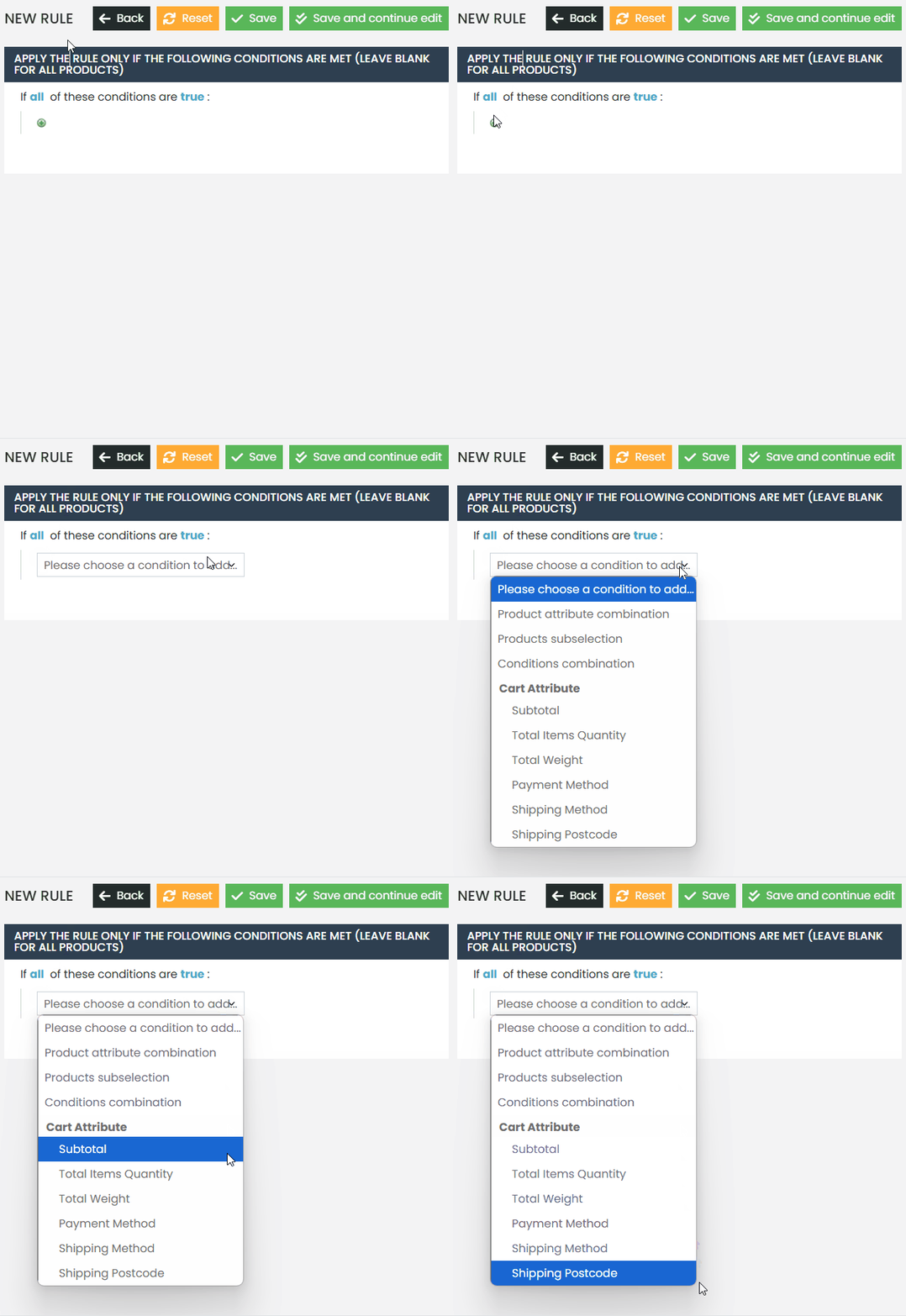
In “Conditions”, you can set specific conditions for this rule to apply or not. For example, if you do not want the customer to receive a discount coupon when adding a specific product to the cart, you can define here that if Product X is in the cart, the customer will not receive the discount coupon.
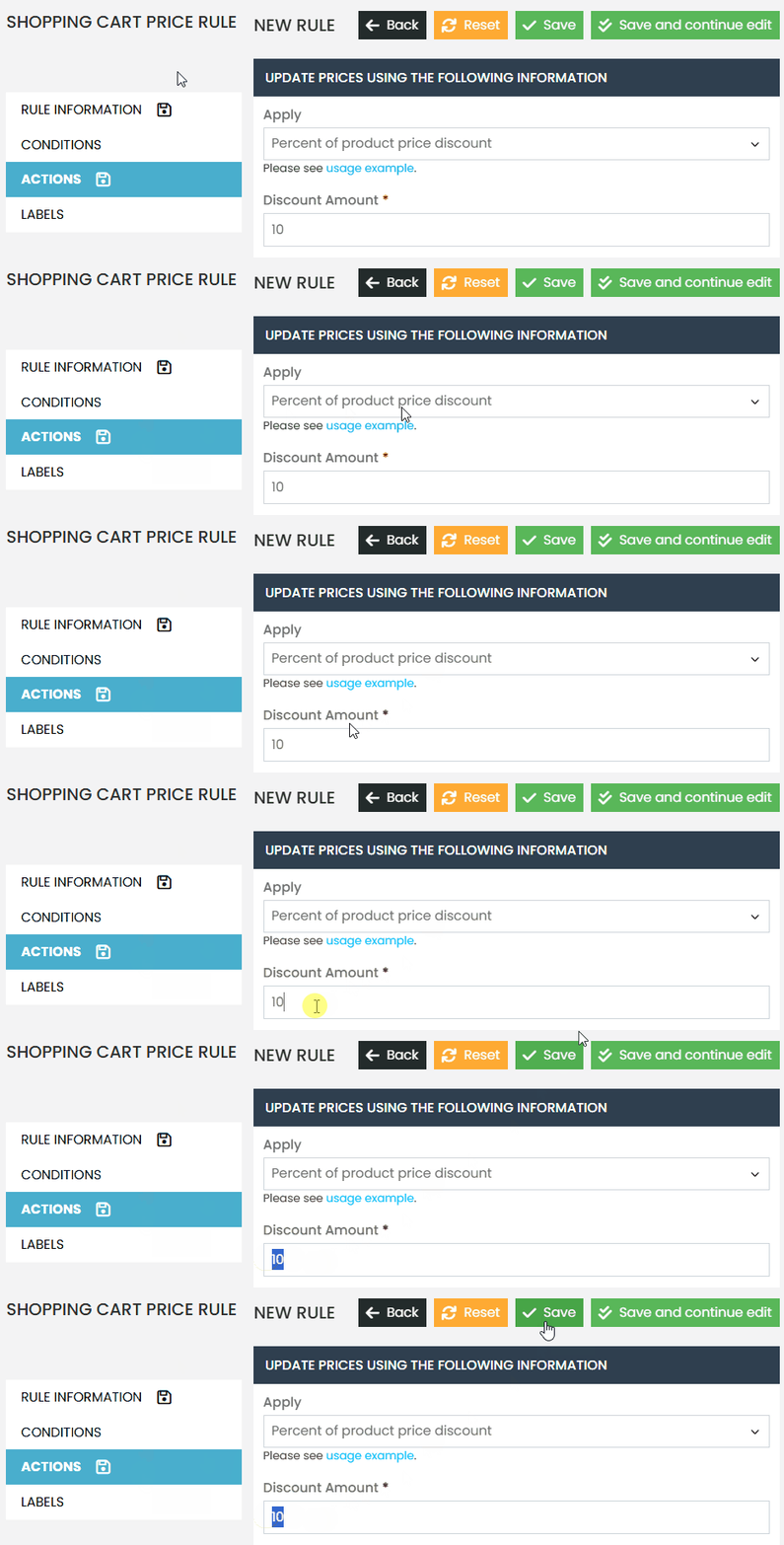
In the “Actions” settings, you define the discount that will be offered in the abandoned cart coupon.
Here, you can choose:
- A percentage-based discount by selecting “Percentage Discount on Product Price”, or
- A fixed discount amount for the entire cart by selecting “Fixed Amount Discount for Whole Cart.”
In the “Discount Amount” field, enter a simple value to set the desired discount for this coupon. For example, if you want to offer a 10% discount, select “Percentage Discount on Product Price” under “Apply”, and enter 10 in the “Discount Amount” field.
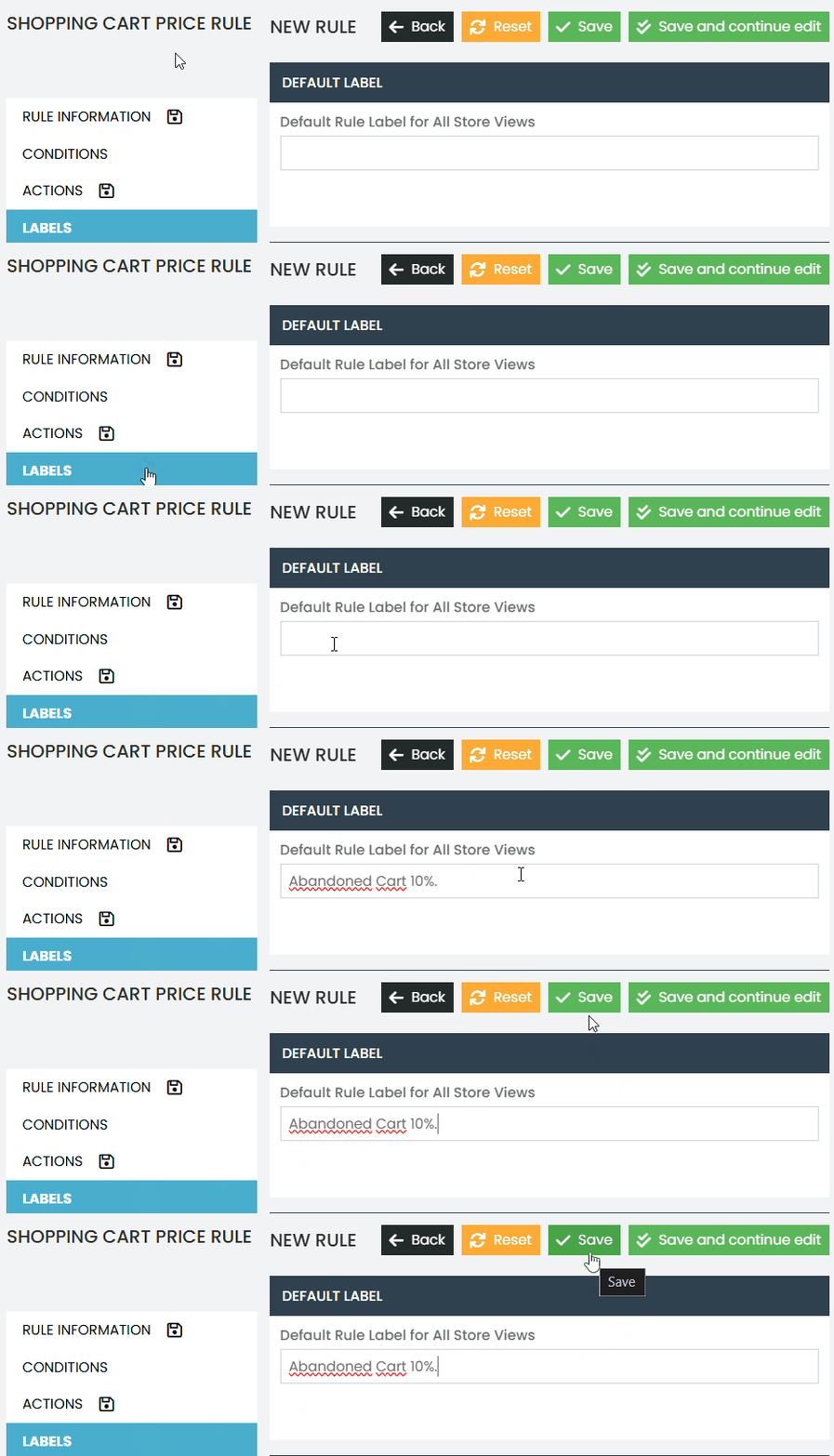
In “Labels,” you will define a tag for the customer to see when they apply the discount coupon in the cart or at checkout.
We recommend using something like “Abandoned Cart” along with the discount being offered. For example, in a rule that provides a 10% discount, the recommended label would be “Abandoned Cart 10%.”
Set up scheduling for sending the abandoned cart email with a discount coupon. #
The final step in configuring the rule is to set the scheduling so that customers receive the abandoned cart email after a certain period of time since the cart was abandoned.
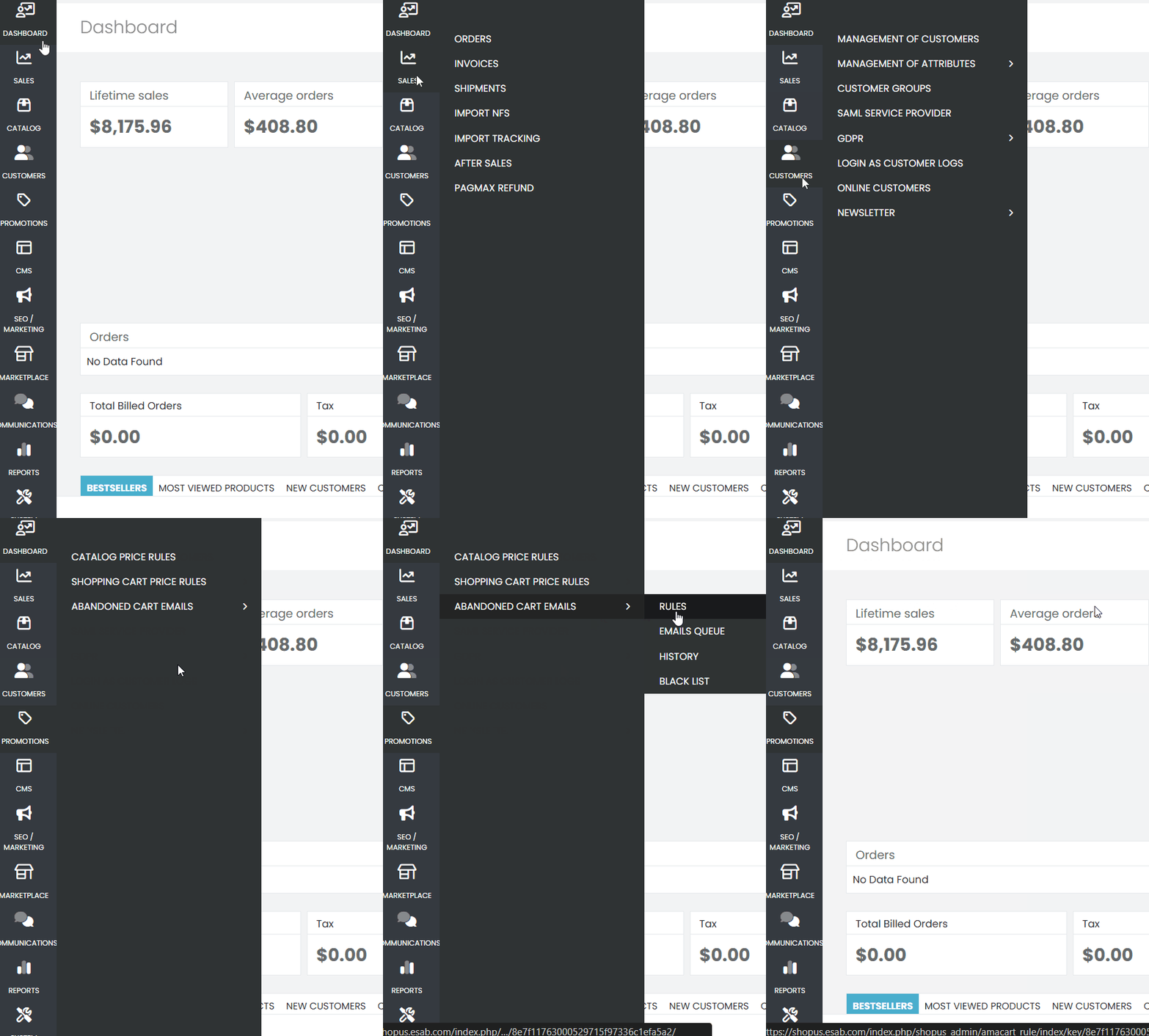
To configure this, navigate to the “Promotions” option in the side menu. In the submenu that appears, select the second option called “Abandoned Cart”. Then, a new submenu will be displayed; choose the first option named “Rules”.
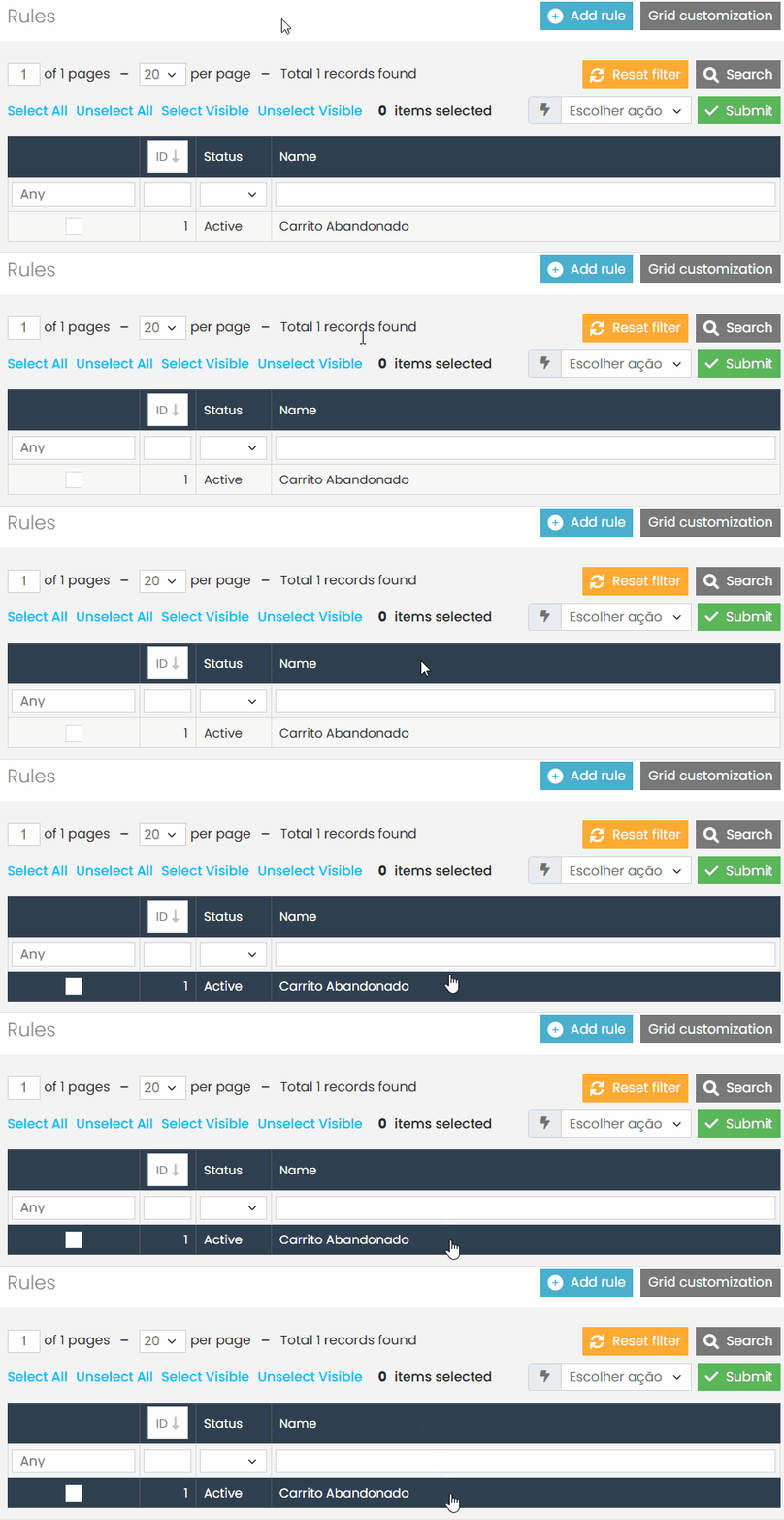
Select the abandoned cart rule you already have and click on it to open its settings.
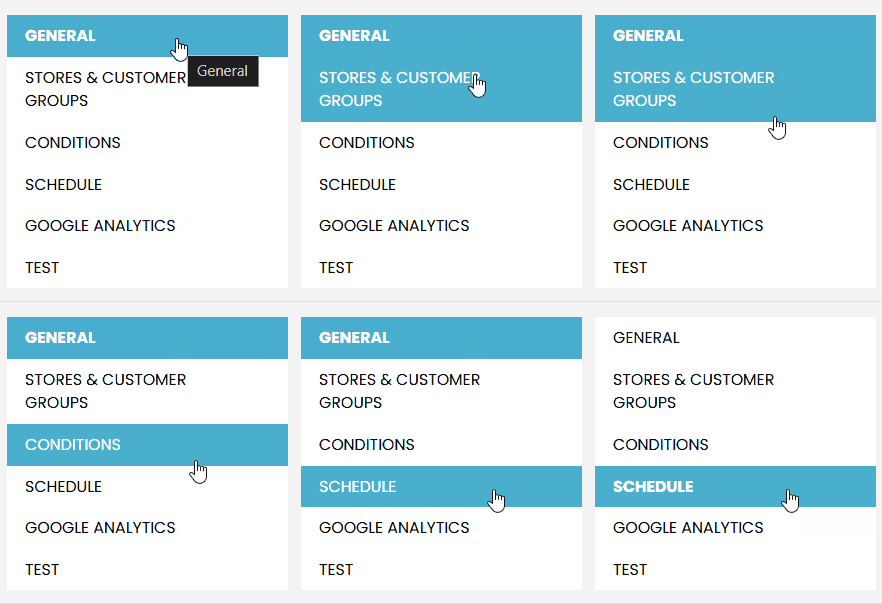
Wait for the rule configuration page to load, then navigate to the side menu and select “Schedule”, which is within the rule settings.
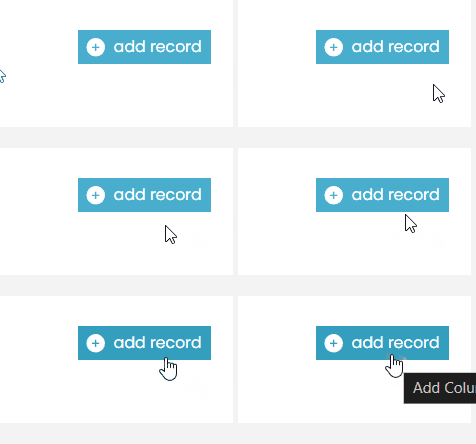
In the scheduling settings, click the “Add Record” button to create a new scheduling entry.
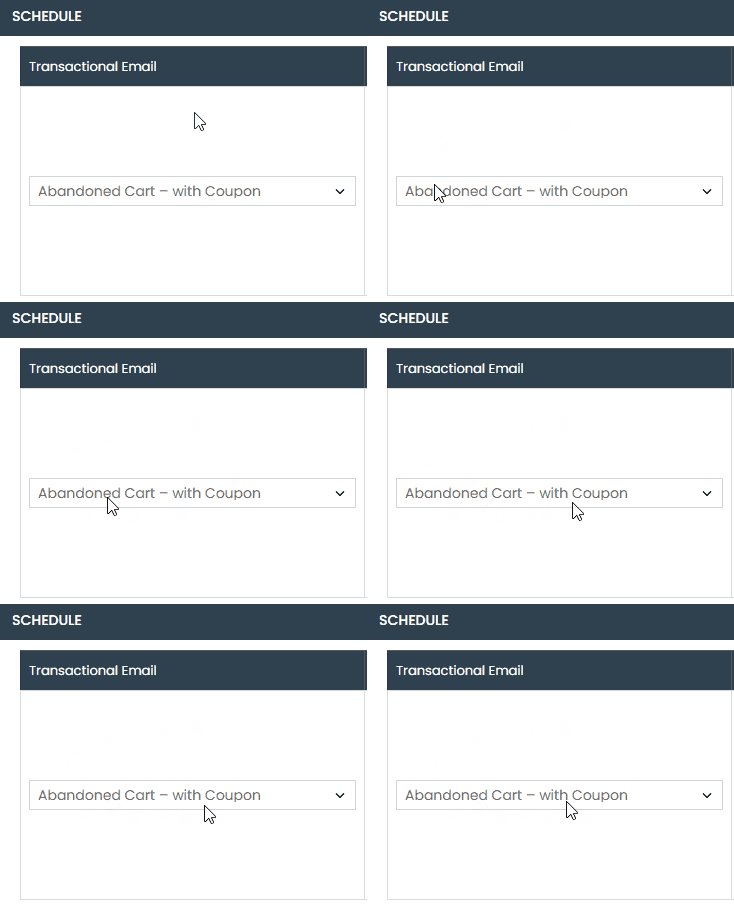
In the “Transactional Email” field of this new schedule you are creating, select the email template you created in the first step of the documentation:
“How to create an email template with a coupon for an abandoned cart?“
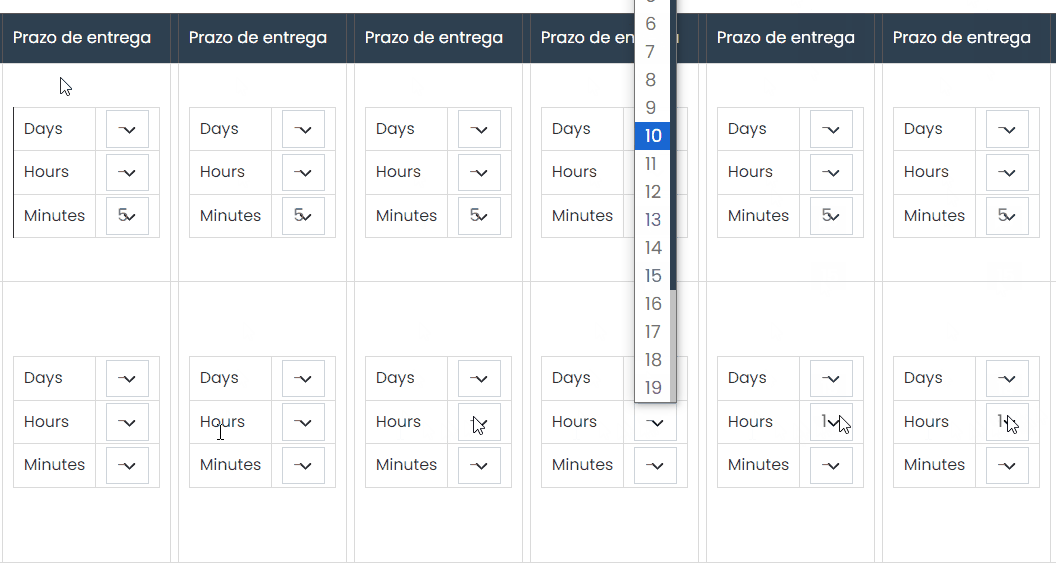
Next, set when you want the customer to receive the abandoned cart email with the discount coupon. You can define this in days, hours, or minutes.
As an example in this documentation, I will set the field to 1 day, meaning the customer will receive an email with a discount coupon one day after abandoning the cart.
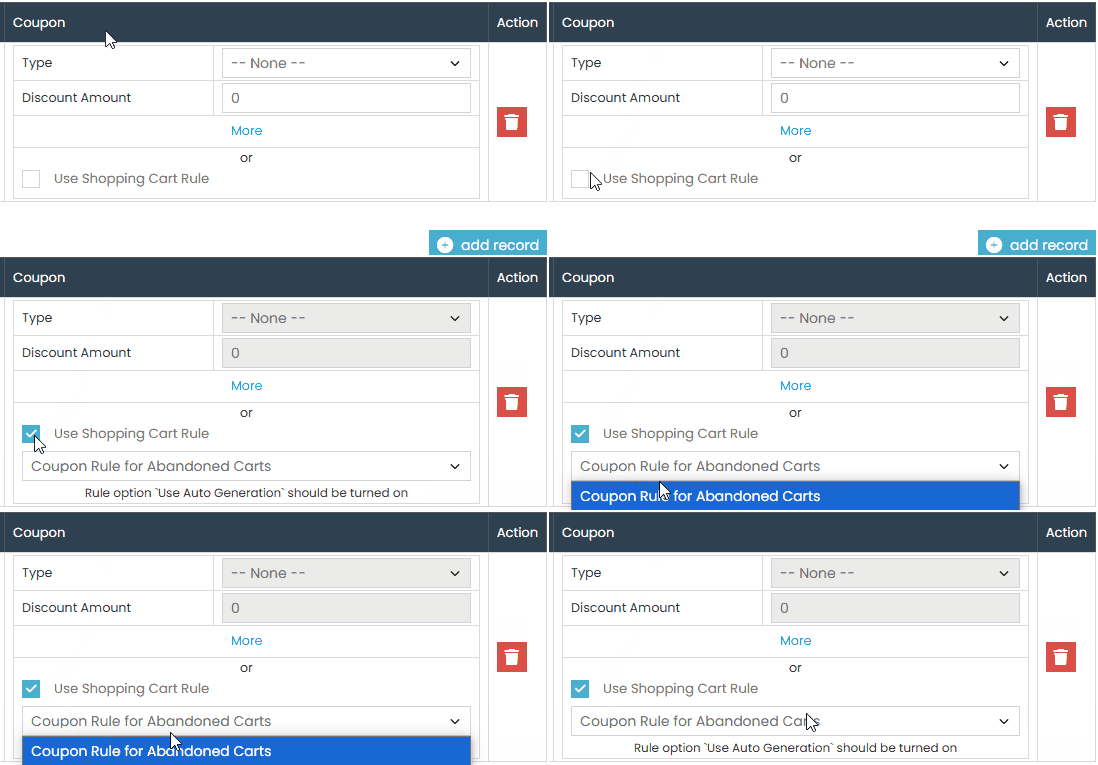
It is important and mandatory to check the “Use Shopping Cart Rule” box for the scheduling to work correctly. Once you check the box, a new field will become available for you to select the coupon rule.
Select the coupon rule you created by following the steps in the first part of this documentation.
Done! Your customers will now receive a discount coupon in abandoned cart emails.
If you have any questions or difficulties, feel free to open a ticket in the support panel. We are always here to help!