
On the Soul Marketplace Platform, you can create discount rules that are applied directly to the cart when a product is added, or through discount coupons, which can be entered in the coupon tab in the cart or during the checkout process.
In this documentation, you will learn how to generate a discount rule using coupons and see examples of the main rules that can be created.
Keep in mind that this functionality is flexible, allowing you to create various types of discount rules.
Accessing the Administration Panel #
The first step is to access your Marketplace Administration Panel.
Once inside, navigate through the side menu to the Promotions option.
In the submenu that appears, click on the first option: Cart Price Rules.

On the page that loads, you will be able to view all existing rules once they are created.
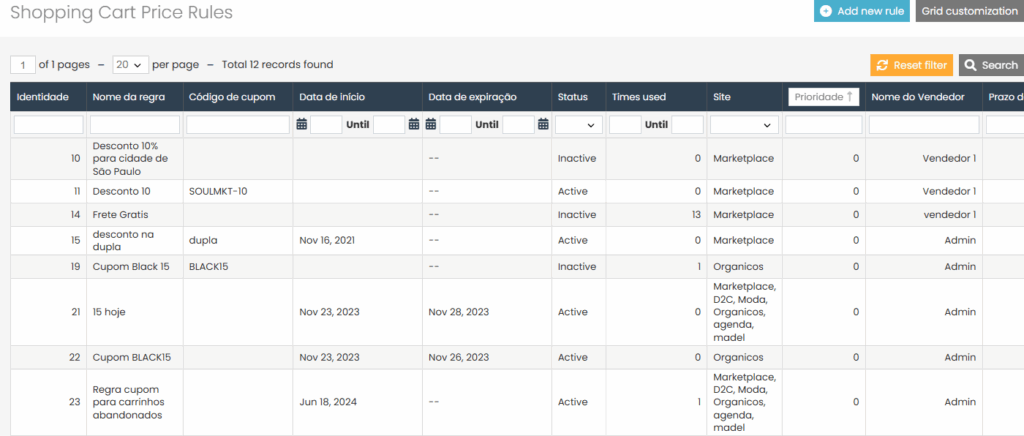
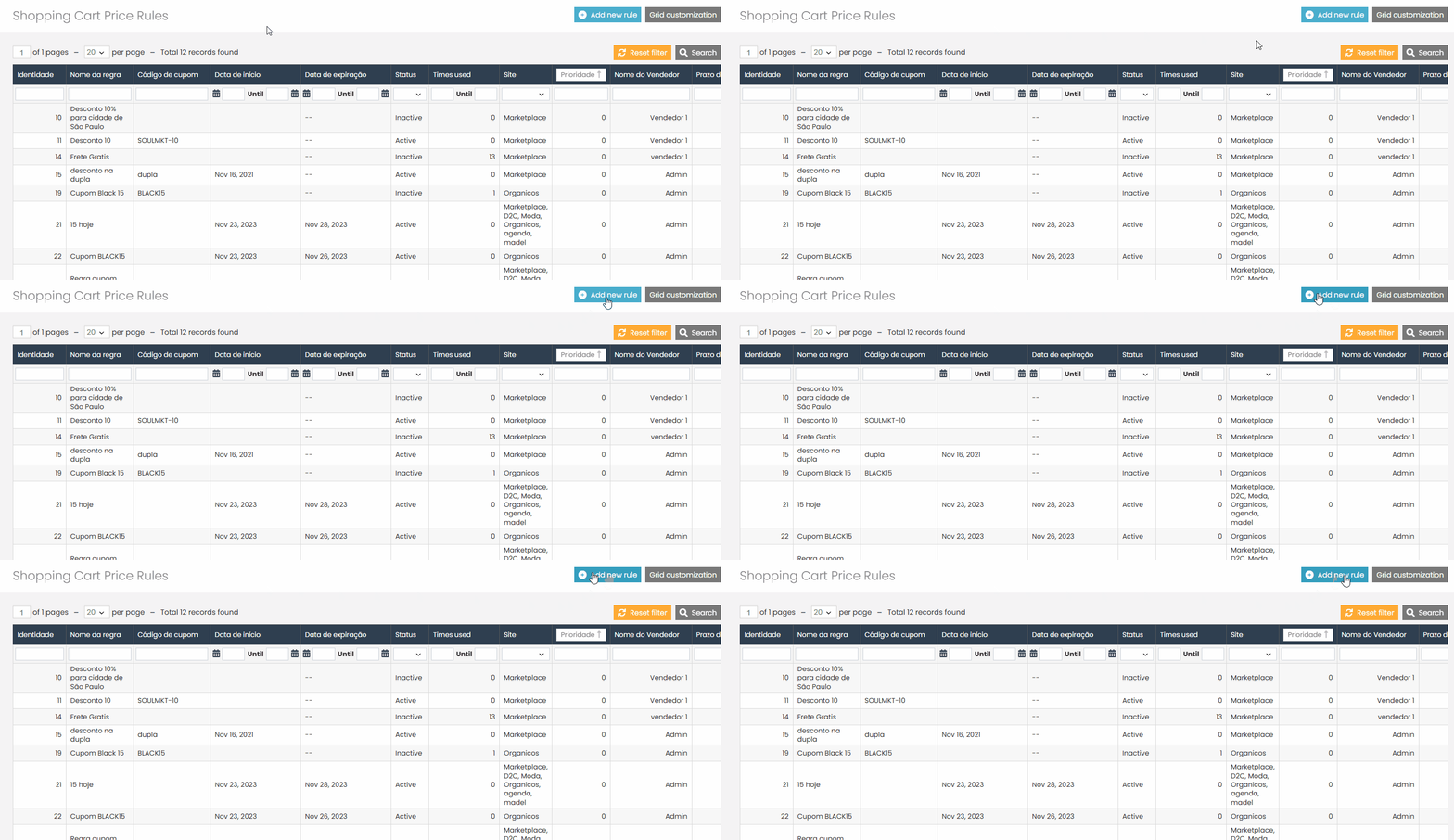
To create a new rule, click the Create Rule button located in the upper right corner.
Rule Information #
In the first configuration section, named Rule Information, fill in the following fields:
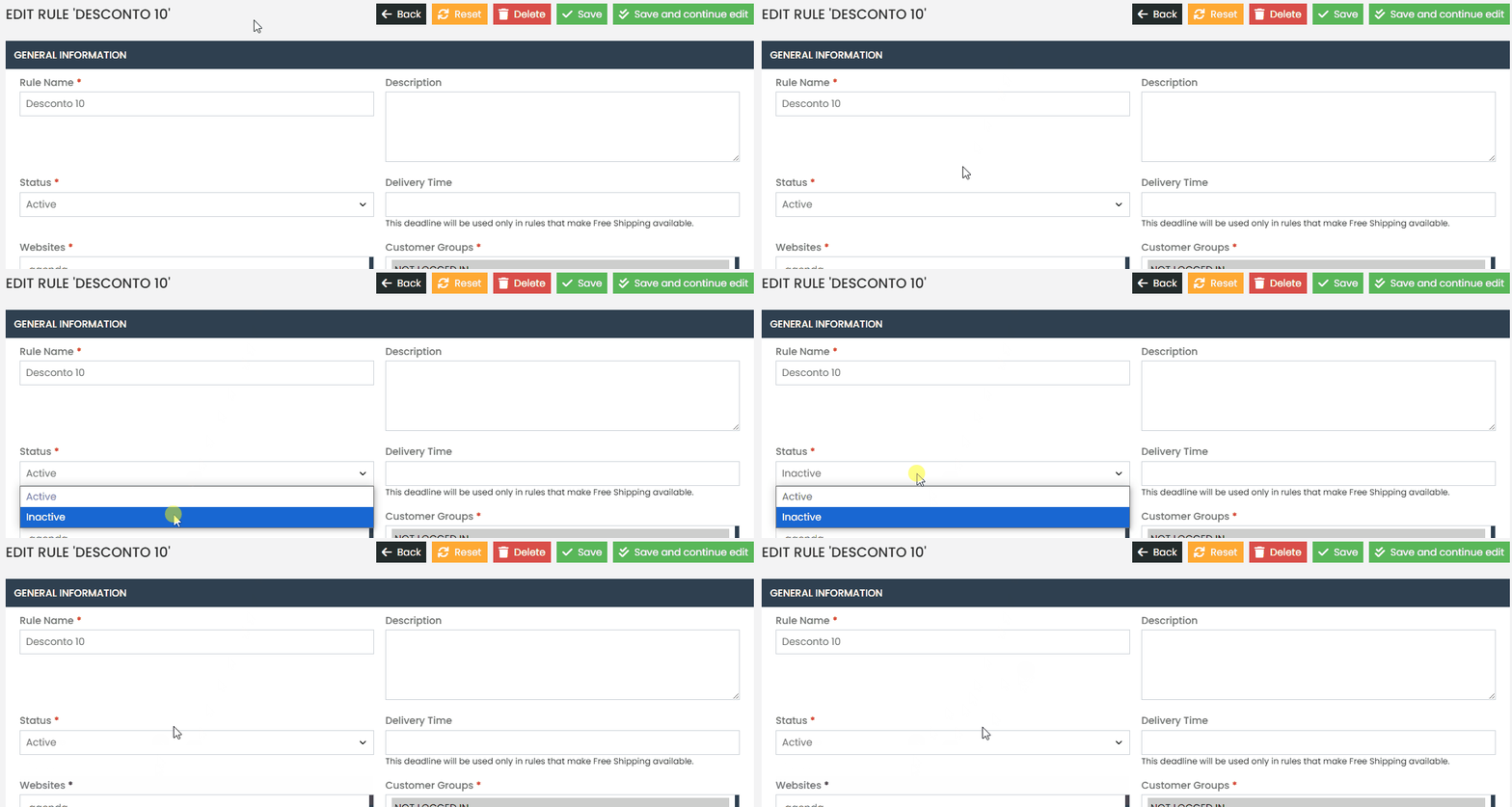
If you do not want the rule to be active, set the status to Disabled.
Rule Name: Enter the name you want to assign to the rule.
Description: Optionally, provide additional details for future reference.
Status
To ensure the rule is active, set the status to Enabled.
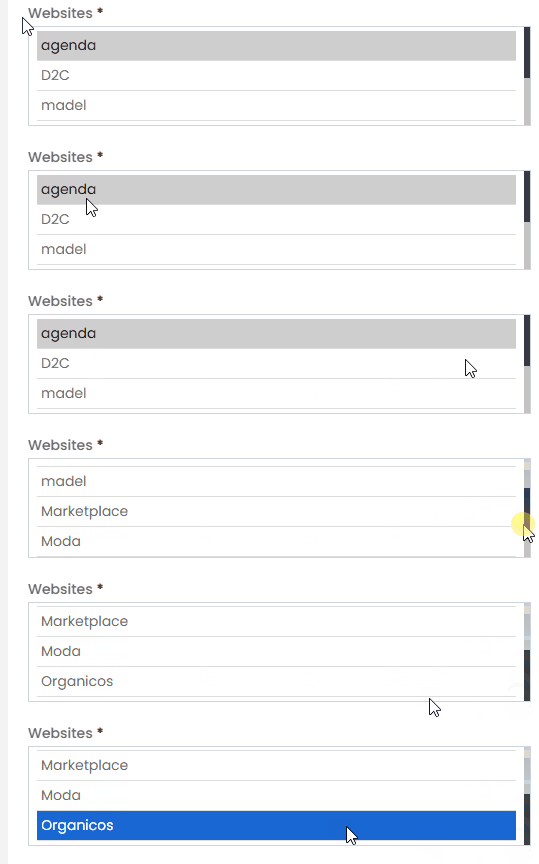
Website: Select the store view where you want the rule to apply.
Customer Group: Select the customer groups that the rule will target.
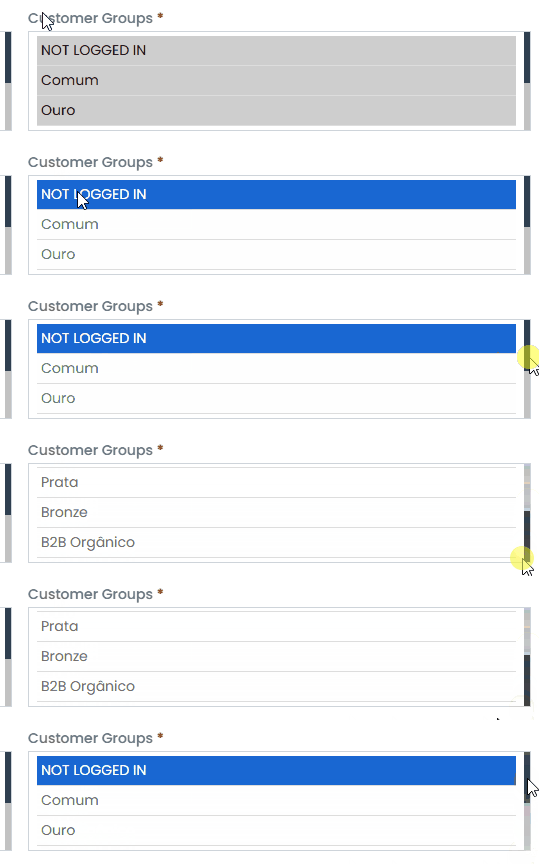
Coupon: Select the option Specific Coupon.
After selecting this option, a new field named Coupon Code will appear.
Enter the code that the customer must input for the discount to be applied.
Example: For a coupon that offers a 10% discount, a suitable coupon code could be ‘SOULMKT-10‘.

Uses per Coupon:
- Enter the total number of times the coupon can be used.
- Leave this field blank to offer unlimited uses.

Uses per Customer:
- Enter the number of times each customer can use the coupon.
- Leave it blank to allow unlimited uses per customer.
- Enter 1 if you want the coupon to be used only once per customer (e.g., per individual national identification number, such as a CPF in Brazil or a Social Security Number (SSN) in the United States).
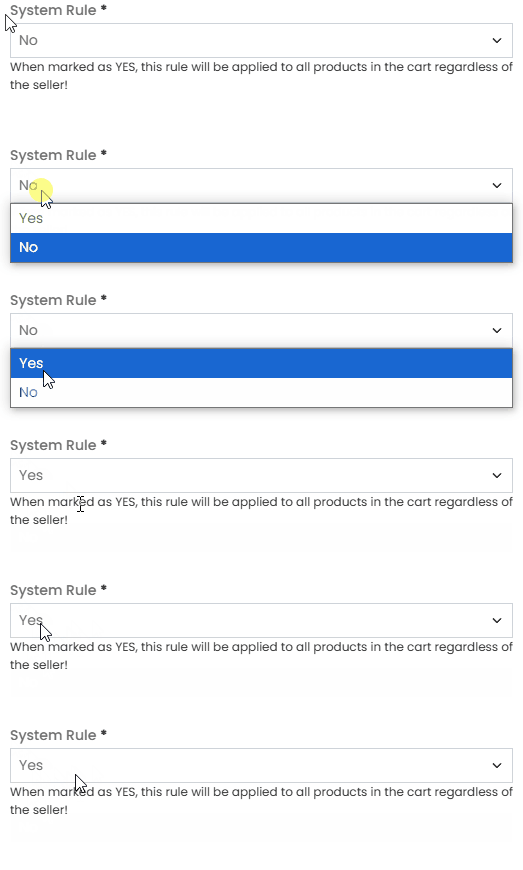
From Date and To Date:
Set the validity period of the discount coupon.
Example: To make the coupon active from April 28th to May 28th, set the respective dates accordingly.
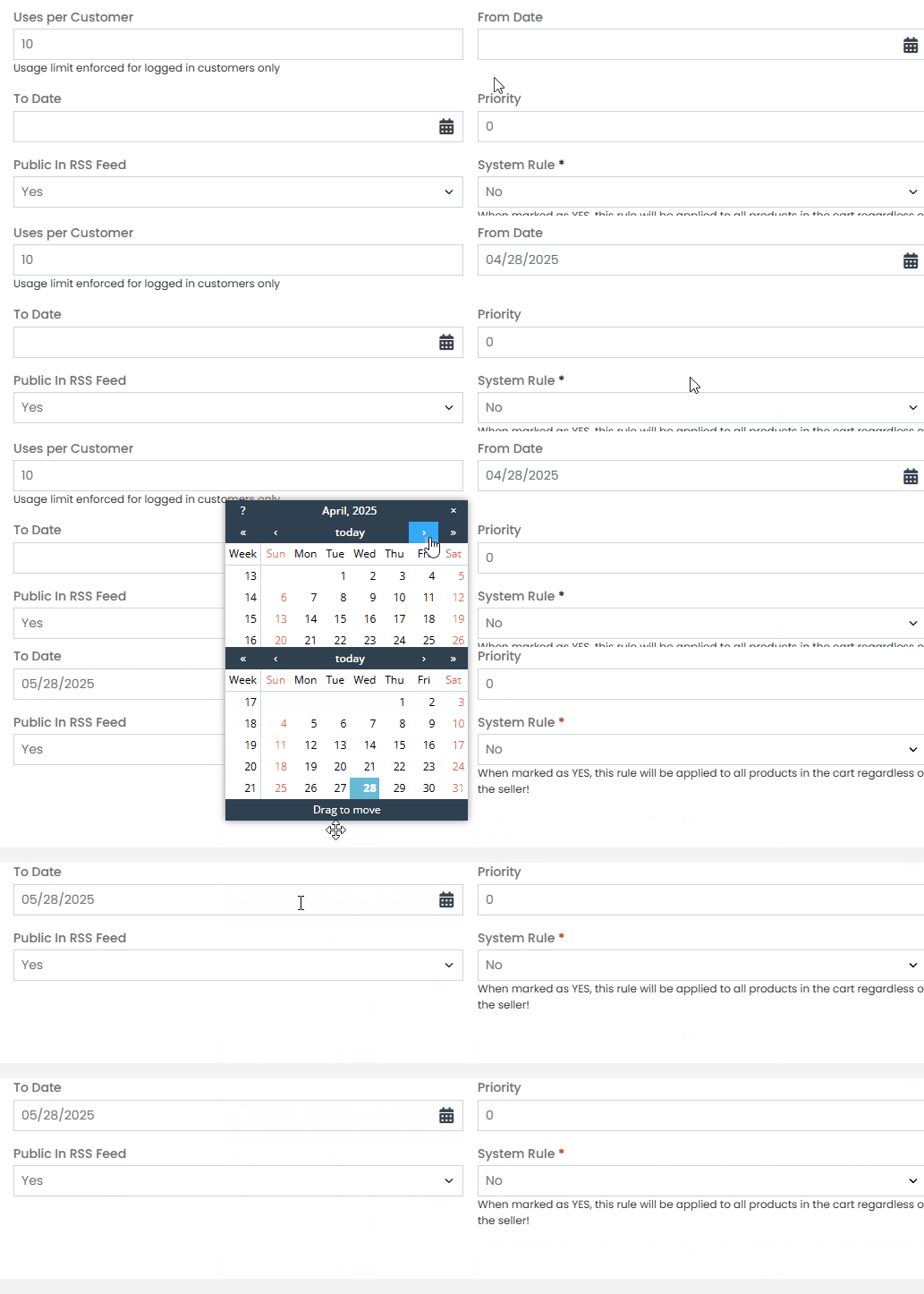
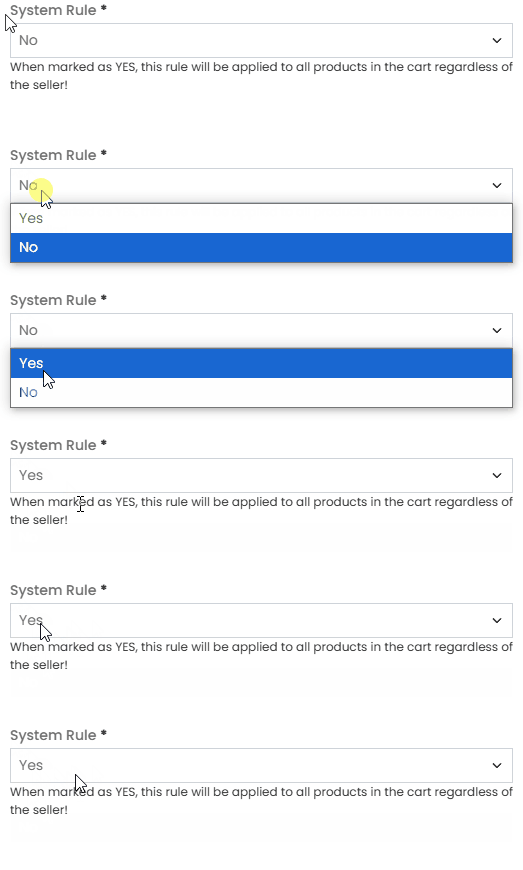
System Rule:
This ensures the rule is properly applied for platforms where multiple sellers resell or sell their own products.
If your business model is a Marketplace, make sure to set this field to Yes.
Conditions #
In the Conditions section, you define when the rule should be applied.
Examples:
- Apply the rule if the cart subtotal is greater than or equal to US$ 500.00.
- Apply the rule if the cart total is less than US$ 5,500.00.
- Conditions can be based on subtotal values, payment methods, shipping methods, and more.
When setting conditions, choose whether:
- The rule should be applied if ANY condition is met, or
- The rule should only be applied if ALL conditions are met.
Example 1 – ALL conditions must be met:
- Apply the coupon only if the product price is above US$ 500.00 AND the product SKU is X.
Example 2 – ANY condition can be met:
Apply the coupon if the cart total exceeds US$ 500.00 OR if a product with SKU X is present in the cart.
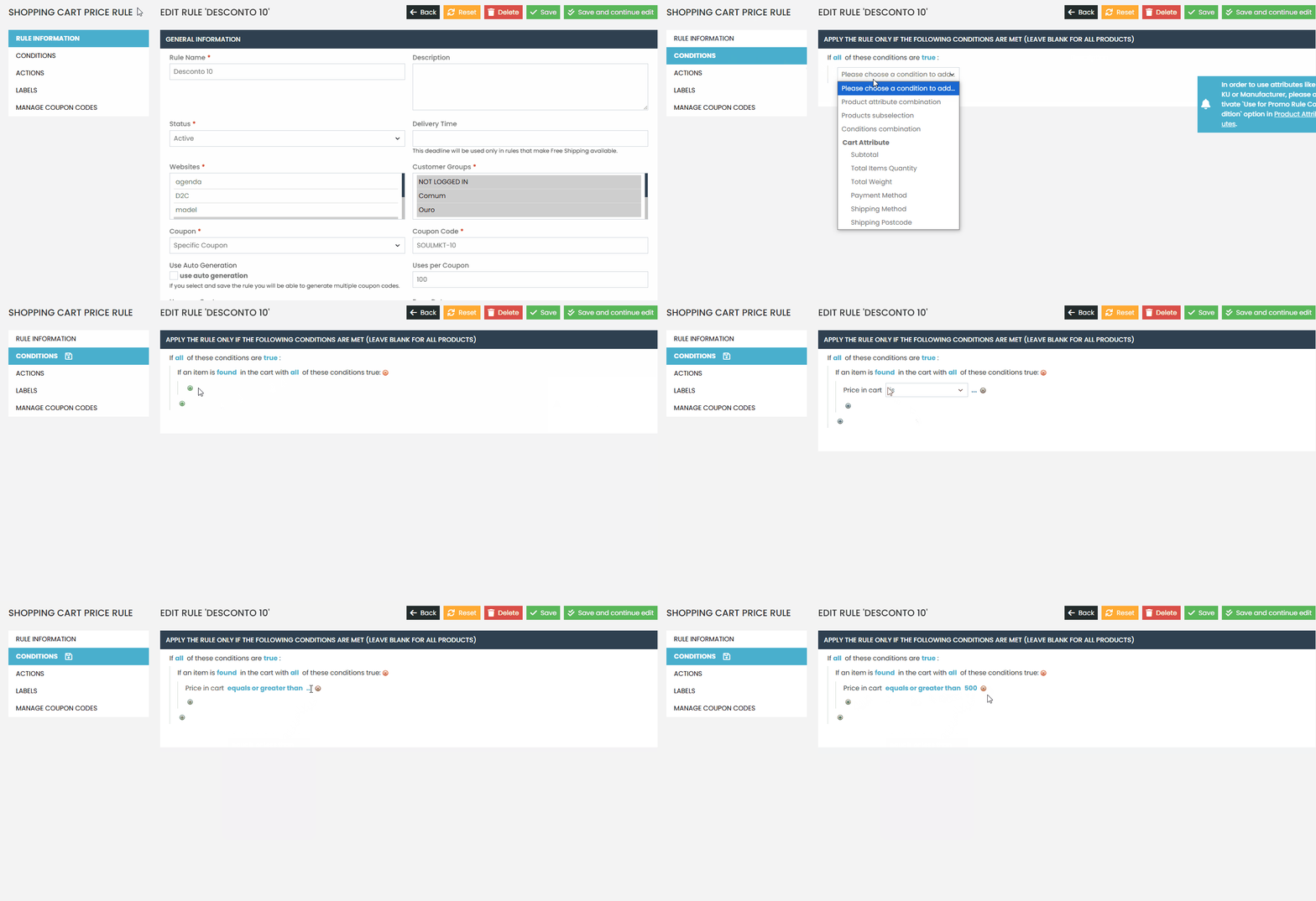
Refer to our documentation “Discount Coupon Rule Templates“ to see examples and rule models that can be used in your Marketplace!
In the Actions section, you configure how the discount will be applied. #
Examples:
Fixed Amount Discount: Offer a 10% discount on the total.
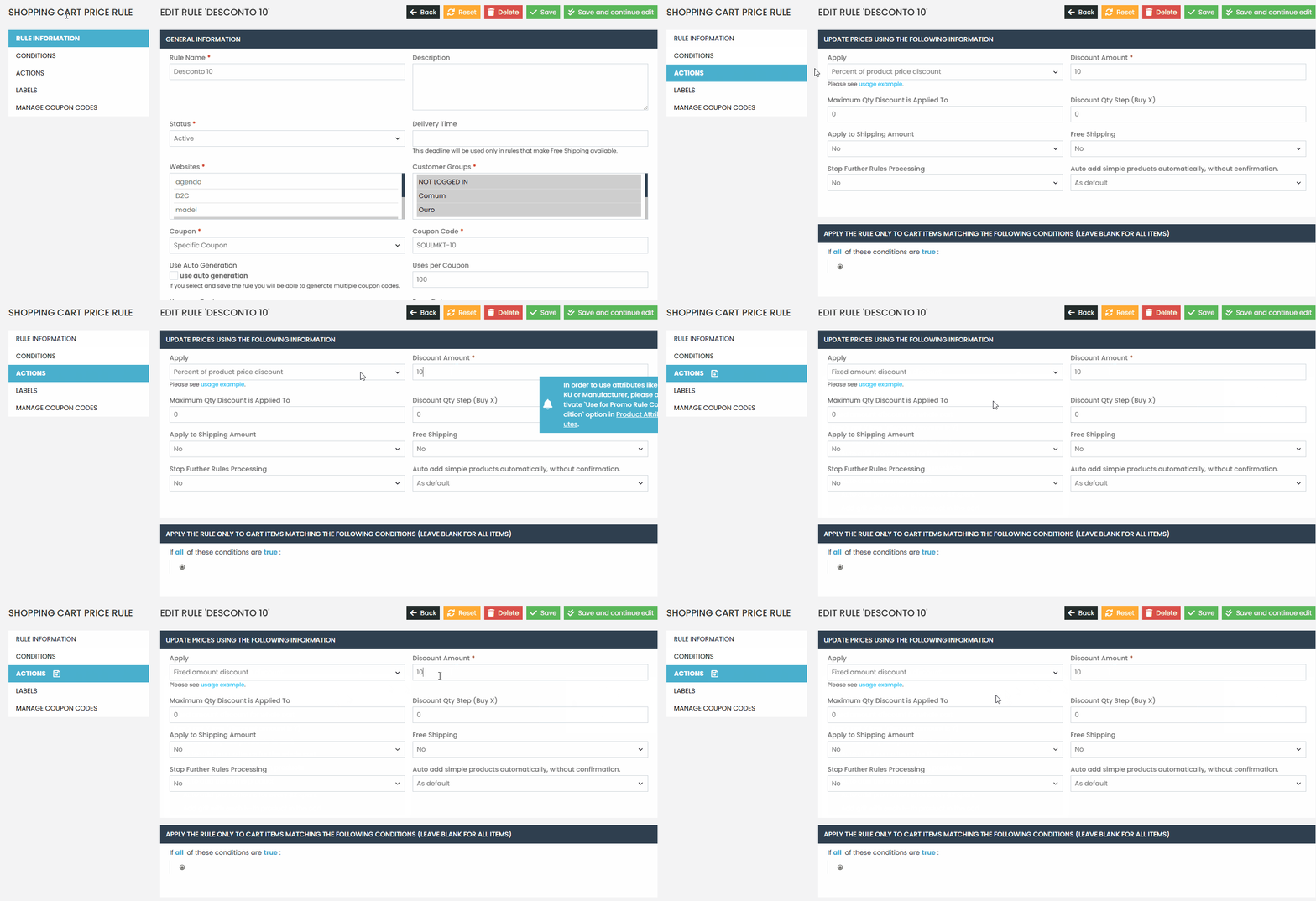
Fixed Amount Discount for the whole cart: Offer a US$ 50.00 discount on the cart total.

Remember:
You can adjust the values according to your campaign strategy. The examples provided are suggestions.
Additionally, you can:
Example: Apply the coupon only to products in Category 2.
Apply the discount only to specific products by filtering them by product attributes, SKUs, or categories.
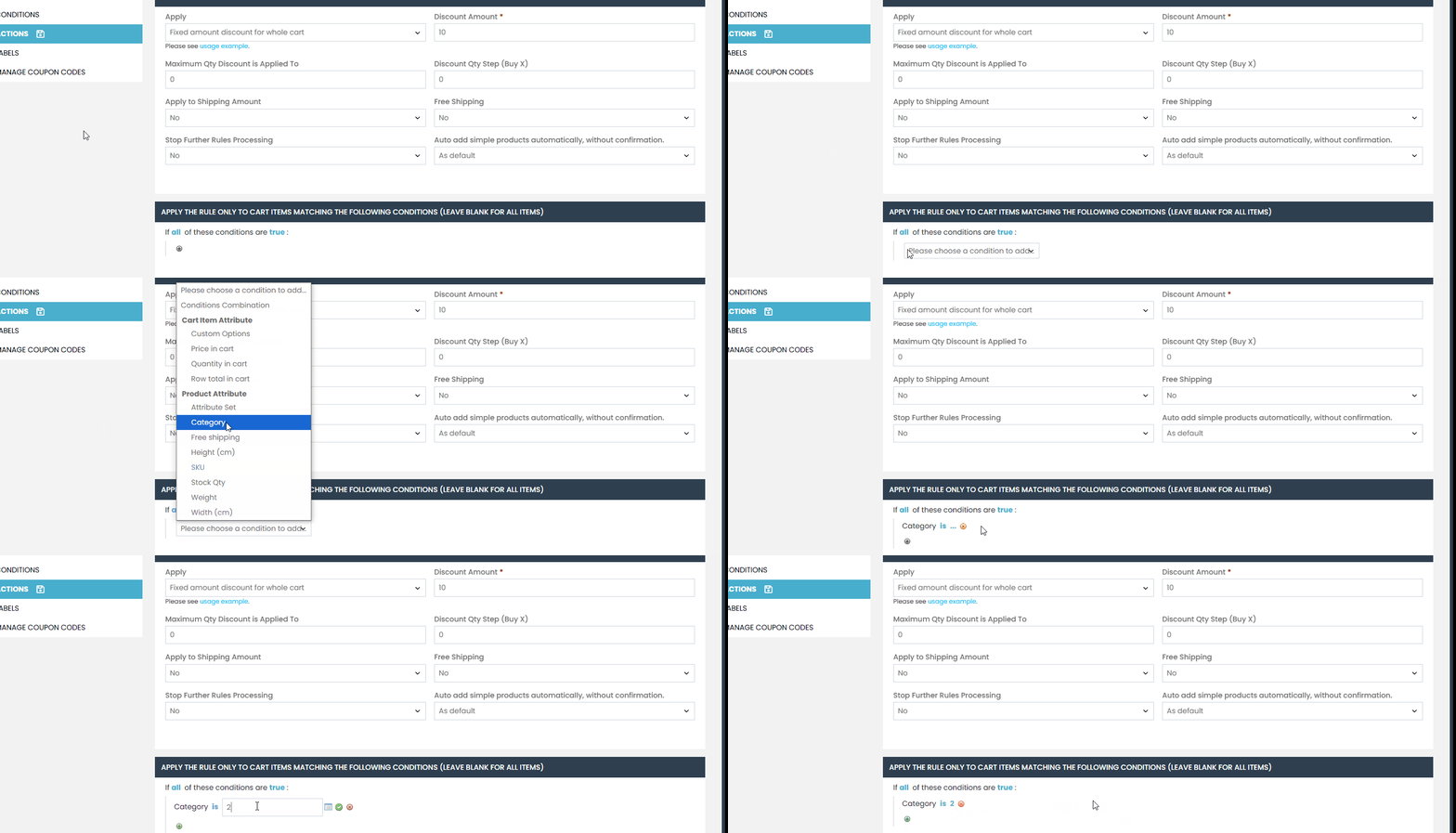
Refer to our documentation “Discount Coupon Rule Templates“ to see examples and rule models that can be used in your Marketplace!
Labels #
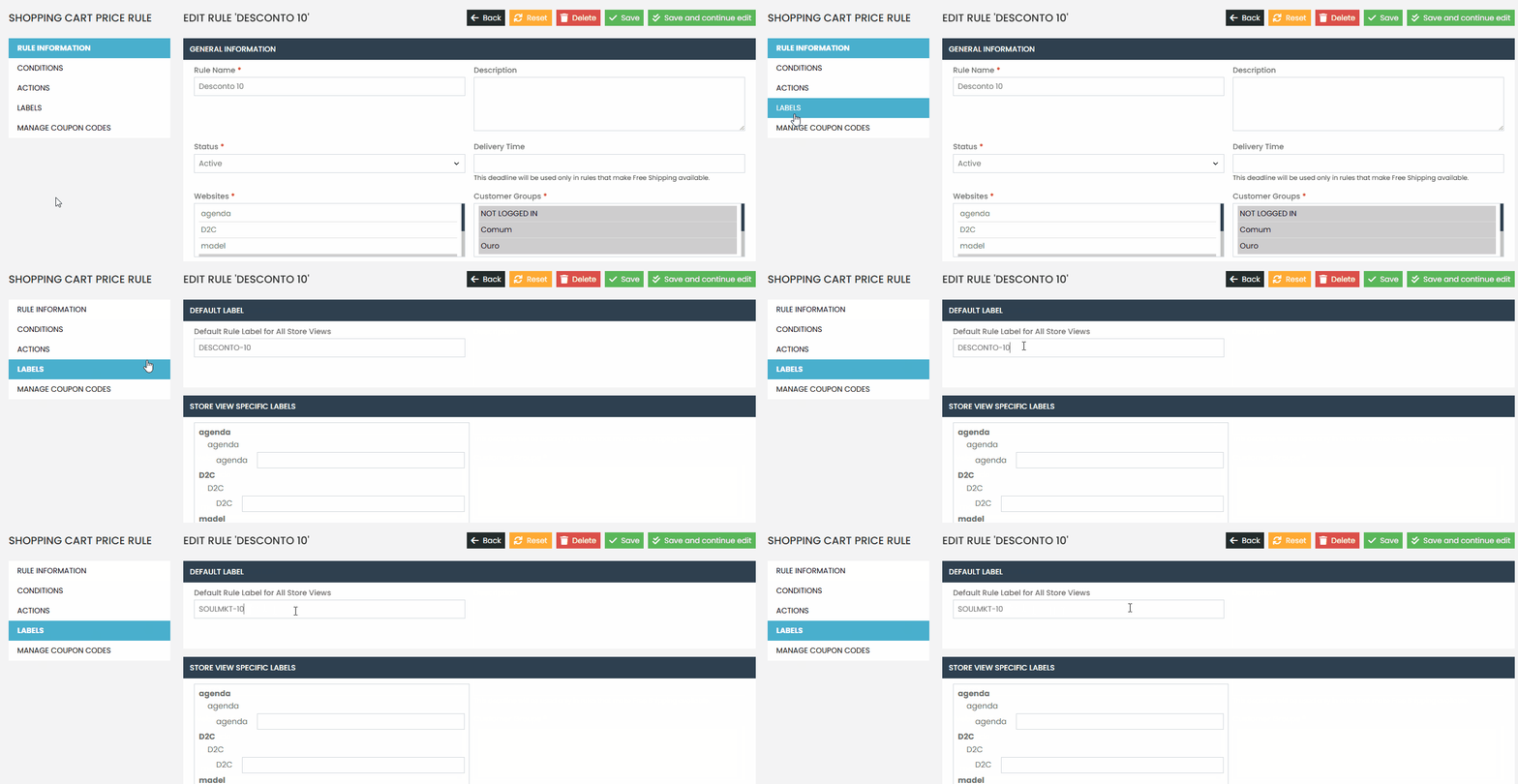
In the Labels section, configure how the coupon will be displayed to the customer during the checkout process.
Recommendation:
- Use the same Coupon Code in the label field for easier customer recognition.
Example:
If your coupon is ‘SOULMKT-10', use SOULMKT-10 in the label.
By following this documentation, you will be able to create your own discount coupon rules within the Soul Platform.
Don’t forget to check our documentation “Discount Coupon Rule Templates“ to see examples and rule models that can be used in your Marketplace!
If you have any difficulties configuring or applying a discount rule, feel free to contact our support team. We are always available to help!