
How Does Sorting Work on the Soul Platform? #
This documentation will help you if you want to change the default sorting of products within a category or product catalog.
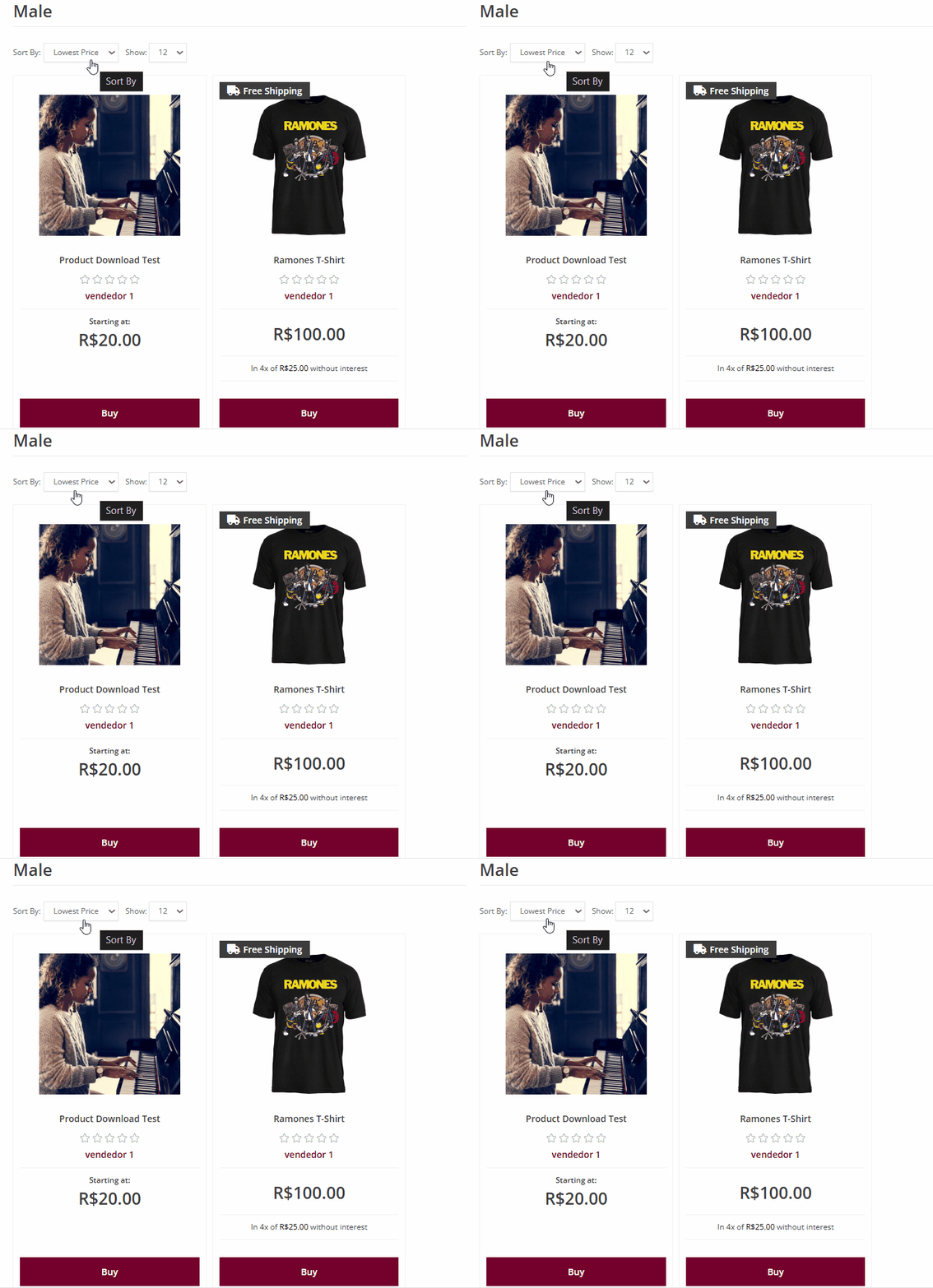
By default, sorting is done by the lowest price. Therefore, in a product listing within a category, products are sorted by their stock availability first and then by the lowest price.
This means that a product will only appear first if it has stock, even if there is a cheaper product available. If a product is out of stock, it will not be placed in the top positions.
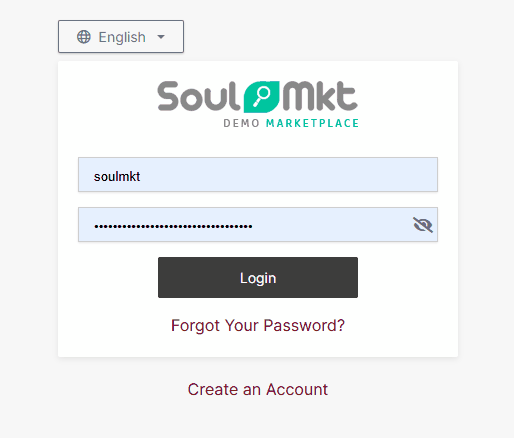
The first step to changing the sorting order is to log in to the administration panel using your username and password.
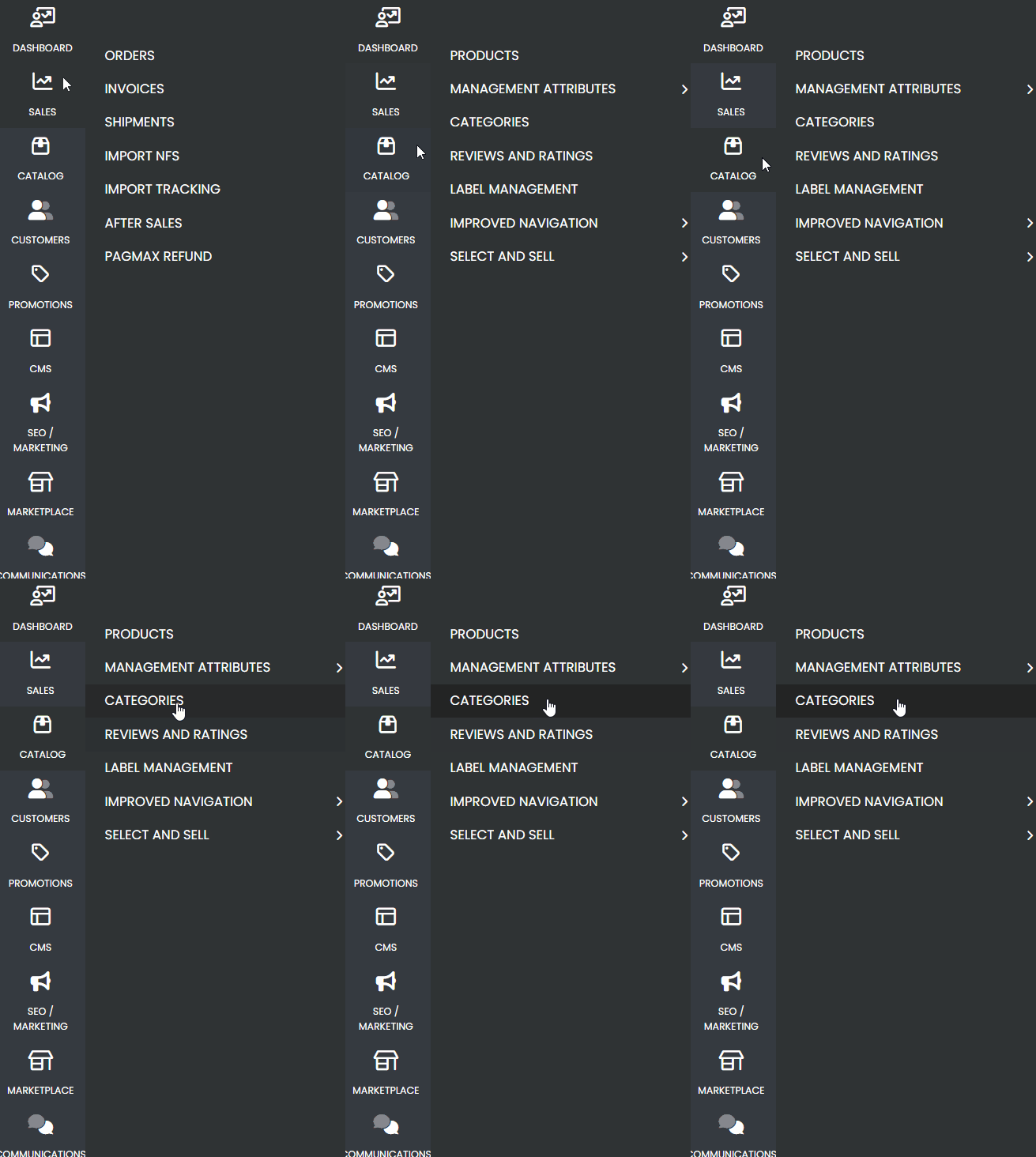
Next, navigate through the side menu located on the left side of the page. Hover your mouse over the “CATALOG” option; a submenu will appear. In this submenu, select “CATEGORIES”, click on it, and wait for the page to load.
After the page loads, you will find a menu on the left side listing all the categories and subcategories available on the site. Select the desired category to change the sorting order and click on it.
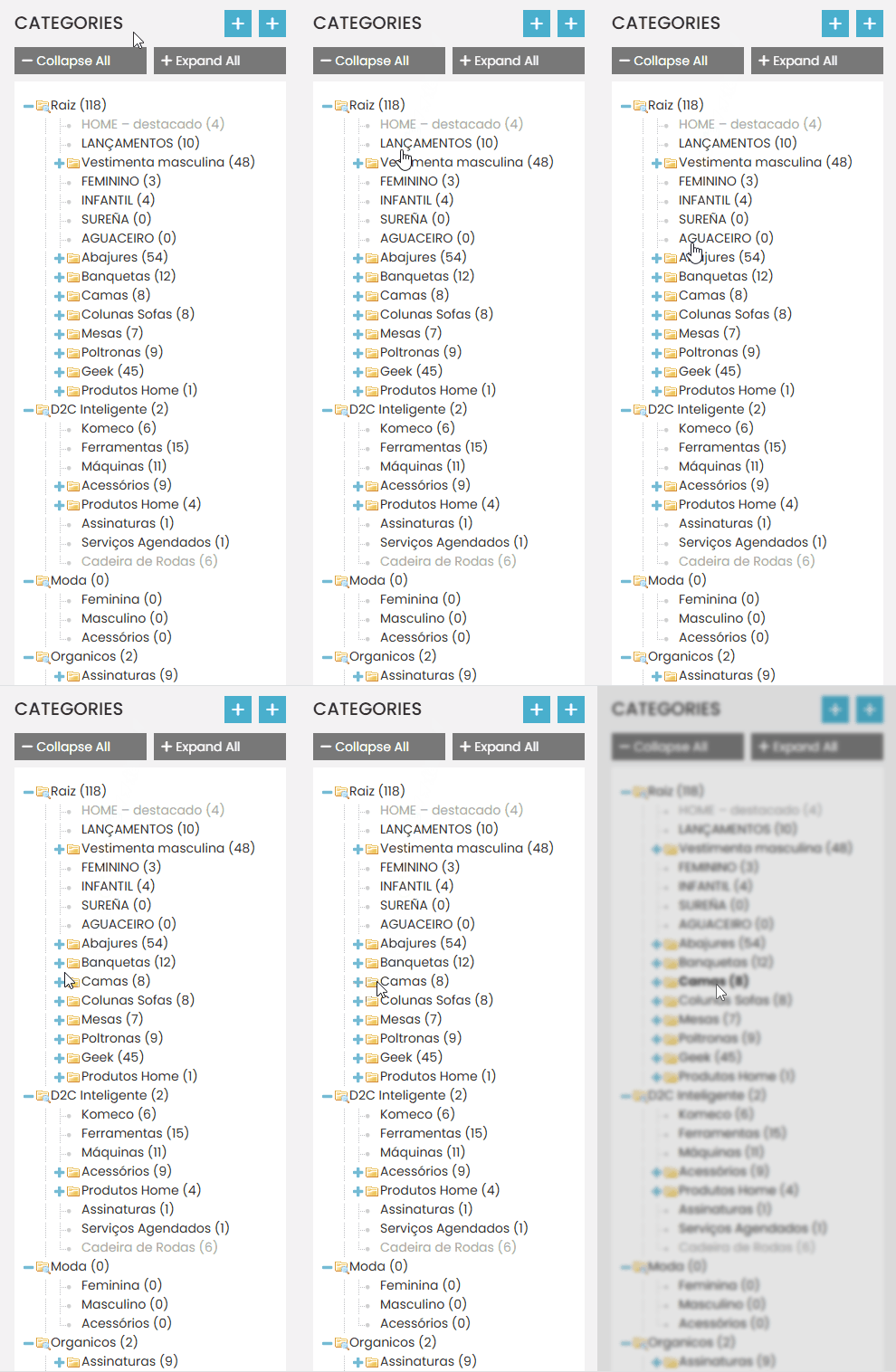
It is important to ensure that you have selected the correct category. You can verify this by checking the category name displayed slightly above on the page.
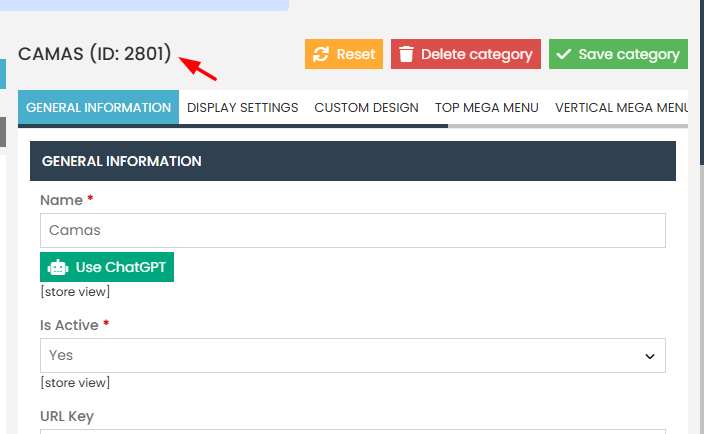
After selecting the desired category and confirming that it is the correct one, locate the “DISPLAY SETTINGS” option in the menu positioned slightly above and click on it.
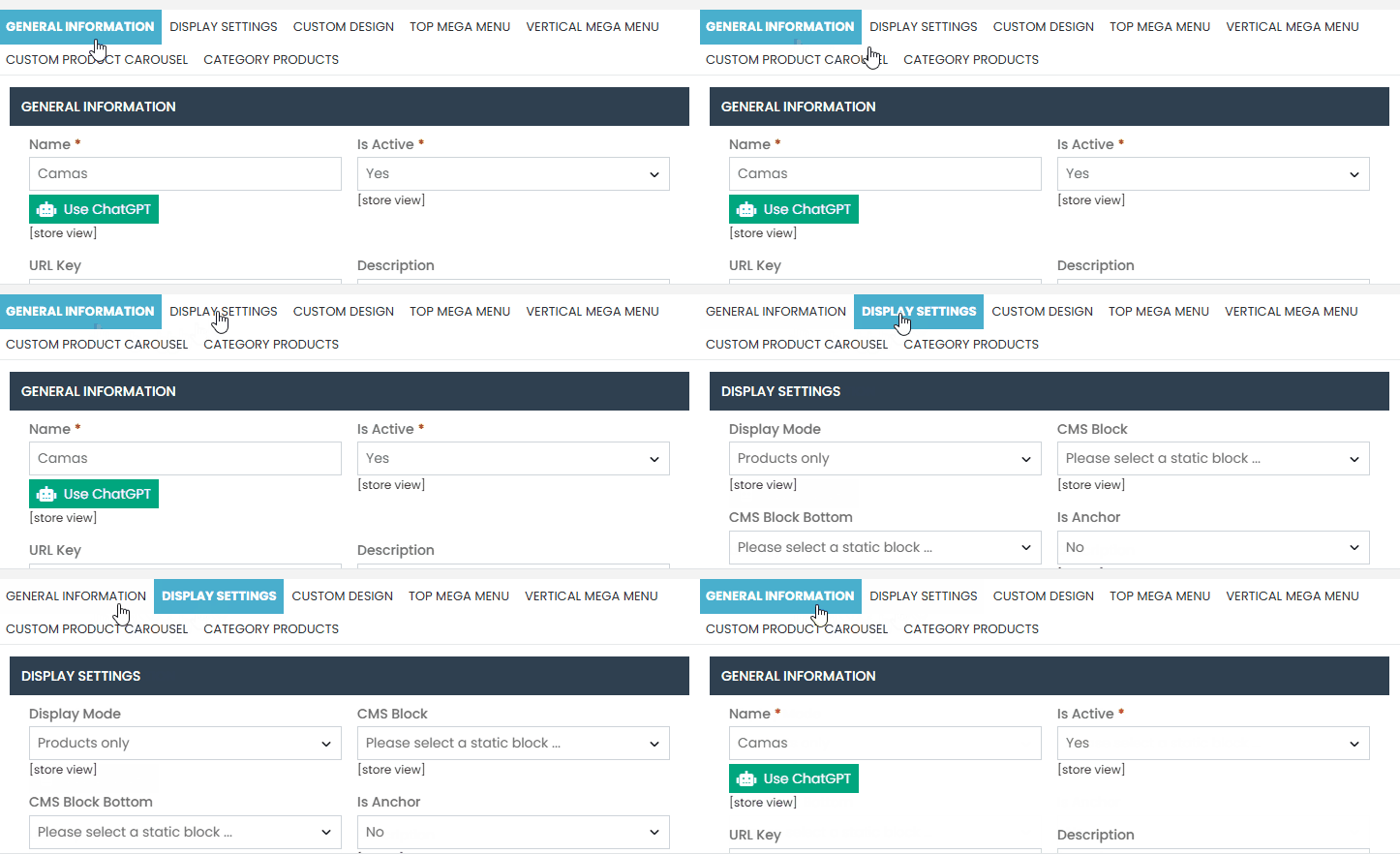
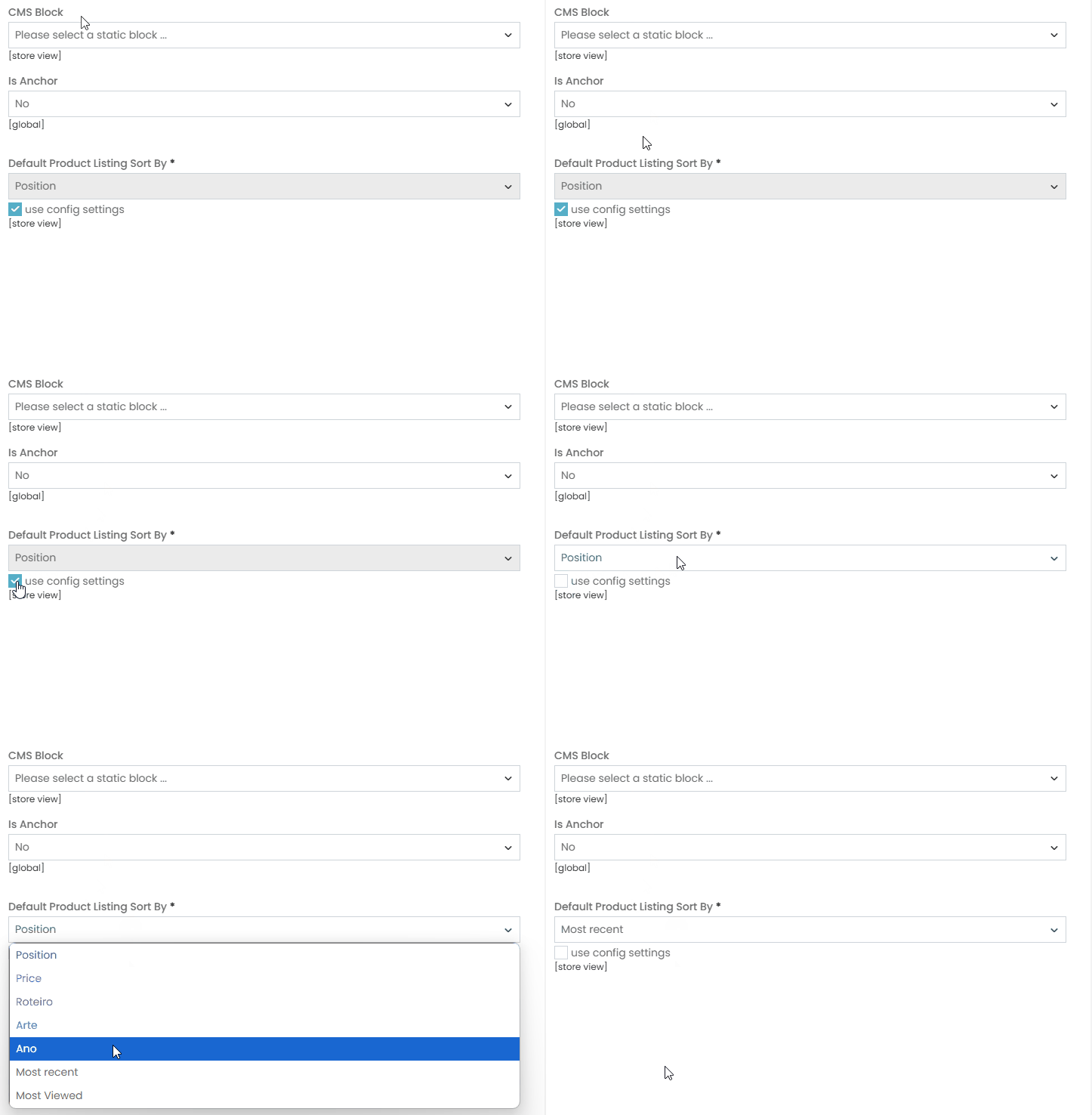
Within the “DISPLAY SETTINGS” section, look for the option “Default Product Listing Sort Order”*,” uncheck the “Use Config Settings” box, and change the sorting order for this category.
Among the default options, you can change the sorting to “Best Price” (predefined sorting), “Newest”, and “Most Viewed”. I will explain each option in more detail below.
Sorting by Best Price #
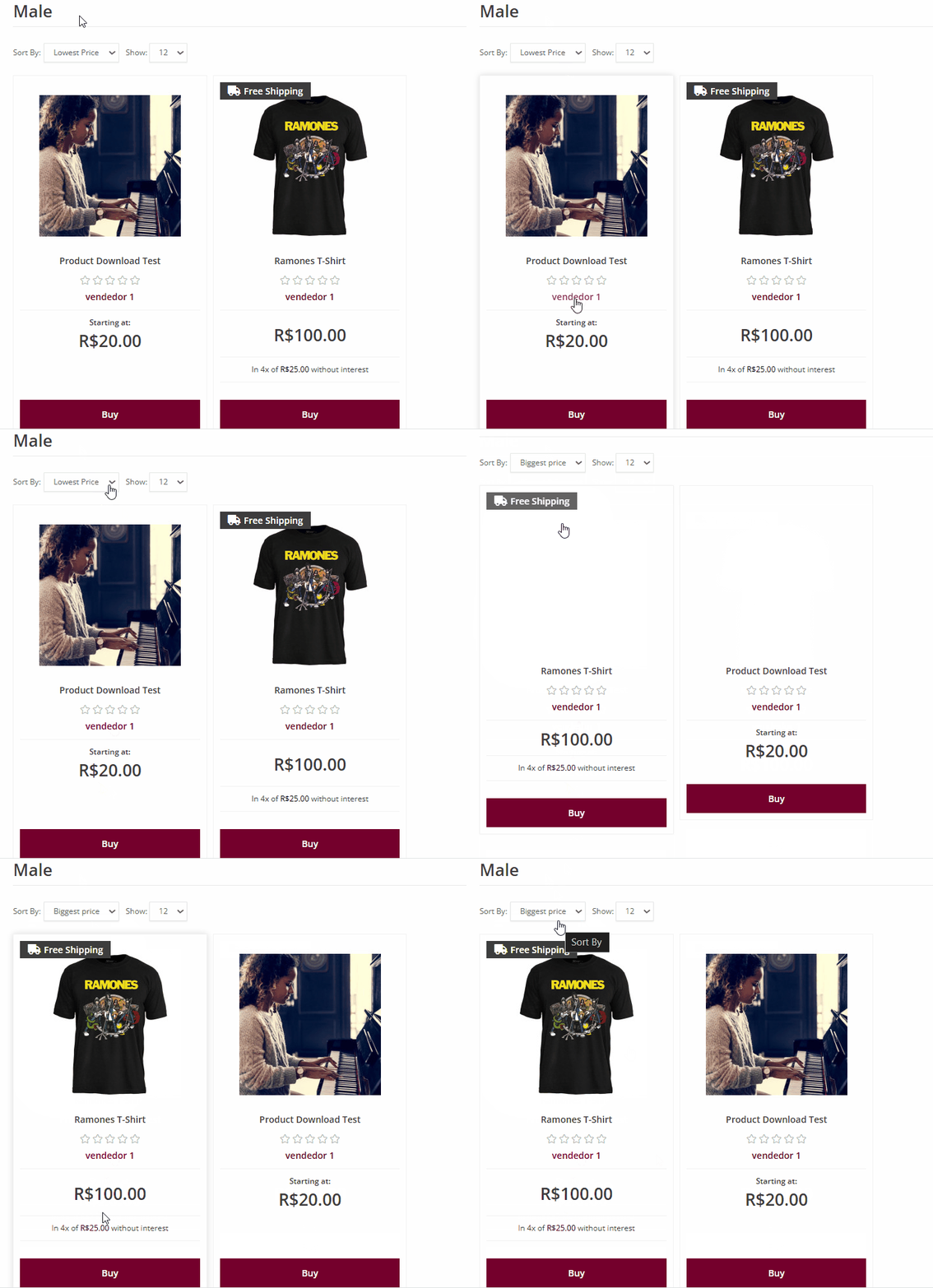
In Sorting by Best Price, the platform will arrange the products in the category based on the lowest price. However, for this to happen, the product must be in stock.If a product has the lowest price among all listed in the category but is out of stock, the platform will prioritize the next lowest-priced product that is available for purchase.
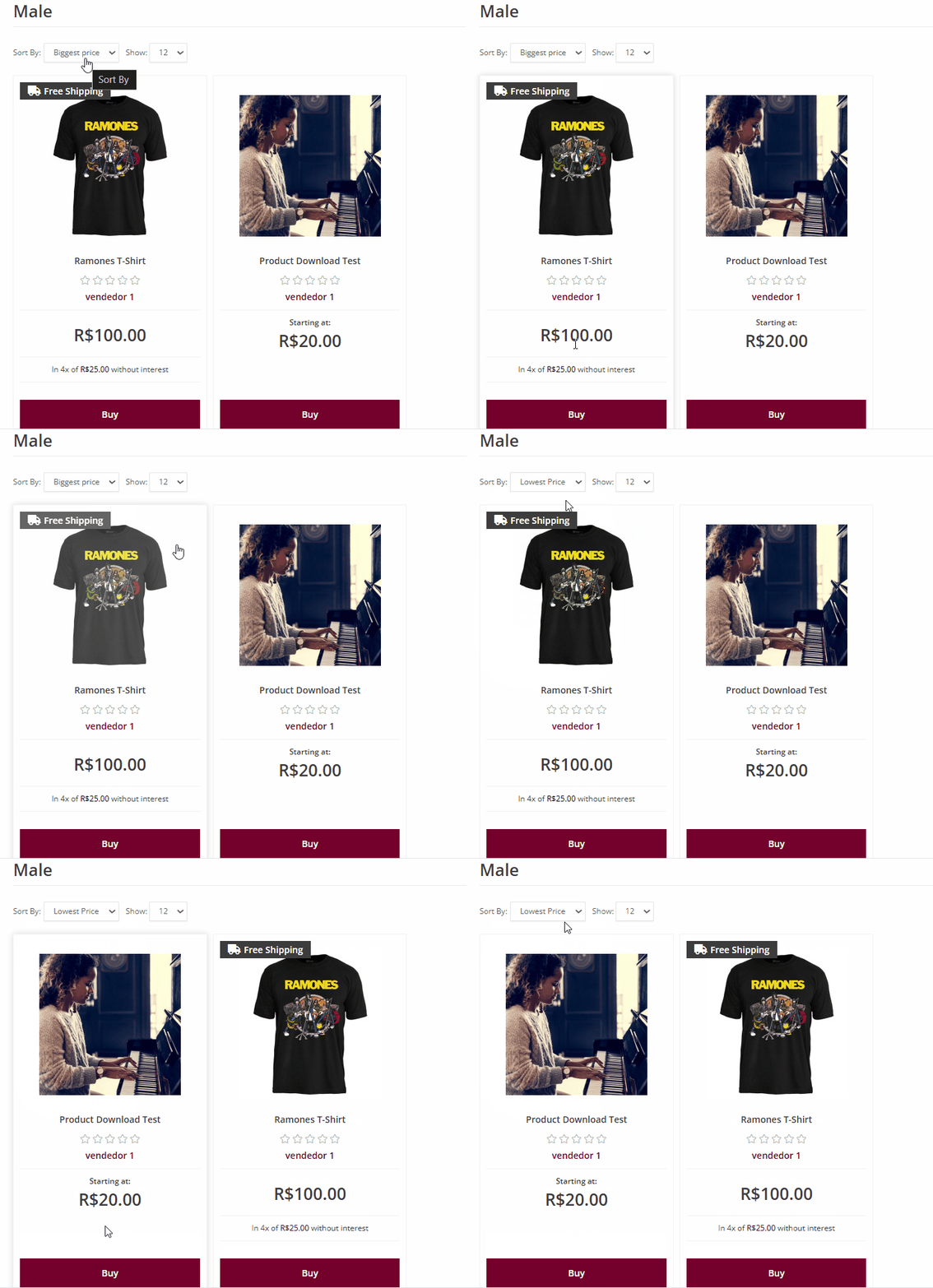
In the sorting option within the category on the website, customers can sort products by both lowest price and highest price.The same rule applies in this case: the first products sorted by the highest prices must be in stock. If they are out of stock, they will be moved to the last positions, and the second highest-priced product that is in stock will be placed first in the “Highest Price” sorting order.
Sorting by Newest #
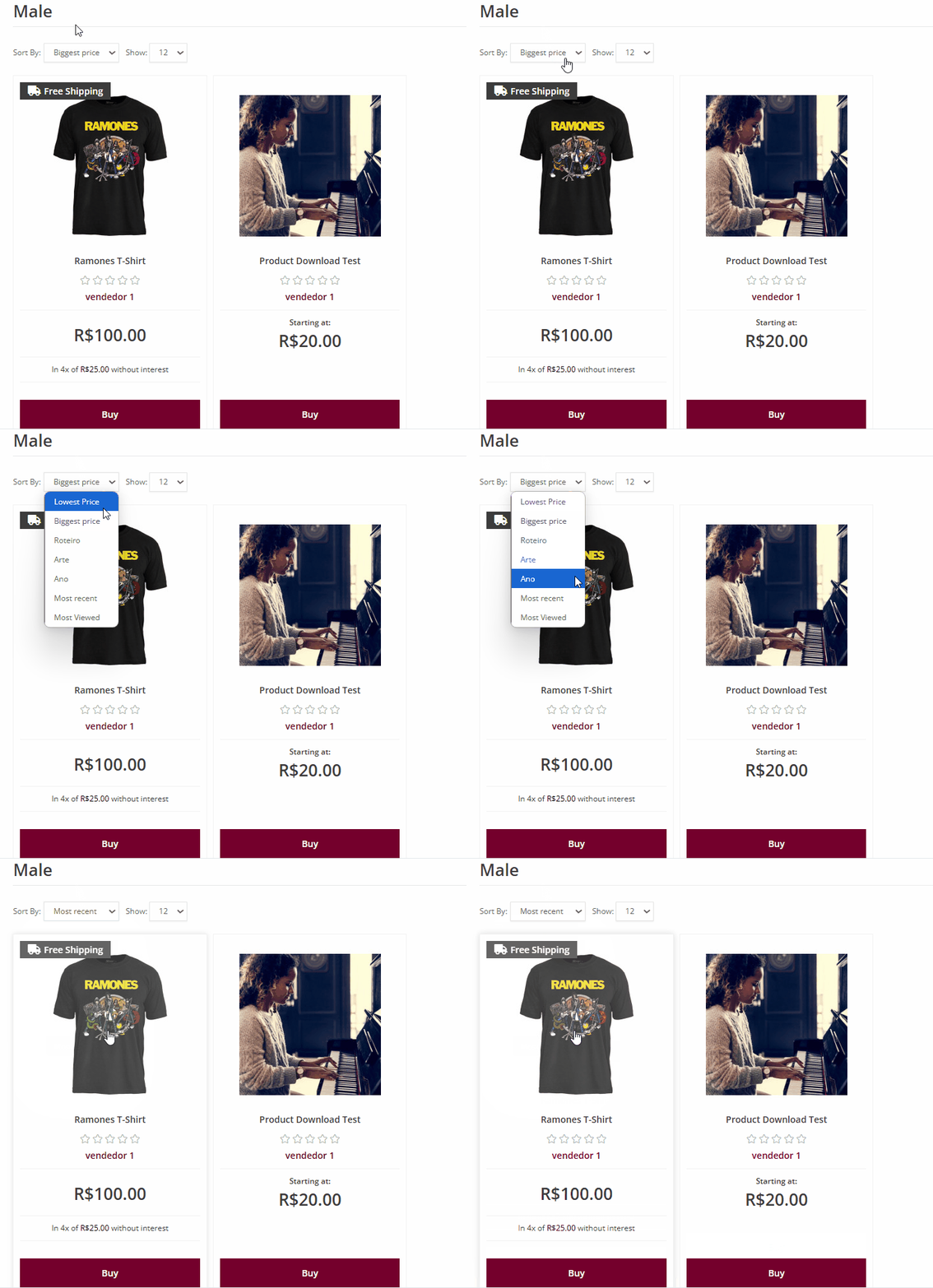
In Sorting by Newest, the platform arranges the products in the category based on their registration date, prioritizing the most recently added products.
For example, if you registered a product in 2017 and another in 2020, added both to the same category, and sorted by Newest, the product registered in 2020 will appear first in the listing, as it is the most recent.
This sorting method works the same way in both the standard structure, where sellers register their own products, and in the MultiSeller Marketplace model, where products are registered by administrators and selected by resellers.
The stock availability rule also applies to the Newest sorting order. This means that if the product registered in 2020 (as per the previous example) is out of stock, the product registered in 2017 will be considered the most recent, even though it is not.
Sorting by Most Viewed #
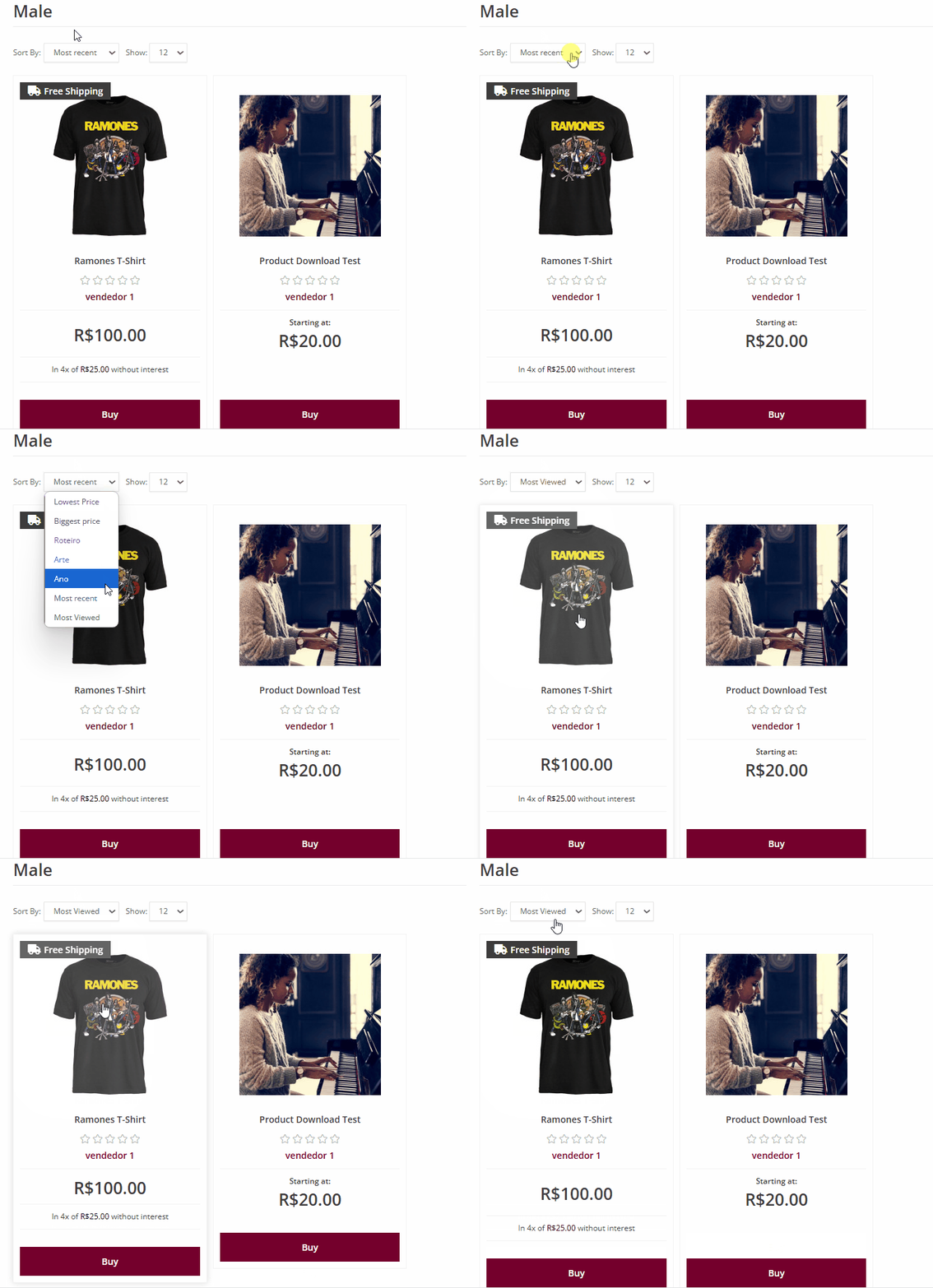
In Sorting by Most Viewed, products are arranged based on their popularity in terms of views. This means that the platform will display the most accessed, searched, and viewed products, which often correlate with the best-selling items.For example, if there are five products in a category and Product 5 has been viewed 100 times, while Product 3 has been viewed 500 times, the platform will prioritize Product 3, as it has been searched and accessed more frequently.The stock availability rule also applies to the Most Viewed sorting order. If the most viewed product is out of stock, the system will prioritize the next most viewed product that has available stock.For example, if Product 5 has 100 views and Product 3 has 500 views, but Product 3 is out of stock, the system will prioritize Product 5, moving Product 3 (out of stock) to the last position in the sorting order.
Changing the Sorting Order for All Categories #
The process explained throughout this documentation applies to manual changes, allowing you to modify the default sorting order for specific categories, not all categories.If you want to change the default sorting order for all categories, this function is not available for sub-admin access in the marketplace. You will need to submit a support request for the support team to make the adjustment for you.If you are unsure how to submit a support request, please refer to our documentation: “How to Open a Support Ticket in the Support Panel.“