
In this guide, you will learn how to change the required status of fields in forms, whether they are contact forms or any other type available on the platform.
Accessing Form Management #
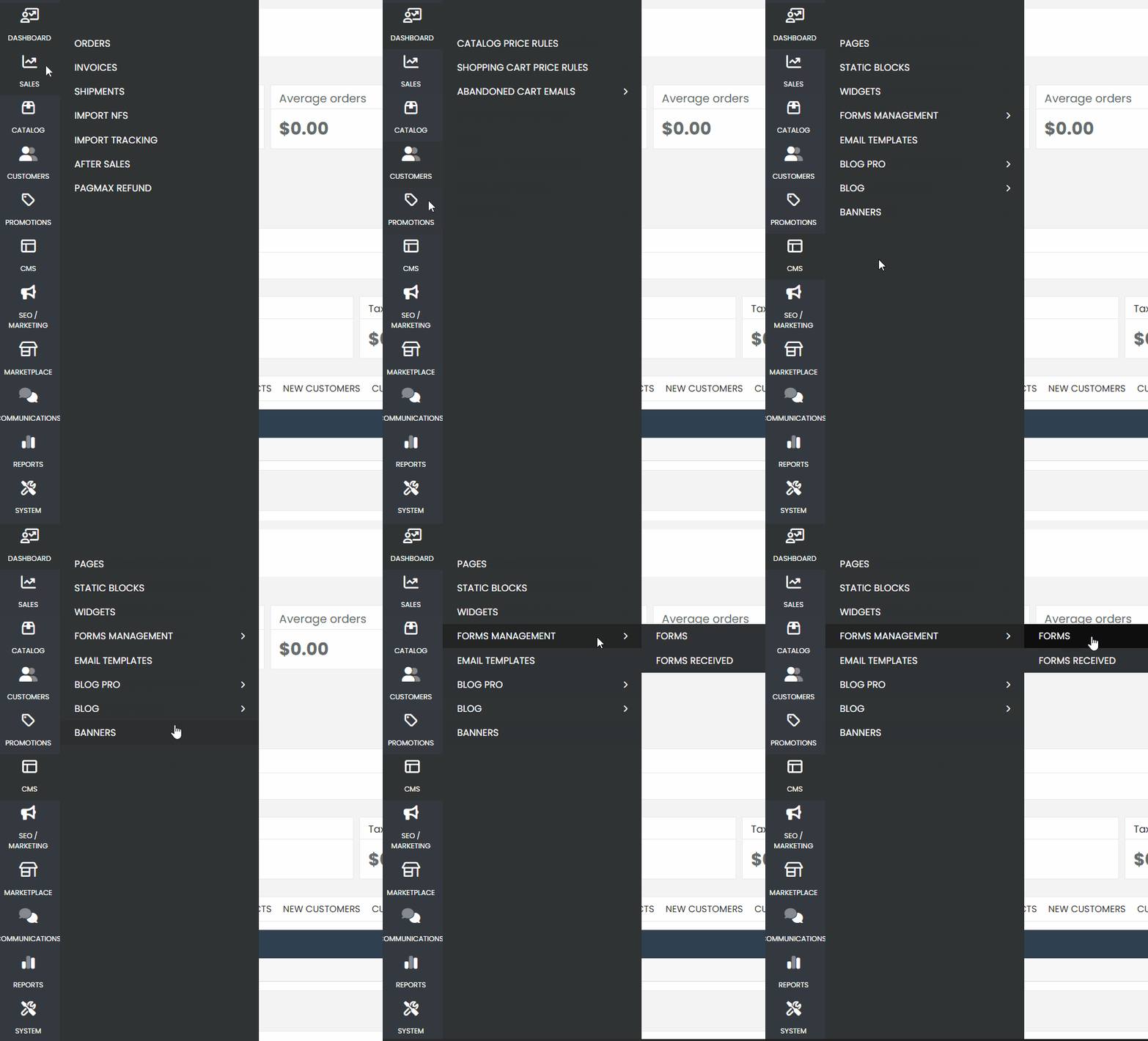
- Log in to the platform’s administration panel.
- Navigate to the Content tab in the side menu.
- In the submenu that appears, select Form Management and click on Forms.
Selecting the Desired Form #
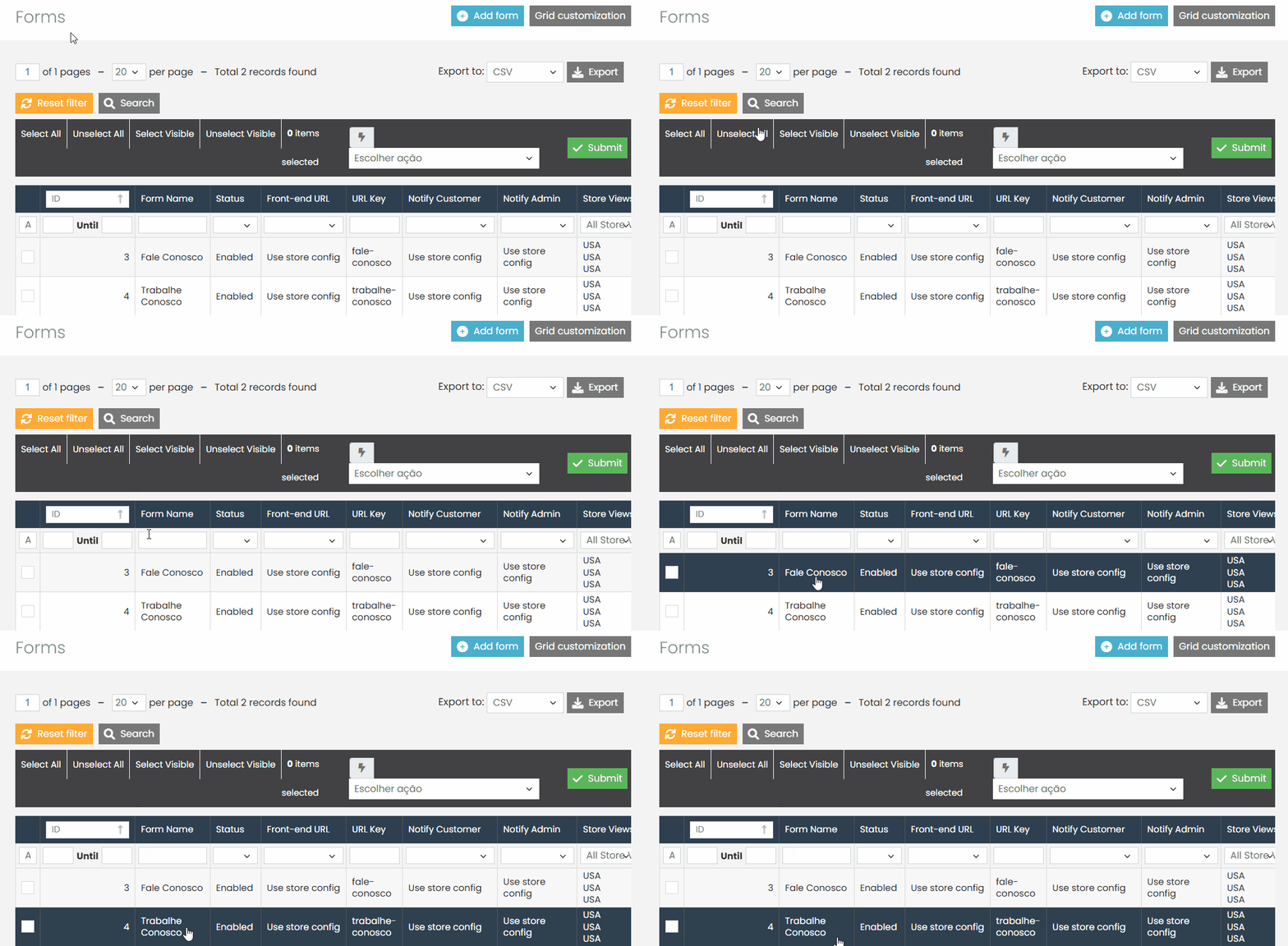
- Once the page loads, locate the form you want to edit.
- Example: Let’s edit the form with ID 3, named “Contact Us”.
- Click on the form to access its settings.
Changing the Required Status of a Field #
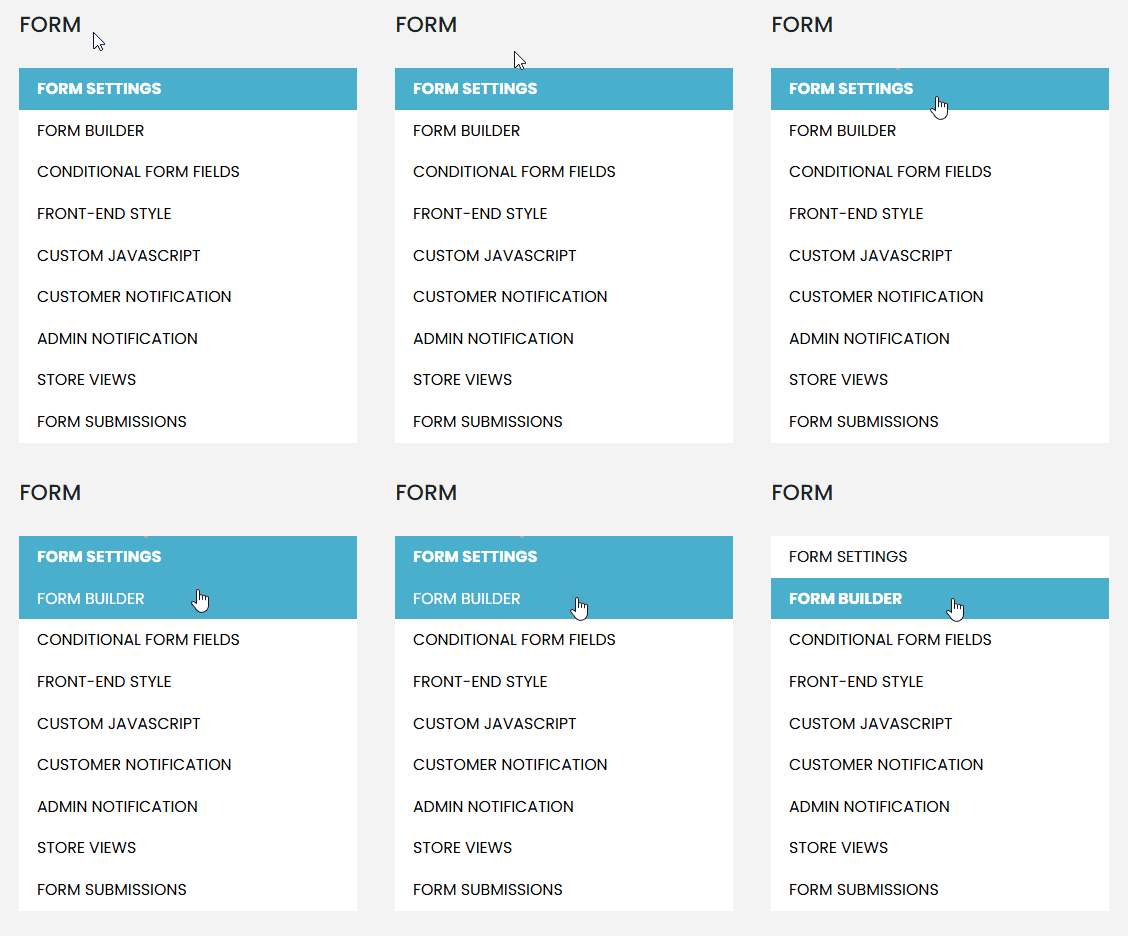
- In the open form, navigate to the Form Builder section.
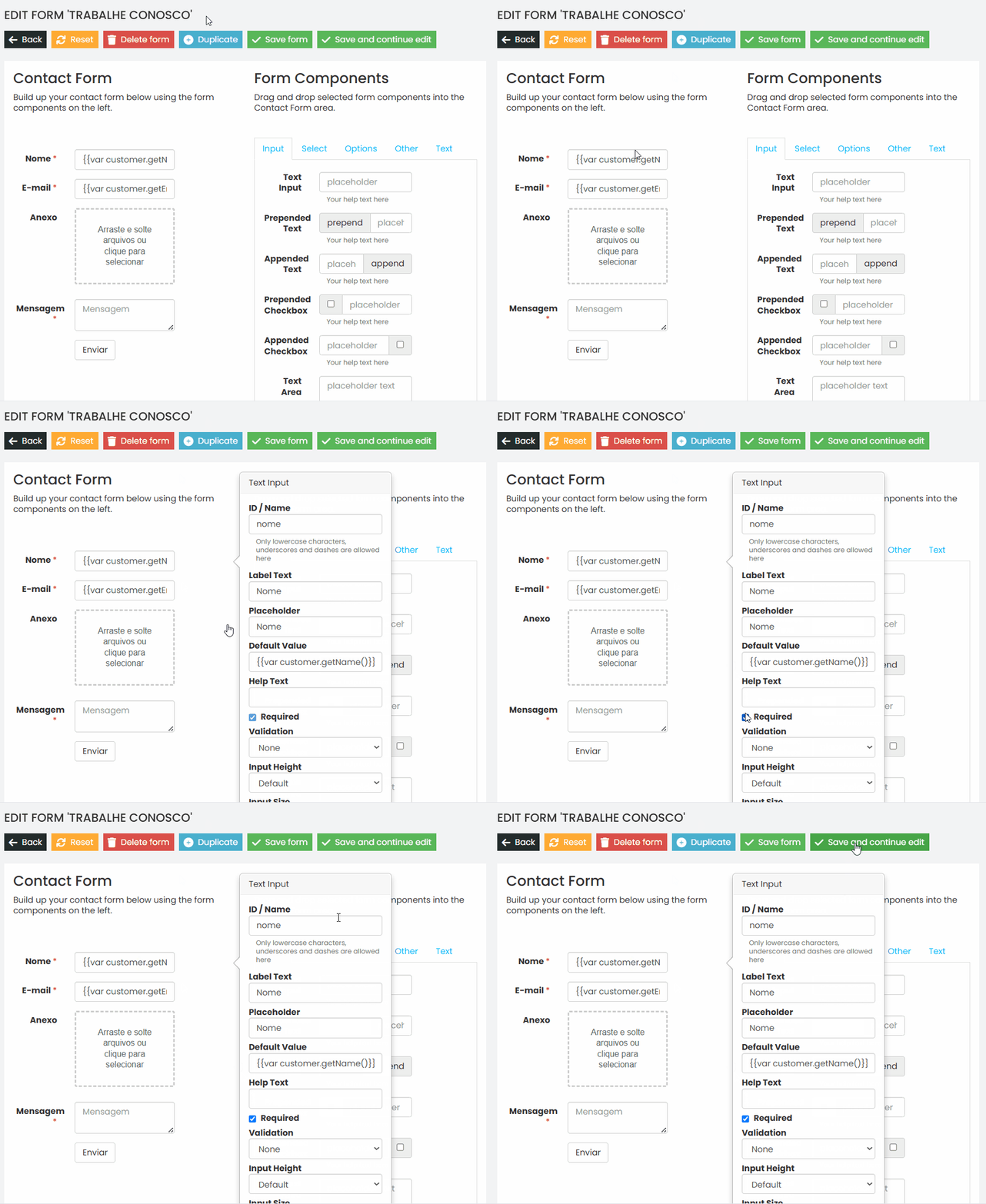
In the field list, find the field you want to configure as required or optional. #
- Example: Let’s make the “Name” field required.
- Click on the desired field and check the Required checkbox.
- Click Save to confirm the change.
After saving, click on Save and Continue Editing or simply Save Form.
Verify the Change #
- Access the page where the form is published.
- Reload the page to apply the changes.
- Check if the required status has been correctly configured for the field.
By following these steps, you can efficiently manage the required status of fields in any form on the platform. If you encounter any difficulties or have questions, don’t hesitate to contact our support team. We are always available to help!