
How to Configure and Activate Free Shipping in the Reseller Panel
The first step to check and adjust the free shipping settings is to access the reseller’s admin panel. To do this, use the “Login as Reseller” option.
For more details on this process, refer to the related article available at the following link: Login as Reseller.
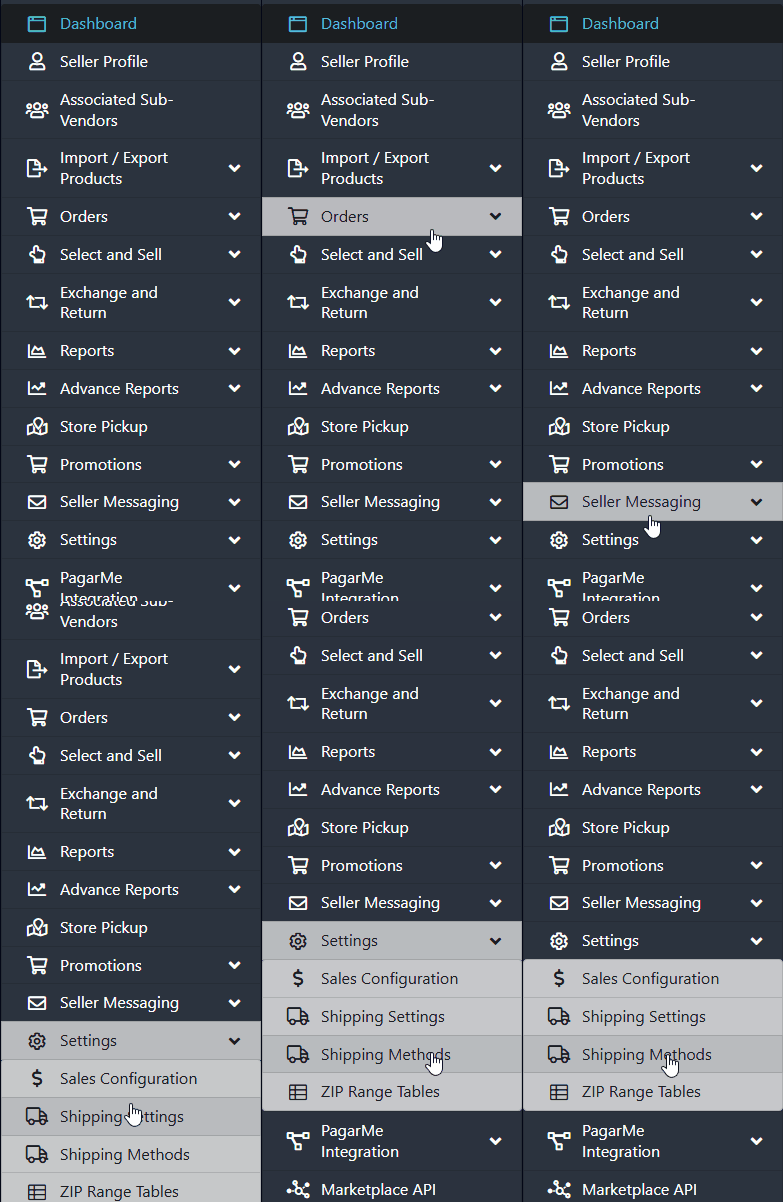
After logging in as the reseller, go to the left sidebar menu, then navigate to “Settings” and click on “Shipping Methods”, as shown in the image below.
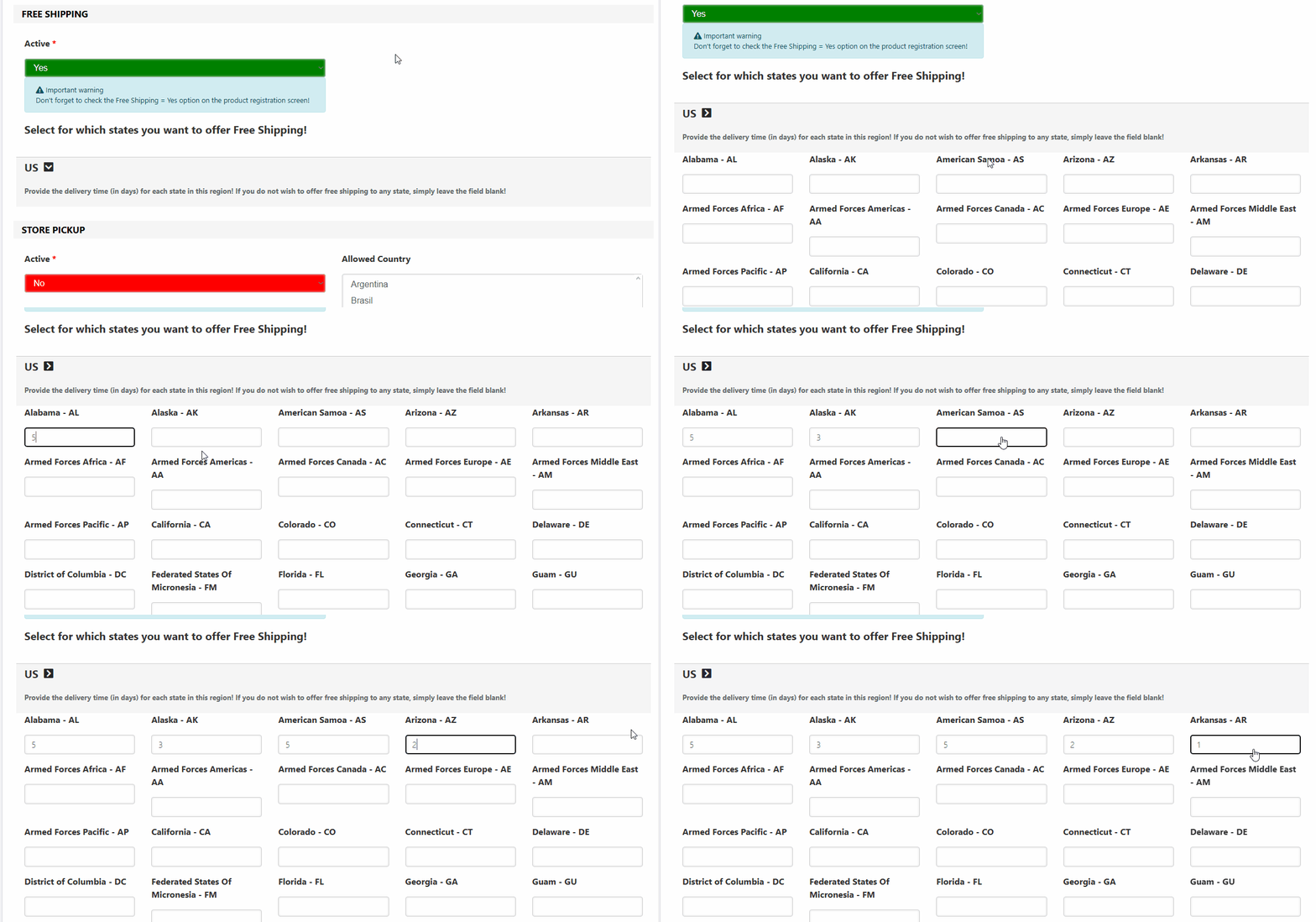
Wait for the new page to load, then navigate to the “Free Shipping” option. If it is disabled, click the “No” button and switch it to “Yes” in the first option labeled “Active.

Just below, you will see a list of areas with fields to add delivery time (in days) for each location. If you want to check whether your seller/reseller is offering free shipping for a specific area, navigate to the desired location and verify if the field is filled with the average number of days required to complete delivery. If the field is empty and you want to enable free shipping for that area, simply fill in the field with the average number of days your seller would need to fulfill the free shipping delivery.
It is important that the number of days provided reflects the average time required to offer this delivery as free shipping. If you want to check whether your seller/reseller is offering free shipping for all areas, make sure that every field in all locations is filled in. If any location is missing a value for the average delivery time, free shipping will not be offered for that area. To configure free shipping for all areas for your seller/reseller, fill out every field with the average number of days required to complete free shipping deliveries.
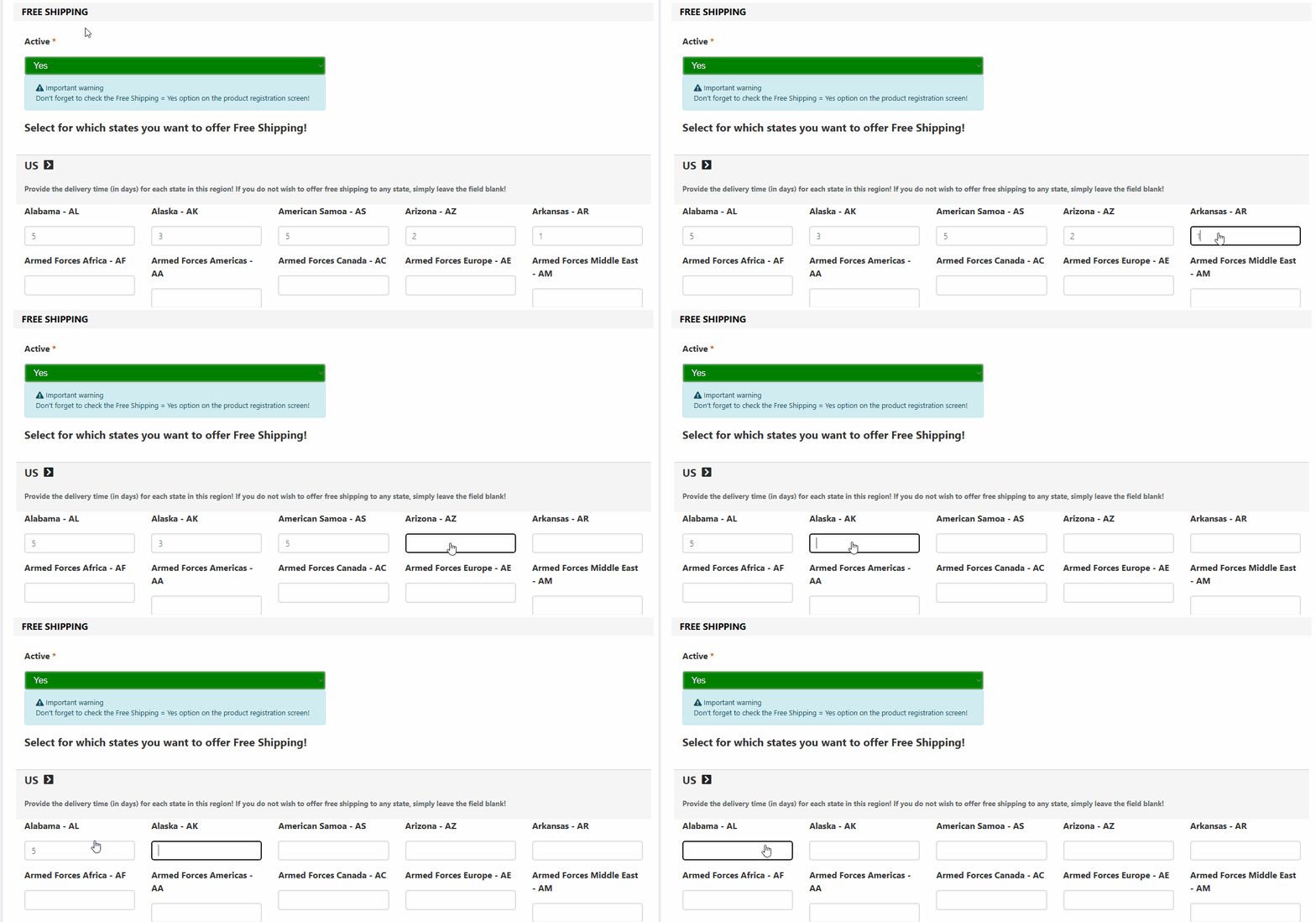
If your seller/reseller is currently offering free shipping for a specific state and you no longer want to offer it, they must remove the average delivery time for that free shipping option.
It’s important to inform the seller/reseller that, in order for free shipping to work properly, the product itself must be enabled for free shipping in its individual settings.
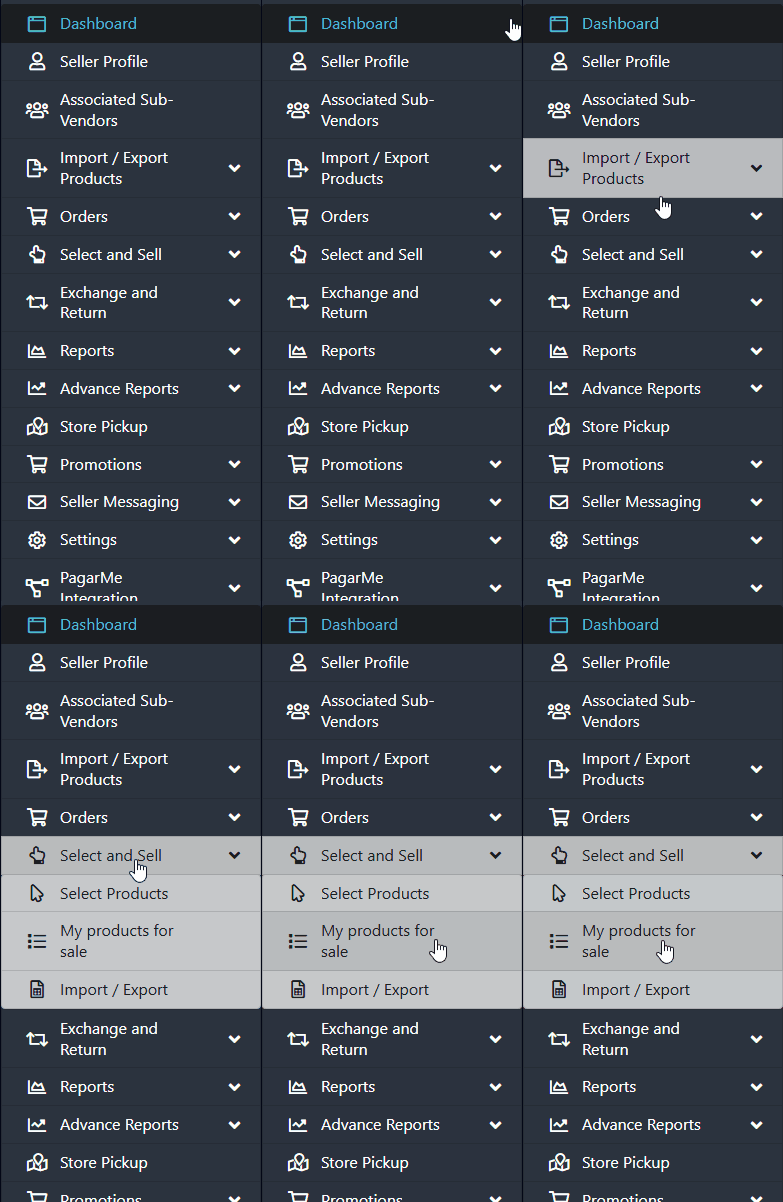
To check this, go to the sidebar menu, navigate to “Select and Sell”, click on it, and choose the option “My Products for Sale.
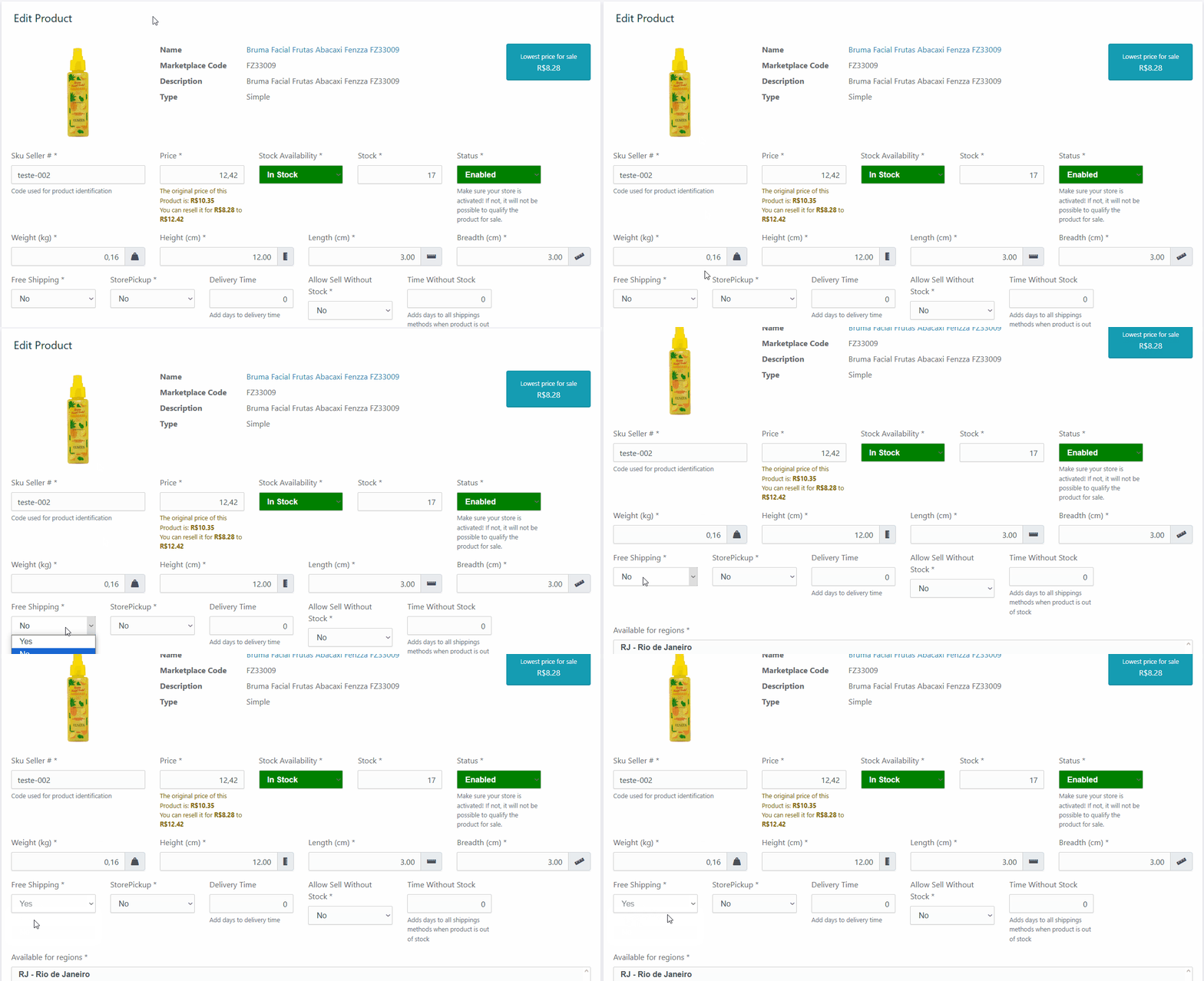
After that, check whether the products your seller/reseller wants to offer with free shipping have the “Free Shipping” field set to “Yes.”
If the option is set to “No,” change it to “Yes.”
This way, your seller/reseller will begin offering free shipping for that product.
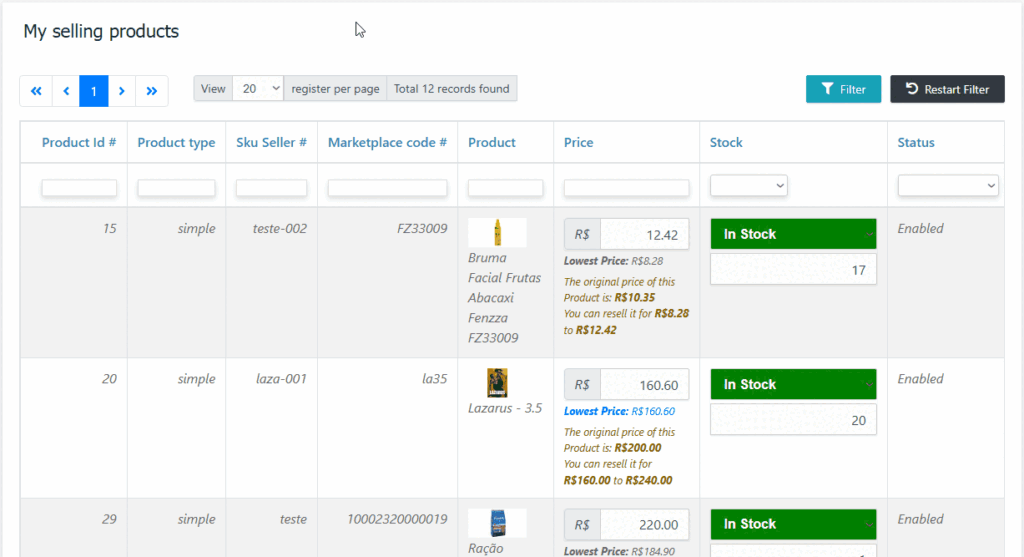
If your seller/reseller does not want to offer free shipping for a specific product, access the product, go to the “Free Shipping” field, and if the option is set to “Yes,” change it to “No.”
This way, your seller/reseller will no longer be offering free shipping for that product.
If you want to update the field by adding or removing free shipping from multiple products at once, please read our article: “How to update the product’s free shipping field via spreadsheet.”
If you experience any difficulties or have questions, don’t hesitate to contact our support team. We’re always here to help!