
The following documentation will show you the step-by-step process to enable the WhatsApp button in your marketplace.
First, navigate through the side menu to the “Systems” tab. When you select “Systems,” a new submenu will appear. In this submenu, click on “Settings.”

After the page has loaded, look for the ‘WhatsApp Contacts’ tab. Click on this tab to open a new page.
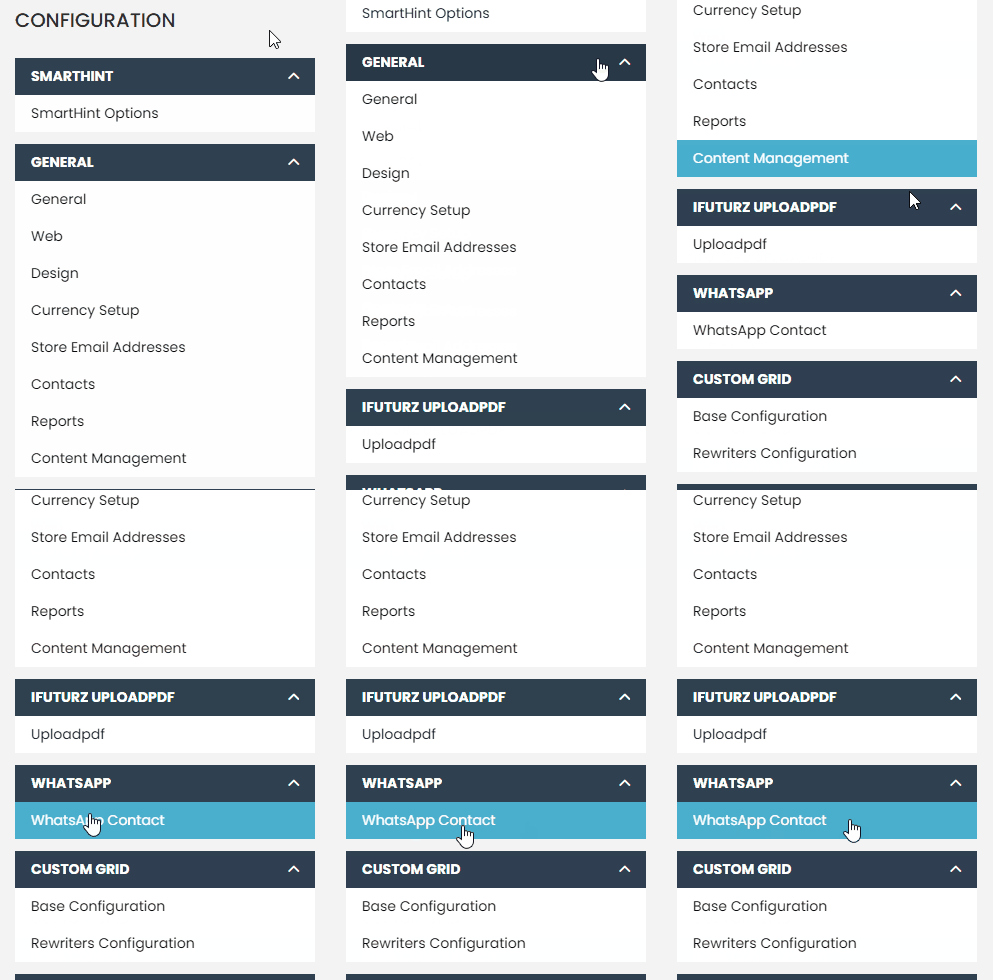
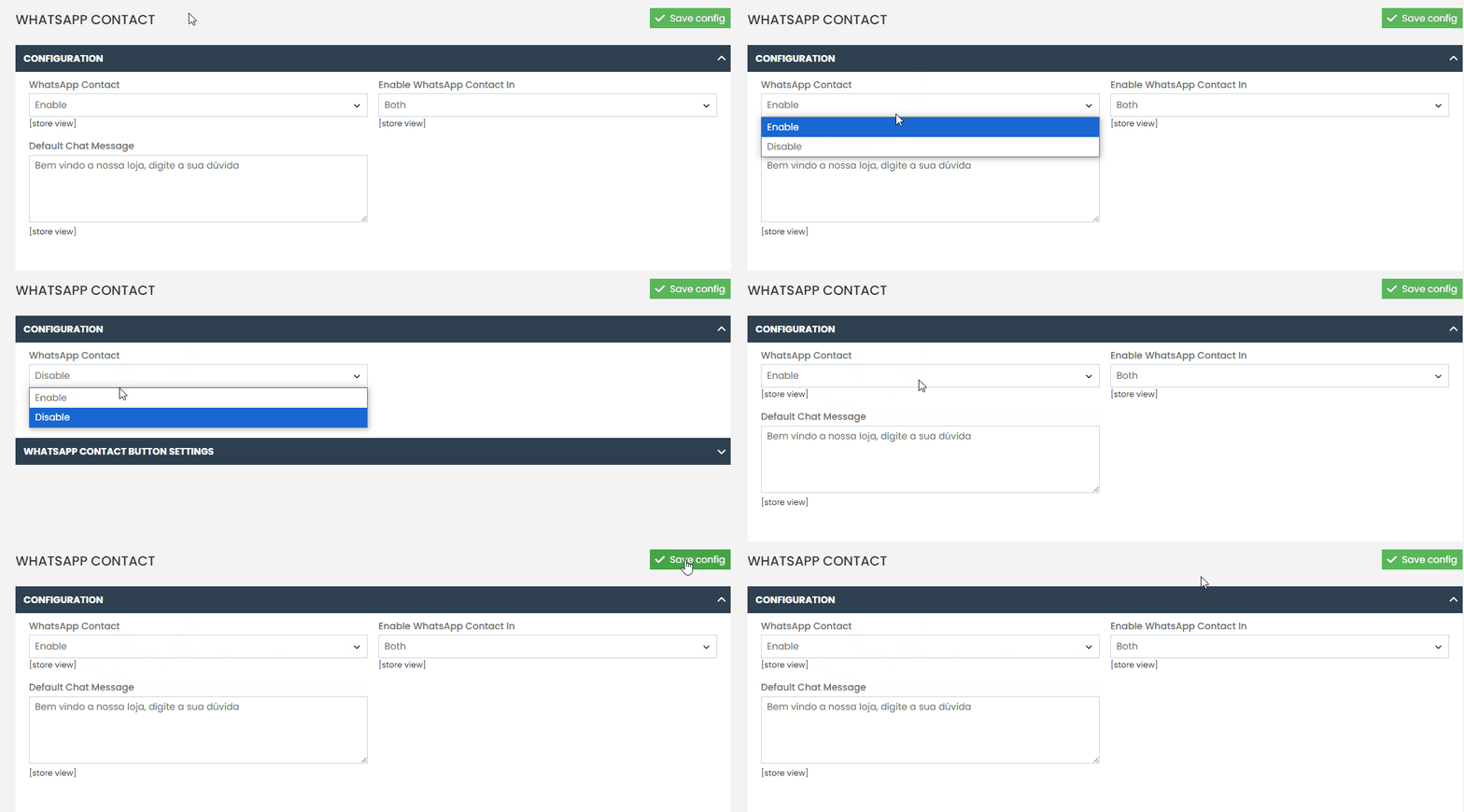
If the functionality is disabled, click on ‘Enable‘ to activate it.
“Then, select the option ‘WhatsApp Contact Button Settings‘ to access all the settings for this functionality. In the list of options, locate ‘Contact Mobile Number’ and enter your phone number.
Finally, don’t forget to click the green ‘Save Configuration‘ button located in the upper right corner of the screen.”
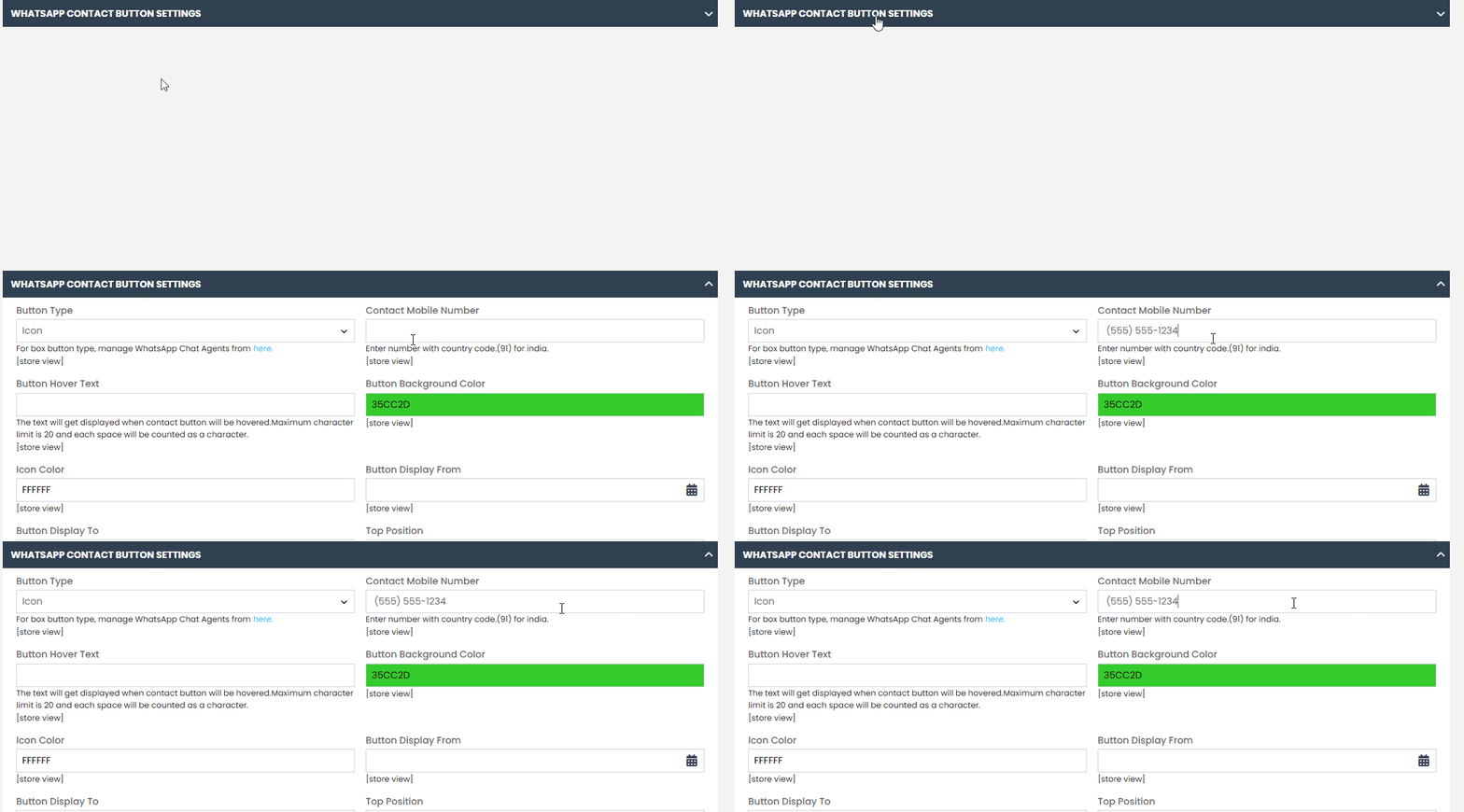
Do not enter the phone number as shown in the image. Instead, fill in the field with your own phone number.
Done! With this step-by-step guide, you will be able to enable the WhatsApp icon on your platform. If you encounter any difficulties or have any questions, don’t hesitate to contact our support team. We are always available to help!