
This documentation demonstrates how to create custom options in products, using two practical examples: customization with an additional price and size customization. These custom options allow customers to select product variations according to their specific needs, such as adding the student’s name and school to a t-shirt.
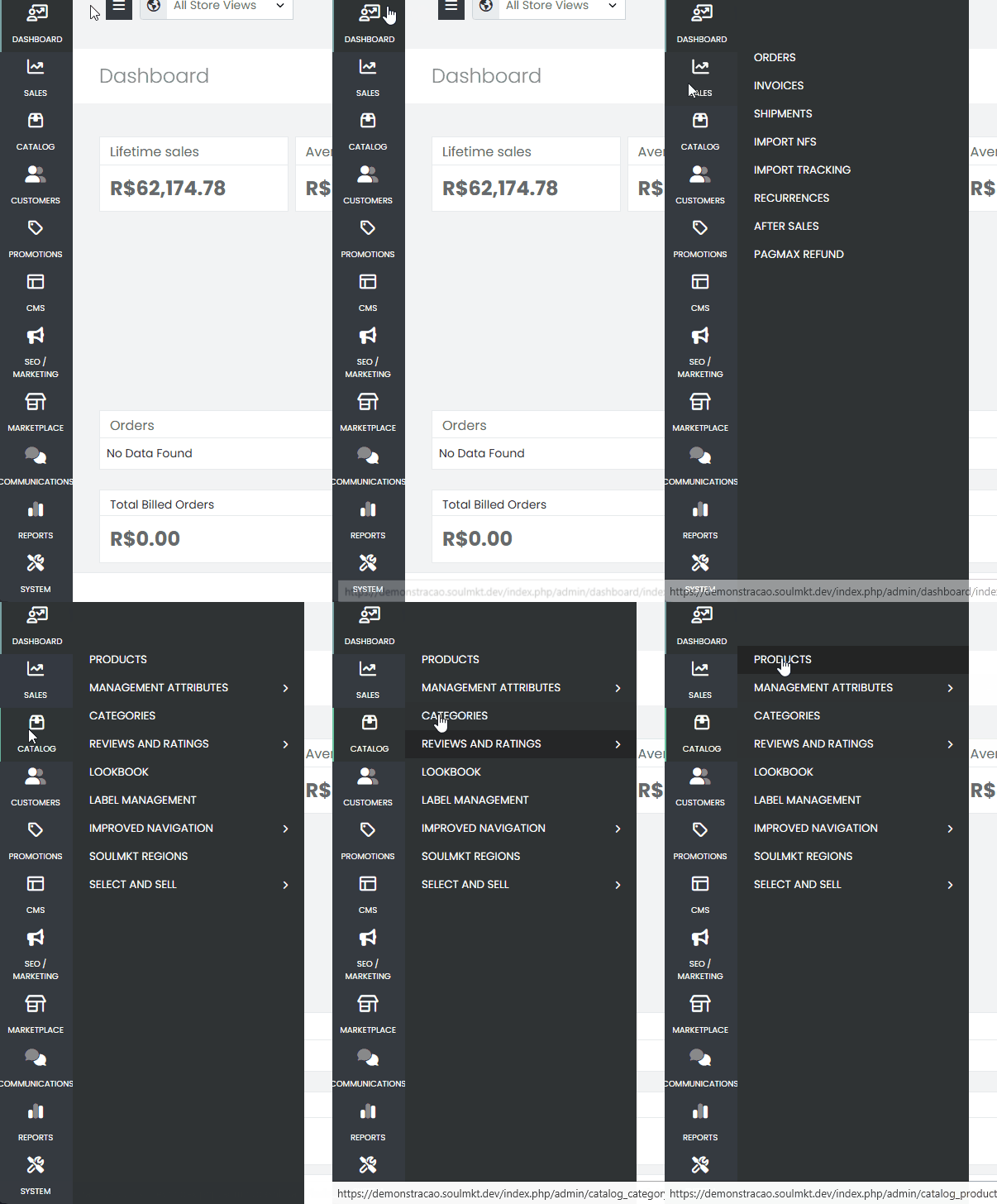
First, navigate through the side menu to the “Catalog” tab and select “Products”.
Supported Input Types #
In this demonstration, we will focus on the two most common input types:
- Checkbox
- Dropdown (Drop-Down List)
Other input types, such as radio buttons, can also be used. However, for the purposes of this documentation, we will only cover the two mentioned above.
Step-by-Step Guide to Create a Custom Option #
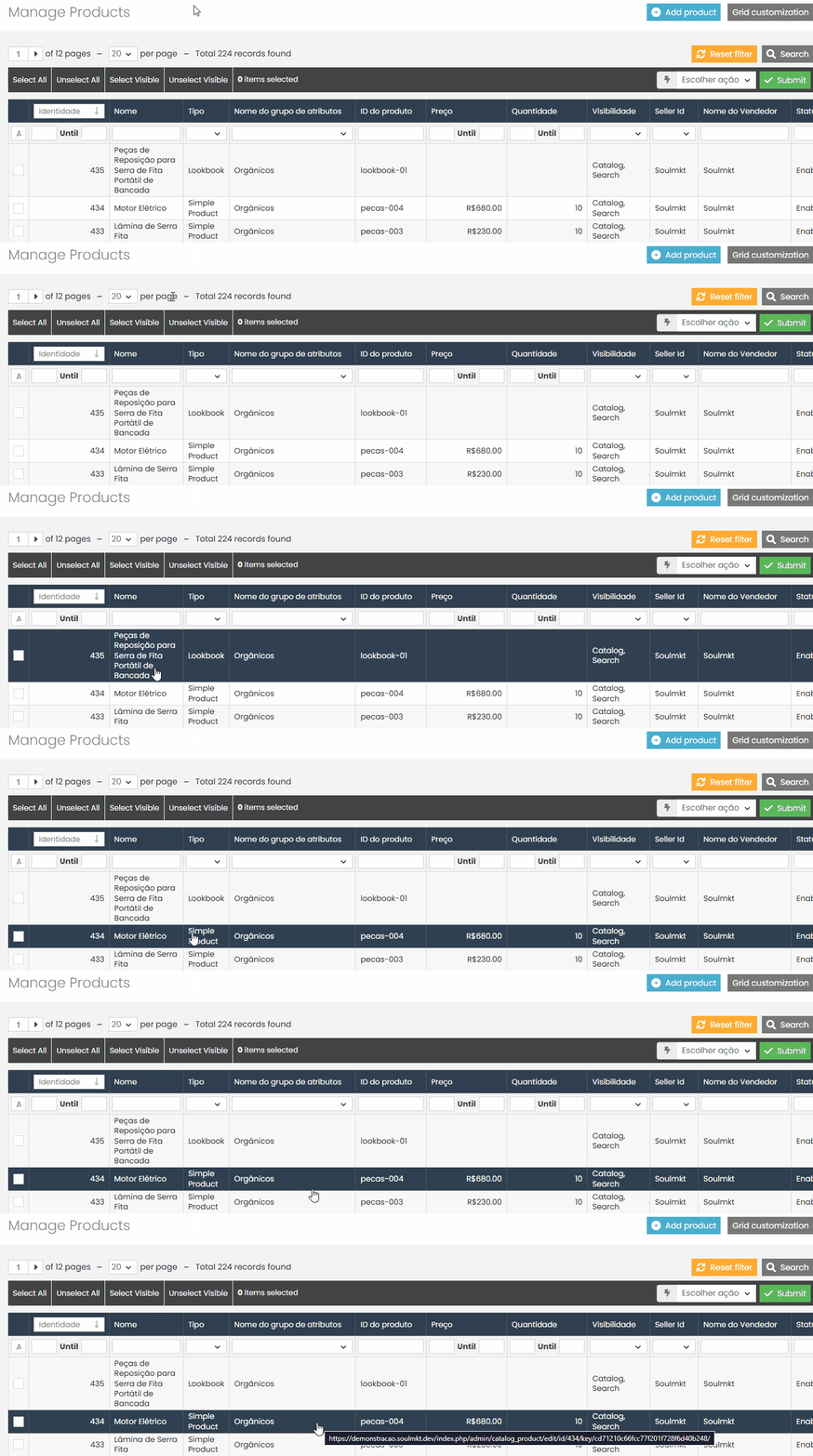
- Navigate to the Catalog tab in the side menu and search for the product to which you want to add a custom option.
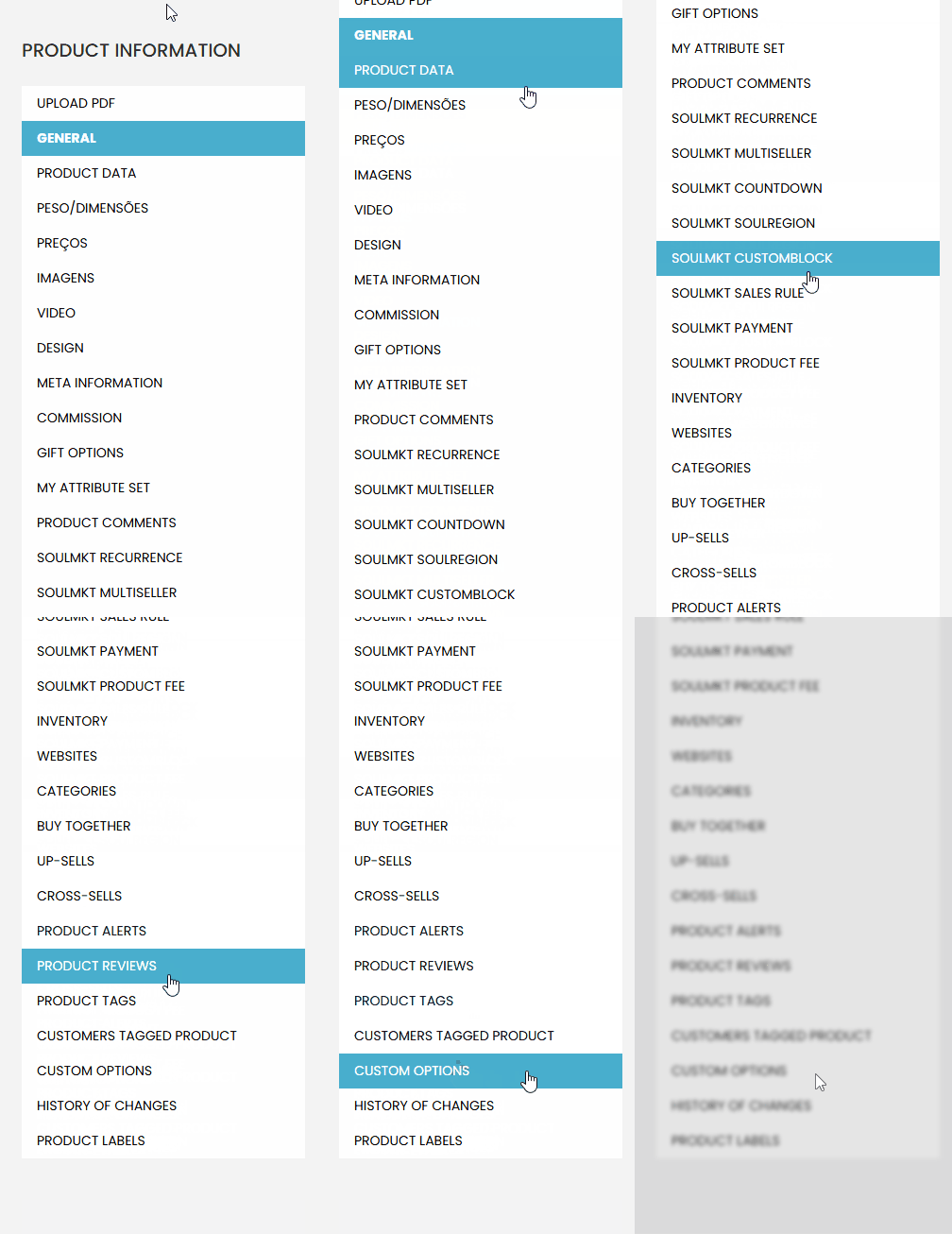
- Go to Product Information and Select Custom Options
Next, click the blue button “Create an Option”.

- Name the option as “Customization”.
- Select the input type: checkbox or dropdown.
- Set whether the option is mandatory or optional.
Add Specific Options
Add customization variations, such as:
- No Customization: Additional price = $0.00.
- With Customization: Additional price = $20.00 (example for t-shirts).
Define whether the value will be fixed or a percentage of the product price.
Practical Examples #
Example 1: Customization with Additional Price
- Product: Customized T-Shirt.
- Option: With customization.
- Additional Price: $20.00.
Example 2: Size Customization
- Product: Mug.
- Option: Size (small, medium, large).
- Additional Price: Can be defined individually for each size.
Alternative Input Types #
- Radio Button: Allows the selection of only one option.
- Checkbox: Allows the selection of multiple options.
- Dropdown: Allows the selection of a single option from a list.
Final Considerations #
- Ensure that the custom options meet customer needs and are intuitive.
- Prefer creating configurable products if you need to offer multiple variations. Configurable products provide more efficient and robust maintenance.
- Use custom options only in specific situations, such as print customization or name engraving.
This documentation aims to assist in effectively creating custom options, ensuring greater flexibility and product customization.
If you have any difficulties or questions, do not hesitate to contact our support team. We are always available to help!